Table of Contents >> Show >> Hide
- Why Liquid Damage Is So Dangerous for a MacBook
- The First Few Minutes After a Spill Matter
- How a Keen Eye Can Save a Liquid Damaged MacBook
- Common Symptoms of a Liquid Damaged MacBook
- Can a Liquid Damaged MacBook Be Repaired?
- Data Recovery: The Part Everyone Remembers Too Late
- What Not to Do After Liquid Damage
- How Professionals Diagnose a Liquid Damaged MacBook
- Prevention: The Cheapest Repair Strategy
- Experience Notes: What Liquid Damaged MacBooks Teach You
- Conclusion
A liquid damaged MacBook can make even the calmest person suddenly believe in time travel. One second, you are typing an email like a responsible adult. The next, coffee is spreading across the keyboard like it just bought beachfront property. The screen flickers, the trackpad hesitates, and your heart performs a dramatic reboot.
But here is the good news: a MacBook spill is not always a funeral. Sometimes, the difference between a dead machine and a saved one is not luck, magic, or a bag of rice from the pantry. It is a keen eye, quick decisions, and a careful diagnosis that spots tiny clues before they become expensive disasters.
This article explains how a liquid damaged MacBook can be saved, why corrosion is the real villain, what smart users should do immediately after a spill, and how professional technicians approach board-level repair. We will also look at real-world signs, repair decisions, data recovery concerns, and practical experience from cases where a careful inspection turned panic into relief.
Why Liquid Damage Is So Dangerous for a MacBook
MacBooks are beautifully engineered machines, but they are not designed to enjoy iced coffee, tea, soda, or mystery desk water. Inside that slim aluminum body are tightly packed components, power rails, connectors, chips, keyboard circuits, trackpad cables, speakers, battery lines, and storage pathways. Liquid does not need to flood the entire laptop to create trouble. A few drops in the wrong place can interrupt power, trigger corrosion, or short a tiny component that the average person would never notice.
Water alone is bad enough, but many spills are more complicated. Coffee, juice, wine, soda, milk, and sweet tea leave residue after drying. That residue can be sticky, acidic, conductive, or corrosive. In plain English: even when the MacBook looks dry, it may still be quietly plotting its next failure inside.
The Hidden Problem: Corrosion
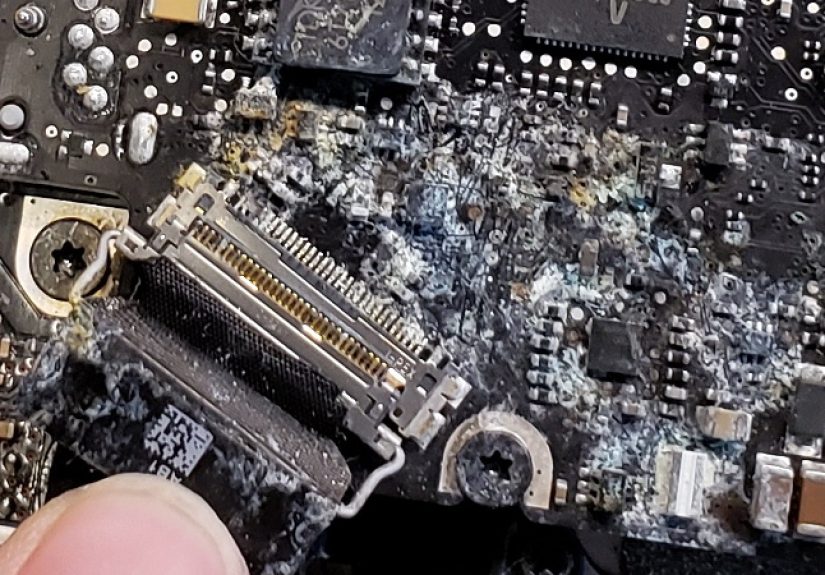
Many people think the danger ends once the liquid disappears. Unfortunately, corrosion can continue after the visible spill is gone. It often appears around connectors, charging areas, keyboard circuits, trackpad connectors, display circuits, or the logic board. A MacBook may turn on today and fail next week because liquid residue kept damaging metal contacts over time.
This is why a keen eye matters. A trained technician may spot a faint green mark, a dull connector, a stained screw, a discolored pad, or a suspicious area under magnification. That tiny clue can point to the real failure. Without that observation, someone might replace the wrong part, quote an unnecessary full logic board replacement, or declare the machine hopeless too early.
The First Few Minutes After a Spill Matter
If liquid hits a MacBook, the first goal is simple: reduce power, reduce movement, and reduce additional liquid spread. The best immediate response is to shut the MacBook down, unplug power, disconnect accessories, and avoid charging or turning it back on to “check if it works.” That test is tempting, but it can turn a repairable spill into a short-circuit story with a sad violin soundtrack.
Use a clean, absorbent cloth to remove visible moisture from the outside. Do not shake the MacBook like a salad dressing bottle. Do not blast it with a hair dryer. Do not put it in direct sun. And please, for the sake of keyboards everywhere, do not bury it in rice. Rice can leave dust and particles around ports and openings, while doing little to solve the actual issue inside the machine.
Why “It Still Turns On” Can Be Misleading
One of the most dangerous moments after a spill is when the MacBook still powers on. That feels reassuring, but it does not prove the machine is safe. It only proves it has not failed yet. Liquid may still be under keys, near a connector, around a charging port, or beneath a chip. A MacBook that boots after a spill can still develop keyboard failure, charging issues, battery drain, display problems, trackpad glitches, random shutdowns, or data-access trouble later.
The smartest move is to treat the spill seriously even if the MacBook seems normal. Back up important files as soon as it is safe and possible, but do not keep using a wet or unstable machine as if nothing happened. “It seems fine” is not a repair plan; it is a cliffhanger.
How a Keen Eye Can Save a Liquid Damaged MacBook
A careful repair begins with observation. The technician is not just looking for water. They are reading the machine like a crime scene. Where did the liquid enter? Which side of the keyboard was hit? Did it reach the trackpad? Is there staining around USB-C ports? Are there corrosion marks near the display connector? Does the battery report normally? Does the charging circuit respond? Does the machine pull unusual current from a power supply?
For example, a MacBook may appear completely dead after a coffee spill. A rushed diagnosis might blame the logic board immediately. A more careful inspection may reveal corrosion around a small connector or power-management area. Once that area is cleaned, tested, and repaired by a qualified technician, the MacBook may power on again without replacing the entire board.
Another common situation involves a MacBook that charges inconsistently after a spill. The owner thinks the battery is bad. The actual issue may be a contaminated USB-C port, a damaged charging controller, or corrosion around a small section of the board. The fix depends on finding the precise failure, not guessing based on symptoms alone.
The Difference Between Cleaning and Repair
There is a big difference between wiping a laptop and repairing liquid damage. Surface drying helps, but internal liquid exposure often requires professional inspection. In serious cases, technicians may use board-level diagnostic tools, magnification, ultrasonic cleaning equipment, safe cleaning processes, replacement connectors, and component-level repair. The goal is not to make the board look pretty. The goal is to remove contamination, stop corrosion, identify damaged circuits, and restore reliable function.
This is also why cheap “quick dry” fixes often fail. Liquid damage is not always solved by waiting. Time can help moisture evaporate, but time alone does not remove sticky residue or corrosion. A soda spill that dries inside a MacBook is not gone; it has simply become a tiny sugar-based villain wearing camouflage.
Common Symptoms of a Liquid Damaged MacBook
Liquid damage does not always announce itself with sparks and smoke. Sometimes it whispers. Watch for these warning signs after a spill:
- The MacBook does not power on.
- The keyboard types random characters or some keys stop working.
- The trackpad clicks poorly, moves erratically, or stops responding.
- The MacBook charges only from one port or does not charge at all.
- A USB-C liquid detection alert appears.
- The screen flickers, stays black, or shows lines.
- The fans run loudly for no clear reason.
- The MacBook shuts down randomly.
- The battery drains faster than usual.
- There is visible residue, staining, or stickiness near the keyboard or ports.
These symptoms can overlap with normal hardware failures, which is another reason diagnosis matters. The phrase “liquid damaged MacBook” sounds simple, but the actual failure may involve the keyboard, trackpad, display circuit, charging area, battery communication, logic board, speakers, ports, or storage access.
Can a Liquid Damaged MacBook Be Repaired?
Yes, many liquid damaged MacBooks can be repaired, but the outcome depends on the type of liquid, how much entered the machine, how long it stayed powered, where the liquid traveled, and how quickly the laptop was handled properly. Clean water caught quickly may have a better chance than sugary coffee that sat inside the keyboard for days. However, even severe cases are not automatically hopeless.
Apple and many authorized repair routes often focus on part replacement rather than component-level board repair. That can be reliable, but it may also be expensive. Independent board-level repair shops may attempt to repair the affected circuits directly, especially when the goal is to save money or recover data. The right choice depends on the MacBook model, warranty or AppleCare+ status, repair cost, data importance, and whether the owner needs long-term reliability or only data recovery.
Repair vs. Replacement: How to Decide
If the MacBook is older, a repair quote may approach the value of the machine. If it is a newer MacBook Air or MacBook Pro, board-level repair may be much more attractive. If the laptop contains irreplaceable files and no backup exists, data recovery may be the top priority. If the device is covered by AppleCare+ with accidental damage coverage, the official service route may be worth checking first.
The decision should be based on a real diagnosis, not fear. A dead MacBook after a spill does not always mean the storage is gone. A bad keyboard does not always mean the logic board is ruined. A charging problem does not always mean the battery failed. A keen eye separates symptoms from causes.
Data Recovery: The Part Everyone Remembers Too Late
Liquid damage is stressful because a MacBook is more than hardware. It may hold work files, school projects, family photos, business documents, passwords, creative projects, tax records, music sessions, design files, and a suspicious number of screenshots named “Screen Shot Final FINAL.”
Modern MacBooks often use soldered storage, which means the storage chips are part of the logic board rather than a removable drive. That makes regular backups extremely important. If a liquid damaged MacBook will not power on, data recovery may require restoring board function enough to access the internal storage. In some cases, professional data recovery specialists can still retrieve files, but it is usually more complex and more expensive than restoring from a backup.
The lesson is clear: Time Machine, iCloud Drive, external backups, and cloud storage are not boring. They are future-you sending present-you a thank-you card.
What Not to Do After Liquid Damage
Some well-meaning advice can make liquid damage worse. Avoid these common mistakes:
- Do not keep pressing the power button to see whether it still works.
- Do not plug in the charger while ports may be wet.
- Do not use a hair dryer or direct heat.
- Do not place the MacBook in rice.
- Do not shake the laptop aggressively.
- Do not assume it is safe just because the keyboard looks dry.
- Do not ignore strange behavior after a spill.
The safest mindset is simple: liquid plus electricity equals risk. If the MacBook matters, treat the spill seriously and get a proper assessment before using it heavily again.
How Professionals Diagnose a Liquid Damaged MacBook
A professional diagnosis usually starts with the story. What spilled? Where did it land? Was the laptop charging? Did it shut off by itself? Did anyone try to power it on afterward? How long ago did the spill happen? These answers help narrow the search.
Next comes inspection. A technician may look for residue, corrosion, burnt components, damaged connectors, liquid contact indicators, abnormal power behavior, and signs of short circuits. They may test charging ports, keyboard function, trackpad response, display output, battery communication, and board power rails. In board-level repair, the process may involve cleaning contaminated areas, replacing damaged components, and testing the machine under normal load.
The “keen eye” is not just good eyesight. It is pattern recognition. A skilled repairer knows that a tiny stain near a connector may explain a dead keyboard. A single corroded component may stop charging. A small damaged trace may block communication between the board and another part. The MacBook is a puzzle, and liquid damage scatters the pieces.
Prevention: The Cheapest Repair Strategy
The best liquid damage repair is the one you never need. Keep drinks away from the laptop, especially open cups. Use a separate side table for coffee. Choose bottles with lids. Avoid setting a MacBook near plants, humid windows, fish tanks, kitchen counters, bathroom sinks, or dramatic pets with tails. If you work in a café, place drinks on the opposite side from your charging port and documents.
A keyboard cover may help against small splashes, but it is not a waterproof shield. It can also affect typing feel and may not protect ports, vents, or edges. The real solution is habit: distance between liquid and laptop. It sounds simple because it is. Unfortunately, most spill stories begin with “I only put the drink there for a second.” Famous last words, usually followed by a very expensive silence.
Experience Notes: What Liquid Damaged MacBooks Teach You
After seeing enough liquid damage stories, one lesson stands out: the calmest person in the room usually saves the most money. Panic creates bad decisions. People turn the MacBook on repeatedly, plug in the charger, wipe the keyboard too aggressively, or wait several days because the outside “looks dry.” By the time the machine reaches a technician, the original problem may have grown into corrosion, keyboard failure, charging trouble, and data anxiety.
One memorable type of case involves a small spill that seems harmless. A user knocks over a little water near the left side of a MacBook Air. The laptop keeps running. They wipe it, laugh nervously, and keep working. Two days later, the keyboard starts missing letters. A week later, the MacBook only charges from one side. When inspected, the problem is not a lake inside the laptop. It is a small trail of corrosion near a connector. The spill was tiny, but it landed in exactly the wrong place. That is why a keen eye matters more than the size of the spill.
Another common experience is the “coffee survivor.” Coffee is especially annoying because it brings friends: sugar, oils, acids, and sticky residue. A MacBook may dry externally, but the inside can remain contaminated. The keyboard may feel gummy, the trackpad may click strangely, or the charging behavior may become unpredictable. In these cases, a careful technician does not simply ask whether the machine powers on. They inspect where the coffee likely traveled and which circuits sit along that path.
Then there is the data panic case. The MacBook does not turn on, and the owner suddenly remembers that the only copy of an important project lives on that machine. This is where repair and data recovery overlap. The goal may not be to make the MacBook perfect again. The immediate goal may be to restore enough function to access the storage and recover files. A good diagnosis separates “save the laptop” from “save the data,” because those are related but not always identical missions.
The most encouraging cases are the ones where the damage looks worse than it is. A MacBook may arrive dead, but a close inspection finds corrosion limited to a small section. After professional cleaning, targeted component repair, and careful testing, the machine returns to life. It feels dramatic, almost like a hospital scene for aluminum rectangles. But the real hero is not drama. It is methodical work: observe, test, clean, repair, verify.
The hardest cases usually involve delay. Liquid sat inside the machine too long, the MacBook was charged while wet, or the user kept using it after symptoms appeared. Even then, hope is not automatically gone, but the repair becomes more uncertain. This is why every liquid damage story should end with the same practical wisdom: act fast, avoid myths, protect your data, and let a careful diagnosis guide the next step.
Conclusion
A liquid damaged MacBook saved with a keen eye is not just a repair story. It is a reminder that modern laptops are delicate systems where tiny details matter. The spill may be obvious, but the real damage is often hidden. Corrosion, residue, shorted components, damaged connectors, and charging issues can appear long after the surface dries.
The best response is to shut the MacBook down, disconnect power, avoid charging, skip the rice, avoid heat, and get a proper inspection if the device or data matters. A careful technician can often identify the exact failure, protect important files, and determine whether repair, replacement, or data recovery makes the most sense.
Most of all, do not let panic make the repair worse. Liquid damage is serious, but it is not always the end. Sometimes, one careful look in the right place can turn a very bad day into a saved MacBookand maybe a permanent new rule: coffee gets its own table.