Table of Contents >> Show >> Hide
- Why Xbox 360 Controllers Don’t “Just Work” on Xbox One
- The 5-Step Method: The Realistic Way to Use an Xbox 360 Controller on Xbox One
- Step 1: Identify Your Xbox 360 Controller Type (Wired vs. Wireless)
- Step 2: Choose Your Approach (Adapter vs. PC/Remote Play Workaround)
- Step 3: Set Up the Hardware (and Avoid the Most Common Mistakes)
- Step 4: Fix Button Mapping and Controller Behavior
- Step 5: Troubleshoot Like a Pro (Because Something Will Be Weird at Least Once)
- Better Alternatives (If You Want Less Drama)
- FAQ: Quick Answers People Google at 2 a.m.
- Conclusion: The Honest Path to “360 Controller on Xbox One”
- Real-World Experiences: What Using a 360 Controller on Xbox One Actually Feels Like (500+ Words)
Quick heads-up before we start: if you’re trying to plug your trusty Xbox 360 controller straight into an Xbox One and have it “just work,” the Xbox One is going to say, “That’s adorable,” and then do absolutely nothing. Officially, Xbox 360 controllers are not compatible with Xbox One consoles. But if you’re stubborn (in the heroic way), there are a few workarounds that can get you surprisingly close.
This guide walks you through five practical steps to use an Xbox 360 controller with an Xbox One as safely and reliably as possibleplus the gotchas no one warns you about until you’ve rage-ordered a second adapter at 1 a.m.
Why Xbox 360 Controllers Don’t “Just Work” on Xbox One
Xbox 360 and Xbox One controllers may look like cousins at a family reunion, but under the hood they speak different “languages.” Xbox One consoles are designed around Xbox One-era controller protocols and authentication rules, so they won’t decode an Xbox 360 controller signal natively. That means:
- No native wired support (plugging in a 360 controller doesn’t automatically make it an Xbox One controller).
- No native wireless support (Xbox 360 wireless uses a different radio system than Xbox One controllers).
- Backward compatibility isn’t controller compatibilityyou can play many Xbox 360 games on Xbox One, but you still use an Xbox One-compatible controller for the console.
So how do people pull it off? By using a translatoreither hardware (a controller adapter) or a software pathway (streaming/remote play setups) that changes what the Xbox One “sees.”
The 5-Step Method: The Realistic Way to Use an Xbox 360 Controller on Xbox One
Step 1: Identify Your Xbox 360 Controller Type (Wired vs. Wireless)
This sounds basic, but it determines everything.
- Wired Xbox 360 controller: Connects via USB. Typically the easiest to use in workaround setups.
- Wireless Xbox 360 controller: Needs a special receiver (commonly used on PC). Wireless-to-Xbox-One is the hardest path and usually requires more hardware.
Pro tip: If your goal is “play tonight,” wired is your friend. Wireless is your “I enjoy troubleshooting as a hobby” option.
Step 2: Choose Your Approach (Adapter vs. PC/Remote Play Workaround)
You have two realistic routes. Pick based on your patience level and your tolerance for extra cables.
Option A: Use a Controller Adapter (Most Console-Like)
This is the closest experience to “controller → console.” A compatible adapter plugs into your Xbox One and presents your Xbox 360 controller as an Xbox One-compatible input device.
Option B: Use a PC as the Middleman (Most Flexible)
If you can stream your Xbox One gameplay to a PC (or use remote play in certain setups), you may be able to connect the Xbox 360 controller to the PC, then play through the stream. This doesn’t make the controller “compatible” with the console directlyit makes the PC handle the input.
Which one should you choose?
- Pick Adapter if you want a living-room feel and minimal latency.
- Pick PC workaround if you want customization, extra controllers, or you already play near a computer.
Step 3: Set Up the Hardware (and Avoid the Most Common Mistakes)
If You Chose Option A (Adapter)
- Confirm the adapter is intended for Xbox One and supports Xbox 360 controllers specifically (some adapters are for other controller families).
- Update the adapter firmware (if the manufacturer provides a tool). This matters because console updates can break older adapter firmware.
- Connect the adapter to the Xbox One (usually a USB port on the console).
- Connect your Xbox 360 controller to the adapter:
- Wired controller: plug the USB cable into the adapter.
- Wireless controller: connect via the required receiver if the adapter supports it (many do not).
- Power cycle once: If the Xbox One doesn’t recognize anything, fully restart the console (hold the power button, then reboot) and try again.
Important caution (the “don’t shoot the messenger” section): Xbox has historically moved to restrict certain unlicensed or “unauthorized” accessories. If your adapter isn’t licensed or gets flagged, it may trigger an “accessory not supported” type of message and could stop working after a warning period. That doesn’t mean every adapter diesbut it does mean you should choose carefully and keep firmware updated.
If You Chose Option B (PC/Remote Play Workaround)
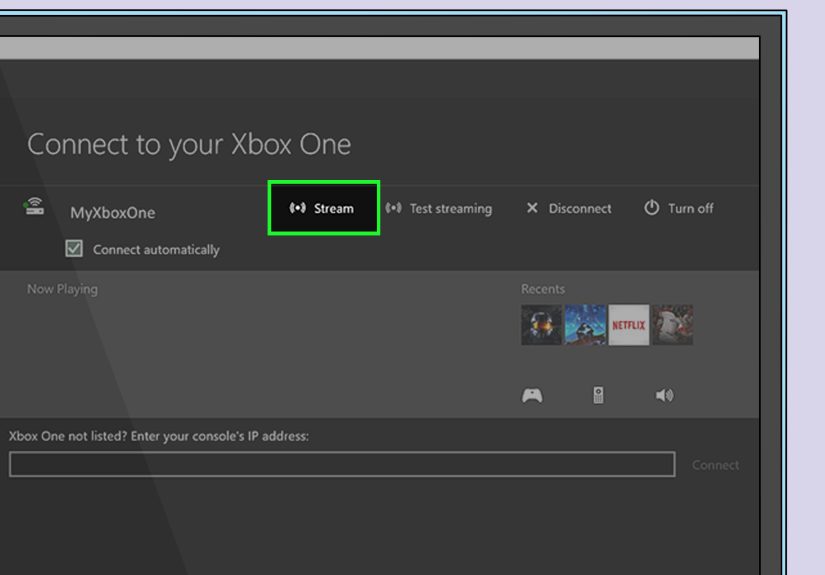
- Set up Xbox remote play or local streaming on your PC and Xbox One (both on the same network helps for stability).
- Connect the Xbox 360 controller to the PC:
- Wired 360 controller: plug in via USB and let Windows install drivers.
- Wireless 360 controller: use the appropriate wireless receiver on the PC.
- Launch the streaming/remote play session and test input in a menu first (menus reveal mapping issues fast).
Reality check: Remote play experiences vary based on network quality. If your Wi-Fi is allergic to stability, you’ll feel it in the thumbsticks.
Step 4: Fix Button Mapping and Controller Behavior
Even when an Xbox 360 controller “works,” it may not feel perfect at first. Here’s how to tune it.
For Adapter Setups
- Check the Home/Guide button behavior. Some adapters route Home through the adapter itself instead of the controller.
- Adjust stick dead zones in-game when possible. Older sticks can feel “loose” compared to modern controllers.
- Disable turbo/macros unless you need them. Some adapters offer turbo/autofire featuresfun for single-player chaos, questionable for anything competitive.
For PC/Remote Play Setups
- Confirm Windows sees it as an XInput controller (most Xbox 360 controllers do).
- Use a controller remapper only if needed. Many games/apps handle Xbox 360 layouts naturally, but if you run into odd mapping, software tools can help.
- Watch for double-input issues if another controller is connected at the same time (disconnect extras while testing).
Step 5: Troubleshoot Like a Pro (Because Something Will Be Weird at Least Once)
Here are the most common problems and what usually fixes them:
Problem: “Nothing happens when I plug it in.”
- Try a different USB port on the Xbox One.
- Reboot the console (full power cycle, not just sleep/wake).
- Swap the USB cable (yes, even if it “looks fine”).
Problem: “It worked yesterday, now it doesn’t.”
- Check whether your Xbox One updated recently.
- Update the adapter firmware if available.
- If the adapter is unlicensed, it may be affected by Xbox accessory enforcement policies.
Problem: “Lag or delayed inputs.”
- Adapter route: try wired controller mode (avoid wireless hops).
- PC/remote play route: use Ethernet on the PC or console if possible, or move closer to the router.
- Kill background downloads/updates while playing.
Problem: “Buttons are wrong / triggers feel off.”
- Test in a different game. Some games implement input differently.
- Look for in-game controller layout options (many games let you remap or swap presets).
- On adapter setups, check if you accidentally enabled a remap profile or turbo mode.
Better Alternatives (If You Want Less Drama)
If your goal is simply “play Xbox One games comfortably,” here are the calmer options:
- Buy an Xbox One-compatible controller (official or licensed third-party). This avoids compatibility fights entirely.
- Use backward compatibility the intended way: play Xbox 360 games on Xbox One with an Xbox One controller.
- Try a modern controller that mimics the 360 feel: some licensed controllers lean into that classic shape and stick tension (without requiring adapters).
FAQ: Quick Answers People Google at 2 a.m.
Can I use an Xbox 360 controller on Xbox One without an adapter?
Not directly. You typically need an adapter or a PC-based streaming workaround to make it usable.
Will a wireless Xbox 360 controller connect to Xbox One?
Not natively. Wireless 360 controllers use a different system than Xbox One controllers, so you’d need extra hardware, and even then results vary.
Do adapters always work?
No. Compatibility depends on the adapter model, firmware, and Xbox console updates. Some adapters are also impacted by Xbox rules around unauthorized accessories.
Is remote play a good workaround?
It can be, especially if your home network is strong. But it may introduce latency and depends on device/controller support.
Conclusion: The Honest Path to “360 Controller on Xbox One”
If you came here hoping for a magical hidden USB port labeled “Xbox 360 Controller Only,” I regret to inform you that Xbox One is not that whimsical. But you can get an Xbox 360 controller workingusually by using a compatible adapter or routing input through a PC streaming setup.
The key is to treat this like a small project: pick the right approach, keep firmware updated, and accept that “unsupported” setups occasionally behave like they’re powered by chaos. Do it right, though, and you’ll be playing with your favorite old controller againnostalgia included, batteries not included.
Real-World Experiences: What Using a 360 Controller on Xbox One Actually Feels Like (500+ Words)
Let’s talk about what happens after the tutorial stepswhen you’re on the couch, the snacks are open, and you just want to play like it’s 2010 again.
1) The “It Works!” moment is real… and then you notice the tiny things.
People who successfully connect a wired Xbox 360 controller through an adapter often report that the first impression is pure victory. You can move around, jump, aim, and the button layout feels instantly familiar. Then come the details: the Guide/Home behavior may be different (some adapters use their own Home button), and certain games feel slightly different because Xbox One-era games were tuned for Xbox One controller hardware. It’s not wrongjust subtly off, like wearing your favorite old sneakers after you’ve gotten used to a newer pair with better cushioning.
2) Wireless is where optimism goes to get humbled.
A common “experience story” goes like this: someone finds a dusty wireless Xbox 360 controller, assumes it’ll pair the way an Xbox One controller does, and spends 20 minutes pressing sync buttons like they’re cracking a safe. The reality is that Xbox 360 wireless and Xbox One wireless are different systems. If your setup depends on a receiver or special adapter support, it becomes a compatibility puzzle: the controller, the receiver, the adapter firmware, and the Xbox One’s current update all have to play nicely. When it works, it’s great; when it doesn’t, it’s a weekend project you didn’t schedule.
3) Remote play/PC streaming can feel brilliant… until your Wi-Fi auditions for a horror movie.
Players who use a PC as the middleman often love the flexibility. You can plug a 360 controller into the PC, sometimes connect multiple controllers more easily, and tweak input behavior with PC tools. But the “feel” depends heavily on your network. In a strong setup (good router, 5 GHz Wi-Fi, minimal interference, or Ethernet), it can be smooth enough that you forget you’re streaming. In a weaker setup, you get occasional input delayespecially noticeable in shooters, platformers with tight timing, or any game where parrying is the difference between “legend” and “respawn screen.”
4) The “adapter roulette” experience: not all adapters are created equal.
Many people try one adapter that’s cheap and available quickly, then upgrade later to something more reliable. The difference often shows up in: connection stability, whether the adapter needs frequent reboots, how cleanly it maps buttons, and whether firmware updates are easy to apply. The best experiences usually come from choosing an adapter that has clear support documentation and a history of updatesbecause console ecosystems evolve, and you want an adapter that can evolve too.
5) Accessibility and preference are huge reasons this workaround exists.
Not everyone is doing this for nostalgia. Some players are deeply accustomed to the Xbox 360 controller shape (or use specialized 360-era peripherals like certain wheels or sticks). For them, getting a familiar controller working isn’t a noveltyit’s what makes gaming comfortable. In those cases, the “experience” isn’t just about convenience; it’s about keeping a setup that works for their hands and playstyle.
Bottom line: The best real-world results come from a simple mindset: treat the Xbox 360 controller as a “legacy device” that needs a translator. When you pick the translator carefully, keep it updated, and choose the setup that matches your environment (living-room console feel vs. PC flexibility), the experience can be genuinely satisfyinglike bringing a classic car onto modern roads with the right parts under the hood.