Table of Contents >> Show >> Hide
- Why Learning Sony Xperia Screenshots Still Matters
- How to Take a Screenshot with the Sony Xperia: 5 Steps
- Alternative Ways to Screenshot on a Sony Xperia
- How to Take a Scrolling Screenshot on Sony Xperia
- What to Do If Sony Xperia Screenshot Is Not Working
- Best Uses for Sony Xperia Screenshots
- Tips for Better Sony Xperia Screenshots
- Real-World Experiences with Taking Screenshots on a Sony Xperia
- Conclusion
Sometimes your Sony Xperia screen deserves to be immortalized. Maybe it is a hilarious text, a proof-of-payment page, a recipe you swear you will cook later, or that glorious moment when your battery is somehow still at 42% by dinner. Whatever the reason, knowing how to take a screenshot on a Sony Xperia is one of those tiny phone skills that saves time over and over again.
The good news is that screenshotting on Xperia phones is usually simple. The main method works on most modern Sony Xperia models, and there are also a few backup tricks depending on your Android version, navigation style, and device settings. In this guide, you will learn the standard five-step method, plus extra ways to capture your screen, edit it, find it later, and fix problems if the screenshot feature acts moody.
Why Learning Sony Xperia Screenshots Still Matters
A screenshot is basically your phone saying, “Let me hold onto this for you.” It is one of the fastest ways to save information without copying, pasting, bookmarking, forwarding, or opening another app. On a Sony Xperia, screenshots can help you:
- Save confirmation pages, boarding passes, maps, and receipts
- Keep a visual record of messages, settings, or account information
- Share social posts, game scores, and error messages
- Capture instructions before switching apps
- Save images from apps that do not offer a built-in download option
And yes, screenshots also let you prove to your friends that you were, in fact, correct all along. Use that power responsibly.
How to Take a Screenshot with the Sony Xperia: 5 Steps
This is the easiest and most widely supported method on Sony Xperia smartphones. If you only remember one way to take a screenshot, make it this one.
Step 1: Open the Screen You Want to Capture
Go to the exact page, app, message, photo, map, or menu you want to save. Make sure everything you want visible is already on the screen before you take the screenshot. If you need to scroll, stop at the part you want first.
This may sound obvious, but many accidental screenshots happen when people hit the buttons too early and capture their home screen instead of the actual content. Your Xperia is fast, but not psychic.
Step 2: Press the Power Button and Volume Down Button at the Same Time
Place one finger on the Power button and another on Volume Down. Press them simultaneously for about a second, then release.
Timing matters here. If you press Power first and hesitate, your Xperia may open the power menu instead of taking a screenshot. If you press Volume Down first and get creative with your timing, the phone may simply lower the volume and judge you silently. Press both together in one quick move.
Step 3: Watch for the Screenshot Confirmation
When the screenshot works, the screen usually flashes briefly, and a small preview thumbnail appears. You may also hear a shutter-like sound or feel a slight vibration, depending on your settings.
That preview is your sign that the capture was successful. If nothing appears, try again and make sure both buttons were pressed at exactly the same time.
Step 4: Tap the Preview to Edit, Share, or Crop
After you take the screenshot, a thumbnail preview often appears near the bottom or side of the screen for a moment. Tap it if you want to:
- Crop the image
- Draw or mark up the screenshot
- Share it immediately
- Delete it if you captured the wrong thing
This is useful when you only want part of the screen. For example, if you took a screenshot of a conversation but do not want to include the top notification bar, a quick crop fixes that in seconds.
Step 5: Find Your Screenshot in Photos, Album, or Files
If you do not edit it right away, your screenshot is normally saved automatically. Depending on your Xperia model and app setup, you can usually find it in:
- Google Photos under Screenshots
- Album on some Xperia models
- Files or internal storage folders
If you take a lot of screenshots, it helps to check where your phone stores them so you are not forced into an archaeological dig later.
Alternative Ways to Screenshot on a Sony Xperia
The two-button shortcut is the standard method, but Sony Xperia phones may also offer other screenshot options depending on the model and Android version. These can be especially helpful if your buttons are hard to press or you want a quicker one-handed method.
Use the Power Menu on Supported Xperia Models
Some Xperia phones let you press and hold the Power button to open a menu with a screenshot option. If your model supports this, tap Take a screenshot from that menu.
This can feel easier than using two fingers, especially when your phone is in a thick case or your hands are full. It is not available on every Xperia model, though, so treat it as a bonus method rather than the universal one.
Use the Overview or Recent Apps Screen
On some Android setups, especially with certain navigation styles, you can take a screenshot from the Overview or Recent Apps screen.
Open the app you want to capture, then:
- If you use gesture navigation, swipe up and hold to open recent apps
- If you use 3-button navigation, tap the square Overview button
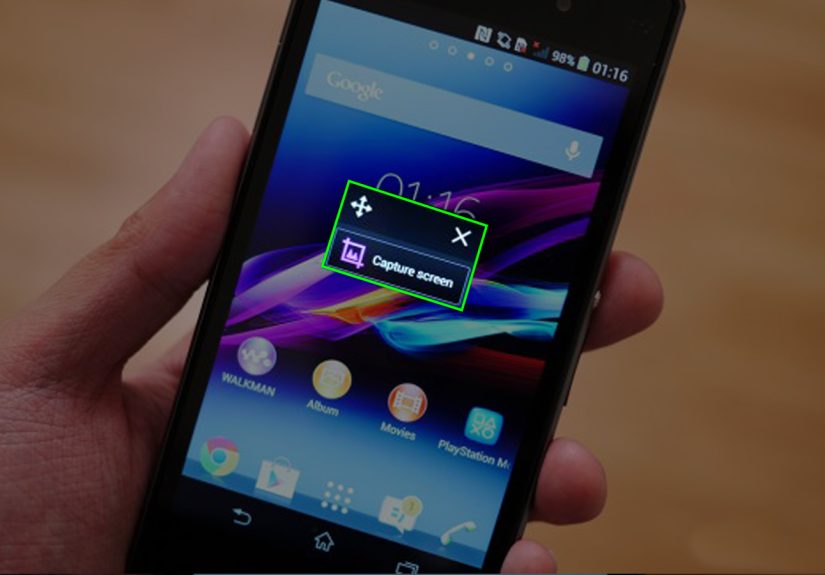
On supported Xperia devices, you may see a Screenshot or Capture screen option. Tap it to capture the current app view.
Use Quick Settings on Newer Xperia Phones
Some newer Xperia devices can place a screenshot shortcut in the Quick Settings panel. Swipe down from the top of the screen twice and look for a Screenshot tile.
If you see it, tap it and your phone will capture the current screen. This method is handy when physical buttons are awkward or you want a more visible on-screen shortcut.
Set Up Side Sense for Faster Screenshots
Many Sony Xperia phones include Side Sense, Sony’s edge gesture feature. On supported models, you can assign a gesture like double-tap, slide up, or slide down to take a screenshot.
To check, go to your Xperia settings and look under Display and Side Sense. If screenshot can be assigned as a gesture, this becomes one of the quickest ways to capture your screen with one hand.
That said, Side Sense can take a little practice. The first few attempts might feel like trying to high-five a ghost. Stick with it.
How to Take a Scrolling Screenshot on Sony Xperia
Sometimes a normal screenshot is not enough. A recipe, article, shopping list, or long conversation may continue beyond one screen. On Android versions that support it, Xperia phones may show an option like Capture more after a screenshot is taken.
If that option appears, tap it and extend the capture down the page. This creates a longer screenshot instead of forcing you to save five separate images and pretend that is normal.
Keep in mind that scrolling screenshots do not work in every app. They are most likely to appear on screens that naturally scroll vertically, such as web pages or certain documents.
What to Do If Sony Xperia Screenshot Is Not Working
If your screenshot shortcut is not working, do not panic. Your Xperia is probably not broken. It is usually a timing issue, a settings issue, or an app limitation.
1. Press the Buttons Quickly, Not Too Long
The most common mistake is holding the buttons too long. If the power menu opens instead of taking a screenshot, that is your clue. Try a quicker, more simultaneous press.
2. Check Whether the App Blocks Screenshots
Some apps intentionally block screenshots for privacy or security reasons. Banking apps, private browsing windows, streaming platforms, and some work-managed apps may prevent screen capture.
If your phone refuses to capture one specific app but works everywhere else, the app is probably the reason.
3. Restart Your Xperia
Classic advice, yes, but it works surprisingly often. A restart can fix temporary glitches affecting button combinations, notifications, or the screenshot preview.
4. Free Up Storage Space
Screenshots need storage space to save. If your Xperia storage is nearly full, the phone may fail to save new captures properly. Delete old files, videos, or duplicate photos if necessary.
5. Update Your Software
If screenshot behavior seems buggy after a recent change, check for a system update. Sony and Android updates can improve button response, navigation tools, and screenshot handling.
6. Try an Alternative Method
If the buttons are worn out or your case makes them difficult to press, use the power menu, Quick Settings, Overview screen, or Side Sense if your Xperia model supports those options.
Best Uses for Sony Xperia Screenshots
Once you get comfortable taking screenshots on your Sony Xperia, you will start using the feature more than expected. Here are a few smart, practical uses:
- Saving directions before entering an area with weak signal
- Capturing order confirmations and tracking numbers
- Keeping workout stats or game achievements
- Saving error messages for tech support
- Sharing social media posts or product details with friends
- Storing serial numbers, settings pages, or Wi-Fi instructions
A screenshot is often faster than copying text or sending yourself a link. It is the digital version of jotting something down before it disappears.
Tips for Better Sony Xperia Screenshots
If you want cleaner, more useful screenshots, try these simple habits:
- Clear distracting notifications before capturing
- Increase screen brightness if the content looks dim
- Crop personal information before sharing
- Use folders or albums to organize important screenshots
- Delete duplicates once you are done with them
This keeps your screenshots useful instead of turning your gallery into a chaotic museum of forgotten tabs, half-read recipes, and accidental lock-screen photos.
Real-World Experiences with Taking Screenshots on a Sony Xperia
Using screenshots on a Sony Xperia feels like one of those small phone habits that quietly becomes part of daily life. At first, most people only learn it for one reason. Maybe they want to save a text message, capture a coupon, or keep a photo of a settings page before changing something important. Then, before long, the feature becomes a routine tool that helps in dozens of little moments.
One common experience is using screenshots as a backup memory system. Imagine you are checking a restaurant confirmation, train schedule, or event ticket and you know internet service may get patchy later. Instead of reopening the app again and again, you take one quick screenshot and move on. Suddenly your Xperia becomes less of a phone and more of a pocket filing cabinet, just with better wallpaper.
Another familiar situation is troubleshooting. Plenty of Xperia users capture screens when something on the phone looks odd, such as a battery warning, app error, or unusual setting. A screenshot makes it much easier to explain the problem to customer support, a coworker, or that one tech-savvy relative who somehow knows where every menu is hidden. Saying “my phone is doing a weird thing” is vague. Sending a screenshot is evidence.
Screenshots are also incredibly useful for shopping and budgeting. People save product pages, order confirmations, discount codes, and receipts all the time. On a Sony Xperia, the ability to capture and then immediately crop or share the image makes the whole process feel efficient. You do not have to keep twenty tabs open and hope you remember why they were there.
There is also the everyday social side of screenshots. Friends share memes, messages, playlists, game wins, and oddly specific internet drama by screenshotting things constantly. A Sony Xperia makes this easy once you get the button timing right. After that, it becomes muscle memory. Open the screen, press Power and Volume Down together, done. It is one of those actions you stop thinking about after a while, like locking the front door or pretending you will organize your photos this weekend.
For many people, the most annoying part is not taking the screenshot. It is finding it later. That is why it helps to build a tiny habit: if a screenshot matters, rename it, move it, favorite it, or share it right away. Otherwise, it may end up buried between random screenshots of maps, recipes, online orders, and that one typo you captured because it was too funny to ignore.
In real life, the best thing about screenshotting on a Sony Xperia is not that it feels flashy. It is that it feels dependable. It is fast, practical, and useful across work, travel, shopping, entertainment, and problem-solving. Once you know the main method and a couple of backup options, you are set. And honestly, that is what great phone features do. They quietly help you without demanding applause.
Conclusion
Learning how to take a screenshot with a Sony Xperia is quick, practical, and absolutely worth knowing. For most Xperia phones, the fastest method is simple: open the screen you want, press the Power and Volume Down buttons at the same time, and then use the preview to edit or share the image. From there, you can explore other tools like the power menu, Overview shortcut, Quick Settings tile, Side Sense gestures, or scrolling screenshots when supported by your model.
Once you get the timing down, screenshotting on Xperia becomes second nature. It is one of those small skills that makes your phone easier to use every single day. Not bad for two buttons and a one-second press.