Table of Contents >> Show >> Hide
- Before You Sort: Quick Checklist (Saves Real Headaches)
- Method 1: Sort a Whole Sheet by a Numeric Column (Fastest for Simple Lists)
- Method 2: Sort Only a Range (Best for Tables Inside a Busy Sheet)
- Method 3: Sort Numbers While Keeping the Header Row in Place (Do This, Please)
- Method 4: Sort Using a Filter (Perfect for “Click-to-Sort” Life)
- Method 5: Sort by Multiple Numeric Columns (Tie-Breakers for the Win)
- When Sorting Numbers Goes Wrong (And How to Fix It)
- Want Sorting That Updates Automatically? Use Formulas (No Menu Clicking Required)
- Real-World Examples (Because Sorting Is Never Just Sorting)
- Best Practices for Sorting Numbers (Stuff Future-You Will Thank You For)
- Conclusion
- 500-Word Field Notes: My Real-Life “Sorting Numbers” Experiences
Sorting numbers in Google Sheets should be a calm, productive momentlike sipping coffee while your spreadsheet politely lines up from smallest to largest.
And yet… we’ve all seen it: “100” mysteriously shows up before “9,” like it’s cutting in line at the grocery store.
The good news? You’re not cursed. Your data is just being dramatic.
In this guide, you’ll learn exactly how to sort by number on Google Sheets from a PC or Mac (same web app, different keyboard shortcuts),
how to sort an entire sheet vs. only a table, how to multi-sort like a grown-up, and how to fix the sneaky “numbers stored as text” problem
that causes most sorting chaos.
Before You Sort: Quick Checklist (Saves Real Headaches)
- Decide what should move together. If row data belongs together (it does), always sort the whole rangenot a single column by itself.
- Know your headers. If row 1 is labels, you’ll want to exclude it from the sort (or tell Sheets it’s a header row).
- Make sure they’re actually numbers. If values are “numbers wearing a text costume,” they’ll sort weirdly.
Method 1: Sort a Whole Sheet by a Numeric Column (Fastest for Simple Lists)
Use this when your entire sheet is one dataset and you want everything to reorder based on one numeric column (like “Revenue” or “Score”).
Steps (PC or Mac)
- Open your Google Sheet in a browser.
- Click any cell in the column you want to sort by (for example, column C “Total”).
- Go to Data in the top menu.
- Choose Sort sheet by column [C] (A to Z) for smallest-to-largest, or (Z to A) for largest-to-smallest.
Translation: “A to Z” isn’t just for lettersGoogle Sheets uses it for ascending order in general.
For numbers, that means low to high (and “Z to A” means high to low).
Undo tip: If the result makes you gasp, hit Ctrl + Z (Windows/Chromebook) or Cmd + Z (Mac).
Spreadsheets are forgiving. Mostly.
Method 2: Sort Only a Range (Best for Tables Inside a Busy Sheet)
Use this when your sheet has multiple sectionslike a dashboard up top and a table belowand you only want to sort the table.
Steps
- Highlight the range you want to sort (include all columns that belong together).
- Click Data > Sort range.
- Select Sort range by column [X] (A to Z) or (Z to A).
Pro move: If your table has headers and you don’t want “Revenue” to end up between $12 and $13, use the advanced options below.
Method 3: Sort Numbers While Keeping the Header Row in Place (Do This, Please)
This is the “I have labels and I’d like them to stay human-readable” method.
Steps
- Select your table range (including the header row).
- Go to Data > Sort range > Advanced range sorting options.
- Check Data has header row.
- Choose the numeric column you want to sort by.
- Pick A to Z (ascending) or Z to A (descending), then click Sort.
Bonus: If you don’t want to open the advanced dialog every time, consider freezing row 1:
View > Freeze > 1 row. It doesn’t exclude the header from sorting by itself, but it keeps your labels visible while you work.
Method 4: Sort Using a Filter (Perfect for “Click-to-Sort” Life)
Filters give you those nice little dropdown icons in the header row, so you can sort without digging through menus.
Great for recurring sorts and for people who like their spreadsheets to feel a bit more “app-like.”
Steps
- Click anywhere inside your dataset.
- Go to Data > Create a filter.
- In the header row, click the filter icon on your numeric column.
- Choose Sort A to Z or Sort Z to A.
Working with others? Consider Filter views instead:
Data > Create a filter view. Your sorting won’t rearrange the sheet for everyone else, which is a nice way to keep group chats peaceful.
Method 5: Sort by Multiple Numeric Columns (Tie-Breakers for the Win)
Multi-sort is what you use when you want a primary sort (like “Total Sales”) and a secondary sort (like “Profit Margin”) to break ties.
This is how leaderboards stay fair.
Steps
- Select your dataset range (include headers).
- Go to Data > Sort range > Advanced range sorting options.
- Check Data has header row.
- Choose your first sort column and order.
- Click Add another sort column, then choose your second column and order.
- Click Sort.
Example: Sort “Score” (descending) and then “Time” (ascending) so the highest score winsand ties go to the fastest time.
Sports, but make it spreadsheets.
When Sorting Numbers Goes Wrong (And How to Fix It)
If your numbers sort like they’re playing a prank1, 100, 11, 2then your “numbers” are probably stored as text.
Google Sheets can only sort as true numbers when they’re actually numeric values under the hood.
Fix #1: Use Number Format
- Select the problem column.
- Click Format > Number and choose Number (or Currency/Percent if appropriate).
- Try sorting again.
Fix #2: Remove Leading Apostrophes or Hidden Characters
Sometimes values look like numbers but contain a leading apostrophe (‘) or stray spaces. Try:
- Trim spaces: create a helper column with
=TRIM(A2)and copy down. - Convert to number: use
=VALUE(A2)in a helper column.
Then copy the helper column and Paste special > Values only back onto the original column (so you keep the cleaned numbers).
Fix #3: Watch Out for Thousands Separators and Locale Issues
If some numbers use commas and others use periods (or you imported data from different systems),
Google Sheets may treat parts of your column as text. Standardize the format, then convert with VALUE().
Fix #4: Decide What Blanks and Dashes Mean
Empty cells, “”, and “N/A” can affect sorting. Pick a strategy:
- Replace non-numeric placeholders with blanks, or
- Use a helper formula to convert them to 0 (only if that makes sense for your data).
Want Sorting That Updates Automatically? Use Formulas (No Menu Clicking Required)
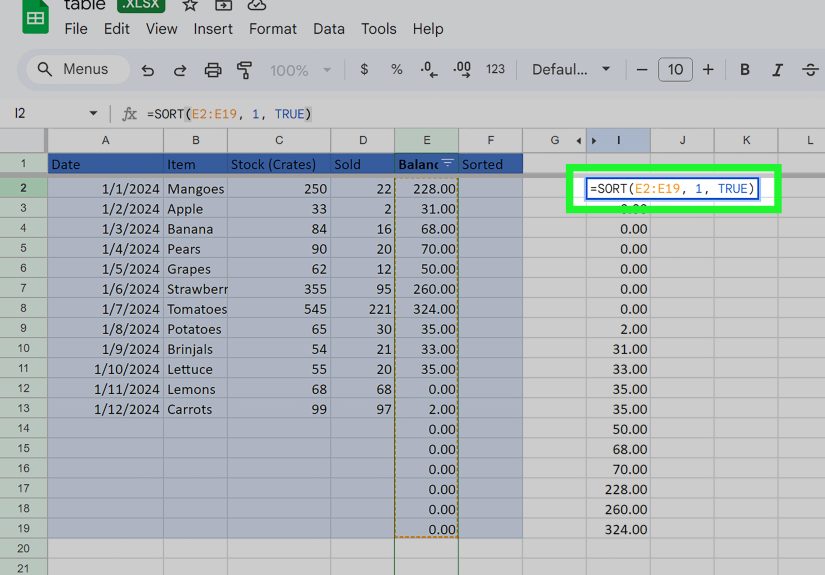
Manual sorting changes your sheet’s order. Formula-based sorting creates a sorted view that updates whenever your data changes.
This is ideal for dashboards, reports, and anyone who doesn’t want to re-sort every Monday morning.
Option A: The SORT Function (Clean and Simple)
Basic syntax:
Example: Sort rows A2:D by the numbers in column C (descending):
This outputs a sorted table in a new location. Your original data stays putlike a well-behaved houseplant.
Option B: QUERY for “Sort + Filter” in One Shot
If you also want to filter results (like “only show sales above 1000”), QUERY is powerful:
That final 1 means your data includes a header row. QUERY is picky, but it’s worth the effort.
Real-World Examples (Because Sorting Is Never Just Sorting)
Example 1: Sales Leaderboard (Descending)
You have columns: Rep, Region, Total Sales.
Sort by Total Sales (Z to A) so top performers appear first.
If two reps tie, add a second sort by Region or Last Sale Date.
Example 2: Budget Sheet (Ascending with a Header)
Sorting expenses from smallest to largest helps you spot tiny subscriptions quietly draining your money like a financial mosquito.
Use advanced range sorting options, check “Data has header row,” then sort your Amount column A to Z.
Example 3: Class Scores (Keep Rows Together!)
Never sort only the “Score” column by itself unless you enjoy chaos.
Select the whole table so student names, IDs, and scores move together as a unit.
Best Practices for Sorting Numbers (Stuff Future-You Will Thank You For)
- Sort the whole dataset, not a single column. Rows should stay intact.
- Use Filter views in shared sheets. Your personal sort doesn’t reshuffle everyone’s workspace.
- Normalize data types. If a column is numeric, make it numericconsistently.
- Keep a “raw data” tab. Use SORT/QUERY on a separate “report” tab so your source data stays stable.
- Name ranges for repeat tasks. It’s faster to select and sort a named range than re-highlighting every time.
- Convert to a table when it makes sense. Newer Sheets table features can make sorting and filtering feel more straightforward.
Conclusion
Sorting by number in Google Sheets on PC or Mac is easy once you pick the right tool:
sort the whole sheet when your data is one big list, sort a range when it’s a table inside a larger sheet,
use advanced options to protect header rows, and turn on filters (or filter views) when you want quick, repeatable sorting.
And if your numbers act like they’ve forgotten what math is, convert them from text to true numeric valuesthen watch your sort behave beautifully.
500-Word Field Notes: My Real-Life “Sorting Numbers” Experiences
The first time I thought I “broke” Google Sheets, I was sorting a list of product prices for a small online store. I clicked what looked like the
obvious optionsort ascendingand the results were… impressive in the same way a cat wearing sunglasses is impressive. Prices like 100 and 1000 floated
near the top, while 9 and 12 were scattered lower down. My immediate reaction was to blame the spreadsheet. My second reaction was to blame the universe.
(Both were wrong.)
The culprit was classic: half the “numbers” were imported from a CSV as text. They looked normal, but Sheets was sorting them like words, not values.
After that day, I made a personal rule: whenever a numeric sort looks suspicious, I test it with a quick sanity checkdoes 2 appear before 10?
If not, I stop everything and fix the data type first. It’s the spreadsheet equivalent of checking whether your stove is actually off before leaving home.
Another lesson came from a shared team sheet. I sorted a column to find the highest support ticket count, and a coworker messaged, “Why did my rows move?”
That’s when I discovered the social side of sorting: in collaborative files, your sort is everyone’s sortunless you use a filter view.
Now, when I’m working in a shared spreadsheet, I almost always create a filter view first. It’s like putting on headphones before
you sing along to your playlist: you can do your thing without forcing the whole room to join you.
My favorite “pro” moment was building a simple dashboard. Instead of repeatedly sorting a live data table, I used SORT() and QUERY()
to generate a sorted leaderboard on a separate tab. Suddenly, the report updated automatically whenever new rows arrived. No menu clicks. No accidental
“oops, I sorted the header into the middle of the sheet.” Just clean, consistent output. It felt like graduating from riding a bike to driving a car
with power steering.
If you take one thing from my spreadsheet scars, let it be this: sorting is less about the button you click and more about how your data is shaped.
Keep rows together, keep headers recognized, keep numbers truly numeric, and use formula-based sorting when you need “always-updated” views.
Do that, and your sheet will stop acting like a prankster and start acting like a tool.