Table of Contents >> Show >> Hide
- Can You Really Use Your Phone as a Mic on PS4?
- What You Need Before You Start
- How to Use Your Phone As a Mic on PS4: 9 Steps
- Step 1: Make Sure Your Phone’s Microphone Actually Works
- Step 2: Install PS Remote Play on Your Phone
- Step 3: Turn On Remote Play on Your PS4
- Step 4: Activate the Console as Your Primary PS4
- Step 5: Adjust Rest Mode Settings for Easier Connections
- Step 6: Sign In on the App With the Same PSN Account
- Step 7: Connect Your Phone to the PS4
- Step 8: Turn the Microphone On in Remote Play
- Step 9: Fine-Tune the Audio Settings on PS4
- What If You Only Want Party Chat?
- Alternative Workaround: Using a Phone Mic Through a PC
- Common Problems and Easy Fixes
- Is This Better Than Buying a Headset?
- Real-World Experiences With Using a Phone as a Mic on PS4
- Final Thoughts
- SEO Tags
If your headset vanished into the same mysterious dimension as missing socks, don’t panic just yet. You can use your phone as a mic on PS4, but there’s one important catch: the cleanest and most reliable method is through PS Remote Play, not by magically pairing your phone to the console like it’s a Bluetooth wizard. That means your phone becomes part of the setup, your voice goes through the app, and your PS4 still gets the message loud and clear.
For a lot of players, that’s more than enough. Maybe you want to hop into party chat without buying a new headset. Maybe your mic died five minutes before your squad logged on. Maybe you just enjoy the thrill of solving tech problems with a device that already lives in your pocket. Whatever brought you here, this guide walks you through exactly how to use your phone as a microphone on PS4 in 9 steps, plus what to do if the setup acts stubborn, moody, or just plain allergic to cooperation.
We’ll also cover the difference between using your phone for PS4 voice chat, using it for party chat on the PlayStation App, and using a more advanced phone microphone workaround if you want to get fancy. In other words, you’re not just getting a list of steps. You’re getting the “why,” the “what if,” and the “why is my console behaving like a grumpy toaster?” too.
Can You Really Use Your Phone as a Mic on PS4?
Yes, but not in the way most people first imagine. A PS4 does not normally treat a random smartphone like a regular plug-and-play USB microphone or wireless headset. So if you were hoping to tap your phone, whisper “testing, testing,” and have the console salute you immediately, that’s not how the story goes.
The best official route is PS Remote Play. With that setup, your phone streams your PS4 session, and the app can use your phone’s built-in microphone for chat. It is the most legitimate, least sketchy, and most support-friendly method. If you only need to talk to friends in a party and do not care about routing audio through active gameplay on the TV, the PlayStation App can also handle mobile voice chat. And if you want a true workaround, you can bridge your phone’s microphone through a PC with software like a virtual mic tool, but that takes more effort and a higher tolerance for fiddly tech drama.
What You Need Before You Start
- A PS4 connected to the internet
- An iPhone or Android phone with a working microphone
- Your PlayStation Network account login
- The PS Remote Play app installed on your phone
- A stable Wi-Fi connection, preferably fast enough that your voice does not sound like it’s traveling through a haunted tunnel
- Optional: a DUALSHOCK 4 controller paired to your phone for easier control
It also helps if your PS4 is already updated and set as your primary console for the account you plan to use. That saves you from a mid-setup detour, which is tech’s favorite hobby.
How to Use Your Phone As a Mic on PS4: 9 Steps
Step 1: Make Sure Your Phone’s Microphone Actually Works
Before you blame the PS4, the app, the internet, or the moon’s gravitational pull, test your phone’s mic. Open the voice recorder app on your phone and record a short message. If it sounds clear, great. If it sounds like you’re speaking from inside a cereal box, clean the mic openings and remove any bulky case that may be blocking sound.
This is also the time to check microphone permissions. On iPhone, make sure the app has mic access in Privacy & Security settings. On Android, confirm microphone permission is allowed for the app. This tiny step solves a ridiculous number of “why can’t anyone hear me?” problems.
Step 2: Install PS Remote Play on Your Phone
Download and install the PS Remote Play app on your iPhone or Android device. This is the official app that lets your phone connect to your PS4 remotely. It is not some weird back-alley workaround, and that matters because official tools tend to cause fewer headaches.
Once installed, open the app but do not rush through every screen like you are skipping cutscenes. Read the prompts, especially anything related to microphone access, notifications, and network permissions. If the app asks for mic access and you say no, you are essentially telling it, “Please help me use my phone as a mic, but also never use my mic.” That relationship is not going to work.
Step 3: Turn On Remote Play on Your PS4
On your PS4, go to Settings > Remote Play Connection Settings and turn on Enable Remote Play. This allows the console to be found by the Remote Play app on your phone.
This step is non-negotiable. If Remote Play is disabled, your phone will search for your PS4 like a detective with no clues and no coffee. While you are here, make sure your console is connected to a stable network. Wired internet is even better, but solid Wi-Fi works for most people.
Step 4: Activate the Console as Your Primary PS4
Next, head to Settings > Account Management > Activate as Your Primary PS4 and make sure the console is activated. This matters because Sony ties some Remote Play features to your account setup.
If your PS4 is already your primary console, great, you just won a free pass to the next step. If not, activate it now. Skipping this can cause connection issues later, and later is always when tech problems become ten times more annoying.
Step 5: Adjust Rest Mode Settings for Easier Connections
If you want to reconnect without extra fuss, go to Settings > Power Save Settings > Set Features Available in Rest Mode. Turn on Stay Connected to the Internet and Enable Turning On PS4 from Network.
This is especially useful if you plan to use your phone as a PS4 mic often. It makes the setup much smoother and saves you from marching across the room every time you want to connect. Lazy convenience is still convenience, and we respect it.
Step 6: Sign In on the App With the Same PSN Account
Launch PS Remote Play on your phone and sign in using the same PlayStation Network account that you use on the PS4. That “same account” part matters. Using a different login is like showing up to pick up dry cleaning with someone else’s ticket and hoping charm will solve everything.
Once signed in, the app should be able to search for and recognize your console. If it cannot find the PS4 right away, make sure both devices are on the same network for the initial setup. That tends to make the first connection easier.
Step 7: Connect Your Phone to the PS4
In the Remote Play app, select PS4 and let it search for your console. Once it connects, your PS4 screen should appear on your phone. Congratulations: your phone is now officially involved in the operation.
You can use on-screen controls, but pairing a DUALSHOCK 4 controller to your phone usually makes the experience less awkward. On-screen buttons are fine in an emergency, but they can feel like trying to eat spaghetti while wearing oven mitts. If you only need to test voice chat, though, the touchscreen is usually good enough.
Step 8: Turn the Microphone On in Remote Play
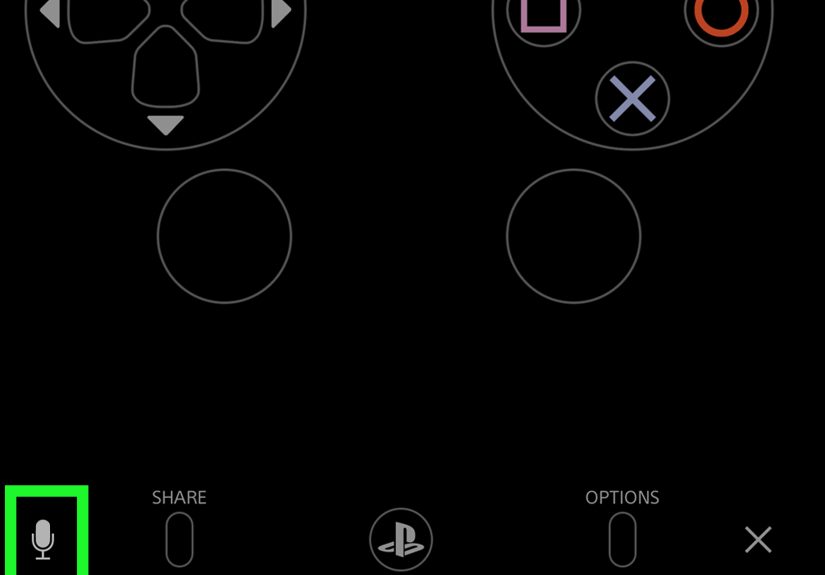
Tap the screen to bring up the Remote Play controls. Look for the microphone status icon and switch it to Mic On. This is the moment people often miss, then spend ten minutes asking friends, “Can you hear me now?” while everyone pretends not to laugh.
Once the mic is active, join a party or open the game chat you want to use. Speak normally and ask a friend for a quick sound check. If they can hear you, the setup is working. If not, double-check that your phone mic permission is enabled, your app mic is not muted, and your internet connection is stable.
Step 9: Fine-Tune the Audio Settings on PS4
If your mic is working but sounds too quiet, distorted, or weirdly dramatic, go to Settings > Devices > Audio Devices > Adjust Microphone Level on the PS4. Watch the input bar while you talk. If it barely moves, your voice is too low. If it shoots into the red like you are narrating an action movie trailer, lower the level.
You may also want to check Output to Headphones in the same audio area if you are using a headset during the setup. Some people prefer chat audio only, while others want all audio through their connected device. The right choice depends on how you’re playing and whether you enjoy hearing every explosion through tiny speakers or not.
What If You Only Want Party Chat?
If your goal is simply to talk to PlayStation friends and you do not need your phone mic routed through Remote Play gameplay, the PlayStation App is easier. You can create or join a party and voice chat from your phone directly. That means you can chat with your squad while your PS4 handles the game on the TV.
This option is convenient, but it is important to understand the difference. The PlayStation App is great for mobile party voice chat. It is not the same thing as your phone becoming a universal native microphone plugged directly into the PS4 audio port. Think of it as a social shortcut, not a full hardware replacement.
Alternative Workaround: Using a Phone Mic Through a PC
If you enjoy advanced tinkering, you can use your phone as a microphone for a PC first, then route that setup toward your PS4 with extra hardware or audio adapters. Apps like virtual mic tools can turn your phone into a PC microphone over Wi-Fi or USB. From there, some users build elaborate setups to feed chat audio into a controller or capture chain.
Can it work? Yes. Is it the simple option? Absolutely not. This is the “weekend project with three tabs open and one existential sigh” version. For most people, PS Remote Play is the best answer. The PC method only makes sense if you already have the gear, understand audio routing, and do not mind troubleshooting when one tiny setting decides to sabotage the party.
Common Problems and Easy Fixes
Your Friends Can’t Hear You
Check the mic icon in Remote Play first. If it says off, that is the problem. Next, verify microphone permission on the phone. Then test your internet connection, because poor upload speed can wreck voice chat faster than a rage quit.
The App Won’t Find the PS4
Make sure Remote Play is enabled on the console, the PS4 is your primary system for that account, and both devices are on the same network during setup. Restarting the app and the console is also annoyingly effective.
The Audio Sounds Delayed
That usually points to network quality. Move closer to the router, switch to faster Wi-Fi, or use wired internet on the PS4 if possible. Remote Play is convenient, but it does not perform miracles through weak internet.
Your Phone Mic Sounds Muffled
Remove the case, clean the mic area, and avoid covering the bottom of the phone with your hand. Also, do not shout directly into the mic like you are announcing the apocalypse. A normal speaking voice usually sounds better.
Is This Better Than Buying a Headset?
Honestly? Usually no. A proper headset is still the easiest long-term solution for PS4 voice chat. But that does not make the phone method useless. It is great in a pinch, perfect for temporary setups, and surprisingly handy if you already use Remote Play regularly.
The real win here is flexibility. You do not need to run out and buy gear just because your old mic stopped working. Your phone is already powerful, already connected, and already full of apps you forgot you installed. It might as well earn its keep.
Real-World Experiences With Using a Phone as a Mic on PS4
The first time most people try this setup, it starts with skepticism. You read a few forum comments, watch a couple of clips, and think, “There is no way this is going to work.” Then the process surprises you. Once PS Remote Play is connected and the mic is switched on, your phone stops feeling like “just a phone” and starts acting like a genuine part of the PlayStation setup. That small moment is weirdly satisfying.
A common experience is using the phone as an emergency backup. Maybe your headset microphone suddenly crackles like it belongs in a ghost documentary. Maybe your wired earbuds gave up during a match. Maybe the family is asleep and you need a quick solution without digging through drawers full of retired electronics. In those moments, using your phone as a PS4 mic feels less like a hack and more like a save.
Another thing players notice is that convenience and comfort are not always the same. Yes, the phone mic can work well. No, it is not always as comfortable as a headset. If you set the phone down on a desk, your voice may sound fine, but background noise can sneak in. If you hold the phone too close, your friends might hear every breath, tap, and accidental finger shuffle. There is a sweet spot, and it takes a little trial and error to find it.
People also discover pretty quickly that internet quality matters more than they expected. When the connection is strong, the setup feels clever and smooth. When the connection is weak, it feels like your voice is traveling by carrier pigeon. That is why this method works best for players with stable home Wi-Fi and reasonable upload speed. The more solid the network, the less “experimental science project” energy the whole thing has.
For players who mainly want to chat with friends rather than use in-game voice, the PlayStation App experience can actually feel easier. You keep the game on the TV, talk through the phone, and avoid a full hardware reshuffle. It is not a perfect one-to-one replacement for a native mic connected to the controller, but for party chat, it gets the job done with very little fuss. That matters when the goal is not perfection, just hearing and being heard before the match starts.
The advanced workaround crowd has a different experience entirely. These are the brave souls who route phone audio through a PC, test virtual microphones, juggle audio settings, and emerge from the process either triumphant or mildly haunted. When it works, they feel like audio engineers who conquered a dragon. When it does not, they learn twelve new ways software can ignore obvious logic. That route is impressive, but it is definitely not for everyone.
Overall, the biggest takeaway from real-world use is simple: this method is best when you treat it like a smart backup, not a permanent lifestyle. It is excellent for emergencies, travel, casual sessions, and those random nights when your regular gear fails at the worst possible moment. And there is something undeniably fun about telling your friends, “Hold on, I’m using my phone as my PS4 mic tonight,” and then having it actually work. It feels a little ridiculous, a little clever, and very much like modern gaming in one sentence.
Final Thoughts
If you want the easiest official answer to how to use your phone as a mic on PS4, use PS Remote Play. It is the most practical method, the most supportable method, and the one least likely to make you question your life choices. If you only need party chat, the PlayStation App is a solid shortcut. And if you love technical workarounds, the PC bridge route exists for the bold and patient.
So no, your phone does not become a native PS4 microphone with one magical tap. But yes, you can absolutely make it work. And in true gaming fashion, half the victory is knowing the right setup before the match begins.