Table of Contents >> Show >> Hide
- Before You Hit Reset: Do This First (It’s the Difference Between “Fixed” and “Forever Regret”)
- Pick the Right Recovery Path (Use This Decision Map)
- Option 1: Recover From Inside Windows (When It Still Boots)
- Option 2: Recover When Windows Won’t Start (WinRE + F11)
- Option 3: HP Factory Recovery With HP Tools (When You Want “Back to HP Day One”)
- Option 4: Clean Install Windows (Best When You Want Maximum Clean + Minimum Bloat)
- Post-Reset Checklist (So You Don’t “Recover” Into New Problems)
- Troubleshooting: When Recovery Doesn’t Go Smoothly
- Conclusion: Your HP Laptop Can Come Back (Even If It’s Currently Being Dramatic)
- Real-World Recovery Stories & Lessons (Experience Section)
- Story 1: The “I’ll just reset it real quick” reset that wasn’t quick
- Story 2: The Wi-Fi driver vanished (and the laptop became an island)
- Story 3: The BitLocker surprise screen that stopped everything
- Story 4: The HP recovery partition that wasn’t there anymore
- Story 5: The reset fixed Windows… but performance was still terrible
Your HP laptop is acting like it just discovered free will: it won’t boot, it freezes, it crawls slower than a snail in wet socks, or it’s packed with so much digital clutter you can practically hear it wheezing.
The good news? “Recovery” doesn’t always mean “nuke everything from orbit.” HP and Windows give you multiple recovery pathsfrom a gentle rollback to a full factory reset.
This guide walks you through the smartest option for your situation, step by step, with a few real-world “yep, that happened” examples along the way.
Before You Hit Reset: Do This First (It’s the Difference Between “Fixed” and “Forever Regret”)
1) Back up what you canassume reset options will be spicy
Even when you choose Keep my files, things can go sideways (corrupt profiles, missing folders, surprise encryption prompts). If you can still boot into Windows, take 10 minutes to back up:
- Desktop, Documents, Downloads, Pictures, Videos
- Browser bookmarks and password manager export (if you use one)
- Game saves (Steam/Epic may sync, but don’t gamble)
- Work/school files (OneDrive/Google Drive sync status)
Best practice: copy your essentials to an external drive or cloud storage. If the laptop won’t boot, skip ahead to the WinRE/USB optionsdon’t keep power-cycling it like you’re trying to summon Windows by ritual.
2) Plug in power, and (if possible) connect to reliable internet
Recoveries can take a while, and power loss mid-reset can turn a software problem into a “why does my laptop only display a logo forever?” problem. Keep the charger connected the whole time.
Internet matters because some recovery options can download a fresh Windows image, which can be helpful if your local recovery files are damaged.
3) Know your BitLocker situation (so you don’t get locked out)
Many Windows 10/11 devices support drive encryption (BitLocker or “device encryption”). During certain recovery tasks, Windows may ask for a BitLocker recovery key.
If you sign into Windows with a Microsoft account, your recovery key may be saved to that account. If you don’t have it and the system demands it, your recovery options can shrink fastlike a puddle in August.
Pick the Right Recovery Path (Use This Decision Map)
Think of recovery like medical care: you don’t start with a full-body transplant when you just need sleep and water.
Here’s the practical order:
If Windows still boots (even barely)
- System Restore (undo recent changes without touching personal files)
- Reset this PC → Keep my files (reinstalls Windows, keeps personal files, removes apps/settings)
- Reset this PC → Remove everything (full wipe + reinstall)
If Windows won’t boot
- Windows Recovery Environment (WinRE): Startup Repair, System Restore, Reset this PC
- HP System Recovery (often accessed with F11)
- HP Cloud Recovery USB (factory image on a 32GB+ USB drive)
- Clean install Windows (Microsoft installation media, then HP drivers)
Example: If your laptop started crashing right after a driver update, System Restore is often the quickest “undo” button.
If you’re selling the laptop or malware has set up camp, Remove everything is the clean break.
Option 1: Recover From Inside Windows (When It Still Boots)
A) System Restore (fastest fix for “yesterday it worked”)
System Restore rolls back certain system files, drivers, and settings to an earlier restore point. Your personal files usually stay put.
It’s ideal after a bad update, driver install, or software change.
- Open Start and search Create a restore point.
- Choose System Restore.
- Select a restore point from before the trouble started.
- Confirm and restart.
If your laptop boots but acts haunted (random freezes, black screens after login), try this before a full reset. It’s the “rewind” button you’ll wish existed for awkward conversations.
B) Reset this PC → Keep my files (Windows reinstall without full wipe)
This reinstalls Windows while keeping your personal files. It typically removes apps you installed and resets many settings.
It’s a great middle ground when Windows is unstable but you’re not ready to erase everything.
- Go to Settings → System → Recovery (Windows 11) or Settings → Update & Security → Recovery (Windows 10).
- Select Reset this PC.
- Choose Keep my files.
- Pick Cloud download (fresh image) or Local reinstall (uses existing files).
- Follow prompts and keep the laptop plugged in.
Tip: If you suspect your Windows image is corrupted (resets fail, system files won’t repair), cloud download can be more reliableassuming your internet is stable.
C) Reset this PC → Remove everything (full wipe)
Choose this when you want a clean slate: persistent malware concerns, major performance issues, or you’re preparing the laptop for donation/sale.
You’ll usually see extra options like removing files from all drives or cleaning the drive (slower, more thorough).
- Open Settings → Recovery.
- Choose Reset this PC → Remove everything.
- Select whether to wipe only the Windows drive or all drives (if offered).
- Confirm, then let it runthis can take a while.
If you’re handing the laptop to someone else, a deeper wipe option is smarter. If you’re keeping it, a normal remove-everything reset is typically fine.
Option 2: Recover When Windows Won’t Start (WinRE + F11)
How to get into Windows Recovery Environment (WinRE)
WinRE is Windows’ built-in rescue menu. On many HP laptops, you can access it by pressing F11 repeatedly during startup.
If that doesn’t work, Windows may enter WinRE after repeated failed boots.
- Turn the laptop off completely.
- Turn it on and immediately press F11 repeatedly until you see recovery options.
- If you reach a “Choose an option” screen, you’re in the right place.
Use Startup Repair first (it’s the least destructive)
In WinRE, try Troubleshoot → Advanced options → Startup Repair. This can fix boot issues without resetting the entire OS.
If you recently had an update or sudden shutdown, Startup Repair is often worth a shot.
Reset this PC from WinRE (when you can’t log in)
From WinRE: Troubleshoot → Reset this PC. Then pick:
- Keep my files (safer, less destructive)
- Remove everything (full wipe)
If your device is encrypted, Windows may require a BitLocker recovery key before it will proceed with certain repair/reset steps.
If BitLocker asks for a recovery key
Don’t panicthis is common after security-related changes or recovery attempts. If you use a Microsoft account, check for stored recovery keys there.
If you can’t find the key, stop and focus on locating it before continuing, because repeated attempts can waste time and still block recovery.
Option 3: HP Factory Recovery With HP Tools (When You Want “Back to HP Day One”)
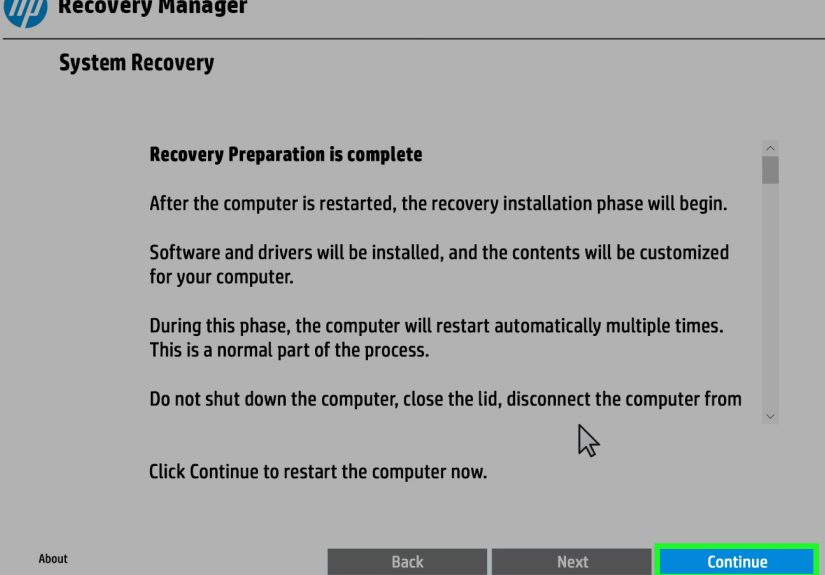
A) HP System Recovery (often via F11)
Many HP consumer laptops support a built-in recovery process that restores the system using HP’s recovery environment.
Access is commonly via F11 at startup. You may see options like System Recovery and troubleshooting tools.
This route is especially helpful if you want the HP factory image (including certain drivers and preinstalled apps) rather than a generic Windows reinstall.
B) HP Cloud Recovery Tool (USB-based factory recovery)
If the recovery partition is missing or damaged, HP’s cloud recovery option can download the factory recovery image to a USB drive.
You’ll typically need:
- A blank USB drive (commonly 32GB or larger)
- A stable internet connection
- The recovery image that matches your HP model
Once created, you boot from the USB and follow prompts to restore the laptop.
This is a solid plan when your laptop won’t boot and you want a factory-style recovery without guessing which Windows ISO or drivers you need.
C) Reinstall HP drivers and software after recovery
After a reset or reinstall, Windows might be missing device-specific drivers (Wi-Fi is the classic “cool, now how do I download drivers?” moment).
HP commonly recommends using HP Support Assistant and HP’s official driver download pages to update drivers, firmware, and utilities.
- Run Windows Update first (it often installs key drivers automatically).
- Then install/run HP Support Assistant to fetch HP-specific updates.
- If needed, download drivers directly from HP’s driver support page for your model.
Option 4: Clean Install Windows (Best When You Want Maximum Clean + Minimum Bloat)
A clean install uses Microsoft installation media to install Windows from scratch. It’s often the cleanest fix for stubborn software issues,
but it does require a bit more post-install setup (drivers, updates, personalization).
When a clean install is the smartest choice
- Reset keeps failing (“There was a problem resetting your PC”)
- You replaced the SSD/HDD
- You want a fresh Windows install without manufacturer add-ons
- Your recovery partition is gone and cloud recovery isn’t available
Driver reality check (especially Wi-Fi)
If Wi-Fi doesn’t work immediately after reinstall, use another connection method (Ethernet adapter, USB tethering) to get online.
Then run Windows Update and HP Support Assistant.
For anything still missing, HP’s driver downloads page is your friend.
Post-Reset Checklist (So You Don’t “Recover” Into New Problems)
A reset is not the finish lineit’s the “welcome to a brand-new install” starting line.
Here’s the quick checklist that prevents 90% of post-reset headaches:
- Run Windows Update until it says you’re up to date (including optional driver updates if offered).
- Install HP Support Assistant and apply recommended HP updates.
- Verify Device Manager for missing drivers (look for warning icons).
- Reinstall essential apps (browser, Office suite, Zoom, security tools, etc.).
- Restore your files from backup and confirm everything opens correctly.
- Sign in & sync (OneDrive, Google Drive, email, password manager).
- Check battery + performance (fans, heat, sleep/wake, Wi-Fi stability).
Troubleshooting: When Recovery Doesn’t Go Smoothly
Problem: F11 doesn’t open recovery
This can happen if the recovery partition is damaged, secure boot settings changed, or the timing is off.
Try: power off completely, then power on and press F11 repeatedly right away.
If recovery still won’t appear, the next best move is typically a recovery USB (HP Cloud Recovery or Windows install media).
Problem: You keep landing in diagnostics or suspect hardware trouble
If your laptop is stuck in a loop, freezes during recovery, or shows drive-related errors, hardware could be involvedespecially storage.
HP provides hardware diagnostics that can help test components like memory and the drive.
If the drive test fails, no reset method can “fix” a dying SSD; you’ll need hardware repair/replacement and then reinstall Windows.
Problem: BIOS issues after an update (black screen, no boot)
HP documents BIOS recovery key combinations (commonly involving holding Windows + B during power-on on some models).
BIOS recovery is model-specific, but it’s worth checking HP’s official instructions for your device if your system won’t boot at all after a BIOS update.
Problem: WinRE input devices don’t respond
Rarely, Windows updates can cause weird WinRE input problems (like USB keyboard/mouse not working inside the recovery environment).
If you can still boot into Windows, updating Windows fully may resolve it. If you can’t, try built-in laptop keyboard/trackpad, a different USB port, or a recovery USB route.
Conclusion: Your HP Laptop Can Come Back (Even If It’s Currently Being Dramatic)
Recovering an HP laptop is all about choosing the right level of “reset” for the problem.
Start small when you can (System Restore, Startup Repair), move to Reset this PC when Windows is unstable, and use HP’s factory recovery tools when you need an HP-approved return to default.
If the laptop won’t boot and the recovery partition is missing, HP Cloud Recovery or a clean Windows install can get you running againoften faster than endless troubleshooting.
The real secret weapon? Backups. Because the best reset is the one you can do without losing anything you care about.
Real-World Recovery Stories & Lessons (Experience Section)
Here are the kinds of recovery experiences people commonly run intoplus what actually helps. Think of this section as the “I wish someone told me this before I started clicking buttons” bonus track.
Story 1: The “I’ll just reset it real quick” reset that wasn’t quick
A common scenario: the laptop still boots, but it’s sluggish, random apps crash, and updates fail. The owner chooses Reset this PC → Keep my files expecting a 20-minute miracle.
Then Windows says it needs to “prepare,” reboots multiple times, and takes an hour (or more). The lesson: resets can take a while even when nothing is “wrong.”
The smartest move is to plug in power, plan for downtime, and don’t start a reset five minutes before class or work. A reset is more like baking bread than microwaving noodles.
Story 2: The Wi-Fi driver vanished (and the laptop became an island)
After a clean install or reset, Wi-Fi sometimes doesn’t work immediatelyespecially if your model uses a chipset that Windows didn’t auto-detect on first boot.
People then get stuck in a comedy loop: “I need internet to download the Wi-Fi driver I need to get internet.”
What helps in real life: using Ethernet (even with a cheap USB-to-Ethernet adapter), USB tethering from a phone, or downloading the Wi-Fi driver on another device and copying it over.
Once online, Windows Update plus HP Support Assistant usually catches up and installs what’s missing.
Story 3: The BitLocker surprise screen that stopped everything
Some users don’t even realize encryption is enabled until WinRE or reset tools suddenly ask for a BitLocker recovery key.
The frustration isn’t the security featureit’s the timing. The big lesson: before major changes, confirm whether your device uses encryption and make sure you can access the recovery key.
People who signed in with a Microsoft account often find the key in their account devices section, but those who used local accounts or changed account settings sometimes have to hunt.
The practical takeaway: treat that recovery key like a spare house key. You don’t think about it until you’re locked out in the rain.
Story 4: The HP recovery partition that wasn’t there anymore
Another common experience: someone tries F11 recovery and it doesn’t launchor it launches, but recovery options fail.
This can happen if the recovery partition is corrupted, removed during a past reinstall, or the drive was replaced.
What works here is shifting from “built-in recovery” to “external recovery,” like HP Cloud Recovery USB (factory image) or Windows installation media (clean install).
The lesson: not all “factory reset” methods are stored safely forever on the laptop. Drives fail, partitions get deleted, and older installs get messy.
Having a recovery USB available is like having jumper cables: you won’t need it every day, but when you do, it’s suddenly the most valuable object you own.
Story 5: The reset fixed Windows… but performance was still terrible
Sometimes a reset completes successfully and Windows feels cleanbut the laptop is still slow, still freezing, or still showing disk errors.
In many of these cases, the root issue is hardware: a failing SSD/HDD, overheating, or faulty memory.
The real-world clue is repeated lockups, strange drive warnings, or crashes during reinstall steps.
The lesson: recovery tools fix software problems. If the storage drive is failing, reinstalling Windows is like repainting a house with a collapsing foundation.
In that situation, diagnostics and hardware repair come before any “perfect” reinstall.
Bottom line: most resets work, but the smoothest recoveries happen when you prep (backup + power), choose the least-destructive option first, and stay flexible.
If one route fails, it doesn’t mean you’re stuckit usually means it’s time to switch to a different recovery method (WinRE, HP Cloud Recovery USB, or a clean install).