Table of Contents >> Show >> Hide
- Recall vs. Unsend vs. Replace: What These Outlook Features Actually Mean
- Where Outlook Recall Works in 2026 (and Where It Doesn’t)
- How to Recall or Replace in Classic Outlook for Windows
- How to Recall in New Outlook and Outlook on the Web
- How to Replace a Sent Message Without Making Things Worse
- Why Outlook Recall Fails: The Most Common Reasons
- What Recipients May See During Recall
- How to Improve Recall Success Rates
- The Prevention Stack: Undo Send, Delay Rules, and Scheduled Send
- Quick Troubleshooting Checklist for “Recall Not Working”
- FAQ: How to Recall an Email in Outlook
- Conclusion
- Real-World Experience: 500+ Words from the “I Sent That?” Front Lines
You know the moment: you hit Send, take one proud sip of coffee, and immediately realize you just emailed the wrong attachment, the wrong price, or the wrong person named “Chris.” If that sounds familiar, welcome to the club. The good news is Outlook gives you more than one way to recover from an email faceplant: you can recall, replace, undo send, or delay delivery depending on your account and app version.
In this guide, you’ll learn exactly how to recall an email in Outlook, when unsend actually works, how to replace a sent message cleanly, and what to do when recall fails (because sometimes it does). You’ll also get a practical prevention system so this becomes a once-a-year problem instead of a once-a-week hobby.
Recall vs. Unsend vs. Replace: What These Outlook Features Actually Mean
Recall Message
Outlook recall tries to remove a message from recipients’ mailboxes after you already sent it. Think of it as a post-send rescue attempt. This is typically used in Microsoft 365/Exchange environments, most often for work or school email.
Replace Message
This is recall with a correction baked in. Outlook removes the original (if possible), then you send a revised version. It’s perfect for “Oops, draft attachment” situations where silence isn’t enough and you need a corrected follow-up.
Undo Send
Undo Send is not true recall. It simply delays send for a short window, letting you cancel before the message actually leaves. It’s proactive and far more predictable than recall.
Delay Delivery / Schedule Send
This intentionally holds messages (for minutes, hours, or a scheduled time) before they go out. If your team sends high-stakes emails, this can save you from 90% of recall drama.
Where Outlook Recall Works in 2026 (and Where It Doesn’t)
If you remember old Outlook rules, update your mental model. Modern Microsoft 365 recall is now cloud-based in many environments, and behavior has improved a lot compared with legacy recall workflows.
Recall usually works best when:
- Both sender and recipients use Microsoft 365 or Exchange in the same organization.
- The message is still recall-eligible based on your admin’s policy/time settings.
- Your organization has recall enabled and properly configured.
Recall often fails when:
- Email went outside your org (e.g., Gmail, Yahoo, another company tenant).
- Account/protocol limitations apply in your Outlook client profile.
- The mailbox or routing setup conflicts with recall requirements.
Translation: recall is amazing for internal corporate email workflows, but it is not a universal “internet unsend” button.
How to Recall or Replace in Classic Outlook for Windows
- Open Sent Items.
- Double-click the sent message so it opens in a new window (not reading pane).
- Go to File > Info.
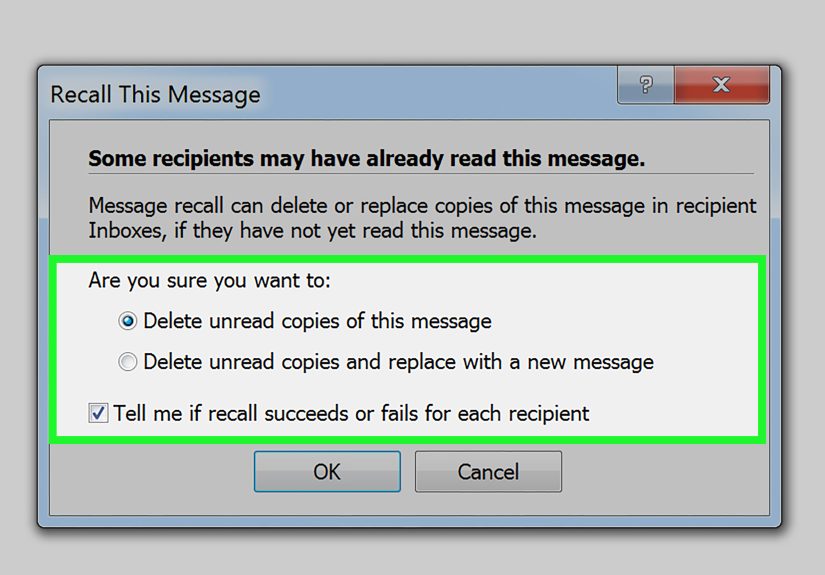
- Select Resend or Recall.
- Choose one:
- Recall This Message (delete unread copies), or
- Delete unread copies and replace with a new message.
- Optionally enable status tracking for each recipient.
- Click OK. If replacing, edit and send the new version immediately.
Pro tip: if you choose “replace,” keep the corrected email short, specific, and unmistakably final. A messy replacement can create more confusion than the original mistake.
How to Recall in New Outlook and Outlook on the Web
- Open Sent Items.
- Open the message in a separate window.
- Select Recall Message from the toolbar/ribbon.
- Confirm the recall action.
- Watch for the Message Recall Report in your inbox to see recipient-by-recipient status (succeeded, pending, failed).
In newer Microsoft 365 environments, this report is your truth source. Don’t guess success from vibes. Check the report.
How to Replace a Sent Message Without Making Things Worse
If the original email contains wrong numbers, stale links, or missing files, replacing the message is usually better than just recalling it. Use this structure:
- Subject: Corrected: [Original Subject]
- Line 1: “Please use this corrected version; ignore prior email.”
- Line 2: One-sentence summary of what changed.
- Line 3: Updated attachment/link and next step.
Keep tone calm. No novel. No panic poetry. Just clarity.
Why Outlook Recall Fails: The Most Common Reasons
- External recipients: If mail already left your org boundary, recall is generally out.
- Client/account mismatch: Some account types or profile setups don’t support recall properly.
- Policy limits: Admin settings may cap recall eligibility windows.
- Message state: Depending on mode and policy, opened/read behavior can affect outcomes.
- Routing complexity: Hybrid or specialized routing can break assumptions.
- Shared/delegated mailbox edge cases: Possible, but with reporting limitations in some scenarios.
- Recipient-side handling: Rules, forwarding, or mailbox behavior can interfere.
If recall fails, don’t double-fail by pretending it didn’t. Send a clear correction message right away.
What Recipients May See During Recall
This depends on Outlook version, org policy, and admin settings. In some setups, recipients may receive notifications that a recall was attempted. In modern Exchange Online, admins can configure whether recipient notifications are sent and under what conditions.
Bottom line: never assume your recall is invisible. Write emails as if they can be screenshot forever (because, well, they can).
How to Improve Recall Success Rates
1) Move fast
The sooner you initiate recall, the better. Waiting “just a little” is how little becomes too late.
2) Verify environment fit
Internal Microsoft 365-to-Microsoft 365 in the same org is your best-case scenario.
3) Use the recall report
Don’t rely on assumptions. Confirm status by recipient.
4) Align with IT admin policy
If you run communications-heavy workflows, ask IT about recall settings, notification behavior, and eligibility windows.
5) Treat recall as backup, not strategy
Your primary strategy should be prevention (Undo Send + delay rules + review checklist).
The Prevention Stack: Undo Send, Delay Rules, and Scheduled Send
Undo Send (best for everyday mistakes)
In Outlook on the web and Outlook.com, Undo Send provides a short cancellation window. It’s tinybut mighty. If you frequently catch mistakes within seconds, this should be on by default.
Delay Delivery (best for high-risk email types)
In classic Outlook, you can defer all outgoing emails by rule (up to 120 minutes). This is excellent for legal, finance, sales contracts, or “reply-all temptation” moments.
Schedule Send (best for intentional timing)
If you’re timing announcements or cross-time-zone sends, schedule messages in advance. It reduces rushed sends and improves quality control.
A practical setup that works
- Enable Undo Send for quick cancellation.
- Create a 2–5 minute default delay rule for sensitive teams.
- Use a pre-send checklist for attachments, recipients, and subject line.
Quick Troubleshooting Checklist for “Recall Not Working”
- Was the recipient internal to your Microsoft 365/Exchange org?
- Did you open the sent email in a separate window before recalling?
- Is the Recall option available in your Outlook version/account?
- Did you receive and open the Message Recall Report?
- Could admin policy/time limits have expired eligibility?
- Did the message route outside org or through unsupported paths?
If several answers are “no” or “not sure,” skip heroics and send a precise correction email.
FAQ: How to Recall an Email in Outlook
Can I recall an email sent to Gmail?
Usually no. Traditional recall is designed for internal Microsoft 365/Exchange scenarios, not external consumer inboxes.
Can I recall a message that was already read?
In modern cloud recall environments, organizations can enable behavior that may include read messages in certain conditions. This is policy-dependent.
Does Outlook mobile support recall?
Newer Microsoft guidance indicates recall availability is expanding across more clients, including mobile, in supported environments. Client availability and org policy still matter.
Is Undo Send the same as recall?
No. Undo Send prevents sending during a short delay window. Recall attempts to retract after delivery.
Conclusion
If you remember one thing, make it this: recall is a recovery feature, not a guarantee. Use it quickly when needed, verify outcomes with the recall report, and keep a clean correction template ready. But for day-to-day reliability, build a prevention workflow with Undo Send, delayed delivery, and better pre-send habits.
Your future self (and your coworkers named Chris) will thank you.
Real-World Experience: 500+ Words from the “I Sent That?” Front Lines
Let’s end with the part no one admits in training docs: email mistakes are emotional. The technical steps are easy. The sweaty-palm moment right after send? That’s the hard part. Here are five experience-based scenarios that show how recall, replace, and unsend play out in real life.
Experience #1: The Wrong Attachment Catastrophe
A sales manager sent quarterly pricing to ten internal account leads, but attached an old spreadsheet with obsolete discount tiers. He noticed in under a minute, initiated recall, and used the “replace with a new message” option. Because everyone was in the same Microsoft 365 org, the replacement landed cleanly for most recipients. Two had already opened the original. Those two got a fast correction with a blunt subject line: “Corrected Pricing File Please Use This Version.” No drama, no mystery, no blame.
Lesson: Replace beats silence. If even one person may have seen the wrong file, send the correction anyway.
Experience #2: The Executive Reply-All Slip
A director meant to reply privately to one colleague but hit Reply All to a broad internal thread. The message included a candid line that was… let’s call it “not board-ready.” They attempted recall. Some recipients had already read it. Recall status came back mixed. Instead of pretending nothing happened, they followed with a concise reset: “Previous reply sent in error; please disregard. Correct update below.” Short, professional, and done.
Lesson: Recall can reduce impact, but communication cleanup is what restores trust.
Experience #3: The Time-Zone Mishap
A project coordinator scheduled a deadline email but accidentally set local time wrong for another region. The message sent six hours early, creating confusion and panic. Recall succeeded for some internal recipients, failed for others already active in their morning. The team then added a recurring process: all deadline emails are scheduled with a second reviewer and a “time-zone verified” checklist item.
Lesson: If your error pattern is predictable, fix the processnot just the individual email.
Experience #4: The “Can You Unsend to External Clients?” Myth
A new team member assumed Outlook recall worked like magic everywhere. They sent a draft contract to an external client domain, tried recall, and waited for a miracle. No miracle arrived. The recovery was a transparent follow-up: “Please disregard prior draft; attached is the final approved version.” The client appreciated the clarity.
Lesson: Set expectations in onboarding. Recall is strongest inside your org. For external email, speed + clear correction wins.
Experience #5: The Team That Stopped Needing Recall
One operations team had too many “sorry, corrected file attached” moments every month. Instead of relying on recall, they changed defaults:
- Enabled Undo Send where available.
- Added a short send delay for high-risk roles.
- Used a two-line pre-send checklist: recipients + attachment/version.
- Standardized correction templates for when mistakes still happen.
Within a quarter, recall attempts dropped sharply. Not because people became robots, but because the system caught human mistakes before inboxes did.
Final experience-based takeaway: Outlook recall is like a seatbeltessential when needed, but you still drive better when you’re paying attention to the road. Build habits that prevent errors, then keep recall and replacement as your emergency toolkit.