Table of Contents >> Show >> Hide
- What Is the Matrix Rain Effect?
- Before You Start: What You Need
- How to Create the Matrix Rain in Command Prompt: 10 Steps
- Step 1: Open Notepad
- Step 2: Add the Basic Batch File Header
- Step 3: Create a Loop Label
- Step 4: Print Random Numbers
- Step 5: Repeat the Output for a Fuller Screen
- Step 6: Add the Loop Command
- Step 7: Review the Complete Basic Code
- Step 8: Save the File as a BAT File
- Step 9: Run the Matrix Rain Batch File
- Step 10: Customize the Effect
- Enhanced Matrix Rain Batch File Example
- How the Matrix Rain Code Works
- Common Mistakes and How to Fix Them
- Safety Tips for Running Batch Files
- Creative Ways to Use the Matrix Rain Effect
- Experience Notes: What It Feels Like to Build the Matrix Rain Effect
- Conclusion
- SEO Tags
Want your Windows screen to look like a hacker movie without actually hacking anything? Good news: you can create a simple “Matrix rain” animation in Command Prompt using a tiny batch file, a few classic Windows commands, and a generous sprinkle of green digital drama.
What Is the Matrix Rain Effect?
The Matrix rain effect is the famous stream of green characters falling down a dark screen, inspired by the visual style of The Matrix. In real life, it is not secret government code, alien math, or a password to the mainframe. It is usually a simple animation made with random numbers, symbols, and repeated lines of text.
In Windows Command Prompt, you can imitate this look with a batch file. A batch file is a plain text file that contains commands Windows can run in order. Instead of typing the same commands again and again, you save them in a file ending with .bat, double-click it, and let the computer do the repetitive work. Basically, it is like giving your PC a tiny instruction list and telling it, “Go be dramatic.”
This guide shows you how to create Matrix rain in Command Prompt in 10 beginner-friendly steps. You do not need programming experience. You do not need paid software. You do not need sunglasses indoors, though they may improve the vibe.
Before You Start: What You Need
To make this Command Prompt Matrix effect, you only need a Windows computer and a basic text editor such as Notepad. The method works by using common batch commands, including @echo off, color, title, cls, echo, goto, and the built-in %random% variable.
Tools Required
- A Windows PC
- Command Prompt
- Notepad or another plain text editor
- About five minutes
- A healthy respect for saving files with the correct extension
Is It Safe?
Yes, the basic Matrix rain batch file in this tutorial is safe because it only changes the Command Prompt display and prints random characters on the screen. It does not delete files, change system settings, access private data, or connect to the internet. Still, you should always understand what a batch file does before running it. Batch scripts can be powerful, and powerful tools deserve a little caution. A hammer builds a house; it can also introduce your thumb to regret.
How to Create the Matrix Rain in Command Prompt: 10 Steps
Step 1: Open Notepad
Start by opening Notepad. You can press the Windows key, type Notepad, and press Enter. Notepad is perfect for this project because it saves plain text without adding hidden formatting. Word processors like Microsoft Word are excellent for essays, resumes, and pretending you are writing a novel, but they are not ideal for simple batch scripts.
Step 2: Add the Basic Batch File Header
At the top of your Notepad document, type the following lines:
Here is what each line does. @echo off prevents each command from being displayed before it runs, keeping the screen cleaner. title Matrix Rain changes the Command Prompt window title. color 0A sets a black background with bright green text. In the color code, the first digit controls the background, and the second controls the text. The classic Matrix look is black and green, so 0A is the star of the show. Finally, cls clears the screen so the animation starts fresh.
Step 3: Create a Loop Label
Next, add a label that the script can return to repeatedly:
A label in a batch file works like a bookmark. Later, the goto command will send the script back to this label, creating an endless loop. That loop is what makes the Matrix rain continue flowing instead of appearing once and leaving awkwardly like a party guest who forgot why they came.
Step 4: Print Random Numbers
Now add a line that prints random numbers across the Command Prompt window:
The %random% variable generates a pseudorandom number between 0 and 32767. When you place several of them together on one line, the output starts looking like chaotic digital code. It is not true falling animation yet, but once the command repeats quickly, your eyes will read it as a scrolling stream.
Step 5: Repeat the Output for a Fuller Screen
One line of random numbers can look a little lonely, like a single noodle in a bowl. Add several echo lines to make the display denser:
The more lines you add, the more intense the effect becomes. However, adding too many lines may make the window scroll extremely fast. Start with four to eight lines, then adjust based on your screen size and performance.
Step 6: Add the Loop Command
At the bottom of the file, add this line:
This command tells the batch file to jump back to the :rain label and repeat everything below it. Without this line, the script would run once and stop. With it, the animation continues until you close the Command Prompt window or press Ctrl + C.
Step 7: Review the Complete Basic Code
Your complete beginner version should now look like this:
This is the simplest version of the Matrix rain effect in Command Prompt. It uses only built-in Windows behavior, so it does not require downloads, extensions, or suspicious “free hacker tool” websites that look like they were designed by a raccoon with a keyboard.
Step 8: Save the File as a BAT File
Now save the file correctly. In Notepad, click File, then Save As. Choose a location you can easily find, such as your Desktop. In the file name box, type:
Then change Save as type to All Files. This part matters. If you leave it as a text document, Windows may save the file as matrix-rain.bat.txt, which will not run as a batch file. That tiny hidden .txt extension is the villain of many beginner scripting stories.
Step 9: Run the Matrix Rain Batch File
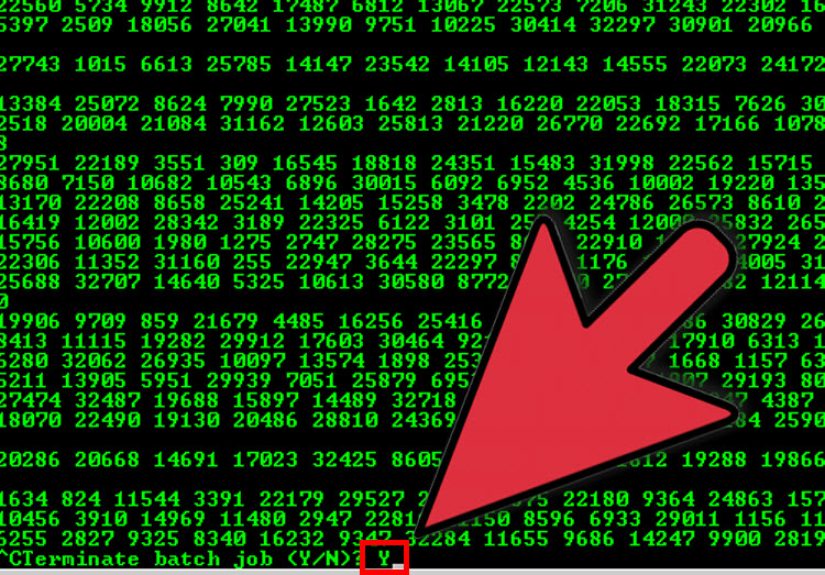
Double-click your matrix-rain.bat file. A Command Prompt window should open with green numbers racing across a black background. Congratulations: you have created the classic Matrix-style digital rain effect in Windows Command Prompt.
To stop it, close the Command Prompt window or press Ctrl + C. If Command Prompt asks whether to terminate the batch job, type Y and press Enter.
Step 10: Customize the Effect
Once the basic version works, you can customize it. You can change the title, adjust the number of random lines, alter the color, or add symbols. For example, color 02 creates darker green text, while color 0B creates aqua text. It will not be traditional Matrix green, but maybe your Matrix went on vacation to Miami.
You can also widen the output by adding more %random% sections to each line. A longer line fills more of the window horizontally. A shorter line creates a cleaner, narrower stream. Experiment until the effect matches the look you want.
Enhanced Matrix Rain Batch File Example
If you want a slightly richer version, try this code:
The mode command can adjust the console window dimensions, depending on your system and terminal environment. If the window behaves strangely, remove the mode 1000 line and run the script again. Command Prompt is usually forgiving, but sometimes it has the personality of a printer: technically useful, emotionally mysterious.
How the Matrix Rain Code Works
The Role of @echo off
The @echo off command keeps the batch file from showing every command before it runs. This makes the output cleaner and more cinematic. Without it, your script would display command lines along with the random numbers, ruining the illusion.
The Role of color 0A
The color command changes the Command Prompt colors for the current session. The first hexadecimal digit sets the background color, and the second sets the foreground text color. The code 0A means black background and bright green text, which is why it is commonly used for the Matrix effect.
The Role of %random%
The %random% variable is the engine of the effect. Every time the loop runs, Windows replaces %random% with a different number. When those numbers appear rapidly, they imitate the appearance of changing computer code.
The Role of goto
The goto command sends the script back to a label. In this tutorial, goto rain jumps back to :rain. That creates continuous motion. In other words, goto is the treadmill, and the random numbers are the tiny digital runners who refuse to take a break.
Common Mistakes and How to Fix Them
The File Opens in Notepad Instead of Command Prompt
This usually means the file was saved as a text file, not a batch file. Check the file name. If it says matrix-rain.bat.txt, rename it to matrix-rain.bat. You may need to enable file name extensions in File Explorer to see the full name.
The Text Is Not Green
Make sure your script includes color 0A. Also check whether you are running the file in classic Command Prompt, Windows Terminal, or another terminal app. Some terminal profiles may use custom color schemes, which can slightly change how the green appears.
The Window Scrolls Too Fast
The basic script runs as quickly as Command Prompt can process it. If it feels too fast, you can add a tiny delay, although Command Prompt timing is not perfect for animation. One option is to insert:
This pauses the loop for one second, which may be too slow for a rain effect but useful for testing. For a smoother animation, batch files are limited; they are fun, not Hollywood-grade visual effects software.
The Computer Feels Sluggish
Close the Command Prompt window or press Ctrl + C. Continuous loops use processing power. This script is simple, but if you run multiple copies at once, your computer may start questioning your life choices.
Safety Tips for Running Batch Files
Batch files are useful because they can automate Windows commands. That also means they should be treated with care. Before running a batch file from the internet, open it in Notepad and read the commands. Avoid scripts that include destructive commands such as file deletion, formatting drives, changing registry values, disabling security tools, or downloading unknown files.
The Matrix rain script in this article is display-only. It prints random numbers, changes the window title, changes the console colors, clears the screen, and loops. That is harmless. But learning batch scripting responsibly is important. A good rule is simple: if you do not understand a command, do not run it yet. Curiosity is excellent; accidental chaos is less excellent.
Creative Ways to Use the Matrix Rain Effect
The Matrix rain Command Prompt trick is popular because it is simple, visual, and instantly recognizable. You can use it as a fun desktop prank, a coding-themed background for a short video, a classroom demonstration, or a beginner scripting exercise. It is also a great first project for learning how batch files work because the results are immediate. You type a few lines, run the file, and suddenly your screen looks like it is deciding whether humanity should be plugged into a simulation.
For content creators, this effect can be used in intros, tech tutorials, or retro computer scenes. For teachers, it can introduce loops, variables, command output, and script files in a way that feels more exciting than printing “Hello World” for the 900th time. No offense to Hello World; it walked so Matrix rain could fall.
Experience Notes: What It Feels Like to Build the Matrix Rain Effect
The first time you create the Matrix rain effect in Command Prompt, the best part is how quickly it works. There is something satisfying about turning a plain text file into a moving wall of green code. It feels like you have unlocked a secret feature hiding inside Windows, even though the whole thing is built from ordinary commands that have been around for years.
One of the most common beginner experiences is saving the file incorrectly. You carefully copy the code, name the file matrix-rain.bat, double-click it, and Notepad opens again like it is saying, “Nice try, movie hacker.” This usually happens because the file is actually saved as .txt. Once you learn to choose All Files in the Save As window, the problem disappears. It is a small lesson, but it teaches an important idea: file extensions matter.
Another interesting experience is adjusting the speed and density. The first version may scroll too fast, especially on a modern computer. That speed creates a dramatic effect, but it can also be hard to look at for long. Adding or removing echo lines changes the rhythm. More lines make the rain thicker. Fewer lines make it lighter. Longer strings of %random% fill the screen more completely. Shorter strings look cleaner. The fun is in experimenting.
You may also notice that Command Prompt and Windows Terminal can display the effect differently. Classic Command Prompt often gives the old-school black-and-green look immediately. Windows Terminal may use a custom font, color theme, or profile setting that changes the mood. Neither is wrong. In fact, testing the script in different terminal environments is a good way to learn how display settings affect command-line output.
The Matrix rain project also teaches a surprisingly useful scripting concept: loops. The goto command may look almost too simple, but it demonstrates how repeated instructions create motion. Without the loop, you only get a few lines. With the loop, the screen comes alive. That is a useful mental model for programming in general. Computers are very good at doing boring things quickly, which is why humans invented scripts and then used them to make fake cyberpunk rain.
From a practical point of view, this project is best treated as a playful introduction to batch scripting rather than a polished animation tool. Batch files are not designed for smooth graphics. They are designed for automation. But that limitation is part of the charm. The effect looks raw, retro, and slightly chaotic, which is exactly why people enjoy it. It feels like old computer labs, late-night troubleshooting, and movie scenes where someone types three keys and somehow bypasses a satellite.
If you are publishing this tutorial online, the most helpful advice is to explain not only what to copy, but why each command exists. Readers appreciate code they can understand. When they know that color 0A creates the visual style, %random% generates the changing numbers, and goto keeps the script running, they are more likely to customize it. That turns a copy-and-paste trick into a learning moment.
Finally, remember that the best version of the Matrix rain effect is the one that runs safely and makes the user smile. It does not need to be complicated. It does not need to pretend to be real hacking. A few lines of batch code can create a memorable visual, teach basic scripting, and make an ordinary Windows desktop feel like a sci-fi control room. Not bad for something you can build in Notepad.
Conclusion
Creating the Matrix rain effect in Command Prompt is one of the easiest and most entertaining beginner batch file projects. With just a few commands, you can change the console color, generate random numbers, loop the output, and produce a classic green-code animation. The project is simple enough for beginners but flexible enough for experimentation. You can adjust the density, color, window size, and speed until the result looks exactly right.
More importantly, this tutorial gives you a practical introduction to Windows batch scripting. You learn how commands run in sequence, how labels and loops work, how variables can create changing output, and why saving files correctly matters. Today it is Matrix rain. Tomorrow it might be a backup script, a productivity shortcut, or a custom tool that saves you time. Every command-line journey has to start somewhere, and starting with digital rain is much cooler than starting with a blinking cursor and mild confusion.
Note: This article is based on real Windows Command Prompt and batch-file behavior. The sample code is intended for safe educational and visual use only.