Table of Contents >> Show >> Hide
- Before You Start: A Quick Compatibility Reality Check
- How to Put AirPods in Pairing Mode
- Option A: Connect AirPods to Apple TV (The Smoothest Experience)
- Option B: Connect AirPods to Roku (Two Different Paths)
- Option C: Connect AirPods to Amazon Fire TV / Fire TV Stick
- Option D: Connect AirPods to Chromecast with Google TV / Google TV Devices
- Option E: Connect AirPods Directly to a Smart TV (Brand-by-Brand)
- No Bluetooth on Your TV? Use a Bluetooth Transmitter (The Universal Backup Plan)
- Troubleshooting: When Your AirPods Refuse to Connect (A Short Drama)
- Real-World Experiences: What It’s Actually Like Using AirPods With a TV (Extra Tips + Mini-Stories)
- Conclusion: Quiet Viewing, Maximum Comfort
Want to watch your show without waking the whole house, startling the dog, or hearing commentary from someone who “doesn’t even like this show” (but somehow knows every plot twist)?
Connecting your AirPods to a Smart TV or streaming device is the move.
The good news: many modern TVs and streamers support Bluetooth headphones, and Apple TV plays especially nice with AirPods.
The slightly-less-good news: some devices (looking at you, certain Roku setups) prefer workarounds or specific features like “Private Listening.”
Either way, you’ll be watching in peace in a few minutes.
Before You Start: A Quick Compatibility Reality Check
1) Do you have Bluetooth audio on your TV or streamer?
Many Smart TVs have Bluetooth, but not all of them support Bluetooth audio output for headphones.
Some will only connect to remotes, keyboards, or speakers. If your TV settings include something like “Bluetooth Speaker List,” “Wireless Headphones,”
or “Bluetooth Audio,” you’re in business.
2) Do you want to connect to the TV itself or to a streaming device?
- Connecting to a streaming device (Apple TV, Fire TV, Chromecast/Google TV, some Roku models) is often easier and more consistent.
- Connecting to the TV is great when you use built-in apps (Netflix, Hulu, etc.) and don’t want extra boxes.
3) Make sure your AirPods are ready to pair
- Charge them (low battery can cause pairing weirdness at the worst possible timeusually during the climax).
- If they keep auto-connecting to your phone, temporarily turn off Bluetooth on nearby Apple devices.
- Keep them close to the TV/streamer while pairingwithin a few feet is ideal.
How to Put AirPods in Pairing Mode
Most pairing problems happen because the AirPods are not truly in pairing modethey’re just sitting there, silently judging you.
Here’s how to get them discoverable:
AirPods / AirPods Pro (most models)
- Put both AirPods in the case and open the lid.
- Press and hold the setup button on the back of the case until the light flashes white.
AirPods Max
- Take them out of the Smart Case.
- Press and hold the noise control button until the status light flashes white.
If your AirPods refuse to behave, skip ahead to the troubleshooting sectionyou may need a reset.
Option A: Connect AirPods to Apple TV (The Smoothest Experience)
If you have an Apple TV 4K (or an Apple TV that supports Bluetooth audio), you’re basically on the express lane.
Apple TV can detect AirPods tied to the same Apple Account and lets you switch audio output quickly from Control Center.
Fast method (when AirPods are already linked to your Apple Account)
- Put your AirPods in your ears.
- On the Siri Remote, press and hold the TV button to open Control Center.
- Select Audio Controls and choose your AirPods.
Manual pairing method (works for any Bluetooth headphones)
- Put your AirPods in pairing mode (white flashing light).
- On Apple TV, open Settings and find the Bluetooth device list (often under Remotes and Devices).
- Select your AirPods to pair.
Bonus: Share audio with two pairs of headphones
Watching together but still want quiet listening? Apple TV 4K can send audio to two pairs of compatible AirPods/Beats.
That means you can both listen without blasting the TV speakerslike a silent disco, but with better dialogue.
Option B: Connect AirPods to Roku (Two Different Paths)
Roku is where things get interesting. Depending on your Roku device, you may be able to pair Bluetooth headphones directly,
or you may need Roku’s “Private Listening” feature through the mobile app.
Method 1: Roku “Bluetooth Headphone Mode” (compatible models)
Some newer Roku streaming devices support a built-in “Wireless headphones” feature that lets you connect Bluetooth headphones directly from Settings.
If your Roku menus include something like Remotes & devices → Wireless headphones, you’re in luck.
- Put AirPods in pairing mode.
- On Roku: Home → Settings → Remotes & devices → Wireless headphones.
- Select your AirPods and choose Connect.
Method 2: Roku “Private Listening” (works even when Bluetooth pairing isn’t supported)
Many Roku setups don’t natively pair with Bluetooth headphones. Instead, Roku streams audio to your phone through the Roku app,
then your phone sends audio to your AirPods. It sounds like a Rube Goldberg machine, but it works surprisingly well.
- Connect your AirPods to your phone first (Bluetooth on your phone).
- Install/open the Roku mobile app.
- Connect the app to your Roku device (same Wi-Fi network matters).
- Open the remote in the app and tap the Headphone icon to enable Private Listening.
Tip: If there’s a delay or choppiness, make sure your phone and Roku are on strong Wi-Fi (and that your phone isn’t downloading a small planet in the background).
Option C: Connect AirPods to Amazon Fire TV / Fire TV Stick
Fire TV devices typically support Bluetooth headphones directly through Settings. Once connected, audio routes to your AirPods for quiet viewing.
- Put your AirPods in pairing mode.
- On Fire TV, go to Settings.
- Select Controllers & Bluetooth Devices.
- Select Other Bluetooth Devices (or similar).
- Choose Add Bluetooth Devices and select your AirPods when they appear.
If your AirPods don’t show up, scroll down to troubleshootingFire TV can be picky if your AirPods are already connected to an iPhone nearby.
Option D: Connect AirPods to Chromecast with Google TV / Google TV Devices
Google TV devices make Bluetooth pairing pretty straightforward. You’ll pair your AirPods as an “accessory,” then reconnect later from the same menu.
- Put AirPods in pairing mode.
- From Google TV Home, open Settings.
- Select Remote & Accessories.
- Select Pair remote or accessory.
- Choose your AirPods and confirm pairing.
Option E: Connect AirPods Directly to a Smart TV (Brand-by-Brand)
If you use built-in TV apps (or just prefer fewer boxes), pairing directly to the TV can be ideal.
Menu names vary, but the pattern is usually: Settings → Sound → Bluetooth Audio.
Samsung Smart TVs
- Put AirPods in pairing mode.
- Go to Settings → All Settings → Sound → Sound Output.
- Select Bluetooth Speaker List.
- Select your AirPods and choose Pair and Connect.
LG (webOS) Smart TVs
- Put AirPods in pairing mode.
- Open All Settings.
- Go to Sound → Sound Out.
- Choose Bluetooth (or Wireless Speaker / Bluetooth Devices depending on version).
- Select your AirPods and connect.
Sony (Google TV / Android TV models)
- Put AirPods in pairing mode.
- Open Settings on the TV.
- Go to Remotes & Accessories (or Bluetooth settings).
- Select Add device (or Pair accessory).
- Select your AirPods and confirm.
VIZIO Smart TVs
VIZIO support varies by model and year. Some models include a Bluetooth Headphones option in the TV menu.
If you see it, pairing is usually as simple as turning on pairing mode on your AirPods and selecting them from the TV’s Bluetooth headphones menu.
No Bluetooth on Your TV? Use a Bluetooth Transmitter (The Universal Backup Plan)
If your TV doesn’t support Bluetooth audioor it does, but the connection is unreliableuse a Bluetooth audio transmitter.
This little gadget plugs into your TV’s audio output and broadcasts audio to Bluetooth headphones (including AirPods).
Pick the right TV audio output
- 3.5mm headphone jack: simplest; often mutes TV speakers automatically.
- Optical (TOSLINK): great for stable audio; may require changing TV sound output settings.
- RCA (red/white): older TVs; works if it’s an audio output (not input).
Transmitter setup steps
- Plug the transmitter into the TV’s audio output (and power it via USB if required).
- Put the transmitter into pairing mode.
- Put AirPods into pairing mode.
- Wait for pairing, then play audio and test volume.
Important note about audio delay (lip sync)
Bluetooth can introduce a slight delay. Some TVs have an Audio Sync or Lip Sync setting to compensate.
If you’re using a transmitter, a low-latency model can help, but AirPods don’t support every low-latency Bluetooth codecso TV-level sync settings are often your best friend.
Troubleshooting: When Your AirPods Refuse to Connect (A Short Drama)
1) AirPods won’t show up in the Bluetooth list
- Make sure the case lid is open and the status light is flashing white.
- Move the AirPods closer to the TV/streamer.
- Turn off Bluetooth on nearby iPhones/iPads/Macs to stop auto-connecting.
- Restart the TV/streamer (yes, the classic “turn it off and on again” still works).
2) AirPods connect, but there’s no sound
- Confirm the TV audio output switched to Bluetooth headphones (some TVs keep playing through speakers until you select the Bluetooth device).
- Raise volume both on the TV and on the AirPods (some systems split control).
- Disconnect other Bluetooth audio devices like soundbars temporarily.
3) Connection keeps dropping
- Charge the AirPods and case.
- Reduce interference (move away from crowded Wi-Fi routers if possible).
- Update TV/streamer software.
- If using Roku Private Listening, strengthen Wi-Fi and close bandwidth-heavy apps.
4) Reset AirPods (the “last resort,” but it’s powerful)
If your AirPods are acting haunted, reset them and try again:
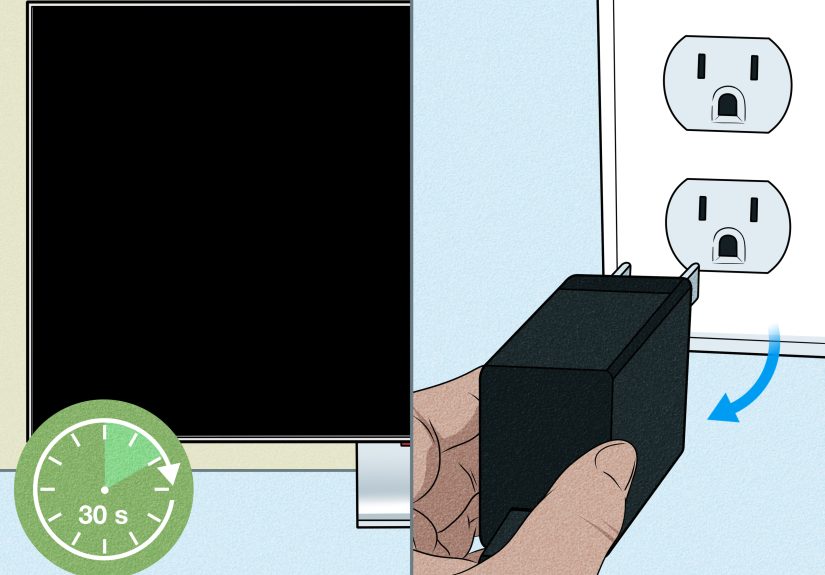
- Put AirPods in the case and close the lid for 30 seconds.
- Open the lid.
- Press and hold the setup button until the light flashes amber, then white.
- Re-pair from your TV/streamer’s Bluetooth menu.
Real-World Experiences: What It’s Actually Like Using AirPods With a TV (Extra Tips + Mini-Stories)
Setup instructions are great, but real life is messiermore like “Why is it connecting to my laptop in the other room?”
Here are common experiences people run into (and how to make them less annoying).
The “Midnight Binge” Win
A classic scenario: it’s late, the house is quiet, and you just want one more episode (which is always a lie).
AirPods are perfect here because they’re comfortable, easy to pop in, and you can keep the volume low while still hearing dialogue clearly.
Apple TV owners usually have the smoothest timeAirPods often appear in audio controls quickly, and switching back to speakers is just a few clicks.
The biggest surprise for many people is how “personal” the audio feelsquiet scenes become easier to follow without cranking volume and waking everyone.
The “Why Is My Phone Stealing the AirPods?” Problem
If you’ve ever tried pairing AirPods to a TV while your iPhone sits nearby, you’ve seen this: the AirPods connect… then immediately jump back to the phone.
It’s not you. AirPods are designed to pair seamlessly with Apple devices, and sometimes they’re a little too enthusiastic about it.
The quick fix that saves sanity: temporarily toggle Bluetooth off on nearby Apple devices during pairing.
After the TV/streamer has the AirPods saved, reconnecting later is usually easier.
The “Lip Sync” Mystery (a.k.a. The Dubbed Kung Fu Effect)
Bluetooth audio delay is real, and it can be noticeable on some TVs and streamersespecially if your setup already has audio processing turned on (surround modes, “auto volume,” enhancement settings).
People often describe it like this: explosions look early, dialogue feels late, and your brain refuses to accept it.
The practical move is to check your TV’s audio settings for anything called Audio Sync or Lip Sync.
Sometimes turning off extra sound processing (virtual surround, heavy enhancement modes) also reduces delay.
If you’re using a Bluetooth transmitter, choosing a reliable model helpsbut since AirPods don’t support every low-latency codec, the TV’s sync adjustment is still the MVP.
The “Roku App Surprise: This Actually Works” Moment
Roku Private Listening sounds like a workaround because it isbut it can be shockingly convenient.
Once your phone is paired to your AirPods, it becomes your personal audio bridge.
People often end up liking it because:
- You can walk a bit farther from the TV without losing audio (your phone stays with you).
- Volume control is right on your phone.
- You can quickly switch between AirPods and other headphones without touching TV menus.
The tradeoff is that Wi-Fi quality matters. If your network is congested, audio may stutter.
A simple improvement is using a 5 GHz Wi-Fi band when available and keeping your phone from doing heavy downloads while streaming.
The “Two People, Two Headphones” Flex
When it works, headphone sharing feels like a premium trick: two people watching together, both hearing clearly, and nobody blasting speakers.
Apple TV 4K supports audio sharing with two compatible pairs of AirPods/Beats, so couples and roommates can watch late at night without negotiating volume levels like it’s international diplomacy.
If you try this elsewhere (like with some TVs), you may need a transmitter that supports dual connectionsbut with Bluetooth, results vary.
In practice, Apple TV’s built-in sharing is the cleanest option because it’s designed for exactly this.
The “Don’t Forget to Disconnect” Habit
One surprisingly common experience: you finish watching, walk away, and later wonder why your phone has no soundbecause your AirPods are still connected to the TV.
The easy habit is to disconnect from the TV/streamer audio menu when you’re done.
Also, if you’re pairing in a shared space, it’s smart to “forget” devices you no longer useless clutter, fewer accidental connections, fewer future headaches.
Conclusion: Quiet Viewing, Maximum Comfort
Connecting AirPods to a TV setup is one of those small quality-of-life upgrades that feels weirdly luxurious.
Whether you use Apple TV for the cleanest integration, Fire TV/Google TV for straightforward Bluetooth pairing,
Roku’s Bluetooth Headphone Mode (when supported), or Roku Private Listening through the app, you’ve got a reliable path.
And if your TV refuses to join the Bluetooth era, a transmitter can bring it into the presentno new TV required.