Table of Contents >> Show >> Hide
- Quick Answer
- What “Queue” Means on Spotify
- How to Clear Queue on Spotify Mobile
- How to Clear Queue on Spotify Desktop
- How to Clear Queue on Spotify Web Player
- Why the Spotify Queue Keeps Coming Back
- What to Do If You Cannot Fully Clear Everything
- Best Practices for Keeping Your Spotify Queue Under Control
- Conclusion
- Experiences Related to Clearing the Spotify Queue
- SEO Metadata
Spotify is fantastic at one very specific thing: turning a casual listening session into a musical group project starring songs you vaguely remember adding at 1:12 a.m. One minute you queue up one chill track. The next minute, your Spotify queue looks like it was assembled by three different personalities and a caffeine ghost. If you are trying to clear the queue on Spotify for mobile, desktop, or the web player, the good news is that it is usually easy. The not-so-good news is that Spotify sometimes treats “queue,” “Next up,” and autoplay suggestions like distant cousins who all show up wearing the same jacket.
This guide breaks it all down in plain English. You will learn how to clear your Spotify queue on iPhone, Android, desktop, and web, what to do when the Clear Queue button does not appear, and how to stop Spotify from immediately refilling your listening session like an overenthusiastic DJ who refuses to read the room.
Quick Answer
To clear queue on Spotify, start playing any track, open the Now Playing screen, tap or click the Queue icon, and then choose Clear Queue if the option appears. On some devices, you may need to remove songs manually one by one. If the queue seems to come back instantly, you are probably seeing tracks from a playlist, album, or Spotify’s autoplay recommendations rather than only your manually added queue.
What “Queue” Means on Spotify
Before you start tapping buttons like you are defusing a bomb, it helps to know what Spotify means by “queue.” In Spotify, the queue is the running list of what will play next. That can include songs you manually added with Add to Queue, plus tracks coming from a playlist, album, radio-style suggestions, Smart Shuffle, or autoplay.
That distinction matters because the Clear Queue option typically targets the songs you manually added to Next in Queue. It does not always wipe out every upcoming track you see on the screen. If you are playing straight from a playlist or album, Spotify may still show a “Next up” section because it is simply continuing playback in order. In other words, Spotify is not always being stubborn. Sometimes it is just being very literal.
How to Clear Queue on Spotify Mobile
How to clear Spotify queue on iPhone or Android
- Open the Spotify app.
- Start playing any song, podcast, or episode.
- Tap the Now Playing bar so the full playback screen opens.
- Tap the Queue icon near the bottom-right of the screen.
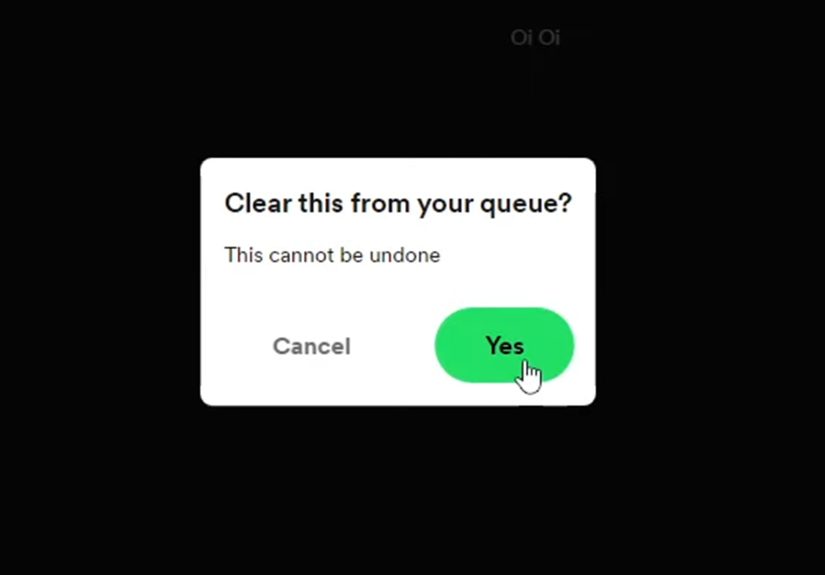
- Look for Clear Queue near the Next in Queue section.
- Tap it to remove your queued items.
That is the ideal version of events. You tap one button, your queue disappears, and your listening life feels organized again. It is the digital equivalent of cleaning your kitchen counter in one swipe. Beautiful. Rare. Slightly suspicious.
If there is no “Clear Queue” button on mobile
This is where most people get annoyed. If you do not see Clear Queue, one of several things is probably happening:
- You are viewing songs from a playlist or album that are set to play next, not only manually queued tracks.
- Spotify is showing autoplay recommendations after your current selection.
- Your current app layout has changed, because Spotify loves a redesign almost as much as it loves serving up one more suggested song.
When that happens, try these fixes:
Option 1: Remove songs manually
On many mobile versions of Spotify, you can select tracks inside the queue and tap Remove. On some newer Android layouts, removing queued songs may also work with quick gestures, such as swiping a queued track away. If you only need to delete a few songs, manual removal is often the fastest fix.
Option 2: Start playing something else
If what you are seeing is really just Next up from the current playlist or album, start a different song, album, or playlist. This often replaces the visible list with a fresh playback order. Think of it less as “clearing” and more as “politely evicting the current musical tenants.”
Option 3: Turn off Autoplay
If Spotify keeps adding similar songs after your queue ends, autoplay is likely the reason. Turning off autoplay helps stop the endless parade of “since you liked that one song in 2019, here are 14 more” recommendations.
To turn off autoplay on mobile:
- Tap your profile picture.
- Open Settings and privacy.
- Find Autoplay.
- Switch it off.
This does not just tidy your queue. It also restores the lovely, ancient concept of music actually stopping when you want it to stop.
How to Clear Queue on Spotify Desktop
If you use Spotify on Windows or Mac, clearing the queue is usually simpler than on mobile. The desktop app gives you clearer controls, easier right-click options, and fewer moments where you mutter, “Why is this button hiding from me?”
Steps to clear queue on Spotify desktop
- Open the Spotify desktop app.
- Play any song.
- Click the Queue icon in the bottom-right corner of the app.
- Look for the Clear or Clear Queue option near the top of the queue panel.
- Click it to remove your manually added queued tracks.
How to remove individual songs from the Spotify desktop queue
If you do not want to clear everything, or if the clear option is missing, you can remove tracks one by one:
- Open the queue.
- Right-click the song you want to remove.
- Select Remove from Queue.
Need to clear a bunch at once? On desktop, it is often easier to select multiple tracks and remove them together. This is especially useful when your queue contains six songs you intentionally added and one deeply confusing track that got there through what can only be described as playlist drift.
Keyboard shortcut tip
If you like moving fast, Spotify includes a keyboard shortcut to jump directly to your queue: Alt + Shift + Q. It is a small time-saver, but if you live in Spotify all day, small time-savers add up.
How to Clear Queue on Spotify Web Player
The Spotify web player works a lot like the desktop app, which is helpful because your browser should not feel like a separate civilization. In most cases, the steps are nearly identical.
Steps to clear Spotify queue on the web player
- Open Spotify in your browser and log in.
- Play a song.
- Click the Queue icon in the bottom-right playback area.
- Find Clear Queue near the top of the queue section.
- Click it to remove queued tracks.
If the option is not there, you are likely not looking at manually queued songs. You may be seeing the remaining tracks from a playlist, album, or autoplay chain. In that case, switch to different content or remove tracks individually.
How web player queue behavior can confuse people
Many users assume the entire upcoming list is one giant delete-ready queue. Spotify does not always see it that way. The web player often separates what you manually queued from what is simply scheduled to play next because you started a playlist or album. So yes, you may clear the queue and still see songs listed. No, you are not imagining things. No, your laptop is not haunted.
Why the Spotify Queue Keeps Coming Back
If you clear your queue and then immediately see more songs, the issue is usually one of these:
1. You are playing from a playlist or album
Spotify will naturally continue through the playlist or album unless you interrupt playback with something new.
2. Autoplay is turned on
Once your chosen music ends, Spotify may automatically generate similar songs to keep playback going. Helpful when you are cleaning the house. Less helpful when you want silence.
3. You are controlling another device with Spotify Connect
If your phone is controlling playback on a speaker, TV, or computer, you are editing the queue for that active device. Make sure you are looking at the right playback target before assuming Spotify ignored your command.
4. You are in a Jam or shared listening session
Spotify Jam lets multiple people add songs to a shared queue. If the queue changes like it is being edited by an invisible roommate, check whether other participants are still adding tracks.
What to Do If You Cannot Fully Clear Everything
Sometimes the most accurate fix is not a giant red “erase all” button. Sometimes it is one of these practical workarounds:
- Play a single new song to replace the current playlist flow.
- Turn off autoplay so Spotify stops extending the session.
- Remove songs manually from the queue if no clear option appears.
- Pause playback at the end of the last song if you want your session to truly stop.
- Double-check Spotify Connect so you are clearing the queue on the correct device.
- Restart the app if the queue panel seems stuck or outdated.
None of these are as satisfying as a giant universal delete button, but they do work in real life, which is what matters when you are trying to stop your workday playlist from morphing into a random indie-electronica marathon.
Best Practices for Keeping Your Spotify Queue Under Control
Clearing the queue is useful. Avoiding queue chaos in the first place is even better. Here are a few habits that help:
- Use playlists for planned listening. If you already know the vibe, let a playlist do the heavy lifting.
- Use Add to Queue sparingly. It is great for a few songs, not for re-creating your entire music history.
- Check the queue before starting new music. A quick glance can save you from surprise throwback tracks later.
- Turn off autoplay when you want a clean stop. This is especially handy during work, studying, or bedtime listening.
- Be careful with shared sessions. Jam is fun, but it can turn a queue into a democracy very quickly.
Conclusion
If you want to clear queue on Spotify for mobile, desktop, or web, the basic path is simple: open the queue and use Clear Queue when it is available. The trickier part is understanding that Spotify does not always treat every upcoming song as part of the same removable queue. Some tracks are manually queued, some belong to the playlist or album you started, and some are autoplay suggestions trying very hard to keep the party going.
Once you understand that difference, Spotify becomes a lot less confusing. On mobile, you may need to remove songs manually if the clear option is missing. On desktop and web, the controls are usually easier to spot. And if the queue seems immortal, turning off autoplay and starting fresh content often solves the problem. In short: your queue is not invincible. It is just a little dramatic.
Experiences Related to Clearing the Spotify Queue
One of the most common real-world experiences with the Spotify queue happens during work or study sessions. You start with one album because you want background music, then add two or three songs you suddenly remember loving, then maybe queue up a podcast episode for later. A couple of hours pass. Suddenly your neat listening session has become a Frankenstein lineup of focus beats, pop throwbacks, and one true-crime episode glaring at you from the future. When people finally go to clear the queue, they discover Spotify is showing both their manually added songs and the remaining tracks from whatever playlist or album they started with. That moment of confusion is incredibly common, and it is why so many users think the clear feature is broken when it is really just limited.
Another common experience shows up on mobile. Someone opens the queue expecting a giant, obvious “delete everything” button and instead finds individual songs, little selection circles, or a layout that looks slightly different from the tutorial they saw six months ago. Spotify’s interface changes just enough over time to make older instructions feel outdated. That does not mean the core process is impossible, but it does mean users often have to adapt. In real life, many people end up removing tracks one by one, starting a different playlist, or turning off autoplay just to get the clean listening slate they wanted in the first place.
Desktop users usually report a smoother experience, but they run into their own version of queue confusion. On a computer, it is easier to open the queue, right-click tracks, and remove multiple songs. But even there, people are often surprised that clicking Clear removes only the songs they manually queued, not every upcoming track attached to the current playlist. This tends to happen when someone wants to hear one specific song after a long work playlist ends. Instead of a clean stop, Spotify keeps rolling. The user clears the queue, sees more songs, and feels like they just argued with a filing cabinet.
Shared listening creates even more entertaining stories. In a Spotify Jam, one person may be trying to tidy the queue while someone else keeps adding songs from across the room. That can make the queue feel like a kitchen sink with a leaky faucet: you keep emptying it, and somehow it keeps filling back up. Families, roommates, and friend groups run into this a lot. One person wants calm acoustic music for dinner, another sneaks in high-energy dance tracks, and a third adds a podcast because apparently chaos is a hobby. In those cases, “clearing the queue” is less of a feature and more of an ongoing negotiation.
There is also the bedtime version of this experience. Plenty of users play a single relaxing song, white noise track, or sleep podcast, fully expecting Spotify to stop afterward. Instead, autoplay steps in like an overcommitted intern and keeps the audio going. That is why many experienced users learn that clearing the queue is only part of the solution. To really control playback, they also turn off autoplay or use a timer. Once people understand that combination, their Spotify experience usually improves fast. They stop blaming the app for every mystery song and start recognizing the pattern behind the madness. And honestly, that is half the battle with modern tech: not just finding the button, but understanding why the button sometimes acts like it has a secret personal life.