Table of Contents >> Show >> Hide
- Why a Messy Desktop Becomes a Problem
- Step 1: Start With a Ruthless Desktop Audit
- Step 2: Delete Shortcuts You Don’t Actually Need
- Step 3: Create a Folder System That Makes Sense
- Step 4: Use Sorting and View Options to Instantly Tidy the Screen
- Step 5: Move Frequently Used Apps to Better Places
- Step 6: Empty the Recycle Bin and Remove Temporary Junk
- Step 7: Uninstall Apps You Don’t Use
- Step 8: Clean Up Startup Apps for a Smoother Experience
- Step 9: Back Up or Sync Important Desktop Files
- Step 10: Build a Simple Maintenance Routine
- Best Practices for Keeping Your Windows Desktop Clean
- Common Desktop Cleanup Mistakes to Avoid
- What the Experience of a Clean Desktop Feels Like in Real Life
- Conclusion
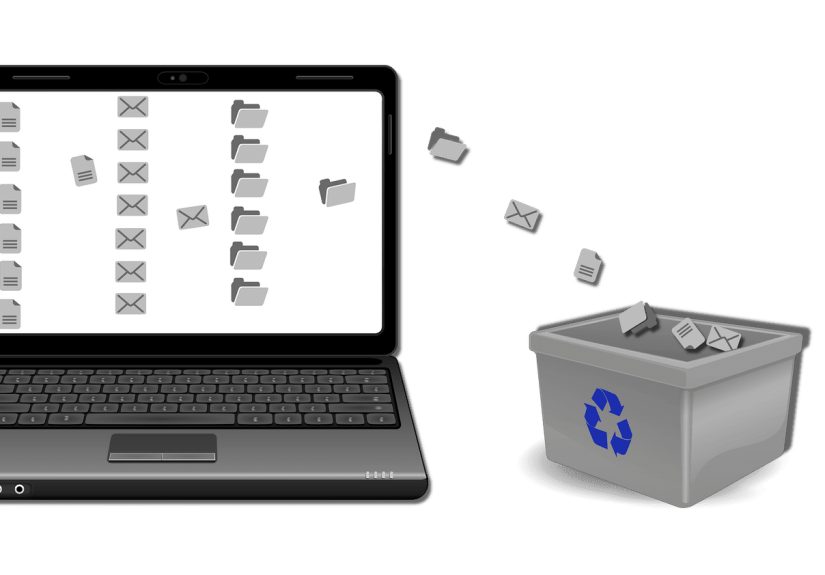
Your Windows desktop should be a launchpad, not a junk drawer. But give any PC enough time, and suddenly the screen is packed with screenshots, mystery PDFs, duplicate shortcuts, half-finished downloads, and that one file named final-final-really-final. It starts innocent. Then one day you can’t find anything, your wallpaper is doing its best but deserves better, and your desktop looks like it lost a fight with a file cabinet.
The good news is that cleaning up your Windows desktop does not require a weekend retreat, a computer science degree, or a dramatic vow to become “a minimalist now.” It just takes a smart system. In this guide, you’ll learn how to declutter your desktop, organize files, trim useless shortcuts, manage startup apps, and keep the mess from coming back. Whether you use Windows 10 or Windows 11, these steps will help you create a desktop that feels faster, cleaner, and a whole lot less chaotic.
Why a Messy Desktop Becomes a Problem
A cluttered desktop is more than an eyesore. It slows you down in a practical, everyday way. The more files and shortcuts scattered across the screen, the longer it takes to visually scan for what you need. That means more friction every time you open your laptop. Tiny friction adds up fast.
There is also a difference between files you truly need at arm’s reach and files that are just camping out there because moving them felt like future-you’s problem. A clean desktop makes work easier, reduces distractions, and helps you spot the tools you actually use. Think of it as clearing your kitchen counter: you still keep the coffee maker, but the random batteries and expired coupons have to go.
Step 1: Start With a Ruthless Desktop Audit
Before you organize anything, figure out what is actually on your desktop. Not everything sitting there belongs there.
Sort your desktop into four buckets
- Keep on desktop: Only daily-use shortcuts or one or two active project folders.
- Move to folders: Documents, images, downloads, spreadsheets, installers, and loose files that do not need to live in plain sight.
- Delete: Old screenshots, duplicate files, outdated notes, and abandoned downloads.
- Uninstall or remove shortcut: Programs you no longer use, broken shortcuts, and app links that only add noise.
A simple trick is to select everything on the desktop and force each item to earn its place. If a file has not been opened in months, ask yourself whether it belongs in a proper folder, cloud storage, or the Recycle Bin. Desktop real estate is premium property. Stop letting junk files rent it for free.
Step 2: Delete Shortcuts You Don’t Actually Need
Many cluttered desktops are not filled with important files. They are filled with shortcuts. App installers love tossing icons onto your desktop like confetti at a parade. The result is a screen full of quick links you never click.
Start by deleting unnecessary shortcuts. This will not remove the actual program in most cases. It only removes the desktop link. That makes this one of the fastest and safest ways to clean up the view.
What to remove first
- Duplicate app shortcuts
- Game launchers you never use
- Installer files and setup icons
- Shortcuts to websites you forgot existed
- Broken shortcuts that lead nowhere
If you still use a program often, pin it to the taskbar or Start menu instead of leaving it on the desktop. That keeps it easy to access without turning your wallpaper into a traffic jam.
Step 3: Create a Folder System That Makes Sense
If your desktop is currently functioning as “the place where all files go to think about their future,” it is time to build a home for your stuff. The best cleanup method is not prettier chaos. It is a simple structure.
A practical folder setup
- Work
- Personal
- Downloads to Review
- Screenshots
- Archive
Inside those, create subfolders only when necessary. Avoid building a folder maze with seventeen layers and emotionally exhausting names. If finding a file feels like entering a fantasy quest, your system is too complicated.
A good rule is this: if a file matters, it belongs in File Explorer, not loose on the desktop. The desktop should hold launch points, not long-term storage.
Step 4: Use Sorting and View Options to Instantly Tidy the Screen
Windows gives you built-in ways to make a messy desktop look less wild in seconds. Right-click an empty space on the desktop and explore View and Sort by. You can change icon size, align icons to the grid, auto-arrange them, and sort by name, size, type, or date modified.
This will not solve deeper clutter, but it absolutely helps. If your current desktop looks like icons were tossed from a moving vehicle, sorting them by name or type can make everything easier to scan.
Useful desktop display choices
- Small icons: Good if you need to keep a few things visible without crowding the screen.
- Align to grid: Keeps icons from drifting into random corners.
- Auto arrange: Great if you prefer order over manual placement.
- Hide desktop icons: Perfect for an ultra-clean look or presentations.
If you want a minimalist setup, you can even hide all desktop icons temporarily. It is the digital version of shoving everything into a closet before guests arrive, except cleaner and much more acceptable.
Step 5: Move Frequently Used Apps to Better Places
Your desktop does not have to carry the full burden of your workflow. Windows already gives you better homes for frequently used tools.
Better alternatives to desktop clutter
- Taskbar: Best for apps you open every day, like your browser, Word, Excel, or Slack.
- Start menu: Best for apps you use regularly but do not need visible all the time.
- Quick Access in File Explorer: Best for folders and project locations you revisit often.
Pinning programs to the taskbar is especially helpful. It reduces icon clutter while keeping your essentials one click away. In other words, your desktop can finally stop being the unpaid intern for every other Windows feature.
Step 6: Empty the Recycle Bin and Remove Temporary Junk
Cleaning the desktop visually is one thing. Cleaning the system underneath it is another. If your desktop is cluttered, there is a good chance your storage is messy too.
First, empty the Recycle Bin. Deleted files still take up space until you remove them for good. Then check your Downloads folder, which is basically the junk drawer’s bigger, sneakier cousin.
After that, use Windows cleanup tools:
Smart ways to free up space
- Turn on Storage Sense to automatically remove temporary files and manage space.
- Review Temporary files in Storage settings.
- Use Disk Cleanup if you want a traditional cleanup option.
- Delete old installers, duplicate downloads, and files you no longer need.
- Uninstall apps you have not touched in ages.
This part matters because a clean desktop feels even better when the machine itself is not dragging around digital leftovers from 2023.
Step 7: Uninstall Apps You Don’t Use
Sometimes desktop clutter is a symptom of software clutter. If you have programs you never open, remove them. Unused apps take up space, add menu clutter, and can sometimes create extra background processes or startup items.
Go to Settings > Apps and review your installed programs. Sort by size or scan the list for anything you no longer need. If you do not remember installing it and it does not sound important, investigate before deleting. But if it is a game you played twice in 2024, it may be time to part ways.
Just be careful not to confuse deleting a desktop shortcut with uninstalling a program. One clears the icon. The other removes the software itself. Windows believes in keeping users humble with that distinction.
Step 8: Clean Up Startup Apps for a Smoother Experience
Desktop clutter often comes with startup clutter. These are the apps that launch automatically when you sign in. Too many startup apps can make your PC feel slow before you have even opened your first browser tab.
Open Task Manager and review the Startup apps section. Disable the ones you do not need launching automatically. Focus on non-essential apps such as chat clients, game launchers, update tools, and random utilities you rarely use.
Startup apps that usually do not need to open every time
- Music services
- Gaming clients
- Meeting apps you use occasionally
- Cloud tools you can open manually when needed
- Manufacturer extras you never touch
Do not disable security software or anything you do not recognize without checking first. The goal is fewer unnecessary passengers, not turning your PC into a science experiment.
Step 9: Back Up or Sync Important Desktop Files
If you currently use your desktop as active storage, do not start deleting or moving files blindly. Back them up first. Windows and OneDrive make it easier to back up the Desktop folder so your files are protected and available across devices.
This is especially helpful if your desktop contains work in progress, client files, school assignments, or photos you forgot were sitting there. A cleaner desktop is great. A cleaner desktop with a backup is much better.
Step 10: Build a Simple Maintenance Routine
The secret to a clean Windows desktop is not one heroic cleanup session. It is a tiny routine you can repeat without drama.
Try this five-minute weekly reset
- Delete useless screenshots and downloads.
- Move loose files into proper folders.
- Remove new desktop shortcuts you did not ask for.
- Empty the Recycle Bin.
- Check whether anything on the desktop still deserves to be there.
That is it. Five minutes. Less time than most people spend looking for a file that was “definitely right there yesterday.”
Best Practices for Keeping Your Windows Desktop Clean
- Keep only your most-used shortcuts visible.
- Store actual documents in folders, not scattered on the desktop.
- Use the taskbar and Start menu more often.
- Name files clearly so they are easier to move and find.
- Create one temporary “Sort Later” folder instead of letting clutter multiply.
- Do a quick cleanup at the end of each week.
- Back up your Desktop folder if it holds important files.
Common Desktop Cleanup Mistakes to Avoid
Deleting first, thinking later
Do not mass-delete files unless you know what they are. Shortcuts are usually safe to remove, but personal files are another story.
Using the desktop as permanent storage
The desktop should support your workflow, not replace your filing system.
Over-organizing
If your system is too complex, you will stop using it. Keep it simple and boring. Boring systems are the ones that actually work.
Ignoring downloads
Many desktop messes begin in the Downloads folder and spread like glitter. Check it regularly.
What the Experience of a Clean Desktop Feels Like in Real Life
One of the biggest surprises people notice after cleaning up their Windows desktop is not technical at all. It is emotional. A cleaner screen feels calmer. You open your laptop and instead of being greeted by forty-seven icons and three files named new document, you see something intentional. It sounds small, but it changes how work begins.
Imagine a freelance designer who keeps project files, invoices, mood boards, screenshots, and client notes all on the desktop. At first, it feels efficient because everything is “right there.” But after a few weeks, finding one logo file becomes a scavenger hunt. The cleanup process changes that. The designer keeps only a few active project shortcuts on the desktop, pins Photoshop and the browser to the taskbar, and moves all working files into clearly named folders. Suddenly the desktop is no longer a stress trigger. It becomes a dashboard.
Or picture a college student whose desktop is buried under PDFs, lecture slides, Zoom recordings, and downloaded assignment templates. During finals week, every second matters. A clean desktop with folders for each class, a separate archive for old material, and only current assignments visible can make the whole computer feel easier to use. Not magically smarter, just less annoying. Sometimes that is enough to save your sanity.
Even casual users notice the difference. A parent sharing a family computer might start with a desktop full of tax forms, photos, school handouts, and shortcuts installed by every app known to humankind. After cleanup, maybe there is one family folder, one bills folder, a few pinned essentials, and a screen that no longer looks like it was organized by a raccoon. The result is not just prettier. It is easier for everyone in the house to use.
There is also a momentum effect. Once your desktop looks clean, you are less likely to dump random files there. The space starts to feel valuable. You protect it. You think twice before saving a screenshot to the main screen or leaving a ZIP file there for six months “temporarily.” A tidy desktop quietly teaches better habits.
And yes, there is a tiny thrill in seeing your wallpaper again. You picked it for a reason. It deserves a cameo, not a full-time job hiding clutter.
The real experience of desktop cleanup is not perfection. It is relief. It is opening your PC and knowing where things are. It is fewer distractions, faster decisions, and less digital mess shouting for your attention. That is what makes a clean Windows desktop worth the effort. It is not about being fancy. It is about making your computer easier to live with.
Conclusion
Cleaning up your Windows desktop is one of the simplest ways to improve your day-to-day computer experience. You do not need advanced tools or an elaborate productivity system. You just need to remove useless shortcuts, move real files into proper folders, use Windows features like Storage Sense and startup management, and give your desktop a clear purpose.
When your desktop is organized, your PC feels easier to use, your important files are easier to find, and your screen finally stops looking like a digital yard sale. Start with one cleanup session, build a small weekly habit, and let your desktop become what it was meant to be: a useful workspace, not a chaotic museum of everything you forgot to file.