Table of Contents >> Show >> Hide
- What Is AutoFill on an iPhone?
- How to Change AutoFill Contact Information on an iPhone
- How to Turn Contact AutoFill On or Off
- How to Change Credit Card AutoFill on an iPhone
- How to Turn Credit Card AutoFill On or Off
- How to Change Password AutoFill on an iPhone
- How to Edit Saved Passwords and Passkeys
- How to Delete Saved Passwords You No Longer Use
- How to Set Up iCloud Keychain for AutoFill
- How to Change Verification Code AutoFill
- How to Change AutoFill in Chrome on iPhone
- How to Change AutoFill in Microsoft Edge on iPhone
- Why AutoFill May Not Work on Your iPhone
- Privacy and Safety Tips for iPhone AutoFill
- Best AutoFill Setup for Most iPhone Users
- Common Questions About Changing AutoFill Options on iPhone
- Real-World Experience: What Actually Helps When Changing iPhone AutoFill
- Conclusion
AutoFill on an iPhone is one of those features you barely notice until it saves you from typing your shipping address for the 900th time. It fills in names, phone numbers, email addresses, home addresses, usernames, passwords, passkeys, verification codes, and credit card details. In other words, it is the tiny digital butler living inside your keyboard, politely offering to handle the boring parts.
But when AutoFill grabs the wrong address, suggests an old credit card, refuses to remember a password, or keeps offering your work email when you want your personal one, the convenience can quickly turn into a mini soap opera. The good news is that changing AutoFill options on an iPhone is simple once you know where Apple hides the controls.
This guide explains how to change AutoFill options on an iPhone for Safari, passwords, passkeys, contact information, saved cards, verification codes, iCloud Keychain, and third-party password managers. The steps are written for newer versions of iOS, including iOS 18, with notes for older iOS versions where the menu names may look slightly different.
What Is AutoFill on an iPhone?
AutoFill is an iPhone feature that automatically inserts saved information into web forms, apps, and sign-in screens. Instead of manually typing your name, address, email, password, or card number, your iPhone can suggest the right information above the keyboard or inside Safari.
There are several types of AutoFill on iPhone:
- Contact AutoFill: Fills in your name, email address, phone number, mailing address, and other details from your selected contact card.
- Credit card AutoFill: Fills in saved payment card information in Safari when Apple Pay is not available.
- Password and passkey AutoFill: Suggests saved logins from Apple Passwords, iCloud Keychain, or supported third-party password managers.
- Verification code AutoFill: Suggests one-time codes received by Messages or Mail.
- Browser-specific AutoFill: Apps like Chrome or Edge may also manage their own saved addresses, payment methods, or passwords.
So when someone says, “Change AutoFill on my iPhone,” they might mean several different things. That is why the best approach is to adjust each AutoFill category separately.
How to Change AutoFill Contact Information on an iPhone
If Safari keeps filling in the wrong name, phone number, email, or address, the issue usually comes from your selected contact card. Your iPhone uses a contact entry, often called “My Card,” as the source for personal AutoFill details.
Step 1: Choose the Contact Card AutoFill Should Use
- Open the Settings app on your iPhone.
- Scroll down and tap Apps.
- Tap Safari.
- Tap AutoFill.
- Turn on Use Contact Info.
- Tap My Info.
- Select the contact card that contains your correct personal details.
On some older iOS versions, the path may be Settings > Safari > AutoFill instead of Settings > Apps > Safari > AutoFill. Apple occasionally rearranges Settings like a parent “cleaning” your room and putting everything somewhere logical only to them.
Step 2: Edit Your Contact Card
If AutoFill is using the correct card but still filling in outdated information, edit the card itself.
- Open the Contacts app.
- Tap your contact card. It may appear as My Card at the top.
- Tap Edit.
- Update your name, phone number, email, address, birthday, website, or other details.
- Tap Done.
After this, Safari should use the updated information when filling forms. If a website asks for a field that is not saved in your contact card, your iPhone cannot magically invent it. Add the missing detail to Contacts first, then try AutoFill again.
How to Turn Contact AutoFill On or Off
You may not always want your iPhone to suggest your personal information. This is especially true if you share a device, let someone borrow your phone, or simply prefer entering details manually on sensitive websites.
- Open Settings.
- Tap Apps.
- Tap Safari.
- Tap AutoFill.
- Turn Use Contact Info on or off.
Turning this off does not delete your contact card. It only stops Safari from using that card to fill online forms. Think of it as telling your iPhone, “Thank you, but please stop volunteering my address like an overexcited assistant.”
How to Change Credit Card AutoFill on an iPhone
Credit card AutoFill lets Safari enter saved card details into checkout forms. It can save time, but it is worth reviewing your saved cards occasionally. Expired cards, duplicate cards, and mystery cards from three apartments ago do not need to live rent-free in your iPhone.
How to Add a Saved Credit Card
- Open Settings.
- Tap Apps.
- Tap Safari.
- Tap AutoFill.
- Turn on Credit Cards.
- Tap Saved Credit Cards.
- Authenticate with Face ID, Touch ID, or your passcode.
- Tap Add Credit Card.
- Enter the card details manually or use the camera if the option appears.
- Tap Done.
How to Edit a Saved Credit Card
- Go to Settings > Apps > Safari > AutoFill.
- Tap Saved Credit Cards.
- Unlock with Face ID, Touch ID, or your passcode.
- Select the card you want to update.
- Tap Edit.
- Change the cardholder name, card number, expiration date, or description.
- Tap Done.
How to Delete a Saved Credit Card
- Open Settings.
- Go to Apps > Safari > AutoFill > Saved Credit Cards.
- Authenticate with Face ID, Touch ID, or your passcode.
- Tap the card you want to remove.
- Tap Edit.
- Tap Delete Credit Card.
Deleting a saved card from Safari AutoFill does not close the card account, cancel Apple Pay, or contact your bank. It simply removes that card from Safari’s saved AutoFill list.
How to Turn Credit Card AutoFill On or Off
To stop Safari from suggesting saved payment cards:
- Open Settings.
- Tap Apps.
- Tap Safari.
- Tap AutoFill.
- Turn Credit Cards off.
This is a good choice if you prefer using Apple Pay, manually entering card details, or keeping payment information out of browser forms. Apple Pay and Safari credit card AutoFill are related in convenience but managed differently. Turning off Safari credit card AutoFill does not necessarily remove cards from Apple Wallet.
How to Change Password AutoFill on an iPhone
Password AutoFill is separate from Safari contact and credit card AutoFill. In newer iOS versions, password and passkey AutoFill lives under a system-wide setting, not inside Safari’s AutoFill menu.
How to Turn Password AutoFill On or Off
- Open the Settings app.
- Tap General.
- Tap AutoFill & Passwords.
- Turn AutoFill Passwords and Passkeys on or off.
When this option is on, your iPhone can suggest saved usernames, passwords, and passkeys when you sign in to websites and apps. When it is off, your saved passwords still exist, but your iPhone will not automatically offer them at login screens.
How to Choose Which Password Manager AutoFill Uses
Your iPhone can fill passwords from Apple’s Passwords app and, in many cases, supported third-party password managers such as 1Password. Apple allows password AutoFill from more than one compatible password app, although using too many at once can make suggestions feel cluttered.
- Open Settings.
- Tap General.
- Tap AutoFill & Passwords.
- Make sure AutoFill Passwords and Passkeys is turned on.
- Under the list of available password sources, turn on the password manager you want to use.
- Turn off any password source you no longer want suggested.
For example, if you use Apple Passwords for personal accounts and 1Password for work accounts, you may want both enabled. If your iPhone keeps suggesting old logins from an app you no longer use, turn that source off.
How to Edit Saved Passwords and Passkeys
On iOS 18 and later, Apple includes the standalone Passwords app. This app stores passwords, passkeys, Wi-Fi passwords, verification codes, security alerts, and shared password groups in one place.
- Open the Passwords app.
- Unlock with Face ID, Touch ID, or your passcode.
- Choose a category or search for a website or app.
- Tap the account you want to change.
- Tap Edit.
- Update the username, password, website, notes, or verification code settings.
- Tap Done.
In iOS 17 or earlier, saved passwords are usually found in Settings > Passwords. The idea is the same: unlock, choose the login, edit or delete it, and save your changes.
How to Delete Saved Passwords You No Longer Use
Old passwords are like old cables in a drawer. You keep them “just in case,” then five years later you own 37 of them and none fit anything. Cleaning up saved passwords helps reduce wrong AutoFill suggestions.
- Open the Passwords app.
- Unlock with Face ID, Touch ID, or your passcode.
- Search for the website or app.
- Tap the saved login.
- Tap Delete Password or Delete Passkey.
Only delete a saved login if you are sure you no longer need it or you have the correct replacement saved elsewhere. Password cleanup is great; accidental lockout is less great.
How to Set Up iCloud Keychain for AutoFill
iCloud Passwords and Keychain sync your saved passwords and passkeys across Apple devices signed in with the same Apple Account. If AutoFill works on your iPhone but not your iPad or Mac, iCloud syncing may be the missing piece.
- Open Settings.
- Tap your name at the top.
- Tap iCloud.
- Tap Passwords or Passwords & Keychain, depending on your iOS version.
- Turn on Sync this iPhone.
- Follow any on-screen instructions.
Once iCloud Passwords and Keychain are enabled, newly saved passwords can appear across your Apple devices. This is especially useful if you create a login on your iPhone and later want to sign in on your Mac without performing the ancient ritual of texting yourself a password. Please do not do that ritual. It has no dignity.
How to Change Verification Code AutoFill
Your iPhone can automatically suggest one-time verification codes from Messages and Mail. These are the six-digit codes you receive when signing in to banking apps, email accounts, shopping sites, and other services using two-factor authentication.
On newer iOS versions, you can also tell your iPhone to delete verification codes after they are used.
- Open Settings.
- Tap General.
- Tap AutoFill & Passwords.
- Find the Verification Codes section.
- Turn Delete After Use on or off.
When enabled, this setting helps keep Messages and Mail cleaner by removing used codes automatically. If you like keeping every code message forever for reasons known only to you and possibly a future archaeologist, leave it off.
How to Change AutoFill in Chrome on iPhone
Safari uses Apple’s AutoFill settings, but Chrome on iPhone may also save and fill information through your Google Account. If you use Chrome often, check its own settings too.
- Open the Chrome app.
- Tap the three-dot menu.
- Tap Settings.
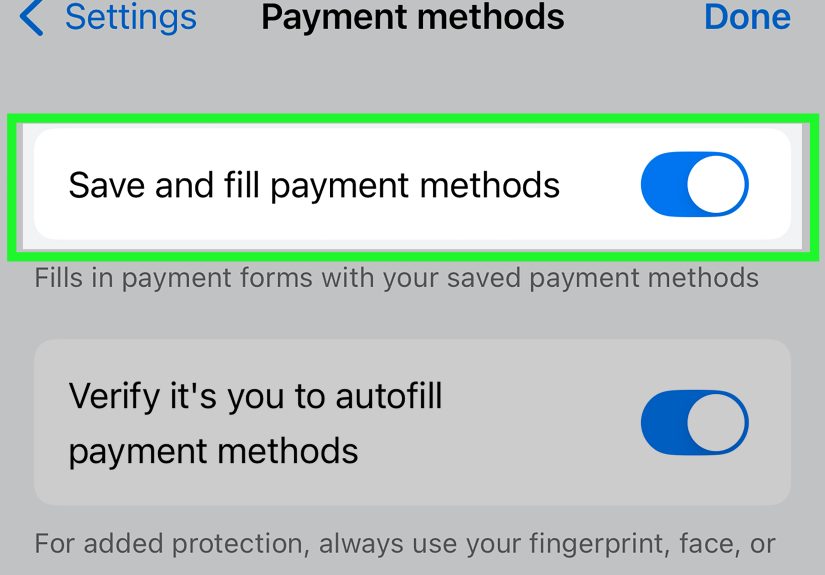
- Look for sections such as Payment methods, Addresses and more, or Password Manager.
- Edit, add, or remove saved information as needed.
Chrome also includes a setting that can require verification before autofilling payment methods. That is a smart option if you want convenience without letting your saved card details jump into forms too eagerly.
How to Change AutoFill in Microsoft Edge on iPhone
Microsoft Edge can manage saved passwords and AutoFill information through Microsoft Password Manager. If you use Edge as your main iPhone browser, open Edge settings and look for password and AutoFill controls there.
- Open Microsoft Edge.
- Tap the menu button.
- Open Settings.
- Look for Passwords and autofill or Microsoft Password Manager.
- Edit saved passwords, addresses, and payment details as needed.
One important note: Microsoft Authenticator’s old password AutoFill features have changed, so Edge is now the main Microsoft place to manage those saved passwords on mobile. If you previously relied on Authenticator for AutoFill, review your setup instead of assuming everything still works the same way.
Why AutoFill May Not Work on Your iPhone
If AutoFill is not working, the cause is usually one of these simple problems:
- AutoFill is turned off: Check Safari AutoFill and General > AutoFill & Passwords.
- The wrong contact card is selected: Update My Info in Safari AutoFill settings.
- Your contact card is incomplete: Add missing phone numbers, emails, or addresses in Contacts.
- The website blocks AutoFill: Some forms are designed in ways that prevent normal AutoFill behavior.
- The saved password is outdated: Edit or delete old logins in the Passwords app.
- iCloud Keychain is not syncing: Check iCloud Passwords and Keychain settings.
- You are using another browser: Chrome, Edge, and other browsers may have separate AutoFill settings.
A quick test is to open Safari, visit a basic form, and tap inside a name, address, login, or payment field. If the AutoFill suggestion appears above the keyboard, the feature is working. If not, review the related setting for that type of data.
Privacy and Safety Tips for iPhone AutoFill
AutoFill is convenient, but it handles sensitive information. A few smart habits can keep it helpful without making your personal data too easy to access.
Use Face ID, Touch ID, or a Strong Passcode
Your iPhone protects saved passwords and cards behind biometric authentication or your passcode. Make sure your passcode is not something obvious like 123456, your birthday, or the same number you use for everything else. Your iPhone deserves better. So do you.
Review Saved Cards Regularly
Remove expired cards, duplicate cards, and payment methods you no longer use. This keeps checkout cleaner and reduces accidental selection of the wrong card.
Keep Your Contact Card Accurate
If you move, change phone numbers, or create a new email address, update your contact card. Otherwise, AutoFill may continue offering details from your previous life, including that email address you made when you thought “sk8rdragon99” was professional.
Use Unique Passwords
Password AutoFill works best when each account has a unique password. Apple’s Passwords app can help store complex passwords so you do not need to memorize them. The goal is simple: one password leak should not unlock your entire digital life.
Be Careful on Shared Devices
If other people use your iPhone, consider turning off contact and credit card AutoFill. At minimum, use a strong passcode and avoid sharing it casually.
Best AutoFill Setup for Most iPhone Users
For most people, the best setup looks like this:
- Turn on Use Contact Info in Safari AutoFill.
- Select the correct My Info contact card.
- Keep your contact card updated.
- Turn on Credit Cards only if you are comfortable saving cards in Safari.
- Use AutoFill Passwords and Passkeys with Apple Passwords or one trusted password manager.
- Enable iCloud Passwords and Keychain if you use multiple Apple devices.
- Turn on Delete After Use for verification codes if you like a cleaner inbox.
This setup gives you the speed of AutoFill without making your iPhone feel like an overstuffed junk drawer of old addresses, forgotten cards, and duplicate logins.
Common Questions About Changing AutoFill Options on iPhone
Can I change the address AutoFill uses on my iPhone?
Yes. Go to Settings > Apps > Safari > AutoFill > My Info and choose the correct contact card. Then open Contacts and edit that card if the address itself needs updating.
Can I remove only one saved credit card?
Yes. Open Settings > Apps > Safari > AutoFill > Saved Credit Cards, authenticate, select the card, tap Edit, and delete it.
Can I use Google Password Manager or 1Password instead of Apple Passwords?
In many cases, yes. Go to Settings > General > AutoFill & Passwords and enable the supported password manager you want to use. The exact options depend on which apps are installed on your iPhone.
Does turning off AutoFill delete my saved information?
No. Turning off AutoFill usually stops suggestions from appearing, but it does not automatically delete your contact card, saved passwords, or saved credit cards. To remove stored data, delete it from Contacts, Safari AutoFill, the Passwords app, or the browser/password manager where it is saved.
Why does AutoFill keep using an old email address?
The old email may still be saved in your contact card, browser profile, password manager, or website account. Check your Contacts app first, then review saved logins and browser AutoFill settings.
Real-World Experience: What Actually Helps When Changing iPhone AutoFill
In everyday use, the most common AutoFill problem is not that the feature is broken. It is that the iPhone is pulling information from a place the user forgot existed. Someone updates their shipping address on a shopping site but forgets to update their contact card. Someone deletes a card from Apple Wallet but leaves it saved in Safari. Someone changes a password in an app but does not update the saved login in Passwords. Then AutoFill gets blamed, even though it is basically saying, “I am using the information you gave me three years ago, boss.”
The best experience starts with cleaning up your main contact card. Open Contacts, check every field, and remove anything outdated. Many people have duplicate emails, old office numbers, former addresses, or strange custom labels that make AutoFill suggestions messy. A clean contact card makes Safari forms feel much smarter immediately.
Next, review saved credit cards. This is especially useful before holiday shopping, travel booking, or any time you are likely to check out quickly. Expired cards can slow you down, and duplicate cards with similar names can lead to accidental selection. Adding clear descriptions, such as “Personal Visa” or “Business Mastercard,” can make saved cards easier to recognize.
Password AutoFill deserves its own cleanup session. Open the Passwords app and search for accounts you use often. If you see several logins for the same website, delete the old ones only after confirming which login works. Duplicate password entries are a major reason AutoFill shows confusing suggestions. It is also worth checking security recommendations inside the Passwords app, because reused or weak passwords can turn convenience into risk.
Another practical tip is to avoid enabling too many password managers at once. While iPhone can support multiple AutoFill sources, using Apple Passwords, 1Password, Chrome, and Edge together may create overlapping suggestions. Pick one primary password manager when possible. If you need two, use them intentionally, such as one for personal accounts and one for work accounts.
For families, shared devices, or phones used by kids, AutoFill settings should be more conservative. Turn off saved credit card AutoFill if purchases should not happen easily. Make sure Face ID, Touch ID, and passcode settings are strong. AutoFill is designed to save time, not to replace basic device security.
Finally, remember that some websites simply do not cooperate with AutoFill. Poorly coded forms, unusual checkout pages, or security-heavy websites may block suggestions. In those cases, copy information manually from Contacts, Passwords, or your password manager. If AutoFill works everywhere except one website, your iPhone is probably fine; the website is just being dramatic.
Conclusion
Changing AutoFill options on an iPhone is mostly about knowing which setting controls which type of information. Safari handles contact and credit card AutoFill. General settings control password and passkey AutoFill. The Passwords app manages saved logins. iCloud Passwords and Keychain sync information across Apple devices. Third-party browsers and password managers may have their own settings too.
Once you update your contact card, remove old cards, organize saved passwords, and choose the right AutoFill sources, your iPhone becomes much better at helping instead of interrupting. AutoFill should feel like a shortcut, not a guessing game. With a few minutes of cleanup, your forms, logins, and checkouts can become faster, cleaner, and a lot less annoying.