Table of Contents >> Show >> Hide
- Why Bookmarking All Tabs Is So Useful
- How to Bookmark All Tabs in Chrome
- How to Bookmark All Tabs in Edge
- How to Bookmark All Tabs in Firefox
- How to Bookmark All Tabs in Safari
- Chrome vs. Edge vs. Firefox vs. Safari: Which One Is Easiest?
- Best Practices for Saving Open Tabs Without Making a Bigger Mess
- Common Problems and Easy Fixes
- Experiences and Lessons From Bookmarking Tabs the Smart Way
- Final Thoughts
If your browser looks like a digital junk drawer exploded, congratulations: you are extremely modern. One tab is your email, one is a recipe you swear you’ll cook, six are research, three are shopping comparisons, and one mysterious tab has been playing faint music since Tuesday. This is exactly why learning how to bookmark all tabs in Chrome, Edge, Firefox, and Safari is such a useful trick.
Instead of leaving dozens of open tabs hanging around like unpaid interns, you can save them into a single bookmark folder, close the clutter, and reopen everything later when your brain is ready. It is one of the easiest ways to organize open tabs, save research sessions, and keep your browser from turning into a museum of unfinished intentions.
In this guide, you’ll learn the fastest ways to bookmark all tabs in the major desktop browsers, what the feature is actually good for, and how to keep your saved tab folders from becoming a second mess. We’ll also cover the small terminology differences, because Microsoft likes “favorites,” Apple likes being Apple, and the rest of us just want our tabs to stop multiplying.
Why Bookmarking All Tabs Is So Useful
Saving all open tabs at once is not just a neat browser trick. It solves a very real problem: open tabs feel organized until they absolutely do not. One minute you are “working on a project.” The next minute you are balancing thirty-seven tabs like a circus performer who made one bad choice in 2019 and never emotionally recovered.
When you bookmark all tabs, your browser creates a folder containing every page in the current window. That means you can save a research session, a shopping comparison, a travel plan, a school assignment, or a work sprint without manually bookmarking every page one by one. It is faster, cleaner, and much easier on your patience.
This works especially well for:
- Research projects with many reference pages
- Travel planning with flights, hotels, maps, and guides
- Online shopping comparisons across multiple stores
- Work sessions you want to close and reopen later
- Temporary browsing collections you do not want to lose
In short, if you ever think, “I need these tabs, but I do not need them open right this second,” this feature is your best friend.
How to Bookmark All Tabs in Chrome
Chrome makes this very easy, which is good because Chrome users are often one search away from opening twelve more tabs while looking for a way to manage the first twelve.
The fastest method
On Windows, press Ctrl + Shift + D. On Mac, press Command + Shift + D. Chrome will prompt you to name a new folder for all the open tabs in your current window.
The menu method
- Open all the tabs you want to save in one Chrome window.
- Click the three-dot menu in the top-right corner.
- Go to the bookmarks area of the menu.
- Choose Bookmark All Tabs.
- Name the folder something useful, then save it.
That folder can live in your bookmarks bar or another bookmarks folder. The smart move is to give it a name that tells Future You what it is. “Project notes” is helpful. “Stuff” is not. “AAAA save these” is technically legal but spiritually questionable.
A good naming formula is:
Topic + date + purpose
Example: Kitchen Remodel – March 2026 – Tile Research
Chrome is especially handy for this when you are deep into comparison work. Maybe you have open tabs for product reviews, specs, pricing pages, and Reddit threads. Save them all into one folder, close the window, and reopen them later when your budget and emotional stability return.
How to Bookmark All Tabs in Edge
In Microsoft Edge, bookmarks are called favorites, because apparently “bookmarks” was too emotionally direct. The feature is the same idea: save all open pages into one folder so you can reopen them later.
The shortcut method
On Windows, press Ctrl + Shift + D. On Mac, press Command + Shift + D. Edge will create a new favorites folder containing every open tab in the current window.
The menu method
- Open the tabs you want to keep.
- Click the three-dot menu in the top-right corner.
- Open Favorites.
- Choose the option to Add open pages to favorites.
- Name the folder and choose where to save it.
If you are switching between work and personal browsing, Edge is especially good at folder-based cleanup. You can save one browsing session for work research, another for vacation planning, and another for that highly serious investigation into whether you really need a new mechanical keyboard.
Edge also pairs nicely with the favorites bar. If you keep important bookmark folders visible, reopening a saved session becomes quick and painless. That is much better than trying to remember which of the nineteen history entries named “Untitled article” you actually needed.
How to Bookmark All Tabs in Firefox
Firefox gives you two solid methods, and both are useful. The shortcut is fast, but the manual method is great when you want more control, especially if you only want to save selected tabs.
The shortcut method
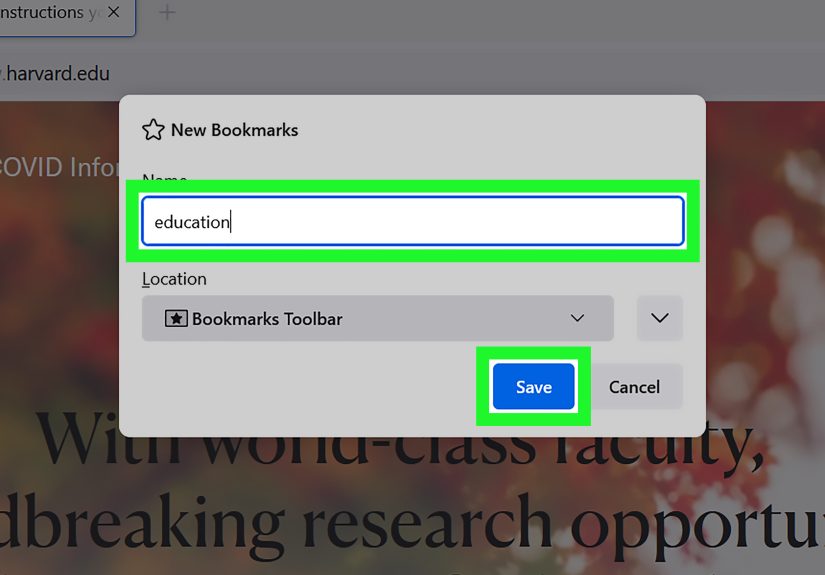
Press Ctrl + Shift + D on Windows or Command + Shift + D on Mac. Firefox will prompt you to create a folder containing all open tabs in the current window.
The manual method
- Right-click any open tab.
- Select Select All Tabs.
- Right-click one of the selected tabs again.
- Choose Bookmark Tabs.
- Name the folder and pick a save location.
This method is especially nice because Firefox feels a little more deliberate about tab handling. If you are the kind of person who likes to know exactly what is being saved and where it is going, Firefox is basically saying, “Yes, let us be adults about this.”
Another Firefox strength is that it works well for partial tab saving too. If you select only certain tabs, you can bookmark just that group rather than saving the entire chaos cloud. That is useful when half your tabs are important research and the other half are accidental side quests.
How to Bookmark All Tabs in Safari
Safari handles this a little differently, but the feature is there. On Safari for Mac, you can save the current set of open tabs into one bookmark folder using the Bookmarks menu.
Safari on Mac
- Open the tabs you want to save in Safari.
- In the top menu bar, click Bookmarks.
- Choose Add Bookmarks for These X Tabs.
- Select where to save the new folder.
- Give the folder a clear name, then click Add.
Safari’s wording changes depending on how many tabs are open, so you may see something like “Add Bookmarks for These 8 Tabs.” Same idea, same result. Safari bundles the current window’s tabs into one folder you can return to later.
Safari also gives you another useful option: Tab Groups. If you want to organize tabs without turning them into a static bookmark folder, Tab Groups are often the better choice. A bookmark folder is great when you want a saved snapshot. A Tab Group is better when the collection is still active and evolving.
What about iPhone and iPad?
Safari on Apple’s mobile devices does not always feel as obvious as the Mac version, because Apple loves clean design right up until the moment you actually need to find something. In practice, mobile Safari leans heavily on Tab Groups and iCloud syncing to help you keep browsing sessions organized across devices.
So if your goal is to save a bunch of pages and revisit them later on an iPhone, iPad, and Mac, the smartest setup is often this: use Safari on Mac to create the bookmark folder, then rely on iCloud to sync bookmarks and open tabs across your Apple devices.
Chrome vs. Edge vs. Firefox vs. Safari: Which One Is Easiest?
If speed is all you care about, Chrome and Edge are tied for easiest. The keyboard shortcut is the same, the behavior is straightforward, and the folder prompt appears immediately. Firefox is almost as easy, with the bonus of flexible tab selection. Safari is perfectly usable on Mac, but it feels slightly more tucked away in the menu system.
Here is the practical breakdown:
- Chrome: Fast, familiar, excellent for quick bookmark folder saves
- Edge: Just as fast, especially good if you already use favorites heavily
- Firefox: Great if you want control over selected tabs and bookmark organization
- Safari: Best for Mac users who want bookmark folders plus Tab Groups and iCloud continuity
So the best browser for bookmarking all tabs is usually the one you already use every day. The real productivity jump comes from knowing the feature exists and actually using it before your browser starts wheezing.
Best Practices for Saving Open Tabs Without Making a Bigger Mess
Bookmarking all tabs is useful, but it can create a second layer of clutter if you never organize the saved folders. That is how people end up with bookmark bars full of folders named “New folder,” “New folder 2,” and “Okay seriously this time.”
Use folder names that mean something
Include the topic and purpose. For example, Spring Break Trip – Hotels is far better than Travel.
Delete temporary folders when the project is done
Not every bookmark folder deserves immortality. If the tabs were only useful for one purchase, one assignment, or one weekend plan, delete the folder after you are finished.
Use bookmarks for finished collections, Tab Groups for active work
If you are still actively using and changing the collection, Tab Groups may be the cleaner solution. If you are archiving a snapshot of your work, use bookmarks.
Keep the bookmarks bar visible
A visible bookmarks or favorites bar makes saved tab folders easier to reuse. If the folder is always one click away, you are much more likely to actually use it.
Separate long-term and short-term folders
Create one main folder for evergreen resources and another for temporary research piles. That way, your saved browser tabs stay useful instead of becoming decorative clutter.
Common Problems and Easy Fixes
The browser saved the tabs, but I cannot find the folder
Check your bookmarks bar, bookmarks manager, or favorites manager. In many cases, the folder lands in the last-used location rather than the most obvious one.
I bookmarked too many tabs by accident
Open the folder, review the saved pages, and delete the nonsense. Every saved folder has at least one tab you do not remember opening. That is normal. The internet is a distracting place.
I wanted to save tabs from multiple windows
Most browsers save the tabs from the current window, not every open browser window at once. If you are working across multiple windows, save each one separately and label the folders clearly.
I do not want to bookmark all tabs forever
That is exactly why folder naming matters. Think of these as temporary session saves, not sacred artifacts. Save what matters, revisit it, and clean it up later.
Experiences and Lessons From Bookmarking Tabs the Smart Way
Anyone who spends a lot of time online eventually has the same realization: open tabs are not a system. They just feel like one for about twenty minutes. At first, a row of tabs looks productive. It says, “Look at me, I am researching.” But after a while, it starts saying, “I have twelve versions of the same article open, and I am afraid to close any of them.” That is usually the moment when learning how to save all open tabs becomes less of a browser trick and more of a survival skill.
One of the most relatable experiences is the “I will come back to this later” trap. You leave important tabs open because closing them feels risky. Then the next day arrives, followed by another work session, another shopping search, another article rabbit hole, and suddenly the browser is full of old tabs mixed with new ones. The original important tabs are still technically there, but now they are hiding between a weather page, two product reviews, a map, and a recipe for something involving too much cheese. Bookmarking all tabs solves that problem by turning a messy active session into a named collection you can actually trust.
It is also surprisingly helpful for mental focus. Once a tab session is safely saved, you can close it without panic. That matters more than people think. A crowded browser window quietly drains attention because every tab is a tiny unresolved decision. Should you read it now? Save it? Compare it? Ignore it? When the entire batch is neatly stored in one folder, your brain stops treating every tab like an emergency.
Another common experience is using the feature during major comparison tasks. Think apartment hunting, laptop shopping, planning a vacation, or researching schools. Those are exactly the moments when people open ten, twenty, or forty tabs and tell themselves this is under control. It rarely is. Saving those tabs into a bookmark folder creates a practical checkpoint. You can come back later, reopen the full set, and continue exactly where you left off instead of trying to reconstruct your thought process from browser history like a detective with no sleep.
There is also a lesson in not over-saving. Some people discover “bookmark all tabs” and immediately become digital hoarders with better folders. That is progress, but only halfway. The real win comes from saving intentionally, naming folders well, and deleting what no longer matters. Good tab management is not about preserving every click you ever made. It is about keeping the pages that still serve a purpose.
In the end, the best experience with this feature is simple: relief. Relief that your research is safe, relief that your browser is clean again, and relief that you no longer need to treat twenty-seven open tabs like a fragile ecosystem. Once you get into the habit, bookmarking all tabs feels less like maintenance and more like finally teaching your browser some manners.
Final Thoughts
If you regularly juggle lots of browser tabs, learning how to bookmark all tabs in Chrome, Edge, Firefox, and Safari is one of those small skills that pays off immediately. It helps you save open tabs, reduce clutter, organize research, and reopen important pages without relying on memory or chaos.
Chrome and Edge are wonderfully quick. Firefox gives you excellent control. Safari works best on Mac and pairs nicely with Tab Groups and iCloud. None of them can stop you from opening too many tabs in the first place, but all of them can help you recover gracefully.
And honestly, that is all most of us are asking for.