Table of Contents >> Show >> Hide
- What “Activate Internet” Means on Android
- Before You Start (30-Second Reality Check)
- How to Activate Internet on Android Phone: 13 Steps
- Step 1: Turn Off Airplane Mode (Yes, Really)
- Step 2: Turn On “Internet” / “Mobile Data” from Quick Settings
- Step 3: Confirm You’re Using the Correct SIM for Data (Dual SIM Check)
- Step 4: Make Sure Data Isn’t Being Restricted (Data Saver & Data Limits)
- Step 5: Restart the Phone (The Classic Fix for a Reason)
- Step 6: Turn On Wi-Fi and Connect to a Network (If You Have One)
- Step 7: If You’re on Public Wi-Fi, Complete the “Sign In” Page (Captive Portal)
- Step 8: “Forget” the Wi-Fi Network and Reconnect (Fixes Bad Passwords & Glitches)
- Step 9: Disable VPN, Proxy, or Private DNS Temporarily
- Step 10: Verify (or Reset) Your APN Settings for Mobile Data
- Step 11: Check Your Preferred Network Type (LTE/5G) and “Automatic” Selection
- Step 12: Turn On Data Roaming (Only If You’re Traveling)
- Step 13: Reset Network Settings (The “Nuclear Option” That Isn’t Actually Nuclear)
- Troubleshooting Cheatsheet (When You Need Answers Fast)
- Extra: of Real-World “This Happens All the Time” Experiences
- Conclusion
Turning “the internet” on for an Android phone sounds like it should be a single button. Sometimes it is.
Other times, Android politely reminds you that phones are tiny computers… that also somehow need carrier plans,
SIM cards, Wi-Fi passwords, and the occasional sacrificial restart.
This guide walks you through 13 practical steps to activate internet on an Android phonewhether you’re
trying to use mobile data (5G/LTE) or Wi-Fi. It’s written for real life:
different Android versions, different brands (Samsung, Pixel, Motorola, etc.), and the classic
“it worked yesterday” mystery.
What “Activate Internet” Means on Android
On Android, you typically get internet through one (or both) of these:
- Mobile data (cellular data): Uses your carrier plan (5G/LTE/4G).
- Wi-Fi: Uses a wireless network (home, school, café, hotspot).
The goal is to make sure at least one of them is enabled, connected, and not blocked by a setting like Airplane mode,
Data Saver, a VPN/proxy, or incorrect APN configuration.
Before You Start (30-Second Reality Check)
- Do you have a signal? If you’re in a basement, an elevator, or the world’s most scenic dead zone, mobile data may not work.
- Is your plan active? If your data plan is paused, expired, or out of high-speed data, you may connect but still feel “offline.”
- Are you using the right SIM? Dual-SIM phones can accidentally route data through the “wrong” SIM.
How to Activate Internet on Android Phone: 13 Steps
Follow these steps in order. Each step is quick and covers the most common causes. The menu labels may vary a bit by brand,
but the idea is the same.
-
Step 1: Turn Off Airplane Mode (Yes, Really)
Airplane mode disables cellular, and often Wi-Fi until you turn it back on manually. Open Quick Settings
(swipe down from the top) and make sure Airplane mode is off.Pro tip: If you see an airplane icon, your phone is basically saying, “I’d love to browse the web… from 35,000 feet.”
-
Step 2: Turn On “Internet” / “Mobile Data” from Quick Settings
Swipe down twice to expand Quick Settings. Tap Internet (Pixel/stock Android) or Mobile data (often Samsung).
Toggle it on. If you don’t see the tile, tap the pencil/edit icon to add it.If mobile data is on but nothing loads, keep goingactivation is only half the battle.
-
Step 3: Confirm You’re Using the Correct SIM for Data (Dual SIM Check)
Dual-SIM phones can make calls on SIM A while quietly trying to use data on SIM B (which may not have a plan).
Go to Settings > Network & internet (or Connections on Samsung) > SIMs.
Choose which SIM is set for Mobile data.Example: You travel with a local SIM for data and keep your home SIM for texts. Make sure data is assigned to the local SIM.
-
Step 4: Make Sure Data Isn’t Being Restricted (Data Saver & Data Limits)
Android can restrict background data with Data Saver, and some devices let you set a data warning/limit.
- Check Settings > Network & internet > Data Saver and toggle it off (or allow “Unrestricted data” for key apps).
- Check Settings > Network & internet > SIMs > App data usage (paths vary) for any limits.
If certain apps work on Wi-Fi but not on mobile data, Data Saver or per-app restrictions are common culprits.
-
Step 5: Restart the Phone (The Classic Fix for a Reason)
Restarting forces your phone to re-register on the network and refresh connections. Hold the power button, tap Restart,
and wait for the device to boot fully.If you’re rolling your eyes, that’s fairbut carriers and phone makers still recommend it because it genuinely clears a lot of stuck states.
-
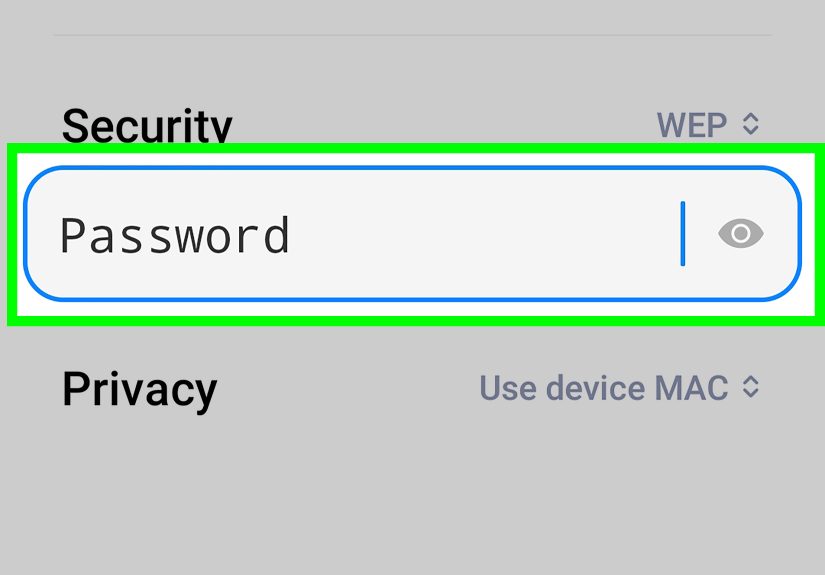
Step 6: Turn On Wi-Fi and Connect to a Network (If You Have One)
To activate internet over Wi-Fi:
- Go to Settings > Network & internet > Internet (or Wi-Fi).
- Toggle Wi-Fi on.
- Select your network and enter the password.
Quick diagnostic: If Wi-Fi works but mobile data doesn’t, your phone is fineyour mobile data setup is the issue.
-
Step 7: If You’re on Public Wi-Fi, Complete the “Sign In” Page (Captive Portal)
Coffee shops, airports, hotels, and schools often use a captive portala login page you must accept before you get internet.
- After connecting, look for a notification like “Sign in to Wi-Fi network.”
- Tap it and accept the terms, enter a code, or log in.
- If nothing appears, open a browser and try visiting a regular site (not an app). Sometimes that triggers the sign-in page.
If you can connect to Wi-Fi but every app acts offline, a captive portal is often the “invisible bouncer” blocking you.
-
Step 8: “Forget” the Wi-Fi Network and Reconnect (Fixes Bad Passwords & Glitches)
If Wi-Fi says “Connected” but you have no internet:
- Go to Settings > Network & internet > Internet.
- Tap the network name > Forget.
- Reconnect and re-enter the password carefully (Wi-Fi passwords are case-sensitive).
This also helps when a router’s settings change and your phone clings to old info like it’s a nostalgic playlist.
-
Step 9: Disable VPN, Proxy, or Private DNS Temporarily
VPNs, proxies, and custom DNS settings can block or reroute trafficespecially on restrictive Wi-Fi networks.
- Turn off any VPN: Settings > Network & internet > VPN.
- Check for a Proxy on the Wi-Fi network details (some networks allow configuring it).
- If you use Private DNS, try setting it to Automatic temporarily.
Example: A VPN might work at home, but at school Wi-Fi it can get blocked, leaving you “connected” but not actually online.
-
Step 10: Verify (or Reset) Your APN Settings for Mobile Data
APN settings (Access Point Name) tell your phone how to connect to your carrier’s data network. If they’re wrong,
mobile data can fail even with a good signal.Common path (varies by device): Settings > Network & internet > SIMs (or Mobile network) > Access Point Names (APN).
- Tap the menu (⋮) and choose Reset to default if available.
- If you were given carrier APN details, carefully enter them (spelling matters).
- Save the APN and select it as the active one.
When this matters most: after switching carriers, using a BYOD phone, traveling, or after a software update that resets network profiles.
-
Step 11: Check Your Preferred Network Type (LTE/5G) and “Automatic” Selection
Your phone can be set to a network mode that doesn’t match what’s available. This is rare, but it happensespecially on older devices or after carrier changes.
- Look for Preferred network type or Network mode under your SIM/mobile network settings.
- Choose a modern automatic option like 5G/LTE/3G/2G (auto) if available.
If you’re in an area with weak 5G, sometimes LTE is more stable. The “fastest” icon isn’t helpful if it’s not actually usable.
-
Step 12: Turn On Data Roaming (Only If You’re Traveling)
If you’re outside your normal coverage area (especially internationally), mobile data may be off because Data roaming is disabled.
- Go to your SIM settings and toggle Data roaming on.
- Confirm any prompts (and check your plan, because roaming charges can be… character-building).
Example: You land at an airport, you have full bars, and still no internetroaming settings are a prime suspect.
-
Step 13: Reset Network Settings (The “Nuclear Option” That Isn’t Actually Nuclear)
Resetting network settings clears saved Wi-Fi networks, Bluetooth pairings, VPN profiles, and mobile network preferences.
It often fixes stubborn “connected but no internet” issues.Typical paths:
- Stock Android: Settings > System > Reset options > Reset Wi-Fi, mobile & Bluetooth
- Samsung: Settings > General management > Reset > Reset network settings
After the reset, reconnect to Wi-Fi and re-test mobile data. If it still doesn’t work, the issue may be with your plan, SIM, carrier provisioning, or a network outage.
Troubleshooting Cheatsheet (When You Need Answers Fast)
- Wi-Fi works, mobile data doesn’t: Check SIM/data plan, APN, data assigned to correct SIM, Data Saver, carrier outage.
- Mobile data works, Wi-Fi doesn’t: Wrong password, router issue, captive portal, VPN/proxy, forget & reconnect, reset network settings.
- Nothing works anywhere: Airplane mode, device restart, network reset, SIM issue, or a larger outage.
Extra: of Real-World “This Happens All the Time” Experiences
Below are common situations people run into when trying to activate internet on an Android phoneplus what typically fixes them.
If any of these sound familiar, you’re not alone (and your phone isn’t “broken,” it’s just having a day).
The Coffee Shop Wi-Fi That Lies to You
You connect to “Coffee_WiFi,” your phone proudly announces Connected, and then… nothing loads.
Usually, that network needs you to accept terms on a captive portal page. The fix is to tap the “Sign in to Wi-Fi network”
notification or open a browser to trigger the login page. If the page still won’t appear, turning Wi-Fi off/on or forgetting and
reconnecting often forces the portal to show up. It feels silly, but many public networks won’t grant internet until you “shake hands”
with their sign-in page.
The Accidental Airplane Mode “Pocket Prank”
Airplane mode can turn on accidentallyespecially if your Quick Settings tiles are easily accessible. Suddenly you have no calls, no data,
no Wi-Fi (unless you manually re-enable Wi-Fi while Airplane mode is on). People often spend 10 minutes troubleshooting “the network”
when the real culprit is a tiny airplane icon quietly judging them from the status bar. If you ever see your phone behaving like it’s on a
deserted island, check Airplane mode first. The island is usually self-inflicted.
The Dual-SIM Mix-Up: Calls on One SIM, Data on the Other
Dual-SIM phones are great until they’re confusing. A very common scenario: SIM 1 is your main line, SIM 2 is a work line or travel SIM.
Calls and texts might work fine, but data won’tbecause Android is set to use the other SIM for data (the one without an active data plan).
Once you switch the “Mobile data” SIM in settings, the internet instantly returns, like it was waiting behind a curtain with jazz hands.
The “Data Saver Did It” Mystery
Data Saver is useful, but it can also make your phone feel partially offline: messages arrive late, apps refuse to refresh in the background,
and uploads stall until you open the app. People often think their data connection is broken when it’s actually restricted. Turning off Data Saver
(or allowing “unrestricted data” for key apps like messaging, maps, or email) usually clears this up. If only certain apps fail on mobile data,
suspect Data Saver or per-app background restrictions.
The Post-Update APN Surprise
After a software updateor after moving a SIM between phonesmobile data sometimes stops working even with good signal. That’s when APN settings
matter. Resetting APNs to default or entering the carrier’s correct APN values can restore data. This is especially common for BYOD phones,
MVNO carriers, and people who travel or swap SIMs. The “internet switch” isn’t always a switch; sometimes it’s a configuration file wearing a disguise.
The Travel Gotcha: Roaming Off
You land in a new country, the phone shows bars, but data is dead. Often, data roaming is disabled (or your plan doesn’t support roaming).
If your plan supports it, turning on Data Roaming can fix it. If you don’t want roaming fees, the safer route is Wi-Fi or a local eSIM/SIM plan.
Either way, this situation is a reminder that “bars” means “connected to a network,” not “allowed to use the internet.”
Conclusion
Activating internet on an Android phone is usually quick: turn off Airplane mode, enable mobile data or Wi-Fi, and connect. When it’s not quick,
the fix is still manageablecheck SIM/data settings, sign into public Wi-Fi portals, confirm APNs, and reset network settings if needed.
Follow the 13 steps above, and you’ll cover the most common causes without wasting time on guesswork.