Table of Contents >> Show >> Hide
- Before You Start: What “Delete a Teams Account” Actually Means
- Easy Ways to Delete a Microsoft Teams Account: 11 Steps
- Step 1: Identify which Teams account you’re using (Free vs. Work/School)
- Step 2: Back up anything you’ll miss later (files, chats, meeting notes)
- Step 3: Sign out everywhere (this prevents “accidental resurrection”)
- Step 4: Remove the account from the device (optional, but satisfying)
- Step 5: Leave organizations you no longer want (especially guest access)
- Step 6: If it’s a work/school account, ask the admin to remove Teams access (or delete the user)
- Step 7: If it’s Teams Free, use the in-app “Delete account” option (mobile) when available
- Step 8: Close the Microsoft account behind Teams Free (the real “delete”)
- Step 9: Cancel active subscriptions and clean up dependencies first
- Step 10: Uninstall Microsoft Teams (and the sneaky installer that brings it back)
- Step 11: Clear Teams cache and sign-in leftovers (for “ghost orgs” and stubborn logins)
- What Happens After You Delete or Leave Teams?
- Troubleshooting: “I Deleted It… Why Is Teams Still Showing Up?”
- Real-World Experiences: What People Learn the Hard Way (About )
- Conclusion: Delete Smart, Not Angry
Microsoft Teams has a special talent: it can be incredibly useful on Monday and feel like a clingy ex by Friday. If you’re here because you want to delete a Microsoft Teams account, you’re not aloneand you’re not weird. You’re just ready for fewer pings, fewer “quick calls,” and fewer surprise meetings that could’ve been an email (or, better yet, could’ve been nothing at all).
Here’s the catch: in most cases, there isn’t a separate “Teams account” you delete like a social media profile. Teams is usually tied to (1) a personal Microsoft account (Teams Free) or (2) a work/school account managed by an organization. So the real move is figuring out which type you haveand then deleting, leaving, or removing access the right way.
Before You Start: What “Delete a Teams Account” Actually Means
“Deleting Teams” can mean three different things, and mixing them up is how people end up uninstalling the app 12 times, while their account still shows up like a ghost at a family reunion.
- Delete the app (Teams disappears from your device, but your account still exists).
- Remove your account from a device (Teams stops auto-signing you in on that phone/computer).
- Delete/close the account behind Teams (personal Microsoft account) or have an admin delete your work account (work/school).
This guide walks through all of itcleanly, safely, and without the “just click the thing” hand-waving.
Easy Ways to Delete a Microsoft Teams Account: 11 Steps
-
Step 1: Identify which Teams account you’re using (Free vs. Work/School)
Open Teams and look at the email address on your profile. If it’s something like @outlook.com, @hotmail.com, or another personal email you control, you’re probably on Teams Free. If it’s a company or school domain (like @yourcompany.com or @university.edu), you’re on a work/school account.
Why this matters: Teams Free is tied to a consumer Microsoft account you can close. Work/school Teams is tied to an organization’s directorymeaning your IT admin is the one with the delete button.
-
Step 2: Back up anything you’ll miss later (files, chats, meeting notes)
Deleting access is easy. Remembering what you lost afterward is the hard part. Before you delete or close anything, download or copy out what you actually care about:
- Files you need for taxes, projects, or “just in case.”
- Chat info you’ll want later (addresses, receipts, login detailsyes, people put those in Teams chats).
- Contacts you’ll need outside Teams.
Pro tip: if you’re leaving a job, assume your work account could be disabled quickly. Save what’s allowed and appropriate before your last day.
-
Step 3: Sign out everywhere (this prevents “accidental resurrection”)
If you plan to close a personal account, signing in during Microsoft’s waiting period can cancel the closure process. So first: sign out on every devicedesktop, web, and mobile.
- Desktop/Web: Select your profile picture → choose Sign out.
- Mobile: Tap your profile icon → sign out from settings/account options.
This step also helps if Teams keeps switching you into an organization you’re trying to escape.
-
Step 4: Remove the account from the device (optional, but satisfying)
Signing out stops Teams from using the account, but devices can still “remember” it through shared sign-in services. If you want Teams (and sometimes Windows/macOS) to forget you ever met:
- Windows: Remove the work/school account from Accounts settings (where applicable).
- macOS: Remove saved credentials for Teams/Microsoft sign-in from Keychain if they keep popping up.
- Mobile: Remove the account inside Teams and/or the device’s account list if it’s stored there.
This doesn’t delete the account itselfit just prevents auto-sign-in and “why is Teams still here?” moments.
-
Step 5: Leave organizations you no longer want (especially guest access)
Ever been invited as a guest to someone else’s Teamsand then it never goes away? You can often leave an organization from the Microsoft account/organization management portal. Look for an option like Organizations and then Leave organization.
If the “Leave” button is missing or you see something like “Sign in to leave,” try doing it in a private/incognito browser window. If you still can’t leave, the organization may need an admin to remove your guest account.
-
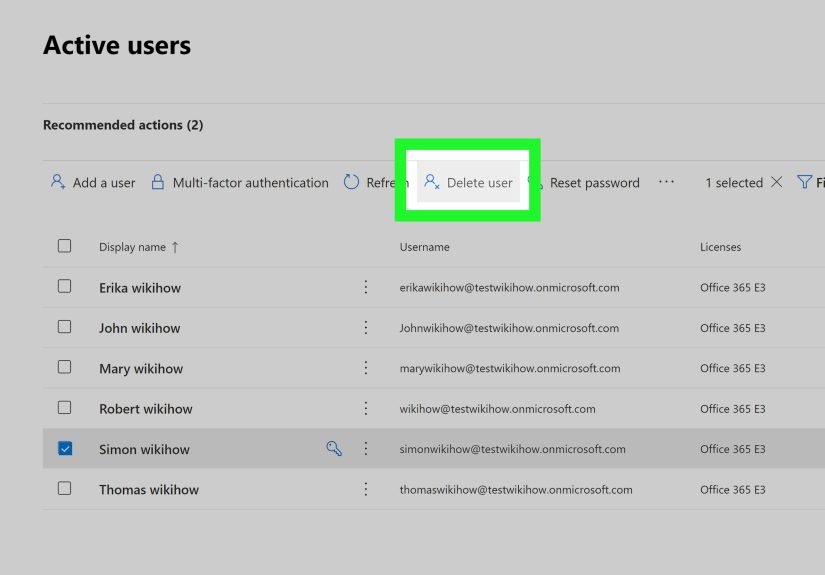
Step 6: If it’s a work/school account, ask the admin to remove Teams access (or delete the user)
This is the part people hate, because it requires another human. But it’s also the truth: you cannot fully delete a work/school Teams account by yourself.
What you can request from IT or your Microsoft 365 admin:
- Remove your Teams license (cuts off Teams access).
- Delete the user from the organization (full removal, subject to retention policies).
- Remove guest access if you’re stuck as a guest in their tenant.
If you’re leaving a company, this is usually standard offboarding. If it’s a random org you don’t recognize, treat it like a security issue and ask your admin to investigate.
-
Step 7: If it’s Teams Free, use the in-app “Delete account” option (mobile) when available
For Teams Free, Microsoft may provide an in-app option on mobile that starts account deletion/closure steps. This is the fastest route when it shows up because it guides you through the correct flow without making you hunt down pages.
If you don’t see the option, don’t panic. You can still delete Teams Free access by closing the Microsoft account behind it (next steps).
-
Step 8: Close the Microsoft account behind Teams Free (the real “delete”)
For Teams Free, deleting the Teams account usually means closing your Microsoft account. That’s the account that also powers other Microsoft consumer services. If you close it, you won’t be able to sign in to Teams Free anymorebecause the account itself no longer exists.
Important reality check: closing a Microsoft account can affect services like email, cloud storage, subscriptions, and sign-ins. If you use that Microsoft account for anything else, you’ll want to migrate those items first.
-
Step 9: Cancel active subscriptions and clean up dependencies first
Before you close a Microsoft account, make sure there aren’t active paid subscriptions or services tied to it. This can include productivity subscriptions, storage plans, or any service that would become inaccessible after closure.
Why do this now? Because you don’t want to discover a still-billing subscription after you’ve locked yourself out of the account used to manage it. That’s not “adulting”; that’s “support ticket speedrun.”
-
Step 10: Uninstall Microsoft Teams (and the sneaky installer that brings it back)
If you’re done with Teams entirely, uninstall it from your devices. On Windows, there may be two separate items: Microsoft Teams and Teams Machine-Wide Installer. If you remove only one, Teams can sometimes reappear later.
- Windows: Uninstall Teams and (if present) Teams Machine-Wide Installer.
- Mac: Remove Teams from Applications and trash it (and remove sign-in leftovers if needed).
- Mobile: Delete the app like any other app.
This step doesn’t delete your account, but it does delete the daily temptation to click “Join” on meetings you never agreed to attend.
-
Step 11: Clear Teams cache and sign-in leftovers (for “ghost orgs” and stubborn logins)
Sometimes Teams shows old organizations even after you’ve left, or it keeps trying to sign you in with the wrong account. That’s often cached data.
Clearing the Teams client cache (Windows/macOS) can fix:
- Organizations that won’t disappear
- Old account prompts that keep returning
- Sign-in loops that feel like punishment for something you did in a past life
After clearing cache, restart Teams (or don’tif you’re uninstalling it anyway, that’s also a valid lifestyle choice).
What Happens After You Delete or Leave Teams?
Here’s what typically changes, depending on what you did:
- If you uninstalled Teams: the app is gone, but your account still exists and can be used on web or another device.
- If you signed out/removed the account from a device: Teams stops auto-signing you in on that device.
- If you left an organization: you lose access to that organization’s Teams, channels, files, and chats (subject to their policies).
- If you closed a personal Microsoft account: Teams Free access ends because the account is goneplus other Microsoft consumer services tied to it.
- If an admin deleted your work account: you lose access to the organization’s Microsoft services based on that account and their retention rules.
Troubleshooting: “I Deleted It… Why Is Teams Still Showing Up?”
Teams keeps reappearing after uninstall
On some Windows setups, Teams can come bundled with installers or enterprise deployments. If you didn’t remove the machine-wide component, it may reinstall for user profiles later. Uninstall both entries where applicable.
An old organization won’t disappear
First, confirm you actually left the org via the organization management portal. Then sign out completely and clear Teams cache. If you’re a guest and can’t leave (or your guest account is disabled), you may need the organization’s admin to remove you.
There’s no “delete Teams profile” button
For Teams Free, deleting the “profile” inside the app may be limited. In many cases, the real deletion route is closing the Microsoft account behind it, or removing personal profile details through Microsoft account settings.
Real-World Experiences: What People Learn the Hard Way (About )
If you’ve tried to delete a Microsoft Teams account and felt like you were stuck in a loop, you’re in good company. The most common “experience” people report is realizing that Teams isn’t a standalone serviceit’s more like a passenger riding on top of another account. So someone will delete the app, feel victorious for 20 minutes, and then open Outlook (or Windows), and Teams is somehow back like it paid rent. That’s usually because Teams was installed alongside a machine-wide installer on Windows or deployed by an organization.
Another frequent scenario: guest access that won’t die. People join a partner’s Team for one project, the project ends, and months later they’re still seeing the org name in their Teams list. It’s annoying, but it’s also normalguest accounts live inside the organization’s directory until they’re removed or the guest leaves via the organization portal. When the “Leave organization” option works, it feels like finally finding the light switch in a dark room. When it doesn’t work, it usually means the guest account is restricted or disabled somewhere, and an admin has to clean it up on their side.
Teams Free users often run into a different surprise: “Waitif I delete this, I lose my whole Microsoft account?” Yep. Many people use one personal Microsoft account for email, cloud files, game saves, and device sign-ins. If you close that account to delete Teams Free, you’re not just deleting a chat app. You’re essentially moving out of an entire Microsoft housemailbox, storage closet, and all. The smart experience here is taking an inventory first: What services do you actually use? Is your OneDrive full of important documents? Do you still need the email address for logins elsewhere? Closing an account is clean, but it’s also permanent after the waiting period.
In work/school environments, the “experience” is usually about timing and control. People assume they can delete their work Teams account the same way they delete a personal app accountclick, confirm, goodbye. But work accounts are owned by the organization. Even if you resign, you might still see the account on your phone or laptop until you remove it locally. And even if you remove it locally, the account can still exist on the company’s side until IT completes offboarding. This gap can feel confusinglike you left the building, but your badge still opens the door (or at least still shows up in the badge reader).
The biggest lesson most people share: the fastest “delete Teams” path is the one that matches your account type. Teams Free? Focus on the Microsoft account closure route (after backing up what you need). Work/school? Focus on leaving organizations, removing the account from your devices, and asking admins to remove access or delete the user. And if Teams is haunting your Windows PC specifically, uninstall both Teams and the machine-wide installer, then clear cache. After that, the only pings you’ll get are from your actual friendsassuming you still answer texts.
Conclusion: Delete Smart, Not Angry
Deleting a Microsoft Teams account is less about smashing a “Delete” button and more about choosing the right exit: close a personal Microsoft account for Teams Free, have IT remove a work account, leave guest organizations, and clean up devices so Teams stops “helping.” Do it in order, back up what you need, and you’ll avoid the classic mistake: deleting the app and wondering why your account still exists.