Table of Contents >> Show >> Hide
- First, What Counts as a “Contact” in Messenger?
- Easy Ways to Delete a Contact on Messenger: 10 Steps
- Step 1: Decide what “delete” means to you
- Step 2: Delete (or archive) the conversation so they vanish from Chats
- Step 3: Remove individual messages (for you) to clean up a single “oops” moment
- Step 4: Use “Unsend” when you need it gone for everyone (when available)
- Step 5: Restrict them (the “soft delete” for humans)
- Step 6: Block them on Messenger (no messages, no calls, no thank you)
- Step 7: Unfriend (or block) on Facebook if they’re a Facebook friend
- Step 8: Turn off contact uploading (stop feeding Messenger your phone book)
- Step 9: Delete uploaded contacts (bulk cleanup)
- Step 10: Remove their “breadcrumbs” (search history + Active list + message requests)
- Quick FAQ: The Stuff People Only Ask After They’ve Tapped Something Scary
- Extra Tips to Keep Your Messenger List Clean (Without Turning Into a Digital Hermit)
- of Real-World “Messenger Cleanup” Experiences (So You Don’t Repeat Them)
- Conclusion
You opened Messenger, saw a name you haven’t thought about since “Harlem Shake” was trending, and thought:
“Cool. How do I delete this person?”
Here’s the fun part (fun like stepping on a LEGO): Messenger doesn’t treat “contacts” the way your phone does.
Some people are Facebook friends. Some are phone contacts you uploaded. Some are just… there because you said “lol” once in 2017.
So the best way to “delete a contact on Messenger” depends on which kind of contact they areand what you’re trying to achieve.
First, What Counts as a “Contact” in Messenger?
Messenger mixes a few different relationship types into one big digital soup. Before you start tapping like you’re defusing a bomb, decide what you want:
1) A Facebook friend
If you’re friends on Facebook, they’ll often show up easily in Messenger. You can still manage them, but “deleting” them usually means
unfriending or blocking.
2) A phone contact you uploaded (synced contacts)
If you enabled contact uploading/syncing, Messenger may have imported your phone book. These aren’t “Messenger-only people.”
They’re tied to your uploaded contact list.
3) Someone you messaged, a business you chatted with, or a random message request
These show up because of chat historynot because you “saved” them. For this, you usually delete/archive the chat, restrict, or block.
Easy Ways to Delete a Contact on Messenger: 10 Steps
Follow these in order, and stop as soon as you’ve hit your goal. (No need to launch a full scorched-earth campaign if you just wanted a cleaner chat list.)
-
Step 1: Decide what “delete” means to you
Pick your mission:
- Hide them from your Chats list → delete or archive the conversation.
- Stop them from messaging you → restrict or block.
- Remove a phone contact footprint → turn off contact uploading and delete uploaded contacts.
- Remove the Facebook connection → unfriend or block on Facebook.
This one decision prevents 90% of Messenger cleanup regret.
-
Step 2: Delete (or archive) the conversation so they vanish from Chats
If the person is haunting your chat list, deleting the conversation is the fastest “out of sight, out of mind” move.
- On iPhone: swipe left on the conversation, tap More, then Delete.
- On Android: press and hold the conversation, then tap Delete.
- On desktop/web: use the conversation menu (often three dots) and choose Delete.
Prefer a gentler approach? Archive moves it out of the main list without deleting itlike putting clutter into a closet you’ll pretend doesn’t exist.
-
Step 3: Remove individual messages (for you) to clean up a single “oops” moment
Sometimes you don’t want to delete the whole chatyou just want to delete the message where you accidentally replied
“Love you ❤️” to your dentist.Open the conversation, press and hold the message, then choose something like Remove or Delete, and select
Remove for you (wording varies).Important: this typically removes it from your view, not the other person’s. (Sadly, the internet remembers.)
-
Step 4: Use “Unsend” when you need it gone for everyone (when available)
Messenger has an “unsend” option in many casesusually presented as Remove for everyone or Unsend.
When it works, it removes the message from the chat for everyone, but it often leaves a placeholder like “You unsent a message.”The catch: depending on your app version and chat type, there may be time limits or feature differences.
If you see Unsend/Remove for everyone, that’s your cue to act fast.Pro tip: even if you unsend, the other person might have already seen it, screenshotted it, or memorized it for use in a future roast.
Use unsend as cleanupnot a time machine. -
Step 5: Restrict them (the “soft delete” for humans)
If blocking feels like slamming a door and locking it with three deadbolts, Restrict is more like quietly moving them to the hallway.
Restrict typically:
- Moves their messages to a less prominent place (often message requests)
- Limits interruptions/notifications
- Reduces the social friction (they usually aren’t notified)
This is perfect for: ex-coworkers, group-project ghosts, or that one guy who only messages “hey” and then disappears for two months.
-
Step 6: Block them on Messenger (no messages, no calls, no thank you)
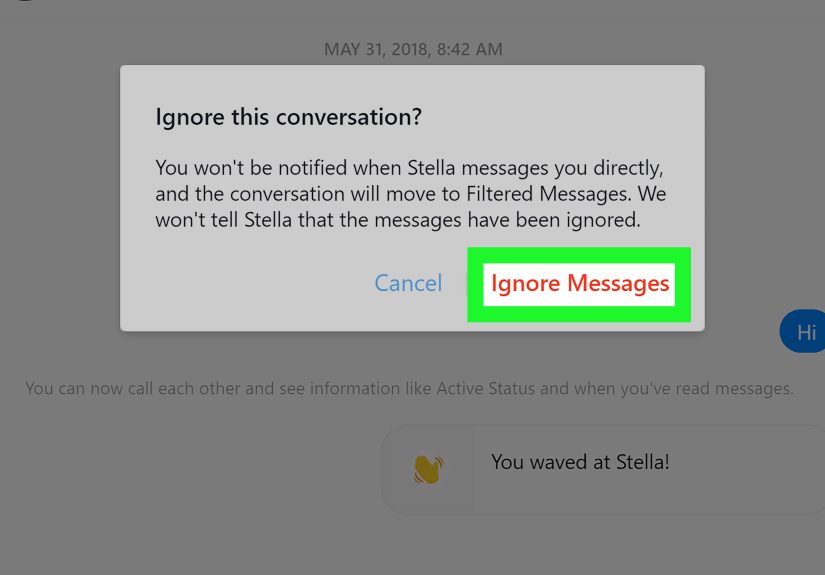
Blocking on Messenger stops messages and calls from that profile in Messenger. It’s the cleanest way to make someone stop popping back up.
Common path: open Messenger settings → find privacy/safety options → Blocked accounts → add the person.
(Menu names change slightly over time, but “Blocked” is usually easy to spot.)Note: blocking on Messenger may not automatically block them on Facebook itself. If you want the full “do not pass go” effect across Facebook,
you’ll want Step 7. -
Step 7: Unfriend (or block) on Facebook if they’re a Facebook friend
If you’re Facebook friends, you’re more connected than you think. Unfriending can reduce how easily they can reach you,
depending on your message delivery settings.- Unfriend = removes the Facebook connection.
- Block on Facebook = removes them and blocks them from viewing your profile and contacting you more broadly.
If your goal is “they should not be able to contact me or find me easily,” Facebook-level blocking is the nuclear optioneffective, dramatic, and very final.
-
Step 8: Turn off contact uploading (stop feeding Messenger your phone book)
If your “contacts” problem is really a “Messenger ate my address book” problem, turn off contact uploading/syncing.
When contact uploading is disabled, uploaded contacts may be automatically deleted (depending on how the feature is configured at the time).You’ll usually find this under something like:
Messenger Settings → People → Upload Contacts (or Contact Uploading).Bonus privacy note: on some Android setups historically, enabling contact/call history permissions could share more metadata than people expected.
If you’re privacy-minded, this is a great moment to review what the app can access. -
Step 9: Delete uploaded contacts (bulk cleanup)
Want to remove the synced contacts Messenger already has? You may need to delete your uploaded contacts list (often as a bulk action).
This is the “I want a fresh start” option.In many cases, this is managed through a dedicated “uploaded contacts” management page in Facebook/Messenger settings,
where you can choose an option like Delete all contacts.Heads-up: this doesn’t delete contacts from your phone. It deletes the uploaded/synced list stored with your account.
-
Step 10: Remove their “breadcrumbs” (search history + Active list + message requests)
Even after you delete chats, Messenger can still suggest people because of search history or activity lists.
If you’re going for a spotless vibe:- Clear search history: tap the search bar in Chats and clear recent searches (often “Edit” → “Clear all”).
- Hide someone from your Active list: some versions let you hide a contact from the active/online list with a press-and-hold option.
- Clean message requests: delete old message requests so they don’t keep resurfacing.
Think of this as vacuuming after you rearranged the furniture. Optionalbut deeply satisfying.
Quick FAQ: The Stuff People Only Ask After They’ve Tapped Something Scary
“Why can’t I delete just one contact like I can on my iPhone?”
Because Messenger isn’t a traditional contacts app. It’s a messaging layer on top of Facebook connections and (optionally) uploaded phone contacts.
In many cases, you can’t delete an individual “contact” entry the way you can in a phone address book. The practical workaround is to
delete the chat, restrict, or block.
“If I delete a conversation, does it delete on their phone too?”
Usually, no. Deleting a chat generally removes it from your view. The other person still has their copy unless an “unsend/remove for everyone”
action was used for specific messages.
“Will they know I blocked or restricted them?”
Messenger doesn’t typically send a “Congrats, you’ve been blocked” notification. But people can sometimes infer it when messages stop delivering normally,
profiles become harder to find, or calls don’t go through. Restrict is usually subtler than block.
“Can I delete everything at once?”
For chats, Messenger generally makes you manage conversations one-by-one (archiving can help reduce clutter faster).
For uploaded contacts, there may be a bulk “delete all uploaded contacts” option.
Extra Tips to Keep Your Messenger List Clean (Without Turning Into a Digital Hermit)
Use “Archive” as a low-drama filter
Archive is perfect when you don’t want to delete a chat (or you’re not ready to admit you might need the receipt trail later).
It clears your main view while keeping history accessible.
Adjust who can message you
If your “contacts” keep multiplying like gremlins after midnight, your message delivery settings may be too open.
Tightening who can message you reduces new random threads that feel like “contacts” you never invited.
Audit permissions like it’s spring cleaning
If you turned on contact syncing years ago and forgot, now’s the time to check:
contact access, call logs (where applicable), notifications, and background activity.
Fewer permissions = fewer surprise suggestions.
of Real-World “Messenger Cleanup” Experiences (So You Don’t Repeat Them)
Let’s talk about what usually happens when people try to “delete a contact on Messenger.” It starts innocentlike, “I just want them gone.”
Then Messenger replies, “Which kind of gone?” and suddenly you’re in a settings labyrinth with 14 menus and one suspicious toggle labeled
“Upload Contacts,” which sounds friendly until you realize it’s basically a VIP pass for your entire address book.
One common experience: someone deletes the chat and expects the person to disappear forever… and then the same name reappears in search suggestions.
That’s not Messenger being petty (okay, maybe a little). It’s usually just leftover breadcrumbsrecent searches, message requests,
or an old thread that re-surfaces the second the person reacts to something, joins a group you’re in, or messages you again.
The fix is rarely dramatic. It’s Step 10: clear search history, tidy message requests, and hide or block if you want a firm boundary.
Another classic: people confuse “Remove for you” with “Remove for everyone.” They delete a message, feel the relief, and then realize the other person
can still quote it back word-for-word like it’s their villain origin story. Messenger isn’t psychic; it won’t guess your intent.
If you truly need a message gone for both sides, look for “Unsend” or “Remove for everyone” right away. And even then, assume the message may have been
seen. The healthiest mindset is: unsend reduces visibility, it doesn’t erase memory.
Then there’s the “Why are all my phone contacts here?” moment. This usually happens after someone sets up a new phone, restores apps,
and taps “Allow” on everything because they’re just trying to get to their inbox. Suddenly, Messenger is suggesting your landlord,
your dentist, and the guy who delivered a couch in 2019. The best experience-based advice: treat contact uploading as an intentional decision,
not a default. If you don’t actively use Messenger to reach phone contacts, switch it off and delete uploaded contacts.
You’ll still be able to message friends, pages, and people you intentionally search forjust without the address-book cameo appearances.
Finally, there’s the emotional side. People often want “delete” when what they really want is “peace.”
Messenger gives you a spectrum: delete chat (cleaner view), archive (quiet storage), restrict (soft boundary), block (hard boundary),
and Facebook-level blocking (total separation). In real life, the best choice is the one that matches the problem:
clutter gets archived; drama gets restricted; harassment gets blocked; and “I never want to see this name again” gets the full block/unfriend combo.
Your inbox should feel like your homeinviting to the people you choose, and extremely unwelcoming to anyone who shows up uninvited.
Conclusion
Deleting a “contact” on Messenger is really about choosing the right tool: delete or archive chats to declutter, restrict or block to set boundaries,
and disable/delete uploaded contacts to stop Messenger from treating your phone book like a networking event.
Start with your goal, follow the 10 steps, and remember: you’re not being “mean”you’re being the curator of your own digital sanity.