Table of Contents >> Show >> Hide
- What “Premiere on iPhone” Actually Is (and Why It’s Not Just “Rush 2.0”)
- Compatibility and Setup: The “Can My iPhone Run This?” Checklist
- The Core Workflow: From Camera Roll to Clean Cut
- Audio and Captions: The Two Things That Make a Video Feel “Pro” Fast
- AI Features and Adobe Firefly: Helpful, Not Mandatory
- Social Exports: Built for Shorts, Reels, and TikTok (Without the “Export Anxiety”)
- Mobile-to-Desktop: When iPhone Editing Becomes Part of a Pro Pipeline
- Where Premiere on iPhone Shines (and Where It’s Still a Phone)
- Practical Tips for Pro Results on iPhone
- of Real-World Creator Experiences (What Editing “Anywhere” Actually Feels Like)
- Conclusion: Pro Editing Isn’t a Place Anymore
For years, “serious editing” meant a laptop, a mouse, a timeline the size of a runway, and the emotional support of at least one external hard drive.
Meanwhile, your iPhone sat there like: “Hi. I just shot 4K HDR video and stabilized it in real time. Want to do something with it?”
As of late 2025, Adobe’s answer is Premiere on iPhone (the App Store listing is “Adobe Premiere: Video Editor”).
It’s a mobile-first editor built to go from footage to shareable video fastwithout feeling like you’re cutting your film with safety scissors.
The pitch is simple: pro-style timeline editing, captions, audio tools, and social exportsin your pocket.
This guide breaks down what Premiere on iPhone actually does, how the workflow feels, where it fits in a modern creator setup,
and how to get “real editor results” on a screen that also hosts your group chats, grocery list, and that one game you swear you deleted.
What “Premiere on iPhone” Actually Is (and Why It’s Not Just “Rush 2.0”)
If you’ve used Adobe’s mobile tools before, you might remember Premiere Rusha simpler, template-friendly editor.
Adobe has officially announced Rush is being phased out: it stopped being available for new downloads after September 30, 2025,
and it’s scheduled to be discontinued on September 30, 2026 (with support ending around then as well).
Premiere on iPhone is the replacement for that mobile lane.
The big shift: Premiere on iPhone is built around a precise, multi-track timeline.
You can stack video, audio, and text layers (Adobe and multiple tech outlets describe this as unlimited layers),
do frame-accurate trims, and shape a cut the way you would in a “real” editorjust optimized for touch.
Adobe also emphasizes that the app is free for core editing, including 4K exports with no watermarks.
Where money can enter the chat: extra cloud storage and generative AI features (powered by Adobe Firefly) that consume
generative credits.
Compatibility and Setup: The “Can My iPhone Run This?” Checklist
Minimum requirements
Premiere on iPhone requires a modern iOS baseline (Adobe’s requirements list iOS 17 or 18), and the app experience is designed
for iPhone in portrait orientation.
The App Store listing also notes iOS 17.0 or later.
Storage and performance reality
A quick truth: mobile editing feels magical until your phone storage is at 98% and the remaining 2% is being held hostage
by 14 duplicate videos named “IMG_4927(3).MOV.”
If you plan to edit multi-layer 4K clips, give yourself breathing room:
- Free up space before big edits (especially if you shoot ProRes or high-bitrate 4K).
- Use Wi-Fi when pulling assets, syncing, or exporting longer videos.
- Keep your phone coolheat is the sneaky performance villain.
The Core Workflow: From Camera Roll to Clean Cut
Premiere on iPhone is built for the way people actually create now: shoot a little, edit a little, post, repeat.
It’s not trying to turn your phone into a full workstationit’s trying to remove friction between “idea” and “publish.”
1) Import and organize without losing your mind
A good mobile workflow starts with ruthless simplicity:
pick the clips you need, keep the project tight, and don’t treat your timeline like a storage unit.
Premiere on iPhone supports the basics you’d expectbringing in clips, arranging them, splitting, trimming, and re-ordering.
The difference is the feel: it’s tuned for touch precision rather than mouse precision.
2) Edit on a multi-track timeline (the “this is real editing” moment)
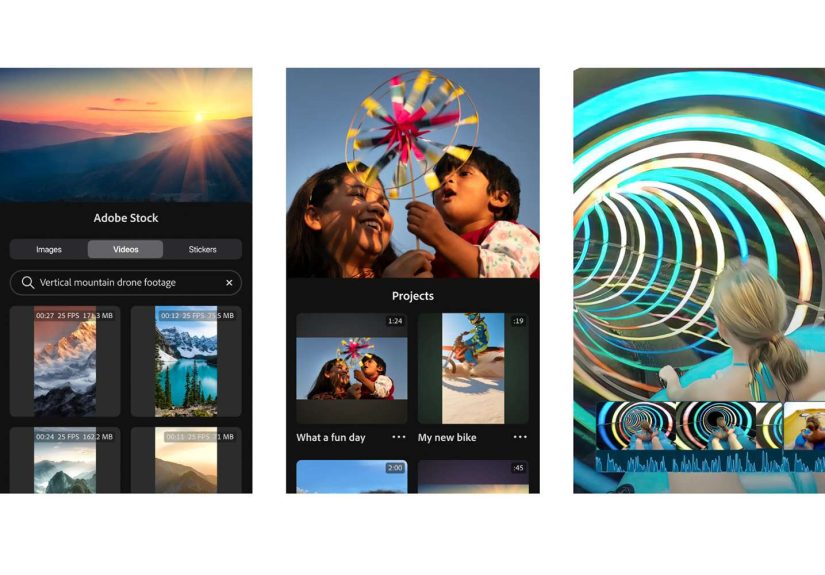
The heart of the app is the timeline. Adobe and the App Store listing highlight a fast, accurate timeline with
frame-accurate trims. That matters because “mobile editing” often becomes “close enough editing.”
Here, “close enough” is less of a requirement.
Multi-track timelines unlock the real creative moves:
- Cutaways and b-roll on top of your main footage.
- Text layers for titles, labels, and meme-level emphasis (the respectable kind).
- Music and sound effects under your dialogue, with adjustments per clip.
- Voiceovers recorded directly in the app (useful when you need to narrate a tutorial in a hotel room).
3) Speed controls that don’t feel like a gimmick
The App Store listing calls out speed effects: speed up, slow down, reverse, or freeze key moments.
This is where mobile editing becomes a legit storytelling tool:
slow a reaction for comedic timing, speed a montage for energy, or freeze a frame for a label and a laugh.
4) Color and style: presets plus real-world tweaks
If you’ve ever tried to color grade on a phone and ended up making your friend look like a sunburned carrot,
you’ll appreciate the “preset-first” approach.
The App Store listing mentions Lightroom presets and color presets, which can help you get a consistent look quickly.
A smart strategy on mobile:
- Pick one look per series (travel vlog, product demos, food videos).
- Make small adjustmentsdon’t chase perfection on a tiny screen.
- Check the result on another device before posting, if possible.
Audio and Captions: The Two Things That Make a Video Feel “Pro” Fast
People forgive imperfect video. They do not forgive audio that sounds like it was recorded inside a running dishwasher.
Adobe’s launch messaging and the App Store listing emphasize studio-quality audio, voiceovers,
and AI-powered tools like speech enhancement.
That’s huge for creators who record on the go.
Auto captions (because most viewers watch on mute)
Multiple sources describe automatic captions, and the App Store listing specifically mentions AI Auto Captions with animations.
Captions are not just an accessibility win (though they absolutely are that);
they’re also retention glue on platforms like TikTok, Instagram, and YouTube Shorts.
Practical caption tips that improve results:
- Fix names and brand terms first (captions always guess your product name wrong).
- Keep lines short so they don’t cover the entire video like a lecture slide.
- Style consistently across a series so your content feels recognizable.
AI Features and Adobe Firefly: Helpful, Not Mandatory
Premiere on iPhone is usable without AI. That’s important.
But if you want fast polish, AI can do the “little chores” that usually eat time:
background removal, speech cleanup, caption generation, and creative asset generation.
Adobe positions these generative features as powered by Firefly, with usage governed by
generative credits. In plain English: some AI actions can cost credits, which may come with certain subscriptions,
and you can buy more if needed. If you never touch AI generation, you can still edit and export normally.
Examples of where AI actually helps
- Speech enhancement for clearer dialogue in noisy environments.
- Background removal for quick overlays and effects without manual masking.
- AI sound effects generation for quick punch (used responsibly, not as a substitute for taste).
- Generative visuals like stickers or images when you need a graphic and don’t have time to design one.
The best mindset: treat AI like a helpful assistant, not a creative director.
You’re still the one deciding what’s funny, what’s dramatic, and what should absolutely not be accompanied by a random airhorn sound.
Social Exports: Built for Shorts, Reels, and TikTok (Without the “Export Anxiety”)
One of the most practical Premiere-on-iPhone wins is export flow.
Tech coverage highlights one-tap exporting tailored for platforms like TikTok, YouTube Shorts, and Instagram.
That matters because “wrong export settings” is the modern version of “the dog ate my homework.”
Adobe and YouTube also created a dedicated YouTube Shorts space inside the app,
including templates and a trending template gallery. If your goal is Shorts growth,
this is basically a shortcut to on-platform-friendly formatting and pacingwithout having to reinvent your workflow every time.
Quick best practices for vertical video
- Design for the safe zones: keep key text away from UI elements near the bottom/top.
- Hook early: the first 1–2 seconds decide everything.
- Use captions strategically: highlight the hook, not every filler word.
- Keep music levels sane: voice should win, always.
Mobile-to-Desktop: When iPhone Editing Becomes Part of a Pro Pipeline
Premiere on iPhone isn’t just a “phone-only” app.
Adobe says you can send projects to Premiere on desktop (Premiere Pro) if you have a paid desktop subscription.
That’s the real pro angle: do the rough cut anywhere, then finish on a bigger screen with deeper tools.
Here’s a realistic “hybrid workflow” that makes sense:
- On iPhone: select takes, do the first cut, build the story, add captions and basic polish.
- On desktop: refine color, do advanced audio mixing, add motion graphics, final QC, and deliver multiple versions.
This approach is especially useful for:
- Creators posting frequently who want consistency without spending hours per video.
- Small teams who need quick turnarounds in the field (events, sports, news-style content).
- Brands capturing content on-site and needing a same-day rough cut for review.
Where Premiere on iPhone Shines (and Where It’s Still a Phone)
It shines when you need speed
If your creative life involves movementcommutes, travel, events, campus, client locationsediting on iPhone can keep momentum alive.
The app is designed for fast, accurate cutting, captioning, and platform-ready exports.
It’s not a full desktop replacement
A phone still has constraints:
smaller screen, fewer “at-a-glance” controls, less comfortable long-session editing, and heavy projects that can stress battery and storage.
If you’re doing complex VFX, multi-cam documentary timelines, or feature-length color work, a desktop setup remains the better tool.
The smart move is not choosing one device forever.
It’s choosing the device that matches the moment.
Practical Tips for Pro Results on iPhone
Shoot with the edit in mind
- Lock exposure/focus for consistent clips (especially in changing light).
- Record clean audio when you canan affordable lav mic can make you sound like you leveled up overnight.
- Capture b-roll: hands, details, wide shots, transitionsthese save edits.
- Get “handles”: record 1–2 seconds before and after the action so you can cut smoothly.
Build a repeatable template (without becoming boring)
Consistency isn’t the enemy of creativity. It’s the enemy of wasted time.
Keep a few repeatable elements:
intro style, caption look, music vibe, and a couple of go-to transitions.
Then put your creativity into the story and pacingwhere viewers actually feel it.
of Real-World Creator Experiences (What Editing “Anywhere” Actually Feels Like)
“Edit anywhere” sounds like a marketing slogan until you realize how often ideas show up at inconvenient times.
The most common experience creators describe with mobile-first editing is simple: momentum.
You shoot something, you start shaping it immediately, and the project stops living in that sad mental folder labeled “I’ll do it later.”
Imagine a travel creator filming a street-food mini vlog. The footage is already on the iPhone, the story is fresh in their head,
and the best hook (“Wait until you see what’s inside…”) is still exciting. On a laptop, that edit might happen at midnight back in the hotel.
On iPhone, the rough cut can happen in the ride backclips trimmed, b-roll layered, captions drafted, and a first export ready for review.
The creator experience here isn’t “I made a masterpiece on a phone.” It’s “I didn’t lose the spark.”
Or take a small business owner making product videos. They might shoot 10 quick clips: unboxing, close-up texture shots, a short demo,
and a customer reaction. The experience that feels most “pro” is the ability to stack layerstext for key features,
a background music bed, and a voiceover recorded right after filming while the script is still remembered.
Suddenly, it’s not just a clip. It’s a structured piece of content with pacing and clarity.
Students and younger creators often describe the iPhone workflow as “less intimidating.”
A desktop NLE can feel like walking into a gym full of machines you don’t know how to use.
A touch timeline feels more direct: split here, move that, add text, export.
And because captions are such a standard expectation now, having auto captions built in becomes the difference between posting today and posting “eventually.”
The funniest “mobile editing” experience is the highly specific panic of editing in public.
You’ll be in a coffee shop, trimming emotional footage like you’re directing an Oscar contender,
while the person next to you is watching a video of a raccoon stealing pizza.
That’s modern creativity: cinematic ambition, snack-fueled chaos, and a timeline running in portrait mode.
The most realistic creator takeaway: iPhone editing is best when it’s treated as a first-class stage, not a compromise.
You can do a clean cut, strong captions, good audio, and platform-ready exports.
Then, if a project deserves the “big screen treatment,” you can move it to desktop for deeper finishing.
That flexibilityfast edits anywhere, bigger polish lateris what makes the experience feel genuinely professional.
Conclusion: Pro Editing Isn’t a Place Anymore
Premiere on iPhone is a signal that “serious editing” no longer requires a fixed location.
With a multi-track timeline, auto captions, audio enhancement options, social-first exports, and optional Firefly-powered tools,
it’s built for the reality of modern creation: fast, frequent, and mobile.
If you’re a creator who shoots on your phone, a marketer who needs quick turnarounds, or an editor who wants to rough cut wherever you are,
Premiere on iPhone can legitimately shrink the gap between idea and upload.
And if you still love desktop finishing (same), the mobile-to-desktop handoff can make your workflow faster without lowering quality.