Table of Contents >> Show >> Hide
- Before You Change Anything: Why Outlook Time Zones Go Sideways
- Way #1 Change the Display Time Zone in New Outlook & Outlook on the Web
- Way #2 Change the Time Zone in Classic Outlook for Windows (Plus the “Sync With Windows” Reality Check)
- Way #3 Change the Time Zone Per Meeting (Perfect for Travelers, Cross-Border Teams, and “This Invite Must Not Drift” Events)
- Quick Troubleshooting Cheat Sheet (When Outlook Acts Like It’s Jet-Lagged)
- Conclusion
Time zones are the only thing in life that can make a perfectly harmless 30-minute meeting feel like international diplomacy.
If your Outlook calendar is showing the wrong time (or your coworker insists “it’s 9 a.m. my time,” which is basically a threat),
you’re in the right place.
The good news: changing the time zone in Outlook is usually quick. The slightly less-good news: Outlook has multiple “flavors”
(new Outlook, classic Outlook, Outlook on the web, mobile, Mac), and each flavor hides the setting in a slightly different spot
like a scavenger hunt designed by a mischievous IT wizard.
Below are three easy, real-world ways to change your Outlook time zone, plus practical tips to avoid
daylight saving time surprises, meeting mishaps, and the dreaded “Why does my invite say 3 a.m.?” moment.
Before You Change Anything: Why Outlook Time Zones Go Sideways
Outlook time problems usually come from one of three places:
(1) your Outlook calendar display time zone,
(2) your device/operating system time zone,
or (3) the time zone baked into a specific meeting or recurring event.
Here’s the trick: Outlook can display your calendar in one time zone while your laptop thinks it’s in anotherand your phone
might be happily using a third because it trusts your location services more than your life choices. Add daylight saving time
(DST) to the party and you’ve got a calendar that looks like modern art.
Way #1 Change the Display Time Zone in New Outlook & Outlook on the Web
If you’re using new Outlook for Windows or Outlook on the web (Outlook.com / Microsoft 365 in a browser),
this is the cleanest “set it and move on” option. You’re telling Outlook:
“Display my calendar in this time zone from now on.”
Steps (New Outlook / Outlook on the Web)
- Open Outlook and click the Settings gear icon.
- Go to Calendar > View.
- Find the Time zones section.
- Under Display my calendar in time zone, pick the correct time zone (you can usually search by city).
- Optional: add a friendly Label (example: “Home,” “HQ,” “Don’t Schedule Me After This”).
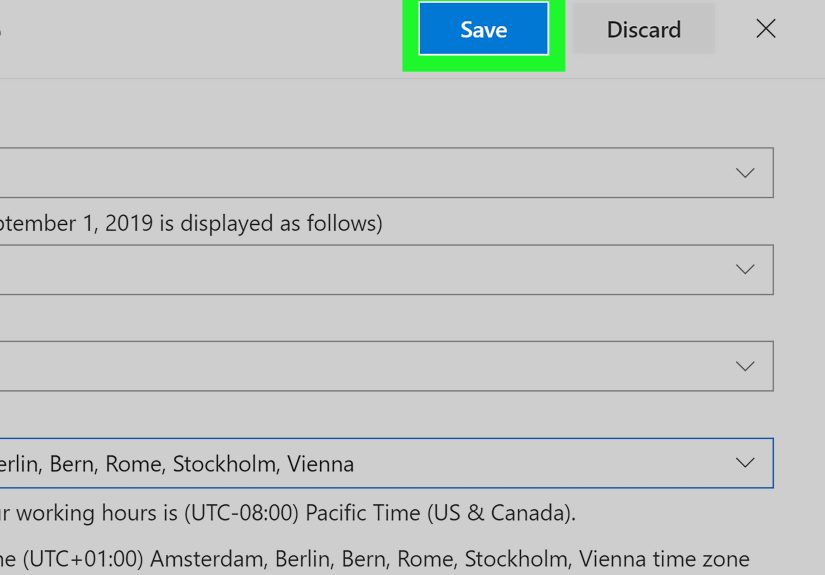
- Click Save.
Add a Second (or Third) Time Zone for Easy Scheduling
If you work with people in different regions, showing a second time zone in the calendar view is a sanity-saver.
This doesn’t “move” meetingsit’s just a visual reference so you stop doing mental math like it’s an Olympic event.
- In the same Calendar > View settings, choose Add time zone.
- Select the additional time zone (often via a city search).
- Give it a label like “New York” or “London”.
- Turn on Show in calendar (if available), then Save.
Pro Move: Let Outlook Ask When You Travel
If you bounce between time zones, look for the option that says something like:
“When I travel across time zones, ask me if I want to update my time zone.”
Turn it on. It’s like having Outlook politely check in instead of silently deciding you live in Reykjavik now.
Example: You’re flying from Los Angeles to Chicago. With the travel prompt enabled, Outlook can ask whether it should
update your calendar display. That helps prevent “I showed up an hour early and ate two airport muffins in sadness.”
Way #2 Change the Time Zone in Classic Outlook for Windows (Plus the “Sync With Windows” Reality Check)
If you’re using classic Outlook for Windows (the longtime desktop app), your time zone settings live in the
classic “File > Options” area. This method is reliable and still widely used in many workplaces.
Steps (Classic Outlook for Windows)
- Open Outlook and click File.
- Choose Options.
- Click Calendar.
- Scroll to the Time zones section.
- Select your desired Time zone and (optional) update the Label.
- Optional: enable Show a second time zone (and even a third) if you collaborate across regions.
- Click OK, then close and reopen Outlook if anything looks stubborn.
Important: Make Sure Windows and Outlook Aren’t Arguing
If Windows is set to one time zone but Outlook is set to another, you can get odd behaviorespecially around DST and recurring meetings.
Do a quick double-check in Windows Date & Time settings:
confirm the time zone is correct and that automatic time/DST options match your organization’s setup.
Tip: If your computer clock looks correct but Outlook still insists your 10 a.m. meeting is at 1 p.m.,
it’s usually an Outlook calendar time zone setting mismatchnot a conspiracy.
What About Outlook for Mac?
On Mac, Outlook’s time zone behavior commonly follows your macOS settings, but Outlook also has its own calendar time zone controls.
Look in Outlook’s Settings/Preferences under Calendar and Time zones,
where you can choose the correct zone and optionally display additional time zones for day/week views.
Way #3 Change the Time Zone Per Meeting (Perfect for Travelers, Cross-Border Teams, and “This Invite Must Not Drift” Events)
Sometimes you don’t want to change your entire calendarjust one meeting. This is especially useful when:
you’re scheduling something in a different region, coordinating with multiple offices, or dealing with recurring meetings
that should anchor to a specific time zone.
How to Set a Time Zone for a Specific Meeting
- New Outlook / Outlook on the web: When creating or editing an event, look for the time zone selector near the start/end time fields. Choose the correct zone before sending.
- Classic Outlook for Windows: In the meeting/appointment window, enable the Time Zones option (often shown as a button or checkbox on the ribbon), then select the appropriate zone.
- Outlook mobile: The app typically follows your phone’s time zone. For individual events, you may be able to pick a time zone while scheduling, but the safest strategy is ensuring your account/calendar time zone is correct and your device time zone is correct.
Why this matters: A meeting can carry its own time zone “stamp.” If you create an event while traveling (or while your device is set to a different zone),
the event may be anchored to that zoneeven after you get home.
Mini Case Study: The “PST” Trap and Other Time Zone Naming Weirdness
If you’ve ever seen a time zone labeled like “PST” and thought, “Sure, that seems right,” you’re not alone.
But abbreviations can be ambiguous and don’t always handle DST the way you expect. Choosing a more explicit option like
“Pacific Time (US & Canada)” (or the equivalent for your region) helps avoid DST-related one-hour shifts.
Fix a Wrong Meeting Time in 3 Minutes
- Check your calendar display time zone (Way #1 or Way #2).
- Open the specific meeting and confirm the event’s time zone (Way #3).
- For recurring meetings: edit the series carefullyDST issues often show up there first.
- Update work hours/meeting hours if prompted after changing time zones (especially in web/new Outlook settings).
- Create a test event for something obvious (like “Time Zone Test: Noon”) and verify it appears correctly on desktop + web + mobile.
Quick Troubleshooting Cheat Sheet (When Outlook Acts Like It’s Jet-Lagged)
- Desktop wrong, web right? Your classic Outlook calendar time zone is likely set differently than your mailbox/web settings.
- Mobile wrong, desktop right? Your phone’s time zone (or automatic time zone) may be off, or your mailbox time zone needs updating in web settings.
- Only one meeting is wrong? That meeting was created with a different time zoneedit the event’s time zone directly.
- Recurring meeting shifts by an hour around March/November? DST + ambiguous time zone selection is a usual suspect.
- You changed time zones but “work hours” look weird? Update work hours/meeting hours so Outlook doesn’t highlight the wrong parts of your day.
Conclusion
Changing the time zone in Outlook doesn’t have to be complicatedonce you know which Outlook you’re using and whether you’re changing
the calendar display time zone or a specific meeting’s time zone. Use Way #1 for new Outlook/web, Way #2 for classic desktop stability,
and Way #3 when an individual meeting needs to stay anchored no matter where you (or your laptop) wander.
Travel-Tested Time Zone Experiences (Bonus ~)
I learned the hard way that time zones are less like “settings” and more like “moods.” The first time I flew cross-country for work,
I proudly scheduled a client call for 9:00 a.m. and walked into the coffee shop at what I believed was a responsible, adult hour.
The client joined at 6:00 a.m. their time. They were polite, but their silence had the unmistakable sound of someone reconsidering
your entire professional reputation.
That’s when I discovered the difference between changing your device time zone and changing your Outlook calendar display time zone.
Your laptop can be perfectly correct while Outlook is confidently displaying meetings as if you live in a parallel universe.
Now, whenever I land somewhere new, I do a two-step check: device time zone first, then Outlook calendar time zone second.
It takes 30 seconds and saves you from sending the dreaded follow-up message:
“Apologiesmy calendar briefly thought I was in another hemisphere.”
The second lesson came from a recurring meeting that drifted by an hour after daylight saving time.
Everyone blamed “Outlook being Outlook,” but the real culprit was the event being created with an unclear time zone label.
Once we edited the series and anchored it to a full regional time zone (the kind that clearly supports DST rules),
the meeting stopped time-traveling twice a year.
If your team spans multiple states (or countries), recurring meetings are where you want to be extra careful:
pick the correct time zone, confirm it in the event details, andif people keep missing itadd the time zone to the meeting title
(e.g., “Weekly Sync (10am ET)”).
Another real-world win: displaying a second time zone in Outlook’s calendar view.
I used to do timezone math in my head and felt very smug about ituntil I confidently scheduled a “quick check-in”
at what I assumed was late morning for my colleague and accidentally booked their dinner hour.
Adding a second time zone bar is a small visual change with a huge payoff. It turns “Wait… are you three hours ahead?”
into “Oh, the calendar literally shows it. Cool. I can’t mess this up.”
Finally, mobile taught me humility. Phones often follow “automatic time zone” based on location, which is greatuntil you’re in an airport
with spotty signals and your device is making guesses. If mobile times look off, I check the phone’s time zone settings first,
then verify my mailbox time zone in Outlook on the web. And whenever something seems cursed, I create a test event at noon.
If noon can’t be noon everywhere, it’s not a meeting problemit’s a settings problem.
The takeaway? Outlook time zones aren’t hard, but they are layered. Once you know which layer you’re adjustingweb/new Outlook display,
classic desktop calendar options, or the time zone inside an individual meetingyou’ll schedule with confidence and stop accidentally
inviting people to meetings during their sleeping hours. Everyone wins. Especially your coworkers.