Table of Contents >> Show >> Hide
- What “Recently Closed” really is (and why it’s so clingy)
- Quick pre-check: don’t delete something you still need
- Method 1: The fast wipe Clear Browsing Data (nukes Recently Closed)
- Method 2: The surgical delete remove specific tabs from History (shrinks Recently Closed without a full wipe)
- If Recently Closed “comes back,” here’s why (and how to stop it)
- Mini FAQ (because Chrome always has one more twist)
- Conclusion: your tab history doesn’t need to haunt you
- Extra: 5 real-life “Recently Closed” experiences that make you want to delete it forever (about )
Your browser is not a storage unit. And yet… here we are: 47 tabs open, 12 more “saved for later,” and Chrome’s
Recently Closed list acting like a nostalgic scrapbook of every impulsive click you regret.
Whether you’re cleaning up for privacy, decluttering for sanity, or trying to stop Chrome from reminding you that you
absolutely did open “best air fryer nachos” at 2:14 a.m., this guide shows two easy ways to delete recently closed tabs
in Google Chromefast.
What “Recently Closed” really is (and why it’s so clingy)
In Chrome, Recently Closed isn’t a separate magical drawer with its own delete button. It’s basically a
shortcut to parts of your Chrome history and session data. That’s why it can feel “impossible” to clearbecause
you’re not deleting tabs, you’re deleting the breadcrumbs that let Chrome resurrect them.
A few useful truths before you start swinging the digital broom:
- Incognito isn’t recorded in history, so it won’t show up in Recently Closed later.
-
If you’re signed into Chrome with sync enabled, deleting history can also remove it on other synced devices
(which is great… unless you wanted it on your laptop but not your phone). -
“Recently Closed” entries can include entire windows (like “12 tabs”) or single tabsso you can accidentally
revive a whole zoo of tabs with one click. Choose wisely.
Quick pre-check: don’t delete something you still need
Deleting “Recently Closed” is a one-way door for convenience. If you wipe the data that powers session restore, you may
not be able to bring those tabs back with the usual shortcuts.
Do a 30-second “tab triage”
- Open Chrome’s menu (three dots).
- Go to History and glance at Recently Closed.
- If you spot something important, reopen it now and bookmark it (or drop it in a reading list/tab group).
Bonus: the “Oops, I need that tab” shortcut
If you closed something by mistake, Chrome can restore it with:
Ctrl + Shift + T (Windows/ChromeOS) or Cmd + Shift + T (Mac).
Press repeatedly to walk back through your recently closed tabs like you’re rewinding timeminus the dramatic soundtrack.
Method 1: The fast wipe Clear Browsing Data (nukes Recently Closed)
If your goal is “make Recently Closed empty, and do it now,” this is the cleanest path. Clearing browsing history removes
the visited addresses from the History page and also removes related shortcuts/predictions that rely on that history.
In practical terms: it stops Chrome from offering you a convenient list of what you just closed.
Desktop (Windows / Mac): clear history in under a minute
- Open Chrome.
-
Hit Ctrl + Shift + Delete (Windows) or Cmd + Shift + Delete (Mac).
(This opens the “Delete/Clear browsing data” dialog. Yes, Chrome has a shortcut for cleaning up your mess. It knows you.) -
Choose a Time range:
- Last hour / Last 24 hours for a quick cleanup
- All time if you want a full reset
- Check Browsing history. (That’s the key piece for clearing the Recently Closed list.)
-
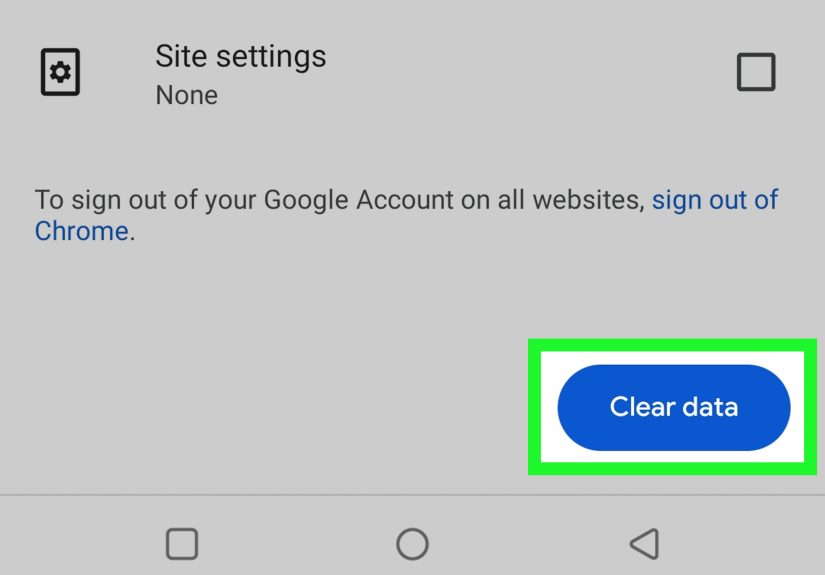
Optional: also check Cookies and other site data and Cached images and files
if you want a deeper cleanup. - Click Delete data.
- Quit Chrome completely and reopen it (this helps flush leftover session bits).
Android: the quickest “make it disappear” flow
- Open Chrome.
- Tap More (three dots) → Delete browsing data.
- Choose a duration. On many devices, the default is a short window (like the last 15 minutes), so change it if needed.
- Make sure Browsing history is selected, then tap Delete data.
- If you want to be extra sure Recently Closed doesn’t linger, fully close Chrome from the app switcher and relaunch it.
iPhone / iPad: same idea, slightly different buttons
- Open Chrome.
- Tap More → Delete Browsing Data.
- Select a Time Range and include Browsing History.
- Tap Delete Browsing Data again to confirm.
What this method affects (so you’re not surprised later)
-
Browsing history: removes visited addresses from History, and also clears associated New Tab shortcuts and
address-bar predictions tied to those sites. -
Cookies: often signs you out of websites (but being signed into Chrome itself is separate). If your goal is to
remove Google-specific cookies too, signing out of Chrome first may matter. -
Cache: safe to clear; it’s mostly temporary site files. It can fix weird loading issues, but the first reload
after clearing might feel slightly slower.
When to use Method 1: you want to clear recently closed tabs in Chrome immediately, you don’t need to restore those
sessions, and you’re okay with a “big broom” approach.
Method 2: The surgical delete remove specific tabs from History (shrinks Recently Closed without a full wipe)
Sometimes you don’t want to bulldoze your entire browsing history. You just want to remove that tab. You know the one.
The “surprise gift for my spouse” tab. The “job listings” tab. The “how many calories are in feelings” tab.
This method deletes specific entries from your Chrome history, which can also reduce what appears in Recently Closed.
Think of it as cleaning a spill instead of renovating the whole kitchen.
Desktop: delete individual history entries (or a whole batch)
- Open Chrome.
- Go to History (menu → History → History), or press Ctrl + H (Windows) / Cmd + Y (Mac).
- Use the search bar to find the site or page you want gone.
-
Check the box next to each entry you want to remove.
- Removing one? Check one box.
- Removing a bunch? Check multiple boxes and delete them together.
- Click Delete / Remove (usually at the top).
- For stubborn “Recently Closed” items, quit Chrome and reopen to refresh the session list.
Pro move: delete by “group” when Chrome bundles your browsing
Chrome can organize history into clusters (helpful for research, terrifying for privacy). If you see grouped entries,
you can remove an entire cluster instead of deleting one item at a time.
Android: delete one entry (or multiple) from history
- Open Chrome → tap More → History.
- Find the entry you want to delete.
- Tap Remove to the right of it.
-
To delete multiple:
- Press and hold an entry until it’s selected.
- Select other entries.
- Tap Remove.
iPhone / iPad: delete specific entries using “Edit”
- Open Chrome → More → History.
- Tap Edit at the bottom.
- Select the entries you want removed.
- Tap Delete → then Done.
When to use Method 2: you want to delete recently closed tabs in Chrome selectively, keep most of your history,
and avoid logging out of everything under the sun.
If Recently Closed “comes back,” here’s why (and how to stop it)
1) Sync is repopulating things across devices
If you’re signed into Chrome and syncing history, your browsing activity can appear across devices. Deleting history on one
device can remove it elsewherebut the reverse can also feel true: another device may still have open sessions or history items
that make Chrome look “not fully cleared.”
Best practice: if you’re doing a privacy cleanup, clear history on each device you use (phone, laptop, tablet) and then restart
Chrome on those devices.
2) You cleared cache, but not history
Cache is temporary site files; it helps pages load faster. Clearing it is great for troubleshootingbut it’s not the main fuel for
the Recently Closed list. If your target is “recently closed tabs,” browsing history is the checkbox that matters.
3) You didn’t fully quit Chrome
Chrome can keep session data alive in the background (especially on laptops and phones). If you cleared data but the list still shows,
quit Chrome completely and reopen it. On mobile, close Chrome from the app switcher.
Mini FAQ (because Chrome always has one more twist)
Will deleting Recently Closed delete my bookmarks?
No. Bookmarks are separate. Clearing history won’t remove bookmarks you intentionally saved.
Will this delete my downloads?
Clearing download history removes the list of downloads inside Chrome, but not the actual files on your computer.
Is there a “clear Recently Closed” button?
Not as a dedicated feature. Chrome treats Recently Closed as a convenience view tied to session/history behavior. That’s why the two
reliable solutions are: clear browsing history (Method 1) or remove specific history entries (Method 2).
Conclusion: your tab history doesn’t need to haunt you
If you want the fastest cleanup, use Method 1 and clear browsing history (optionally with cookies/cache for a deeper scrub).
If you want precision, use Method 2 and delete specific entries from your Chrome history so Recently Closed has less to work with.
Either way, you’re reclaiming control of your browserand preventing Chrome from acting like an overly helpful friend who never forgets your
questionable late-night searches.
Extra: 5 real-life “Recently Closed” experiences that make you want to delete it forever (about )
Let’s talk about the emotional side of tab cleanupbecause “Recently Closed” isn’t just a feature. It’s a mirror. And sometimes the mirror
is holding up a neon sign that says, “So… we were shopping for inflatable hot tubs again, huh?”
1) The “shared laptop” panic
You borrow a family laptop, do five minutes of research, close the window like a responsible adult, and walk away feeling proud.
Then someone else opens Chrome, clicks History, and there it is: your freshly closed tabs, neatly listed like a confession.
This is where Method 1 shines. Clearing browsing history wipes the easy trail that leads straight back to “recently closed tabs.”
If the device is shared, consider using Incognito for anything you don’t want remembered in the first place.
2) The “I swear I wasn’t procrastinating” situation
You were absolutely working… and also reading an article titled “Can cats have PTSD?” for “science.” You close it when a meeting starts.
Later, you open History to find something importantand the Recently Closed list helpfully displays your procrastination in high definition.
Method 2 is perfect here: delete just the embarrassing entries and keep the useful research tabs intact.
3) The accidental “restore 28 tabs” disaster
Chrome sometimes groups recently closed tabs into a single item (like “28 tabs”). One innocent click and suddenly your browser is back to
sounding like a hair dryer. Fans spin. Your computer briefly considers a new career as a space heater. If you’re done with that session,
clearing it out (Method 1) prevents future accidental restorations. It’s like removing the big red “DO NOT PRESS” button from your desk.
4) The shopping surprise spoiler
You’re planning a gift. You opened tabs for comparisons, reviews, and that one hyper-detailed forum thread from 2012 where someone argues
passionately about coffee grinders. You close everything so nobody sees. But Recently Closed can reveal the shopping trail faster than a
detective in a TV drama. If you want to keep your surprise intact, delete those specific entries (Method 2) or clear the recent time range
(Method 1 with “Last hour” or “Last 24 hours”).
5) The “why is Chrome recommending this?” mystery
Ever notice Chrome suggesting sites in the address bar or showing shortcuts on the New Tab page that you’d rather not see again? Browsing
history influences that behavior. Clearing history removes those shortcuts and predictions tied to sites you visited. The first time you
do it, it feels like cleaning out a closet: you didn’t realize how much junk was quietly living there until it was gone. Suddenly the New
Tab page feels calmer, and your address bar stops auto-completing things that make you look like you’re in a very specific fandom.
The takeaway: deleting recently closed tabs isn’t just about tidinessit’s about reducing accidental restores, protecting privacy on shared
devices, and making Chrome feel less like a diary that writes itself.