Table of Contents >> Show >> Hide
- The non-negotiables: Comfort first, aesthetics second
- Lighting: Bright enough to work, not so bright you feel interrogated
- Sound and focus: Build a “work bubble” without building a wall
- Storage and small-space wins: Make your workspace feel bigger than it is
- Tech essentials: The gear that earns its place on your desk
- Style upgrades: Make it pleasant without sabotaging function
- Three smart setup tiers: Build the workspace you can afford now
- Quick checklist: A 10-minute home workspace tune-up
- From the trenches: of home-office “experience” (aka lessons you don’t have to learn the hard way)
- Conclusion
Working from home is a magical modern invention: you can join a meeting in business casual up top, pajama chaos down below, and somehow still deliver results. But your body? Your body keeps receipts. If your “office” is a laptop balanced on a couch cushion next to yesterday’s coffee cup, your neck is already drafting a strongly worded complaint.
This roundup is your practical, sanity-saving guide to building a home workspace that looks good, feels good, and doesn’t quietly turn your shoulders into decorative coat hooks. We’ll cover ergonomics, lighting, storage, tech essentials, and small-space tricksplus a few “learned it the hard way” experiences at the end to help you dodge the classic WFH pitfalls.
The non-negotiables: Comfort first, aesthetics second
A beautiful workspace is nice. A workspace that doesn’t make you stand up like a question mark is nicer. Start with the big three: chair, desk height, and screen position. Once those are dialed in, everything else (cable management, décor, the emotional support plant) becomes easier.
1) Chair setup: Your spine wants a supportive best friend
Your chair is the foundation. If it’s too low, you’ll hunch. Too high, your legs dangle and your lower back starts negotiating for better working conditions. Aim for feet flat on the floor (or on a footrest), knees comfortably bent, and your lower back supported. If your chair’s lumbar support is “hope,” roll up a towel and place it at your lower back. Not glamorous, but highly effective.
Armrests can help if they let your shoulders relax. If they force your shoulders up toward your ears, they’re basically tiny shoulder shrugs you can’t stop doing. Adjust them (or remove them) so your arms can rest naturally without tension.
2) Desk height: Elbows tucked, wrists neutral
A good rule of thumb: when you type, your elbows should stay close to your body, and your wrists should feel straightnot bent up like you’re revving a tiny motorcycle. If your desk is too high and your chair can’t go higher without turning into a barstool situation, use a keyboard tray or raise your seat and add a footrest. If the desk is too low, a desk riser or even sturdy furniture risers can bring it to a healthier height.
3) Screen placement: Your neck should not be the hero of this story
Put your screen straight in front of you (not off to the side like a cryptic chess opponent), and raise it so the top of the display is roughly at or slightly below eye level. That usually keeps your head and neck in a neutral position. If you wear bifocals, you may prefer the monitor slightly lower so you’re not tilting your head back all day like you’re judging the ceiling.
Laptop users: the fastest upgrade is separating the screen from the keyboard. Use a laptop stand (or a stack of books) to raise the screen, then add an external keyboard and mouse. This one change often reduces the “turtle posture” effect dramatically.
4) Keyboard + mouse: Keep them close like besties
Your mouse should live next to your keyboardnot across a desk gulf that forces your shoulder to reach forward and down all day. Keep both at the same height so your forearms stay parallel-ish to the floor. If you feel pressure in your wrists, try flattening the keyboard (many people do better without the flip-out feet) or even using a slight negative tilt if your setup allows it.
5) Micro-breaks: Productivity’s secret sauce
The best workspace accessory isn’t a gadgetit’s movement. Build tiny breaks into your day: stand up to take a call, stretch between tasks, walk to refill water (even if the kitchen is… heroically close). For your eyes, a simple habit is the 20-20-20 approach: every 20 minutes, look at something about 20 feet away for 20 seconds. It’s like a spa moment for your eyeballs.
Lighting: Bright enough to work, not so bright you feel interrogated
Bad lighting makes everything harder: reading, focusing, looking alive on video calls, and avoiding glare that turns your screen into a mirror of your soul (and your laundry pile). Great lighting is layered: ambient + task + optional accent.
Positioning: Outsmart glare
If possible, place your monitor perpendicular to windows rather than directly in front of or behind them. Front lighting can cause glare; backlighting can turn you into a silhouette on calls. Use blinds or curtains to control harsh sunlight and add a desk lamp for consistent task lighting.
Task lighting: Put the light where the work is
A focused desk lamp helps reduce eye strain by lighting the exact area you’re reading or writing. Aim it so it illuminates your desk surface without shining into your eyes or reflecting off your monitor. Bonus: a lamp with adjustable height/angle is basically “ergonomics for photons.”
Video call glow-up: Look human on camera
Want to look less like you’re calling from a submarine? Put a soft light source in front of you (not above or behind). A small lamp or ring light can help, but even a well-placed desk lamp bounced off a wall can do the trick. Your webcam does not need to witness your pores in 4Kgentle, even light is the goal.
Sound and focus: Build a “work bubble” without building a wall
Not everyone has a spare room to convert into an office. Many of us are working in shared spaces where life happens: roommates, kids, pets, delivery drivers, and the neighbor’s impressive commitment to leaf-blowing. The goal is to reduce friction and protect focus.
Acoustic fixes that actually help
- Soft surfaces (rug, curtains, upholstered chair) absorb sound better than bare floors and walls.
- Draft stoppers under doors reduce hallway noise more than you’d expect.
- Bookshelves and wall hangings can dampen echo in a sparse room.
- Noise-canceling headphones aren’t “extra”they’re a focus tool.
Create boundaries (even if the space is shared)
Boundaries can be physical (a folding screen) or behavioral (a “deep work” sign, a shared calendar rule, or a consistent start/stop ritual). The big idea: your brain should be able to tell when you’re working and when you’re off. Otherwise, you’ll feel “half-working” all day, which is exhausting and impressively unfun.
Storage and small-space wins: Make your workspace feel bigger than it is
A home office gets messy fast because it’s a magnet for tiny objects: chargers, pens, sticky notes, receipts, and mystery cables you swear you need. The antidote is easy-to-maintain organizationsystems that work even when you’re busy.
Go vertical: Walls are underused real estate
Use shelves, pegboards, wall rails, or floating cabinets to move supplies off the desk. A clean desktop makes it easier to focus and helps your video background look intentional rather than “evidence.”
Small-space desk options that don’t feel sad
- Wall-mounted drop-leaf desk: folds up when not in use (hello, tiny apartment).
- Secretary or fold-front desk: hides clutter behind a “closed for business” front.
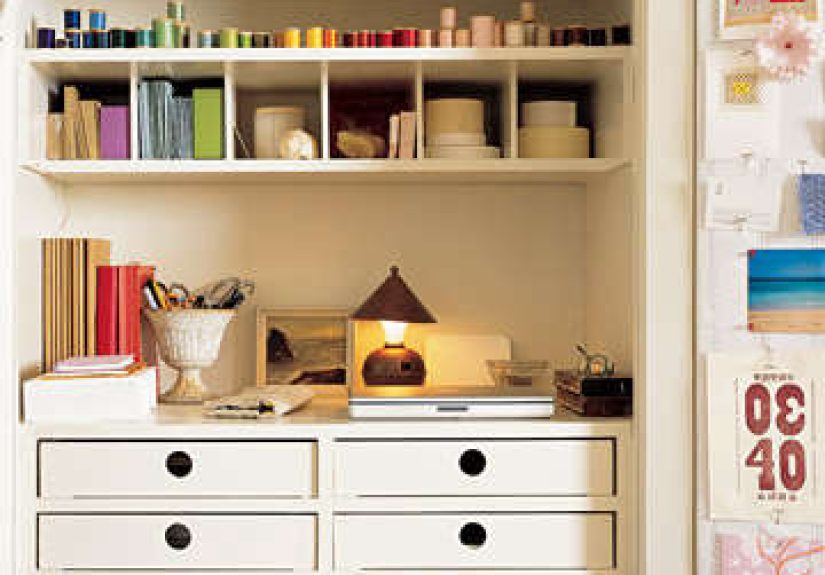
- Closet office nook: add a shelf-as-desk, a light, and cable routingclose the doors after work.
- Rolling cart: mobile supplies that can move with you (and disappear when guests come over).
Cable management: The easiest upgrade that feels like magic
Cables are visual noise. A few basics go a long way: adhesive cable clips, a cable tray under the desk, Velcro ties, and a power strip mounted where you can reach it. Label chargers if you live with other humansotherwise your USB-C cable will “walk away” like it’s training for a marathon.
Tech essentials: The gear that earns its place on your desk
You don’t need a spaceship control panel. You need a setup that supports your actual work: calls, documents, creative tasks, or number-crunching. Here’s a smart, practical roundup of upgrades that pay off.
Display upgrades: One good screen can change everything
If you stare at spreadsheets, design files, or multiple windows, a larger monitor (or dual monitors) can reduce constant switching and squinting. Pair it with a monitor arm or riser to get the height right and free up desk space underneath. If you’re on a laptop, a single external monitor plus external keyboard/mouse is often the best “bang for your neck.”
Audio + video: Be heard clearly, seen clearly
A basic external microphone or quality headset can make your calls dramatically clearer. If you’re on camera often, consider a webcam positioned at eye level. It’s more flattering, and it prevents the “looking down at you like a villain in a movie” angle that laptop cams love.
Network and power: Unsexy, essential
A stable internet connection is part of your workspace. If Wi-Fi is spotty, try moving closer to the router, using a mesh system, or plugging in via ethernet if possible. For power, use a surge protector (and don’t overload it). If you live somewhere with frequent outages, a small UPS can keep your modem/router and computer running long enough to save work and exit gracefully.
Security basics: Protect your work without becoming a cyber-paranoid hermit
- Use strong, unique passwords (a password manager helps).
- Enable multi-factor authentication for work accounts.
- Lock your screen when you step away (yes, even at home).
- Keep software updatedsecurity patches are the boring heroes.
Style upgrades: Make it pleasant without sabotaging function
Once the ergonomics and essentials are solid, style becomes more than decorationit’s mood support. A space you like being in makes it easier to start and easier to sustain focus.
Color and materials: Calm beats chaos
If you can, choose a simple palette and repeat it: one neutral, one accent, one natural texture (wood, woven baskets, linen curtains). It keeps the space visually quiet, which helps your brain stay on task.
Plants, art, and “background confidence”
A plant (real or fakeno judgment) softens the workspace and looks great on calls. Add one or two pieces of art or a small gallery wall behind you for a background that feels intentional. The goal is “cozy professional,” not “museum exhibit of random prints.”
Three smart setup tiers: Build the workspace you can afford now
You don’t need to buy everything at once. Here are three realistic approachespick a tier, then upgrade one piece at a time.
Tier 1: Under $200 (comfort triage)
- DIY monitor riser (sturdy books or a riser) + external keyboard/mouse
- Lumbar support cushion (or rolled towel) + footrest substitute
- Desk lamp for task lighting
- Cable clips + Velcro ties
Tier 2: $200–$600 (the “I’m doing this a lot” upgrade)
- Supportive adjustable chair or seat cushion upgrade
- Proper monitor riser/arm + a larger monitor
- Quality headset or microphone for calls
- Basic storage: rolling cart, shelf, or pegboard
Tier 3: $600+ (long-term WFH headquarters)
- Ergonomic chair you genuinely enjoy sitting in
- Sit-stand desk or desktop converter
- Dual monitors or ultrawide setup + docking station
- UPS backup for modem/router + workstation
- Intentional lighting plan (ambient + task + video-friendly front light)
Quick checklist: A 10-minute home workspace tune-up
- Feet supported (floor or footrest).
- Lower back supported (chair lumbar or cushion/towel).
- Shoulders relaxed, elbows close to your body.
- Wrists neutral; keyboard and mouse close together.
- Monitor straight ahead; top of screen at/slightly below eye level.
- Screen distance comfortable (roughly an arm’s length).
- Light positioned to reduce glare; add a task lamp if needed.
- Clear a small “working zone” on your desk (even if it’s one square foot).
- Bundle and route cables so they don’t snag or sprawl.
- Set a reminder for breaks (movement + eyes).
From the trenches: of home-office “experience” (aka lessons you don’t have to learn the hard way)
If you’ve ever tried to work from the couch and thought, “This is comfy; why do people buy office chairs?” congratulationsyou have met the first stage of WFH optimism. It’s a beautiful place. It lasts about three days, until your neck tightens up and your lower back starts composing dramatic poetry about betrayal.
One of the most common work-from-home stories goes like this: you start with a laptop on a coffee table. You lean forward a little. Then you lean forward a lot. Then you become a human shrimp. The problem isn’t youit’s physics. A laptop’s screen and keyboard are attached, so you’re forced to choose between seeing the screen clearly or keeping your hands in a neutral typing position. Most people choose “I can read this,” and their shoulders pay the price. The easy fixraising the laptop and adding an external keyboard and mousefeels almost too simple, which is why so many of us ignore it until our traps are basically carrying the team.
Then there’s the chair saga. People often “make do” with dining chairs because they look nice and they’re already in the house. Dining chairs, however, are built for meals, not marathons. After a few weeks, folks start doing the WFH chair shuffle: pillow behind the back, folded blanket on the seat, another pillow because surely the first pillow wasn’t pillow-y enough. At some point, the chair becomes a pillow sculpture, and you’re still not comfortable. That’s usually the moment you realize: support beats aesthetics. A chair that fits you or at least a lumbar cushion and a footrestcan change your entire workday mood.
Lighting is another sneaky one. A lot of people think their eyes are “just tired” when really they’re fighting glare or working in dim light that forces constant squinting. The classic fix is a desk lamp, but placement matters. If your lamp is reflecting in your monitor, you’ve invented a productivity obstacle course. Angle it toward your work surface, not your screen. And if your video calls make you look like a shadow creature from a folklore documentary, put a light in front of youeven a small one. You’ll look more awake, and people will stop asking if your webcam is “working okay.”
Finally, the boundary battle: when your office is also your bedroom, dining room, or living room, your brain never fully clocks out. Many remote workers find that a tiny ritual helpsclosing the laptop, turning off the desk lamp, rolling the chair in, or even putting your work items into a bin at the end of the day. It signals, “Work is done.” It’s not dramatic. It’s not Instagram-worthy. But it’s the difference between feeling like you worked today and feeling like you were vaguely on-call for your own life.
Conclusion
A great home workspace isn’t about perfectionit’s about alignment. Get your posture supported, your screen in the right place, your light under control, and your tools within easy reach. Then add storage that prevents clutter from multiplying like gremlins and a few style touches that make the space feel like yours. Build it in layers, upgrade one piece at a time, and you’ll end up with a home office that helps you focusand keeps your body from filing a formal complaint with HR (which, awkwardly, is also you).