Table of Contents >> Show >> Hide
- What Is Your Facebook Friends List?
- How to View Your Facebook Friends List on a PC or Mac: 7 Steps
- Step 1: Open Facebook in Your Browser
- Step 2: Go to Your Facebook Profile
- Step 3: Click the “Friends” Tab
- Step 4: Browse Your Full Friends List
- Step 5: Use the Search Box to Find a Specific Friend
- Step 6: Check Friend Categories and Mutual Friends
- Step 7: Use the Left Menu for Friend Lists or Requests
- Why You Might Not See Your Full Friends List
- How to View Custom Friend Lists on Facebook
- How to Search for Friends Without Opening Your Profile
- How to Adjust Who Can See Your Friends List
- Common Problems and Quick Fixes
- Best Practices for Managing Your Facebook Friends List
- Experience Notes: What It Is Really Like to View and Manage Facebook Friends on Desktop
- Conclusion
Finding your Facebook friends list on a PC or Mac should be easy, but Facebook has a funny habit of moving buttons around like it is redecorating the living room while you are still sitting on the couch. One day the Friends tab is right under your name; another day, the left menu wants you to click “See more” before it admits anything useful exists.
The good news: viewing your Facebook friends list from a desktop browser is still simple once you know where to look. Whether you are checking mutual friends, organizing contacts, finding someone you added years ago, or just proving to yourself that you really do know that many people from high school, this guide walks you through the process in seven clear steps.
This article focuses on Facebook’s desktop experience for Windows PCs and Macs using browsers such as Chrome, Safari, Edge, or Firefox. The wording may change slightly depending on your region, language settings, and Facebook’s latest layout, but the overall process remains familiar: log in, open your profile, click Friends, then browse or search your list.
What Is Your Facebook Friends List?
Your Facebook friends list is the collection of people you have accepted as friends on your personal profile. These are not the same as followers, Pages you like, groups you joined, or people who appear in “People You May Know.” Friends are two-way connections, meaning both accounts approved the relationship.
On Facebook, your friends list can help you reconnect with people, check mutual connections, manage privacy settings, organize custom lists, or review who can see your posts. Think of it as the address book Facebook built before your phone contacts, work contacts, family chat, and random school memories all moved into one giant digital attic.
How to View Your Facebook Friends List on a PC or Mac: 7 Steps
Follow these seven steps to view your Facebook friends list using a computer. The process works on both PC and Mac because Facebook runs in your web browser.
Step 1: Open Facebook in Your Browser
On your PC or Mac, open your preferred web browser and go to Facebook. You can use Google Chrome, Microsoft Edge, Safari, Firefox, or another modern browser. For the smoothest experience, make sure your browser is updated, especially if buttons do not load correctly or the page looks unusual.
If Facebook opens to a login screen, enter your email address, phone number, or username, then type your password. If you use two-factor authentication, complete the security step before continuing.
Step 2: Go to Your Facebook Profile
After logging in, look for your profile picture or name. On many desktop layouts, your profile icon appears in the top-right area of the screen. Click it, then choose your name or profile shortcut. This opens your personal Facebook profile page.
Your profile is the page with your cover photo, profile picture, intro details, posts, photos, and navigation tabs. It is also the easiest place to find your full friends list.
Step 3: Click the “Friends” Tab
Under your profile name and cover photo, look for a row of tabs such as Posts, About, Friends, Photos, Videos, Reels, or More. Click Friends. This opens the friends section of your profile.
If you do not immediately see the Friends tab, click More. Facebook sometimes hides extra profile sections inside that dropdown menu, especially if your browser window is narrow or your profile has many visible tabs.
Step 4: Browse Your Full Friends List
Once the Friends section opens, Facebook displays people connected to your account. You can scroll through the list to browse your friends manually. Depending on your account and the current Facebook layout, you may see profile pictures, names, mutual friends, and buttons for quick actions.
If you have a large number of Facebook friends, scrolling can feel like opening a time capsule with Wi-Fi. You may find coworkers, classmates, relatives, neighbors, people from old groups, and at least one person whose profile picture has not changed since 2012.
Step 5: Use the Search Box to Find a Specific Friend
At the top of the Friends section, look for a search field. Type the name of the person you want to find. Facebook will narrow the results inside your friends list.
This is the fastest method if you are looking for one person. For example, if you want to check whether you are still friends with someone named “Emily Johnson,” type the name into the search box instead of scrolling through hundreds of profiles. If no result appears, the person may not be on your friends list, may have changed their display name, may have deactivated their account, or may have unfriended you.
Step 6: Check Friend Categories and Mutual Friends
Facebook may show categories such as recently added friends, mutual friends, hometown connections, workplace connections, or custom friend lists. These sections can help you understand how you are connected to people.
For example, if you click on someone’s profile and then open their Friends section, you may see mutual friends if their privacy settings allow it. Mutual friends can be helpful when you are trying to confirm whether a profile belongs to the person you think it does. This is especially useful when several people share the same name.
Step 7: Use the Left Menu for Friend Lists or Requests
Facebook also has a Friends area in the left-side menu of the Home feed. From there, you may find friend requests, suggestions, birthdays, custom lists, or shortcuts related to friends. If you do not see Friends in the left menu, click See more.
This area is different from the Friends tab on your profile. Your profile’s Friends tab shows your actual friends list, while the Home feed’s Friends section often focuses on requests, suggestions, custom lists, and friend-related updates. In newer versions of Facebook, the Friends tab may also highlight posts, stories, birthdays, Reels, and updates from your existing friends.
Why You Might Not See Your Full Friends List
Sometimes the Friends tab does not show exactly what you expect. Before blaming your laptop, your Wi-Fi, or Mercury in retrograde, check these common reasons.
Facebook’s Layout Has Changed
Facebook frequently tests and updates its interface. A button that appears under your cover photo today may appear inside a dropdown tomorrow. If you cannot find Friends, check the More menu on your profile or use the left-side Friends shortcut from the Home feed.
Your Browser Window Is Too Narrow
On smaller screens, Facebook may hide some navigation tabs. Try maximizing your browser window, zooming out slightly, or clicking the More menu. On a MacBook or smaller laptop, this simple adjustment often makes missing tabs reappear.
You Are Viewing Someone Else’s Profile
If you are trying to see another person’s friends list, their privacy settings control what you can view. Some people make their friends list public, some show it only to friends, and others hide it completely. Even when a full friends list is hidden, mutual friends may still appear.
The Account Is Deactivated, Restricted, or Private
If a friend’s account is deactivated or restricted, they may not appear normally in your list. In some cases, the profile may still exist but show limited information. If someone has blocked you, you generally will not be able to view their profile through normal search or your friends list.
How to View Custom Friend Lists on Facebook
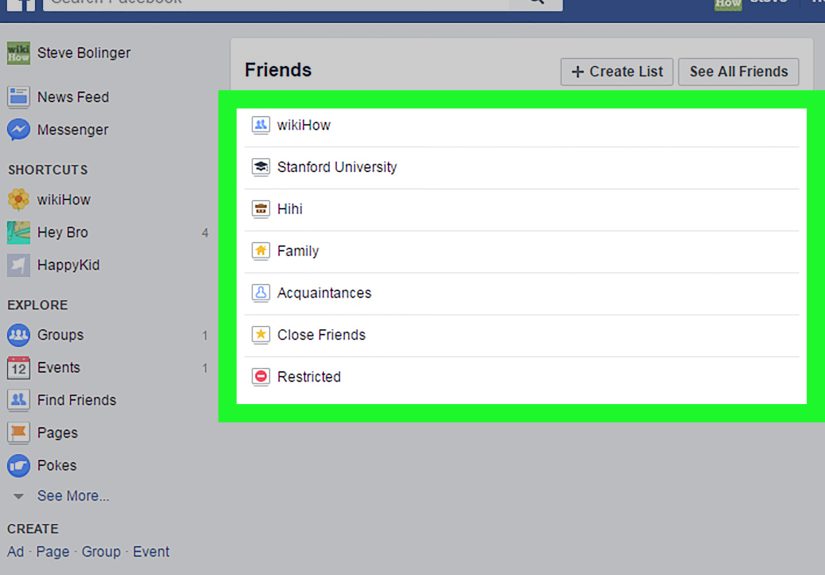
Facebook also allows custom friend lists, which are private lists you create to organize people. For example, you might have lists for Close Friends, Family, Coworkers, Clients, School Friends, or People I Should Probably Message More Often But Somehow Never Do.
To view custom friend lists on a computer, go to the Facebook Home feed and look at the left menu. Click Friends, then look for Custom Lists or a similar option. If you do not see it, click See more. From there, you can open existing lists and manage who belongs to each one.
Custom lists are useful because they help you control who sees certain posts. For instance, you may want to share vacation photos with close friends but not with professional contacts. You may want to post a family update that does not need to reach everyone you have ever met at a conference. Lists make that easier.
How to Search for Friends Without Opening Your Profile
You can also search for friends using Facebook’s main search bar. At the top of the Facebook desktop page, type a person’s name and press Enter. Then use filters such as People, Friends, City, Education, or Workplace if available.
This method is helpful when you remember a name but are not sure whether the person is already your friend. If the profile shows an “Add friend” button, you are probably not connected. If it shows “Friends,” you are already connected. If you see “Message” but no clear friend button, privacy settings may affect what appears.
How to Adjust Who Can See Your Friends List
Viewing your own friends list is one thing. Deciding who can see it is another. If you want more privacy, you can adjust who can view the Friends section on your profile.
On desktop, open Facebook settings and look for privacy options related to how people find and contact you or who can see your friends list. Facebook may offer audience choices such as Public, Friends, Only me, or custom audiences. Choosing Only me hides your full friends list from other people, although mutual friends may still be visible in some places.
A practical privacy tip: if you accept friend requests from coworkers, customers, distant relatives, old classmates, and actual close friends, consider tightening your friends list visibility. It helps reduce social overexposure and makes it harder for strangers to map your personal connections.
Common Problems and Quick Fixes
The Friends Tab Is Missing
Click More under your profile tabs. If it is still missing, refresh the page, zoom out, or try another browser. Facebook’s desktop layout can vary, especially across regions and account types.
The Friends Page Will Not Load
Clear your browser cache, disable problematic extensions, or try opening Facebook in a private browsing window. Ad blockers, script blockers, and privacy extensions sometimes interfere with Facebook’s interface.
You Cannot Find a Specific Friend
Search by first name, last name, nickname, or previous name. Some people change their display names, use initials, or switch to a married name. If the profile still does not appear, the person may no longer be connected to you.
You See Mutual Friends but Not the Full List
That usually means the other person limited their friends list visibility. Facebook may still show mutual friends because those connections involve both accounts.
Best Practices for Managing Your Facebook Friends List
Your friends list is not just a list; it is a living record of your social world. Over time, it can become messy. A few minutes of cleanup can improve privacy, reduce awkward sharing, and make Facebook feel less chaotic.
First, review friend requests carefully. If you do not recognize someone, check mutual friends, profile history, photos, and recent activity before accepting. Fake accounts often use copied photos, thin timelines, or overly generic names.
Second, use custom lists if you post for different audiences. Not every update belongs in front of every person. Your cousin may enjoy your vacation photos. Your old boss may not need your 2 a.m. thoughts about leftover pizza and personal growth.
Third, review your privacy settings occasionally. Social platforms change, your life changes, and your comfort level may change too. What made sense in college may not make sense when you are job hunting, running a business, or trying to keep family updates more private.
Finally, do not be afraid to unfriend, unfollow, or restrict people when needed. Facebook gives you several levels of control. Unfollowing keeps the friendship but removes their posts from your feed. Restricting limits what they can see. Unfriending removes the connection entirely.
Experience Notes: What It Is Really Like to View and Manage Facebook Friends on Desktop
In real everyday use, viewing your Facebook friends list on a PC or Mac feels easiest when you start from your own profile rather than the left-side menu. The profile method is more direct because the Friends tab is connected to your account identity. When I am explaining this process to someone, I usually say, “Go to your profile first. Facebook may have ten doors, but your profile door is the least confusing one.”
One common experience is that people expect the Friends shortcut in the left menu to show the same thing as the Friends tab on their profile. It often does not. The left menu may show friend requests, suggestions, birthdays, or custom lists, while the profile Friends tab shows the people already connected to you. This small difference causes a surprising amount of confusion. It is like opening the fridge looking for orange juice and finding a calendar instead. Technically useful, but not what you came for.
Another practical lesson: the search box inside the Friends tab saves time. If someone has 1,000 friends, scrolling manually is not a strategy; it is a wrist workout. Typing a name is faster, cleaner, and less likely to send you into a nostalgic spiral after seeing twenty old classmates, three former coworkers, and someone whose profile picture is still a blurry concert photo.
Desktop browsing also gives you a better view than mobile when you are organizing friends. On a large screen, it is easier to compare profiles, open tabs, check mutual friends, and review privacy settings without constantly jumping between screens. For people who use Facebook for business networking, community groups, school connections, or family communication, managing friends from a PC or Mac feels more controlled.
Privacy is where the desktop experience becomes especially important. Many users never check who can see their friends list. They accept requests over the years and forget that their connections may reveal family members, coworkers, classmates, locations, interests, or social circles. Adjusting friends list visibility is a small setting, but it can make a big difference. For many people, setting it to Friends or Only me is a smart move.
It is also worth remembering that your friends list is not a museum. You are allowed to update it. People move, relationships change, work situations shift, and online boundaries matter. Viewing your friends list every few months can help you remove fake accounts, organize close connections, and reduce clutter. A cleaner friends list often makes Facebook feel calmer and more useful.
The biggest tip from experience is simple: do not panic when Facebook looks different. The company updates its interface often. If the Friends tab is not where a guide says it should be, look for More, See more, your profile picture menu, or the search bar. The feature is usually still there; it is just hiding behind a menu like it owes you money.
Conclusion
Viewing your Facebook friends list on a PC or Mac is straightforward once you know the path: open Facebook, go to your profile, click Friends, then browse or search your list. If the tab is hidden, check the More menu. If you want custom lists or friend requests, use the Friends shortcut from the left-side menu.
The desktop version of Facebook is especially useful for reviewing connections, searching for specific people, checking mutual friends, and adjusting privacy settings. Take a few minutes to explore your Friends section, clean up old connections, and decide who should be able to see your list. Your future self may thank youprobably while wondering why you were friends with someone named “DJ Thunder 2009.”
Note: Facebook’s interface changes from time to time, so button names and menu locations may vary slightly by account, region, browser, and language settings.