Table of Contents >> Show >> Hide
- What Dial-Up Internet Really Is (and Why It Still Exists)
- Before You Start: What You’ll Need
- How to Set Up a Dial-Up Internet Connection in 13 Steps
- Confirm you have a real analog phone line
- Choose a dial-up ISP and collect your connection details
- Pick the right modem (and don’t skip the drivers)
- Physically connect everything
- Install (or update) the modem driver
- Confirm the modem is recognized by your computer
- Open the dial-up setup screen on Windows
- Create a new dial-up connection profile
- Enter the ISP phone number, username, and password
- Set dialing rules and fix the “call waiting” problem
- Adjust modem settings if connections fail or are unstable
- Connect and listen for the handshake
- Verify you’re actually online (and make it usable)
- Troubleshooting: The Greatest Hits of Dial-Up Problems
- Tips to Make Dial-Up Less Painful (Without Time Traveling)
- Conclusion
- Real-World Dial-Up Experiences (500+ Words of What It’s Actually Like)
Dial-up internet is the technological equivalent of taking a scenic route: slow, loud, and weirdly charming.
But if you’re in a rural spot with limited broadband, resurrecting a vintage computer, running a legacy system,
or just want an ultra-cheap backup connection, setting up a dial-up internet connection is still totally doable.
The trick is knowing what you need, where modern operating systems hide the settings, and how to troubleshoot
the classic “NO DIAL TONE” drama.
In this guide, you’ll learn how to set up a dial-up modem connection (typically 56K) in a clean, step-by-step way.
We’ll cover the gear, the setup process on Windows, what to do if your modem acts like it’s on a lunch break, and
how to make dial-up feel less like you’re downloading the internet through a straw.
What Dial-Up Internet Really Is (and Why It Still Exists)
Dial-up internet uses a modem to turn your computer’s digital data into tones that travel over a traditional phone line,
then turns incoming tones back into data. The “robot choir” sounds you hear when connecting are your modem negotiating
speed and reliability with your internet service provider (ISP).
The maximum theoretical speed for classic dial-up is about 56 kbps, but real-world speeds can be lower depending on line
quality, distance to the phone exchange, and how much your phone line resembles a haunted house full of electrical interference.
Dial-up also ties up the phone line while connectedso yes, your call will probably fail, and yes, someone will try anyway.
Before You Start: What You’ll Need
- An active analog telephone line (a standard landline). VoIP phone service can work sometimes, but it’s hit-or-miss and often slower.
- A dial-up modem (internal PCI/PCIe, internal laptop modem, or an external USB/serial modem).
- A phone cord (RJ-11) and, if needed, adapters for your wall jack.
- A dial-up ISP account with an access phone number, username, and password.
- Device drivers for your modem (especially for USB modems on modern Windows).
- Patience (optional, but strongly recommended).
How to Set Up a Dial-Up Internet Connection in 13 Steps
-
Confirm you have a real analog phone line
Plug a regular phone into the wall jack and listen for a dial tone. If you don’t hear one, you can’t dial out.
If your “phone line” is actually VoIP through a router, dial-up may connect but often struggles with negotiation and stability. -
Choose a dial-up ISP and collect your connection details
You’ll need an access phone number (often local), plus a username and password. Some providers also require specific settings,
like a particular authentication method. Write the details down exactlythis is one of the rare times typos still matter a lot. -
Pick the right modem (and don’t skip the drivers)
External USB 56K modems are common for modern PCs, but they live and die by driver support. If you’re using an older internal modem,
you may be dealing with legacy hardware that Windows will recognize automaticallyor refuse to, with great confidence. -
Physically connect everything
Connect the modem to your computer (USB, serial, or internal slot) and connect the modem’s phone port to the wall jack using an RJ-11 cord.
Many modems have two phone jacksuse the one labeled LINE for the wall connection. The other is usually for an optional phone handset. -
Install (or update) the modem driver
On Windows, install the manufacturer’s driver if available. If Windows “helpfully” installs a generic driver but the modem won’t connect,
the vendor driver can make the difference. After installation, restart if promptedeven if you feel emotionally ready to keep going. -
Confirm the modem is recognized by your computer
On Windows: open Device Manager and look under Modems. Your modem should appear without warning icons.
If it’s missing, the issue is hardware, driver, or USB port relatednot your ISP. -
Open the dial-up setup screen on Windows
On Windows 10/11, go to Settings → Network & Internet → Dial-up, then choose Set up a new connection.
This typically launches the classic connection wizard. (Yes, it still exists. It’s like finding a payphone that still works.) -
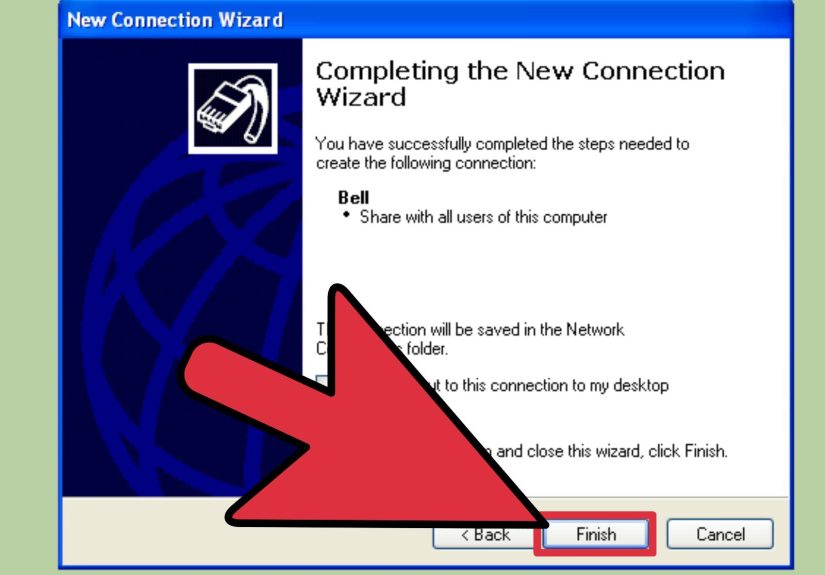
Create a new dial-up connection profile
Choose Connect to the Internet, then pick Dial-up when asked how you want to connect.
Give the connection a name you’ll recognize, like “Dial-Up (Main)” or “Emergency Internet (Do Not Panic).” -
Enter the ISP phone number, username, and password
Type the dial-up access number exactly as provided. If your area requires dialing a “1” or an area code, include it.
Save the username/password if it’s a personal computer. If it’s shared, consider leaving it un-saved so nobody “accidentally”
logs in and ties up the line for three hours. -
Set dialing rules and fix the “call waiting” problem
Call waiting can interrupt dial-up connections. In many U.S. areas, dialing a prefix like *70 before the number disables call waiting for that call,
but it varies by provider and region. If you keep getting disconnected a few minutes in, call waiting is a prime suspect.Also verify whether your line needs tone or pulse dialing. Tone is most common; pulse is for older systems.
-
Adjust modem settings if connections fail or are unstable
In the modem properties, you can often set maximum port speed, enable/disable error control, or tweak flow control.
If your ISP recommends a specific initialization string (rare, but it happens), that’s where it goes.
Don’t start randomly copy-pasting “mystery strings” from the internet unless you enjoy chaos. -
Connect and listen for the handshake
Click Connect. The modem should dial, negotiate, and then authenticate. The handshake noises can sound alarming,
but they’re basically two modems agreeing on the best speed they can manage without falling over. -
Verify you’re actually online (and make it usable)
Once connected, open a lightweight website or run a simple connectivity check. If pages “half-load” and freeze, the issue is often DNS,
a flaky line, or modern websites being too heavy for dial-up. Use a simpler browser configuration, disable auto-playing media,
and consider turning off background updates and cloud sync while connected. Dial-up is not the time for a 2 GB operating system update.
Troubleshooting: The Greatest Hits of Dial-Up Problems
No dial tone
Check the phone cord, confirm you used the modem’s LINE port, try a different wall jack, and test the line with a phone.
If you’re on VoIP, the tone might exist but the connection can still fail because dial-up hates compression and jitter.
Busy signal or “line is busy”
Some ISPs have multiple access numbers. Try another number if you have it. If it’s consistently busy, call the provider and ask if they have a less-congested access line.
Authentication errors (wrong username/password)
Re-enter credentials carefully. Pay attention to capitalization. If your ISP uses a domain-style format (like user@provider),
make sure you didn’t “simplify” it out of existence.
Connects, then disconnects after a few minutes
Call waiting, line noise, and unstable drivers are the usual suspects. Try disabling call waiting, using a shorter phone cord,
removing splitters, and plugging directly into the wall jack.
Tips to Make Dial-Up Less Painful (Without Time Traveling)
- Use lightweight sites and enable reader modes when possible.
- Turn off automatic updates while connected; schedule them for when you’re on faster internet.
- Use download managers that can resume transfers if your connection drops.
- Compress what you can: email clients with plain-text mode and minimal image loading help a lot.
- Lower expectations (lovingly): dial-up is great for email and basic browsing, not streaming 4K anything.
Conclusion
Setting up a dial-up internet connection is mostly about getting three things to agree: your phone line, your modem (plus drivers),
and your ISP settings. Once the hardware is recognized and the connection profile is correct, dial-up can be surprisingly reliable
especially as a backup or for legacy systems that don’t need much bandwidth.
Follow the 13 steps above, use the troubleshooting section when things get dramatic, and you’ll be online the old-school way.
It’s not fast, but it’s functionaland sometimes that’s exactly the point.
Real-World Dial-Up Experiences (500+ Words of What It’s Actually Like)
If you’ve never used dial-up before, your first connection can feel like you just adopted a very small, very noisy robot.
You click “Connect,” the modem grabs the phone line, and then it starts singing. Not in a soothing way. More like it’s doing
experimental jazz while trying to unlock a door with a paperclip. That sound is the handshakeyour modem and the ISP’s modem
negotiating speed, error correction, and the best possible connection quality for the line you’ve got.
Then comes the moment of truth: you’re connected, but everything feels… different. Web pages don’t “snap” into place.
They slowly assemble themselves piece by piece, like a puzzle where half the pieces are still in the factory.
Text often appears first, then images trickle in later (if they show up at all). If you grew up on instant-loading apps,
dial-up is a crash course in patienceand also in learning what you actually need versus what you’re just used to loading automatically.
People who still rely on dial-up often develop a few habits that make the experience smoother. One is timing.
Just like rush-hour traffic, dial-up can get more congested during peak evening hours when more users are trying to connect.
Another habit is “one thing at a time.” On broadband, it’s normal to have email syncing, cloud backups running, a dozen tabs open,
and updates downloading in the background. On dial-up, those background tasks can swallow your entire connection without you realizing it.
The practical move is to pause automatic updates, disable syncing, and keep tabs to a minimum so your actual browsing doesn’t feel like
it’s competing with invisible gremlins.
Dial-up also teaches you to respect file sizes. A small PDF? Fine. A high-resolution photo gallery? That’s a life choice.
Folks who use dial-up a lot tend to prefer mobile versions of sites, “basic HTML” interfaces, and email newsletters that don’t embed
huge images. There’s also a certain satisfaction in making the internet behave by trimming the extrasblocking autoplay videos,
avoiding ad-heavy pages, and choosing simpler tools. It’s not just about speed; it’s about making the connection feel stable and usable.
There are also the classic “dial-up lifestyle” moments. Someone picks up the house phone mid-session and your connection drops.
An incoming call triggers call waiting andboomyou’re offline. The line gets noisy because of a splitter, a long phone cord,
or an old wall jack, and suddenly your modem negotiates a slower speed. None of this is mysterious once you’ve lived it,
but the first time it happens, it can feel like the internet is personally offended by your attempt to log in.
And yet, dial-up can be weirdly reassuring. When it’s set up correctly, it’s often steady: the modem dials, authenticates,
and stays connected as long as the line stays quiet. For rural users, it can be a dependable backup when cellular service is spotty.
For vintage computing fans, it’s part of the funconnecting older machines to the modern world through the same process that powered
the early web. And for anyone who wants a reminder of how far technology has come, dial-up is the most hands-on museum exhibit you can run
from your own desk.
The biggest “experience lesson” is this: dial-up rewards intentional use. If you treat it like broadband, it will feel miserable.
If you treat it like a focused toolemail, light browsing, basic account access, simple downloadsit can do the job with surprising grace.
You’re not just connecting to the internet; you’re negotiating with physics, copper wiring, and 1990s-era networking expectations.
Which, honestly, is kind of iconic.