Table of Contents >> Show >> Hide
- What Counts as Spam in Gmail?
- Why You Should Delete Spam Emails Instead of Ignoring Them Forever
- How to Delete All Spam Emails in Gmail on Desktop
- How to Delete All Spam Emails in Gmail on Mobile
- What If the Real Junk Is Not in Spam?
- How to Stop Spam Emails from Coming Back
- Mistakes to Avoid When Deleting Spam in Gmail
- Experience Notes: What a Real Gmail Spam Cleanup Usually Feels Like
- Final Thoughts
If your Gmail account feels like it has become a digital junk drawer with a Wi-Fi connection, you are not alone. Spam has a talent for multiplying like socks in a dryer, except less useful and far more annoying. One day you have a few sketchy coupons and fake shipping alerts. The next day your inbox is dodging miracle weight-loss offers, suspicious login warnings, and a prince who is somehow still trying to wire you money.
The good news is that deleting all spam emails in Gmail is actually simple once you know where to click. The even better news is that you can do it on desktop or mobile, and you can take a few extra steps to stop the mess from coming back. This guide walks through the fastest ways to clear your Gmail Spam folder, explains when to report spam instead of just deleting it, and shows how to keep your inbox from turning into a landfill again.
What Counts as Spam in Gmail?
In Gmail, spam usually means unwanted or suspicious messages that Google’s filters think you probably do not want. That can include obvious junk mail, shady promotions, scam messages, phishing attempts, or repeat senders you never asked to hear from. Gmail automatically moves many of these emails into the Spam folder, where they sit until you review them or delete them.
Here is the key detail many people miss: Gmail already deletes messages in Spam automatically after a while. So yes, Gmail does some housekeeping for you. But if you want your account cleaner right now, want to reduce clutter, or need to free up storage space faster, you can empty the folder yourself in a few seconds.
Why You Should Delete Spam Emails Instead of Ignoring Them Forever
Letting spam pile up may not feel urgent, but it can create three annoying problems. First, it makes your account feel messy, which is the digital equivalent of stepping on Lego bricks with your eyes. Second, a crowded Spam folder can make it easier to miss a legitimate message that Gmail flagged by mistake. Third, clearing Spam and Trash can help if you are trying to reclaim Google storage space.
Deleting spam also gives you a chance to spot patterns. Maybe one retailer keeps sneaking into your inbox. Maybe one scam format keeps showing up. Once you identify the repeat offenders, you can block them, unsubscribe, or create filters so the next cleanup is a lot less dramatic.
How to Delete All Spam Emails in Gmail on Desktop
If you are using Gmail in a web browser on your computer, this is the fastest and easiest method.
- Open Gmail in your browser and sign in.
- Look at the left sidebar. If you do not see Spam, click More to expand the menu.
- Click Spam.
- At the top of the page, click Delete all spam messages now.
- Confirm the action if Gmail asks.
That is it. Your Spam folder is cleared, and those messages are permanently removed. No dramatic ceremony. No tiny broom animation. Just instant relief.
How to Delete Only Some Spam Messages on Desktop
Maybe you do not want to wipe the whole folder. Maybe you want to keep a suspicious email for reference, or maybe you are checking whether Gmail misfiled something important. In that case, you can delete selected messages instead:
- Open the Spam folder.
- Check the box beside each email you want to remove.
- Click Delete forever.
This is useful when your Spam folder contains a mix of obvious junk and a few messages you still want to review before erasing them.
Before You Empty the Spam Folder, Do One Quick Safety Check
Take ten seconds to scan the senders and subject lines. Sometimes valid emails land in Spam by accident, especially order confirmations, password reset links, newsletters you actually signed up for, or school and work messages that look automated. If you spot something real, open it and click Not spam before you empty the folder. That helps Gmail learn what should stay out of Spam in the future.
How to Delete All Spam Emails in Gmail on Mobile
If you are using the Gmail app on Android or iPhone, you can clear spam from your phone while waiting in line for coffee, pretending to listen in class, or avoiding eye contact on public transportation. Modern life is all about efficient multitasking.
- Open the Gmail app.
- Tap the menu icon in the top-left corner.
- Scroll down and tap Spam.
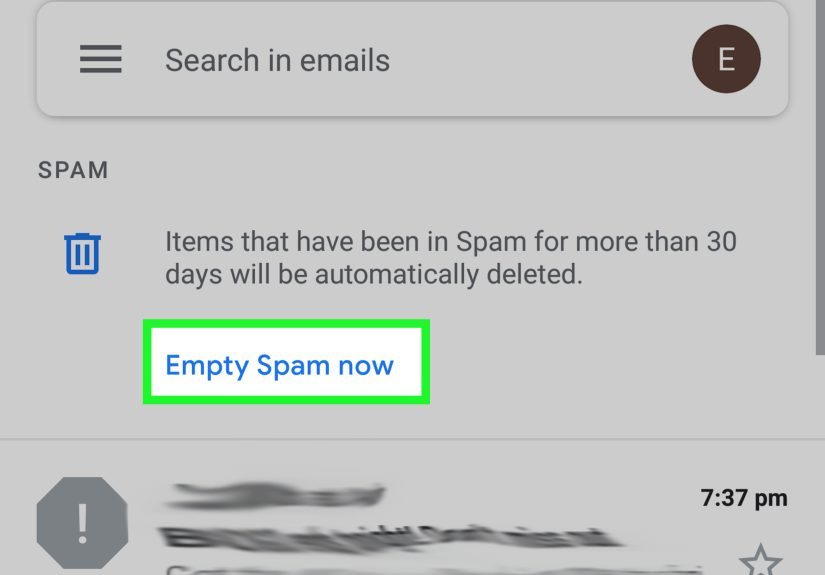
- Tap Empty spam now.
- Confirm if prompted.
Depending on your app version, the empty option may appear near the top of the Spam folder. Once you tap it, Gmail removes those spam messages permanently.
How to Remove Individual Spam Messages on Mobile
If you prefer to clean selectively, open the Spam folder, tap into a message, and use the available delete option. If a message does not belong there, use Report not spam so Gmail can move it back and improve future filtering.
Desktop vs. Mobile: Which One Is Better?
Both work, but they shine in different ways. Mobile is perfect for quick cleanup when you just want to empty Spam and move on with your day. Desktop is better when you want more control, such as reviewing messages carefully, searching by sender, creating filters, or doing a broader inbox cleanup beyond the Spam folder.
What If the Real Junk Is Not in Spam?
Here is an annoying truth: some unwanted email is not technically “spam” in Gmail’s eyes. Marketing blasts, newsletters, promotional mail, and endless sale alerts may land in Promotions or your main inbox instead. So if you delete all spam emails and your Gmail still feels chaotic, the real clutter may be coming from legitimate but unwanted senders.
That is where Gmail’s search tools become your best friend.
Useful Gmail Search Tricks for Faster Cleanup
Type these into Gmail’s search bar on desktop to find clutter fast:
- older_than:6m finds email older than six months
- from:[email protected] finds email from one sender
- unsubscribe finds mailing-list style messages that usually include unsubscribe text
- larger:10M finds large emails that may be using storage
- category:promotions finds messages in the Promotions tab
- is:unread finds unread messages you may not care about
Once the results appear, click the checkbox at the top of the email list, then click the link to select all matching conversations if Gmail shows it. After that, delete the results in bulk. This is especially helpful when the same sender keeps showering you with “last chance” emails for products you never wanted in the first place.
How to Stop Spam Emails from Coming Back
Deleting all spam emails feels great, but it is only half the battle. If you want lasting peace, you need to reduce incoming junk too. Here are the smartest ways to do it.
1. Report Spam Instead of Only Deleting It
If a message is truly spam, use Gmail’s Report spam option. This helps Google improve filtering, which can reduce similar junk in the future. It is also a better move for suspicious messages than quietly deleting them and hoping the internet learns manners on its own.
For obvious phishing attempts, reporting is even more important. If the message pretends to be from a bank, delivery service, school, or well-known brand and asks you to click a link, verify account information, or download an attachment, treat it as a red flag parade.
2. Block Repeat Offenders
If one sender keeps showing up like an unwanted sequel, block them. In Gmail, blocking a sender routes future messages from that sender to Spam. This is a handy solution for persistent nuisances that keep slipping through.
Blocking is great for annoying personal senders or recurring junk from one address. It is less effective against sophisticated spam campaigns that constantly change addresses, but it still helps cut down repeated noise.
3. Unsubscribe from Legitimate Marketing Emails
If the email comes from a real company and you did sign up at some point, use Unsubscribe instead of marking it as spam. Gmail often shows an unsubscribe option near the sender name, and it also offers a subscription management area on some accounts. This is the cleanest way to stop newsletters, store updates, event promos, and similar messages that are legal but deeply exhausting.
A useful rule of thumb is simple: if it is shady, report spam. If it is real but annoying, unsubscribe. If it is one persistent sender with no manners, block.
4. Create Filters on Desktop
If certain messages always match a pattern, you can set up a filter in Gmail on desktop. For example, you can filter emails from a specific address, with certain words, or with recurring phrases in the subject line. Then you can tell Gmail what to do with them, such as archive, label, or delete.
This is especially helpful for promotional senders that technically are not spam but still clutter your inbox. Example: if you keep getting “flash sale” emails from a store every single morning like clockwork, a filter can save you from seeing them ever again.
5. Review Your Google Storage if Space Is Tight
If your goal is not just cleanliness but also storage recovery, do not stop at Spam. Check Trash too. Then review large emails and old attachments. Gmail cleanup works best when you combine emptying Spam with deleting oversized messages you no longer need. It is much more satisfying to reclaim real space than to merely win a cosmetic battle.
Mistakes to Avoid When Deleting Spam in Gmail
- Do not empty Spam without a quick scan. Occasionally, important messages land there by mistake.
- Do not click links in suspicious emails. Delete or report them instead.
- Do not confuse spam with legitimate newsletters. Use unsubscribe for real senders.
- Do not rely on deletion alone. Reporting, blocking, and filtering are what actually reduce future clutter.
- Do not forget Trash. If you want storage back, Spam and Trash both matter.
Experience Notes: What a Real Gmail Spam Cleanup Usually Feels Like
Anyone who has ever opened Gmail intending to “just clear a few junk messages” knows how this usually goes. You start with confidence. You tell yourself it will take two minutes. Then you open the Spam folder and discover a small civilization has formed in there. Fake invoices. Weird crypto pitches. Notifications from sites you do not remember joining. Five “urgent” warnings about accounts you do not own. It is like walking into your garage to find out raccoons have been paying rent.
A typical cleanup experience starts with surprise. Most people know they get spam, but they do not realize how much of it has piled up until they actually look. The first reaction is usually some version of, “Why are there this many messages?” The second reaction is often relief when they discover Gmail has a one-click option to delete all spam messages at once. Suddenly the task goes from impossible to oddly satisfying. Few digital chores feel better than pressing one button and watching junk vanish.
Then comes the second phase: the realization that the Spam folder was not even the whole problem. Many users empty Spam and still feel like Gmail looks crowded. That is when they discover the real clutter is often from promotions, mailing lists, or stores they bought from once in 2019 and apparently got adopted by forever. This part of the cleanup experience is less dramatic but more important. Once people search for terms like unsubscribe, older_than:1y, or a repeat sender’s address, they usually uncover hundreds or even thousands of unwanted messages hiding in plain sight.
Another common experience is finding one or two legitimate emails in Spam. That is why seasoned Gmail cleaners learn not to smash the delete button without a quick glance first. A receipt, school notice, interview email, shipping update, or password reset can slip into Spam because it looked automated or unusual. One fast scan before emptying the folder can save a major headache later. It is not glamorous advice, but it is the kind people remember after learning the hard way exactly once.
People also notice that deleting spam feels better when it becomes a tiny routine instead of a once-a-year rescue mission. For example, checking Spam once a week, emptying it, unsubscribing from one or two annoying senders, and deleting a batch of old promotional mail makes the whole account feel lighter. It is the inbox version of doing dishes before they turn into an archeological site. Small cleanups are boring, but they beat spending an entire Saturday battling six years of accumulated nonsense.
Probably the most useful lesson from real-world Gmail cleanup is this: deleting spam is not the finish line. It is the reset button. The people who get the best results are the ones who pair deletion with better habits afterward. They report phishing instead of clicking. They block repeat offenders. They unsubscribe from legitimate marketing lists they no longer want. They use filters for predictable clutter. And once those habits click, Gmail starts feeling less like a noisy digital billboard and more like an inbox again.
Final Thoughts
If you want to delete all spam emails in Gmail on desktop or mobile, the process is refreshingly simple. Open the Spam folder, use the built-in empty option, and clear the junk in one move. But the smartest approach goes beyond one-time deletion. Scan for mistakes, report actual spam, block persistent senders, unsubscribe from legitimate marketing mail, and use filters when the same junk keeps showing up.
In other words, do not just take out the trash. Figure out who keeps dragging it back into the house.