Table of Contents >> Show >> Hide
- Why Google Maps Locations Go Wrong (And Why You Should Care)
- Before You Edit: A 60-Second Checklist That Saves Hours
- Fix #1: Use “Suggest an Edit” to Correct a Place or Pin (Desktop)
- Fix #2: Fix an Address on the Google Maps App (Mobile)
- Fix #3: If It’s Your Business, Update It in Google Business Profile
- Fix #4: Add What’s Missing (New Place, New Address, or New Road)
- Fix #5: Escalate When Edits Get Rejected (Without Starting a Keyboard War)
- Quick Troubleshooting: 9 “Why Is Maps Still Wrong?!” Moments
- 1) “Couldn’t verify your edit”
- 2) The address is correct, but navigation goes to the wrong entrance
- 3) The business moved, but the old location still shows up
- 4) I’m a service-area business and Maps shows something weird
- 5) My edit was accepted… but I don’t see it yet
- 6) The pin is right in Maps, but Search results look off
- 7) The address exists, but Maps can’t find it
- 8) The pin is correct, but the place name is wrong
- 9) Everything is accurate… except the suite number keeps disappearing
- FAQ: Correcting a Location on Google Maps
- Field Notes: Real-World Experiences (So You Don’t Scream Into a Pillow)
- Conclusion
Google Maps is basically the world’s most popular “Where am I?” button. So when a pin is wrong, it’s not just mildly annoyingit’s “Congrats, you’ve navigated to the back alley behind the dentist office” annoying.
The good news: you usually don’t need a secret handshake or a cartography degree to fix it. In this guide, you’ll learn five easy ways to correct a location on Google Maps, whether it’s a wrong address, a misplaced pin, a moved business, or a brand-new place the map hasn’t met yet.
Why Google Maps Locations Go Wrong (And Why You Should Care)
A bad location on Google Maps can cause missed deliveries, late appointments, angry customers, and confused friends who swear they’re “right here” while standing three blocks away holding an iced coffee like a distress signal.
Most location problems fall into a few buckets:
- Wrong pin placement: the address text is correct, but the pin is dropped on the wrong building.
- Wrong address details: missing suite numbers, incorrect street numbers, outdated ZIP codes, or typo gremlins.
- Business moved: the listing didn’t get the memo, so Maps keeps sending people to your old spot.
- New construction: the road or building exists in real life, but Maps is still living in last year.
- Edits rejected or stuck: you submit a fix… and Google politely does nothing (the classic).
If you run a local business, this also impacts local SEO. Your visibility in Search and Maps depends on accurate location data, category relevance, and trust signals. Translation: the pin matters more than your cousin who “knows a shortcut.”
Before You Edit: A 60-Second Checklist That Saves Hours
1) Confirm what’s actually wrong
Open the location in Google Maps and check both the address text and the pin placement. It’s surprisingly common for one to be correct and the other to be doing its own thing.
2) Zoom in like you’re defusing a bomb
If you’re moving a pin, zoom in until you can clearly see the building footprint, entrances, or parking lot boundaries. Tiny pin moves at street-level zoom are more believable than dragging it half a mile at city-level zoom.
3) Use the “real-world proof” mindset
Think: “If I were a reviewer, what would convince me this is the right spot?” Helpful proof can include Street View context, visible signage, correct suite info, and consistent details across reputable sources.
4) Don’t spam edits
Submitting the same correction five times in a row doesn’t make it faster. It makes it look like a bot with a vendetta. One clean, accurate submission is the move.
Fix #1: Use “Suggest an Edit” to Correct a Place or Pin (Desktop)
This is the most straightforward method for most people: you find the location, choose the edit option, and submit a correction. It’s the digital equivalent of politely tapping Maps on the shoulder and saying, “Hey buddy… that’s not it.”
Best for
- Wrong pin location for an address or place
- Incorrect or missing address details
- Public place listings (businesses, parks, landmarks)
Step-by-step (desktop)
- Open Google Maps in a browser and search for the address or place.
- Click the listing card so the details panel opens.
- Choose Suggest an edit.
- Select the option related to the issue (for example, wrong pin location or wrong address).
- Correct the address details and/or move the pin to the correct building position.
- Submit your edit.
Make it stick (tiny pro tips)
- Place the pin where people should arrive (often the main entrance), not the center of a giant parking lot.
- Use suite numbers when relevant. “123 Main St” and “123 Main St, Suite 400” are not the same experience.
- Avoid dramatic jumps. If the pin needs to move far, consider whether it’s actually a different place listing.
Example: A coffee shop inside a shopping center might need a pin on the correct storefront, not the center of the mall. Moving the pin 40 feet can fix dozens of “Maps took me to the loading dock” complaints.
Fix #2: Fix an Address on the Google Maps App (Mobile)
If you’re on the go (or you’ve been drafted into family tech support while standing in a driveway), the Google Maps app can handle most address and pin fixes.
Best for
- Correcting a wrong pin while you’re physically at the location
- Fixing address details from your phone
- Quick submissions when desktop isn’t convenient
Step-by-step (mobile workflow)
- Open the Google Maps app and search for the address/place.
- Open the place card and look for Suggest an edit (wording may vary slightly by device).
- Choose the option to fix the address or update the pin location.
- Move the map so the pin is centered on the correct building/entrance.
- Submit.
Mobile advantage: “I’m literally standing here” accuracy
When you’re at the location, you can sanity-check details instantly: street numbers, suite signs, building entrances, and whether the pin is sending people to the wrong side of the block.
Fix #3: If It’s Your Business, Update It in Google Business Profile
If you own (or manage) the business, the cleanest path is updating your Google Business Profile (GBP). This is how you tell Google, officially, “Yes, we exist here. Please stop sending customers to 2019.”
Best for
- Changing a business address after a move
- Correcting suite numbers or official location details
- Adjusting the business pin precisely
How to update your address
- Sign in to the Google account that manages the Business Profile.
- Open your Business Profile (via Google Search or Maps) and choose Edit profile.
- Go to the Location section.
- Update your address details and save.
How to adjust your business pin
- In the same Location section, look for an option like Adjust (or “Adjust pin”).
- Move the map until the pin points to the correct spot (ideally the customer entrance).
- Save changes.
Timing (and why patience is a strategy)
Some changes appear quickly, but others may be reviewed and take longerespecially address changes that require verification or that conflict with existing map data. If your update is pending, resist the urge to “fix it again” every 30 minutes. That way lies madness and duplicate edits.
Important nuance: service-area businesses
If you’re a service-area business (you visit customers and don’t serve them at your address), you may choose to hide your street address and set service areas instead. In those cases, the map display can behave differently than a storefront listing.
Fix #4: Add What’s Missing (New Place, New Address, or New Road)
Sometimes the “wrong location” problem is actually a “this location isn’t fully on the map yet” problem. New developments, newly built roads, and fresh subdivisions can lag behind reality.
Best for
- New addresses that don’t resolve properly
- Missing roads or incorrect road info
- Newly opened businesses not appearing in Maps
Add a missing place (business or landmark)
In Google Maps, you can add a missing place by selecting options like Add a missing place (wording varies), then entering details such as name, category, address, and map position.
Add or fix a road
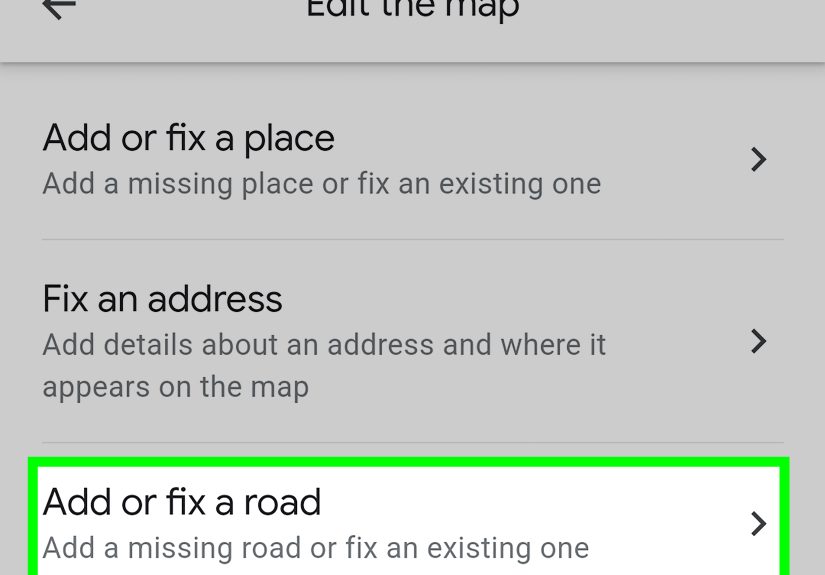
If the road itself is missing or incorrect, use Maps features like Edit the map and then Add or fix a road. This is especially useful when navigation is failing because the route literally doesn’t exist in Google’s dataset yet.
New construction sanity tips
- Use the most complete address format available (including city, ZIP, suite/unit).
- Make sure the pin lands on the building, not the future parking lot outline.
- Be consistent across your website and major listings (the “same everywhere” rule helps trust).
Example: If a new medical office is in a newly built complex, Maps may route patients to an older entrance road. Adding/fixing the road and correcting the pin often solves the “I’m here but I’m not” problem.
Fix #5: Escalate When Edits Get Rejected (Without Starting a Keyboard War)
If your corrections keep getting denied or stuck, it usually means Google can’t verify the change confidentlyor your edit conflicts with other signals. This is where you shift from “quick fix” to “make the data undeniable.”
Common reasons edits fail
- Low confidence: Google can’t confirm the pin/address based on available data.
- Duplicate listings: multiple place entries compete, and your edit attaches to the wrong one.
- Big location jump: moving a pin far looks like relocating the entire place, not correcting a mistake.
- Category mismatch: you’re editing a place that’s actually a different business or a closed listing.
- Suspicious patterns: too many rapid edits, or edits from accounts that look spammy.
How to increase approval odds
- Be precise: zoom in and place the pin exactly on the building footprint or customer entrance.
- Use the correct workflow: if it’s your business, update via Google Business Profile first.
- Clean up duplicates: request removal/merge of old or duplicate locations before major edits.
- Ask for a second set of eyes: a trusted colleague can submit a clean edit from their own account (don’t coordinate spam).
When to contact support
If you manage the business and the issue is causing real harm (customers arriving at the wrong place, calls about “where are you?” all day), consider using official Business Profile support channels available through your profile tools. Support is also helpful when a listing is stuck in review or tangled up in duplicates.
Security note: pin-move scams are real
Some businesses report their map pins being maliciously moved, which can disrupt visibility and confuse customers. If you suspect unauthorized changes, review your Business Profile details and monitor the listing regularly. Treat your GBP login like it’s the keys to your storefrontbecause, digitally, it is.
Quick Troubleshooting: 9 “Why Is Maps Still Wrong?!” Moments
1) “Couldn’t verify your edit”
This often happens when the new placement is unclear at the zoom level used, or the system can’t match your edit to known address data. Zoom in closer, place the pin on the building, and ensure the address format is complete.
2) The address is correct, but navigation goes to the wrong entrance
Some properties have multiple access points. Adjusting the pin closer to the correct customer entrance can help routing behave better.
3) The business moved, but the old location still shows up
Old listings can linger. Update your Business Profile address, then look for the old listing and suggest edits like “moved” or “closed,” depending on the situation.
4) I’m a service-area business and Maps shows something weird
Service-area businesses may not display a precise storefront pin the same way. Confirm whether you should hide your address and define service areas.
5) My edit was accepted… but I don’t see it yet
Some updates appear quickly; others can take longer due to review and propagation across systems. Give it time before submitting new edits.
6) The pin is right in Maps, but Search results look off
Google’s systems don’t always update everywhere simultaneously. Keep your Business Profile consistent and allow time for changes to settle.
7) The address exists, but Maps can’t find it
This can happen in new developments. Adding the missing address or road (and placing the pin precisely) often solves it.
8) The pin is correct, but the place name is wrong
Use “Suggest an edit” to correct the name or other details. If it’s your business, update via GBP to reduce back-and-forth.
9) Everything is accurate… except the suite number keeps disappearing
Make sure the suite/unit is included in the correct field and matches postal formatting. Consistency across your website and other citations helps.
FAQ: Correcting a Location on Google Maps
How long does it take for Google Maps to update a location?
It varies. Some edits show up quickly, while others go through review and can take longer. For businesses, certain updates may require verification, especially after moves or major changes.
Can moving my Google Maps pin hurt my rankings?
Correcting an inaccurate pin is generally a good thing. But if a pin is moved far enough to imply a different service area, neighborhood, or city, it can change how Google interprets relevance and proximity. That’s why precise, truthful updates matter.
Should I edit as the business owner or as a regular user?
If it’s your business, start with Google Business Profile for official address and pin updates. If you’re correcting a public place you don’t own, use “Suggest an edit.”
What if the place is inside a larger building (mall, hospital, office tower)?
Use the pin to represent where customers should enter or locate the business, and include suite/floor details whenever possible.
Field Notes: Real-World Experiences (So You Don’t Scream Into a Pillow)
Here’s the part nobody tells you: correcting a location on Google Maps is less like flipping a switch and more like teaching a very confident robot to recognize your front door. It’s doablebut it helps to know the common plot twists.
Plot twist #1: The pin is “technically” correct, but functionally wrong. A pin centered on a building might still route people to the wrong side of the block if the entrance is on a different street. This shows up constantly with corner buildings, medical complexes, and businesses tucked behind a main road. The fix is usually tiny: move the pin closer to the customer entrance and zoom in enough that your edit looks deliberate, not random.
Plot twist #2: Suites are the silent chaos-makers. If customers need “Suite 210,” but your listing only shows the street address, Maps may send them to a general entrance, a leasing office, or (if the building is large enough) somewhere that feels like a side quest. Adding the suite doesn’t just help humansit helps Google distinguish you from other businesses at the same address.
Plot twist #3: Moving a business isn’t one update; it’s an ecosystem update. Even after you change your address in Google Business Profile, you might see the old address floating around in the wild: old place listings, outdated directory citations, or third-party data feeds. The practical approach is to (a) update GBP, (b) correct your website contact page, and (c) clean up major citations so Google sees consistent signals. Consistency is how you make a “trust sandwich.”
Plot twist #4: New developments are a patience test disguised as a map problem. If the road is missing, or the address hasn’t been fully recognized, your pin edits can get rejected because Google can’t validate them. In these cases, the better move is to add/fix the road first (or submit the missing address), then correct the pin once the underlying map geometry catches up. Otherwise you’re trying to hang a picture on a wall that hasn’t been built yet.
Plot twist #5: Duplicates can sabotage everything. If there are two listings for the same place, your edit might attach to the “wrong twin.” You correct one listing, customers keep finding the other, and you start questioning reality. When duplicates exist, prioritize removing or merging them (especially for businesses), then make one clean correction on the surviving listing.
Plot twist #6: Over-editing looks suspicious. People sometimes panic-submit five versions of the same fixone with a moved pin, one with a different suite format, one with “N.” instead of “North,” and one where they rename the place because they’re mad. That can reduce trust. A single accurate edit with proper details is more likely to stick than a flurry of “maybe this?” submissions.
Finally, the most reliable mindset is this: make the correction easy to verify. Choose the right method (public edit vs. Business Profile), zoom in, be precise, and keep your business info consistent across the web. Google Maps isn’t perfectbut it’s surprisingly reasonable when you give it clean, confident data.
Conclusion
Correcting a location on Google Maps doesn’t have to be a drawn-out drama starring you, your customers, and a pin that refuses to behave. Start with the simplest methodSuggest an editand escalate only when needed. If it’s your business, lean on Google Business Profile for official updates, then keep your data consistent so Google can trust the change.
Nail the pin, fix the address details, clean up duplicates, and (when necessary) add missing roads or places. Do that, and you’ll spend less time explaining where you areand more time being there.