Table of Contents >> Show >> Hide
- Why Change Your Download Location?
- Quick Answer: The Fastest Way to Change Download Location
- How to Change the Download Location in Google Chrome
- How to Change the Download Location in Microsoft Edge
- How to Change the Download Location in Mozilla Firefox
- How to Change the Download Location in Safari on Mac
- How to Change the Download Location in Opera
- How to Change the Download Location in Brave
- How to Change the Download Location in Vivaldi
- Changing Download Location on Android and iPhone
- Should You Change the Browser Download Folder or the System Downloads Folder?
- Best Practices for Organizing Downloads
- Troubleshooting: Why Your Download Location Is Not Working
- Security Tips for Browser Downloads
- FAQ About Changing Download Locations
- Real-World Experience: What Actually Works Best
- Conclusion
- SEO Tags
Few things are more annoying than downloading an important file, closing the browser, and then realizing it has vanished into the mysterious digital sock drawer known as “Downloads.” The good news: changing your browser’s download location is easy once you know where to look. Whether you use Google Chrome, Microsoft Edge, Firefox, Safari, Opera, Brave, or Vivaldi, this guide walks you through the exact settings, smart organization tips, and troubleshooting steps to keep every PDF, photo, installer, spreadsheet, and school or work file exactly where you expect it.
Why Change Your Download Location?
By default, most browsers save files to the Downloads folder on your computer or mobile device. That works fine for casual use, but it can quickly become a cluttered junk drawer. Changing the download location helps you organize files by project, save space on your main drive, protect important documents from accidental deletion, and speed up your workflow.
For example, a student might save research papers directly into a “Biology Project” folder. A designer may send images to an external SSD. A small business owner might save invoices to a cloud-synced accounting folder. Instead of playing hide-and-seek with your files, you can make your browser do the filing for you.
Quick Answer: The Fastest Way to Change Download Location
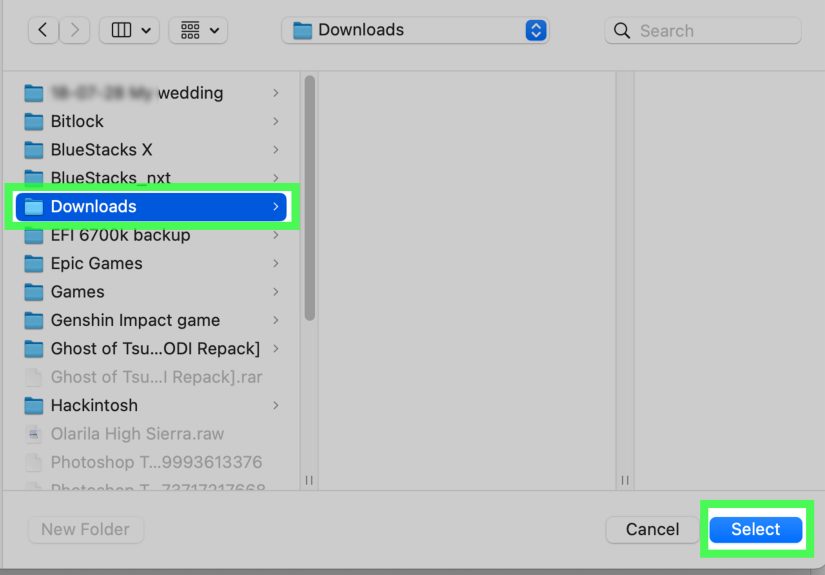
In most modern browsers, the path is simple: open the browser menu, go to Settings, search for “Downloads,” then choose a new folder next to the download location setting. Many browsers also include an option such as “Ask where to save each file before downloading,” which lets you choose a folder every time.
Best Folder Ideas for Downloads
- Desktop/Today: useful for temporary files you need right away.
- Documents/Downloads Organized: good for long-term file storage.
- Cloud folders: great for syncing across devices.
- External drive: smart for large files, videos, installers, and archives.
- Project-specific folders: best for school, client, or business work.
How to Change the Download Location in Google Chrome
Google Chrome makes download management simple on Windows, macOS, Linux, and ChromeOS. The setting is in the Downloads section, and you can either choose one default folder or make Chrome ask where to save every file.
Steps for Chrome on Desktop
- Open Google Chrome.
- Click the three-dot menu in the top-right corner.
- Select Settings.
- Choose Downloads from the left menu, or type “Downloads” into the settings search bar.
- Next to Location, click Change.
- Select your preferred folder and confirm your choice.
For maximum control, turn on Ask where to save each file before downloading. This is perfect when you download different types of files all day. Instead of dumping everything into one folder, Chrome will ask where each file should go.
Example Setup for Chrome
If you often download PDFs for school or work, create a folder called “PDF Library” inside Documents. Then set Chrome’s download location to that folder. For images, use the “Ask where to save” option and place them into folders like “Blog Images,” “Receipts,” or “Design Assets.” Your future self will thank you. Possibly with snacks.
How to Change the Download Location in Microsoft Edge
Microsoft Edge uses a clean Downloads settings page. Since Edge is Chromium-based, the process feels similar to Chrome, but the labels may look slightly more Microsoft-flavored.
Steps for Edge on Desktop
- Open Microsoft Edge.
- Click the three-dot menu in the top-right corner.
- Select Settings.
- Click Downloads.
- Under Location, choose Change.
- Select the folder where you want Edge to save downloaded files.
You can also enable the option that makes Edge ask where to save each file. This is helpful if you download work files, images, software installers, and personal documents in the same browser session. Without this option, everything goes to the same default folder, where files tend to gather like digital dust bunnies.
When Edge Keeps Saving to the Wrong Folder
If Edge ignores your preferred folder, restart the browser and test again with a small file. Also check whether the folder still exists and whether you have permission to write to it. If the folder is on an external drive, reconnect the drive before downloading. Browsers are clever, but they are not mind readers; if your drive is missing, they may fall back to the default Downloads folder.
How to Change the Download Location in Mozilla Firefox
Firefox gives you two practical choices: save files automatically to one folder, or ask where to save files every time. This makes Firefox especially friendly for users who like a clean, predictable file system.
Steps for Firefox on Desktop
- Open Firefox.
- Click the menu button in the top-right corner.
- Select Settings.
- Go to the General panel.
- Scroll to Files and Applications.
- Find the Downloads section.
- Choose Save files to, then click Browse to pick a folder.
If you prefer flexibility, select Always ask you where to save files. This is excellent for people who download files for different clients, classes, hobbies, or side projects. It adds one extra click, but it saves you from twenty minutes of “Where did that thing go?” later.
How to Change the Download Location in Safari on Mac
Safari handles downloads through its General settings. If you use a Mac, this is the browser setting to check first before moving folders around in Finder.
Steps for Safari on macOS
- Open Safari.
- Click Safari in the menu bar.
- Select Settings.
- Open the General tab.
- Find File download location.
- Choose a folder, or select an option that asks for a location when downloading.
Safari is a great candidate for a clean folder strategy. For example, you can send all Safari downloads to a folder called “Safari Downloads” inside Documents. Then keep Chrome or Edge downloads in another folder. This separation is useful if you use different browsers for different purposes, such as personal browsing in Safari and work tasks in Chrome.
Safari Tip for Finding Downloaded Files
If you download something and cannot find it, open Safari’s downloads list and use the magnifying glass icon next to the file. However, if you moved the file after downloading it, Safari may not be able to locate it from the downloads list. In that case, use Finder search.
How to Change the Download Location in Opera
Opera also includes a dedicated Downloads area in Settings. The exact layout can vary slightly between Opera versions, but the process is straightforward.
Steps for Opera
- Open Opera.
- Go to Settings.
- Search for Downloads, or go to the browser settings area where download options appear.
- Find the current download location.
- Click Change.
- Select the folder where you want files to be saved.
Opera may also offer an option to ask where each file should be saved. Turn it on if your downloads are a mix of documents, videos, images, and installers. Leaving it off is fine if you prefer one master download folder and clean it regularly.
How to Change the Download Location in Brave
Brave is built on Chromium, so its download settings are familiar if you have used Chrome or Edge. The desktop download controls are usually found in the Downloads section of Brave settings.
Steps for Brave on Desktop
- Open Brave.
- Click the menu button in the top-right corner.
- Select Settings.
- Go to Downloads, or type brave://settings/downloads in the address bar.
- Click Change next to the current download location.
- Choose your new folder.
Brave also supports the familiar “Ask where to save each file before downloading” style of behavior on desktop. If downloads fail or the save dialog does not appear, test in a regular window, restart Brave, and check that the target folder is available and writable.
How to Change the Download Location in Vivaldi
Vivaldi gives power users more download behavior options than many mainstream browsers. You can set a default folder, choose whether downloads save without asking, and even update the default location based on the folder you recently chose.
Steps for Vivaldi
- Open Vivaldi.
- Go to Settings.
- Select Downloads.
- Choose your preferred download folder.
- Adjust options such as saving to the default location without asking or updating the default location after using “Save As.”
Vivaldi is ideal if you want more control than the standard “one folder or ask every time” setup. If you repeatedly download files for a project, Vivaldi’s behavior can help you keep saving to the most relevant folder without constantly navigating through the same file path.
Changing Download Location on Android and iPhone
Mobile browsers are more limited than desktop browsers because Android and iOS manage app storage differently. On Android, Chrome and other browsers may let you choose between device storage and an SD card if available. Some browsers also offer an “ask where to save” option. On iPhone and iPad, downloads usually go through the Files app, iCloud Drive, or an app-specific folder.
Mobile Download Tips
- Use the Files app on iPhone or iPad to locate downloads.
- On Android, check the Downloads folder through the Files or My Files app.
- If your browser supports SD card downloads, make sure the card is inserted and working.
- For cloud storage, use the cloud app’s share or save option after downloading.
Mobile downloads can feel less flexible, but the rule is the same: know where your browser saves files, then move important items into organized folders before they disappear into the scroll-and-swipe abyss.
Should You Change the Browser Download Folder or the System Downloads Folder?
This is an important distinction. Changing the download location inside Chrome, Edge, Firefox, or another browser affects only that browser. Changing the system Downloads folder affects how your operating system treats the Downloads folder itself.
Change Browser Settings When…
- You only want one browser to save files somewhere else.
- You use different browsers for different tasks.
- You want Chrome downloads in one folder and Edge downloads in another.
- You do not want to alter your operating system’s folder structure.
Change the System Downloads Folder When…
- Your main drive is running out of storage.
- You want the default Downloads folder moved to another drive.
- You want Windows or macOS file shortcuts to point to a new place.
- You manage large files regularly, such as videos, software packages, or backups.
For most users, changing the browser download folder is safer and simpler. Moving the system folder is useful, but it requires more care because shortcuts, apps, and backup tools may expect the Downloads folder to exist in its usual place.
Best Practices for Organizing Downloads
Changing the download location is only step one. The real magic happens when you create a system that is easy to maintain. A messy folder on a different drive is still messy; it just has a new address.
Create Category Folders
Inside your main download location, create folders such as Documents, Images, Receipts, Installers, Videos, School, Work, and Temporary. This gives every file a home. If a file does not fit any category, it probably belongs in Temporary and should be reviewed later.
Use Dates for Projects
For project-based work, use folders like “2026-05 Website Redesign” or “2026 Tax Documents.” Dates keep folders sorted naturally and make old files easier to archive.
Turn On “Ask Where to Save” for Better Control
The “ask where to save each file” setting is underrated. It forces you to make one small decision at download time instead of facing a giant folder cleanup later. Think of it as flossing for your computer: not glamorous, but surprisingly effective.
Clean Downloads Weekly
Set a weekly reminder to delete duplicates, move important files, and remove installers you no longer need. A five-minute cleanup can prevent the dreaded “Downloads (4,982 items)” situation.
Troubleshooting: Why Your Download Location Is Not Working
Sometimes you change the setting, but files still seem to land somewhere else. Before blaming the browser, the computer, or Mercury in retrograde, check these common causes.
The Folder Was Moved or Deleted
If your selected download folder no longer exists, the browser may revert to the default Downloads folder or show an error. Create the folder again or choose a new location in browser settings.
The External Drive Is Not Connected
If you save downloads to a USB drive, SD card, or external SSD, the drive must be connected before the download begins. Otherwise, the browser may fail or use another location.
You Do Not Have Permission
Some folders are protected by your operating system. If the browser cannot write to a folder, choose a folder inside your user account, such as Documents, Desktop, or a custom folder you created.
A Website Uses Its Own Download Behavior
Some cloud apps, email services, and web platforms package downloads in unusual ways. Your browser setting still matters, but the site may create zip files, temporary files, or extra prompts.
Browser Sync Does Not Always Sync Download Folders
Browser sync may carry bookmarks, passwords, history, or settings across devices, but download locations are often device-specific. A folder path on your Windows PC will not magically exist on your MacBook or Android phone.
Security Tips for Browser Downloads
Organizing downloads is convenient, but safety matters too. Downloaded files can include documents, compressed archives, apps, scripts, and installers. Only download files from sources you trust, and be especially careful with executable files such as .exe, .msi, .dmg, .pkg, .bat, or .sh.
Do Not Auto-Open Everything
If your browser or operating system automatically opens certain file types, consider turning that behavior off. It is safer to inspect the file name, location, and source before opening it.
Keep Installers Separate
Create a dedicated Installers folder. This makes it easier to delete old setup files and avoid accidentally running something you downloaded months ago and no longer recognize.
Scan Suspicious Files
Use your operating system’s built-in security tools or a reputable security app to scan files that seem unusual. A well-organized download folder also makes suspicious files easier to spot because they stand out instead of hiding in chaos.
FAQ About Changing Download Locations
Can I set a different download folder for each browser?
Yes. Chrome, Edge, Firefox, Safari, Opera, Brave, and Vivaldi each have their own download settings. You can set a different folder for each one.
Can I make my browser ask every time?
Most desktop browsers include an option to ask where to save each file before downloading. This is one of the best settings for people who like organized folders.
Will changing the download folder move old files?
No. Changing the default download location usually affects future downloads only. Old files stay where they are unless you move them manually.
Can I save downloads directly to Google Drive, OneDrive, Dropbox, or iCloud Drive?
Yes, if the cloud folder is available on your device as a normal folder. Choose that synced folder as your browser’s download location. Just remember that large files may take time to upload.
Why do downloads still go to the old folder?
The most common reasons are a missing folder, permission problems, an unavailable external drive, or a browser setting that was changed in one profile but not another.
Real-World Experience: What Actually Works Best
After helping many users organize their browsers, one pattern is obvious: the best download location is not always the fanciest one. It is the one you will actually use. A beautifully named folder buried seven levels deep inside a cloud drive sounds organized, but if you dread clicking through it, you will eventually go back to saving everything on the Desktop. The goal is not perfection. The goal is fewer lost files and fewer “final-final-v3-reallyfinal.pdf” moments.
For everyday users, the simplest setup is a main folder called “Downloads Inbox” inside Documents. Set your browser to save files there, then create a few subfolders: Documents, Images, Receipts, Installers, and Temporary. Once a week, open the inbox and move files into the right places. This works because it separates active downloads from long-term storage without demanding too much effort.
For students, the best approach is usually class-based folders. Create a main folder for the school year, then folders for each subject or course. Turn on “Ask where to save each file” in your browser. When downloading lecture slides, assignments, PDFs, or images, save them directly into the correct class folder. This tiny habit prevents the classic Sunday-night panic where you know you downloaded the assignment sheet but cannot remember whether it is in Downloads, Desktop, email, or another dimension.
For remote workers and freelancers, project-based folders are more useful. A folder structure like “Clients > Client Name > Project Name > Downloads” keeps files tied to real work. If you download brand assets, contracts, screenshots, spreadsheets, or zip files, they land where the project lives. This also makes backups easier because the complete project folder contains everything related to that job.
For people who download large files, such as videos, datasets, game installers, or design assets, an external drive can be a smart download location. However, there is one catch: the drive needs to be connected before you start downloading. If it is not connected, the browser may show an error or save somewhere else. A good habit is to create a local backup folder for urgent downloads and move large files to the external drive after they finish.
Cloud folders are convenient, but they are not perfect for everything. Saving directly to OneDrive, Google Drive, Dropbox, or iCloud Drive can be excellent for documents and images, especially if you switch between devices. But very large downloads may sync slowly, pause, or create duplicate conflicts if your internet connection is unstable. For big files, download locally first, then upload or move the file after it is complete.
The most useful browser setting for organized people is “Ask where to save each file before downloading.” The most useful setting for busy people is one reliable default folder. Choose based on your personality, not someone else’s productivity fantasy. If you like making decisions file by file, use the ask option. If you prefer speed, use one folder and clean it weekly.
One final experience-based tip: do not use the Desktop as your permanent download location unless you enjoy visual chaos. The Desktop is fine for temporary files you need immediately, but it becomes stressful when it turns into a wallpaper made of PDFs, screenshots, invoices, and mystery zip files. Keep your Desktop clear, keep your Downloads folder intentional, and your computer will feel faster, calmer, and much less like a digital laundry basket.
Conclusion
Changing the download location in Chrome, Edge, Firefox, Safari, Opera, Brave, Vivaldi, and other browsers is a small setting that can make a big difference. Instead of letting every file pile into one crowded Downloads folder, you can choose a smarter destination, turn on save prompts, separate browsers by purpose, and build a folder system that matches how you actually work.
The best setup is simple: choose a folder you can find quickly, make sure it is available and writable, and clean it regularly. Whether you are saving school assignments, work documents, images, receipts, or software installers, a better download location turns file management from a daily annoyance into a quiet little productivity win.
Note: Browser menus may change slightly after updates. If you do not see the exact wording shown here, open your browser settings and search for “Downloads.” That search box is your shortcut through the maze.