Table of Contents >> Show >> Hide
- Why Gmail Font Size Feels Confusing
- How to Change Font Size in Gmail on Desktop
- How to Change Font Size in Gmail on iPhone
- How to Change Font Size in Gmail on Android
- What If You Use Gmail in a Mobile Browser?
- Common Problems and Fixes
- Best Tips for Comfortable Gmail Reading
- Final Thoughts
- Real-World Experiences With Changing Gmail Font Size
- SEO Tags
If Gmail suddenly looks tiny, gigantic, or just plain annoying, you are not imagining things. One day your inbox is perfectly readable; the next day it looks like it was designed for ants. The good news is that changing font size in Gmail is usually easy. The slightly less fun news is that the method depends on where you use Gmail: desktop, iPhone, or Android.
That is the big secret right up front. On desktop Gmail, you can change the default text style for the emails you compose, and you can also make the Gmail interface look bigger or smaller with browser zoom and inbox density settings. On iPhone and Android, Gmail behaves more like a guest in your phone’s house. Instead of giving you a dedicated in-app font-size slider for everything, it mostly follows your device’s text, display, or accessibility settings.
In this guide, we will walk through exactly how to change font size in Gmail on desktop, iPhone, and Android, what each setting actually changes, and what to do when Gmail still looks weird after you adjust everything. We will also cover common mistakes, practical examples, and the kind of troubleshooting tips that save your eyes and your patience.
Why Gmail Font Size Feels Confusing
Part of the confusion comes from the fact that people use the phrase “font size in Gmail” to mean several different things:
- The size of text you type in a new email
- The size of the Gmail inbox and menus
- The size of text when reading emails
- The overall scale of the app or website on your screen
Those are not always controlled by the same setting. So before you start tapping random buttons like you are defusing a tiny digital bomb, figure out what you want to change:
- Writing new emails on desktop? Change Gmail’s default text style.
- Inbox too cramped on desktop? Change Gmail density.
- Everything on desktop looks small? Use browser zoom.
- Gmail app text too small on iPhone or Android? Change your phone’s text or display settings.
How to Change Font Size in Gmail on Desktop
Desktop Gmail gives you the most direct control, but even here, there are two separate jobs: changing the size of the text you compose and changing the size of the interface you see.
Method 1: Change the Default Font Size for New Emails
If your goal is to make the text in your outgoing emails larger or smaller by default, this is the setting you want.
- Open Gmail on your computer.
- Click the Settings gear in the top-right corner.
- Choose See all settings.
- Under the General tab, find Default text style.
- Pick the font size you want for new messages.
- Scroll down and click Save Changes.
This setting is ideal if you are tired of every new email starting in a font size that feels too tiny, too huge, or aggressively average. It changes the default look of new messages you compose, which is handy if you send a lot of work emails, newsletters, client updates, or messages to relatives who think “Please make the text bigger” is a legally binding instruction.
Important: this does not necessarily resize your whole Gmail inbox. It mostly affects the text style in new emails you write.
Method 2: Change Gmail Inbox Density
If the problem is not the font in your message but the way the inbox itself looks, check the density setting. Density changes how compact or spacious your message list appears.
- Open Gmail on your desktop.
- Click the Settings gear.
- Look for Density in the quick settings panel.
- Choose Default, Comfortable, or Compact.
Here is what those usually feel like:
- Default: More visual breathing room and attachment previews.
- Comfortable: Cleaner and a little tighter.
- Compact: Fits more emails on screen, but it can feel small.
If Gmail looks tiny, cramped, or suspiciously eager to fit 700 emails on one screen, switching away from Compact often helps.
Method 3: Use Browser Zoom for Bigger Gmail Text and Interface
Sometimes Gmail itself is fine, but your browser zoom is not. If all of Gmail looks too small or too large, changing browser zoom can fix it instantly.
- Open Gmail in your browser.
- In Chrome, click the three-dot menu.
- Find the Zoom controls.
- Click + to make everything larger or – to make it smaller.
Keyboard shortcuts make this even easier:
- Windows: Ctrl and + to zoom in, Ctrl and – to zoom out, Ctrl and 0 to reset
- Mac: Command and + to zoom in, Command and – to zoom out, Command and 0 to reset
This method affects the whole Gmail page, including menus, inbox text, and message content. It is the fastest fix when Gmail suddenly looks wrong on desktop and you do not want to dig through settings menus like a treasure hunter with bad Wi-Fi.
Best Desktop Setup for Readability
If you want Gmail to feel easier on your eyes, a practical setup is:
- Set your default compose text to a comfortable size
- Use Default or Comfortable density
- Set browser zoom to 110% or 125% if the whole interface feels too small
That combination usually creates a nice balance between readability and screen space.
How to Change Font Size in Gmail on iPhone
Now we move to the place where people usually start muttering at their screen. On iPhone, Gmail does not work like desktop Gmail. You can format text when composing an email, but if your goal is to make Gmail text larger overall, the answer is usually found in iPhone settings, not inside Gmail itself.
Option 1: Change iPhone Text Size
If the Gmail app text looks too small, start here:
- Open the Settings app on your iPhone.
- Tap Display & Brightness.
- Tap Text Size.
- Drag the slider to make text larger or smaller.
This is often the quickest fix for people who read email on their phone all day and would prefer not to squint like they are studying ancient runes.
Option 2: Use Larger Text in Accessibility
If the standard text slider does not go far enough, iPhone has a bigger hammer:
- Open Settings.
- Go to Accessibility.
- Tap Display & Text Size.
- Tap Larger Text.
- Turn on Larger Accessibility Sizes.
- Move the slider to the size you want.
This can make supported apps easier to read, and it is especially helpful for long email sessions, travel days, or anyone whose eyes have formally resigned from tiny text.
Option 3: Turn On Bold Text
Sometimes readability is not about making text bigger. It is about making it easier to see.
- Open Settings.
- Go to Accessibility.
- Tap Display & Text Size.
- Turn on Bold Text.
This can help Gmail labels, email previews, and interface text stand out more clearly.
Option 4: Use Display Zoom
If you want the whole Gmail app to appear larger, not just the text, try Display Zoom.
- Open Settings.
- Tap Display & Brightness.
- Tap Display Zoom.
- Select the larger view option.
- Tap Done and confirm.
This enlarges more than text. It changes the overall scale of on-screen elements, which can make Gmail much easier to use.
Option 5: Use Zoom Accessibility
If you need on-demand magnification, iPhone’s Zoom feature can help.
- Go to Settings.
- Tap Accessibility.
- Tap Zoom.
- Turn it on and adjust the settings.
This is useful when you only occasionally need extra help reading email details, attachments, or small text inside messages.
Can You Change Font Size Inside the Gmail iPhone App?
For most users, not in the same direct way you can on desktop. Gmail on iPhone lets you format text in a message, such as bold, italic, underline, text color, and highlight color, but the practical way to make Gmail easier to read is usually through iPhone text and display settings.
How to Change Font Size in Gmail on Android
Android is similar to iPhone in one important way: the Gmail app usually relies on your phone’s own text and display settings rather than giving you a special Gmail-only font-size slider for everything.
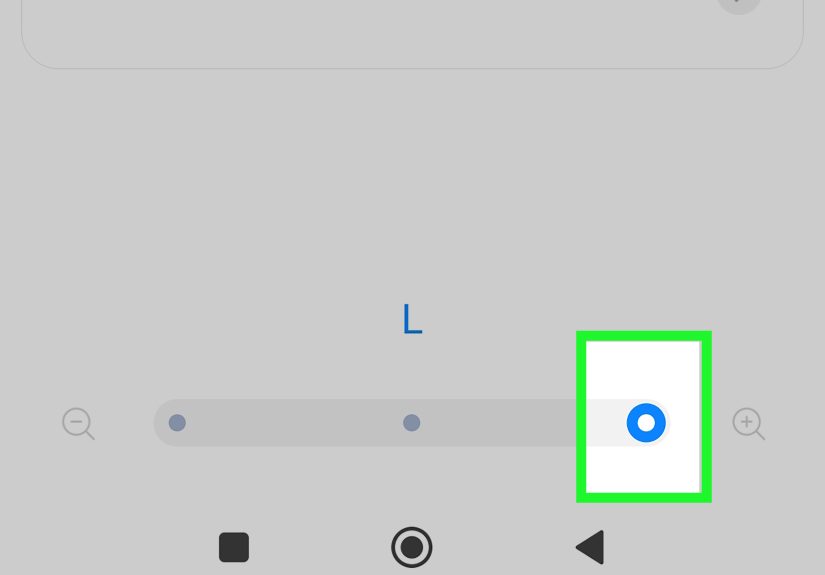
Option 1: Change Android Font Size
- Open your phone’s Settings.
- Search for Font size, or go to the display or accessibility section depending on your phone.
- Move the slider left or right to make text smaller or larger.
- Open Gmail again and check the result.
This is the main solution for people who want larger Gmail text on Android.
Option 2: Change Display Size
If text size alone is not enough, try adjusting display size too.
- Open Settings.
- Find Display size or Display size and text.
- Adjust the slider.
This makes interface elements larger overall, not just the letters. It can be very helpful if Gmail buttons, previews, and layout feel too small.
Option 3: Use Magnification
For occasional close-up reading, Android accessibility includes magnification tools.
- Open Settings.
- Tap Accessibility.
- Open Magnification.
- Turn on the feature and choose how you want to use it.
This is especially useful for reading long messages, tiny signatures, or that one email footer that looks like it was designed by someone paid by the microscopic pixel.
Can You Change Font Size Inside the Gmail Android App?
For the overall app experience, Android users usually change font size in the phone’s settings. Gmail’s built-in formatting tools on Android are more about styling text while composing, such as bold, italic, underline, text color, and highlight color, rather than setting a dedicated app-wide font-size preference.
What If You Use Gmail in a Mobile Browser?
If you open Gmail in Chrome or another mobile browser instead of the app, you may also be affected by browser zoom settings.
On Android Chrome, you can change default zoom in:
- Open Chrome.
- Tap the three-dot menu.
- Go to Settings.
- Tap Accessibility.
- Adjust Default zoom.
If Gmail looks small only in the browser and not in the app, this is worth checking.
Common Problems and Fixes
Problem: Gmail Font Size Changed Suddenly on Desktop
Check browser zoom first. It is often the culprit. Resetting zoom to 100% can instantly solve the mystery.
Problem: The Inbox Looks Tiny, but New Email Text Looks Fine
That usually means you need to change inbox density or browser zoom, not the default text style.
Problem: Gmail on iPhone Still Looks Small After Changing Text Size
Try Larger Accessibility Sizes, Bold Text, or Display Zoom. A plain Text Size adjustment may not be enough.
Problem: Gmail on Android Is Hard to Read Even After Increasing Font Size
Use both Font size and Display size. If needed, turn on magnification for temporary close-up reading.
Problem: Only One Email Looks Odd
The sender may have used special formatting, pasted text from another app, or sent HTML that renders strangely. In that case, the problem is probably the email itself, not your Gmail settings.
Best Tips for Comfortable Gmail Reading
- Use a slightly larger font than you think you need. Your future eyes will thank you.
- On desktop, pair a readable default text size with browser zoom for the best overall experience.
- On mobile, focus on system settings because that is where the real power usually lives.
- Try bold text or increased contrast if size alone does not solve the problem.
- Test changes by reading a long email thread, not just glancing at the inbox.
Final Thoughts
If you have been wondering how to change font size in Gmail, the answer is simple once you stop expecting every device to behave the same way. Desktop Gmail lets you change the default text style for new emails and gives you more control through inbox density and browser zoom. iPhone and Android usually handle Gmail readability through system-level text, display, and accessibility settings.
So, when Gmail looks wrong, do not panic, do not blame your coffee, and do not assume Google woke up and chose chaos. Start by identifying whether you want to resize compose text, inbox layout, or the full interface. Once you match the right setting to the right problem, Gmail becomes much easier to read and much less likely to make you squint dramatically in public.
Real-World Experiences With Changing Gmail Font Size
In real life, most people do not go looking for Gmail font settings because they are bored on a Tuesday afternoon and want a new hobby. They look for them because something feels off. Maybe the inbox suddenly looks smaller after a browser update. Maybe a parent gets a new phone and immediately declares that all modern apps are “written for fruit flies.” Maybe a student is reading emails between classes and realizes that long message threads on a bright phone screen are an excellent way to give your eyeballs a part-time job.
One of the most common desktop experiences is the accidental zoom problem. A person is using Gmail just fine, brushes a keyboard shortcut without noticing, and suddenly the entire page looks either comically large or strangely tiny. The reaction is usually dramatic: “Why is Gmail broken?” In reality, Gmail is often innocent and the browser zoom level is the real troublemaker. Resetting the page zoom solves the problem in seconds, but until you know that trick, it feels like the internet has personally betrayed you.
On iPhone, the experience is different. People often open the Gmail app, search around the app settings, and expect to find a button that says “Make this readable, please.” Instead, they discover that the real fix is in iPhone accessibility or display settings. That can feel inconvenient at first, but it actually makes sense once you realize Apple wants text preferences to work across many apps. The upside is that when you increase text size or use Display Zoom, Gmail often becomes easier to read along with Messages, Notes, and other apps you use every day.
Android users often have a similar journey, though with one extra twist: Android settings can vary a little by phone brand and version. That means two people can both have Android phones and still see slightly different menu names or layout paths. Even so, the experience is usually the same at heart. Once users adjust font size and display size together, Gmail often becomes much more comfortable. People who read email for work on the go tend to appreciate this most because tiny preview text gets old very quickly.
There is also the emotional side of all this, which nobody talks about enough. When text is hard to read, email becomes more tiring than it should be. You reread lines, miss details, and get irritated faster. A small font does not just affect comfort; it affects confidence. Once the display is set correctly, people often feel immediate relief. They read faster, make fewer mistakes, and stop leaning toward the screen like they are trying to enter a secret portal.
That is why finding the right Gmail font setup matters more than it seems. It is not just a cosmetic preference. It changes how usable your inbox feels every day. A few small adjustments can turn Gmail from mildly annoying into smooth, readable, and pleasantly boring, which is exactly what email should be.