Table of Contents >> Show >> Hide
- Why Buying Kindle Books on an iPad Feels Slightly Weird
- What You Need Before You Start
- Step-by-Step: How to Buy Kindle Books on the iPad
- How to Download the Book After You Buy It
- How to Make Sure You Buy the Right Version
- Can You Buy Free Kindle Books on the iPad?
- What About Kindle Unlimited and Prime Reading?
- Troubleshooting: When Your Book Refuses to Cooperate
- Tips for a Better Kindle-on-iPad Experience
- Should You Buy Kindle Books on an iPad or Somewhere Else?
- Common User Experiences Buying Kindle Books on the iPad
- Final Thoughts
Buying Kindle books on an iPad should be simple, right? Open app, tap book, buy book, begin ignoring text messages for six glorious hours. But Apple and Amazon have spent years making that process feel a little more like a scavenger hunt with good typography. The good news is that it is easy once you know the path. Even better, the path is now less annoying than it used to be.
If you want the short version, here it is: you usually buy the Kindle book through Amazon in Safari or through a “Get Book” button that kicks you to Amazon’s website, then you return to the Kindle app on your iPad and download the title. That is the core process. The rest is just avoiding the little traps, using the right account, and making sure your book actually lands where you expect it to.
This guide walks through the exact steps, explains why the process works the way it does, and helps you troubleshoot the classic problems: the book does not show up, the wrong edition appears, the sample arrives instead of the paid version, or your iPad acts like it has never heard of the Amazon account you have been using since the dawn of online shopping.
Why Buying Kindle Books on an iPad Feels Slightly Weird
The biggest thing to understand is that the Kindle app on iPad is primarily a reader app. Its main job is to let you access books you already bought or borrowed, download them, and read them comfortably. It is excellent at that. It is less straightforward at the actual “take my money and hand me a book” part.
For years, Kindle users on Apple devices could not simply tap a price button inside the app and complete a standard in-app purchase for ebooks. Instead, the smoothest route was to go to Amazon’s website in Safari, buy the Kindle edition there, and then open the Kindle app to sync the book. More recently, some users in the United States have seen a much nicer workflow: a Get Book button inside the Kindle app that sends them to Amazon’s site to finish the purchase. That is progress. Not magical, teleporting progress, but progress.
So if your friend says, “I bought it right from the app,” and you are staring at your iPad like it personally offended you, both of you may be correct. The experience can vary depending on region, App Store storefront, app version, and whether Amazon is surfacing that external purchase flow for your setup. The reliable, universal method is still the browser route.
What You Need Before You Start
Before buying a Kindle book on your iPad, make sure you have three basics in place.
1. A Kindle app installed on your iPad
Download the Kindle app from the App Store if it is not already installed. Once it is on your iPad, sign in with your Amazon account. This matters more than people expect, because the book you buy will be tied to that Amazon account, not to your iPad itself.
2. The correct Amazon account
Many people accidentally have more than one Amazon login. Maybe one account is for household shopping, another is for Prime Video, and a mysterious third account appears every time you try to reset a password. Kindle books only show up in the Kindle app when the app is signed in to the same Amazon account used to buy the book. If the wrong account is active, your new purchase may seem to vanish into the digital abyss.
3. A valid payment method on Amazon
Since you typically complete the purchase through Amazon’s website, your payment method needs to be set up there. If your payment card is expired or your billing information needs updating, Amazon will stop the checkout process before your reading plans ever make it to chapter one.
Step-by-Step: How to Buy Kindle Books on the iPad
Method 1: Buy Through Safari on Your iPad
This is the most dependable method and the one that works for nearly everyone.
- Open Safari on your iPad.
- Go to Amazon and sign in with the same account you use in the Kindle app.
- Search for the book you want by title, author, or keyword.
- Choose the Kindle edition. This is important. Many titles have hardcover, paperback, audiobook, and Kindle versions listed together. Make sure you select the digital Kindle format.
- Check the delivery option if Amazon prompts you. In many cases, the book is simply added to your Kindle library automatically, but sometimes Amazon may let you select a device or app destination.
- Tap Buy Now or the current purchase button Amazon shows for the Kindle edition.
- Open the Kindle app on your iPad.
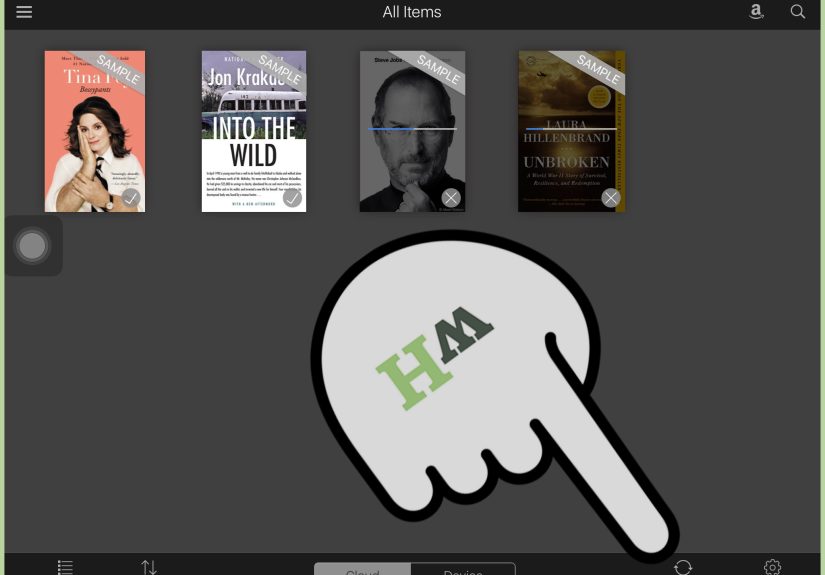
- Find the book in your Library and tap it to download.
That is it. No ritual. No chanting. Just browser, purchase, app, read.
Method 2: Use the “Get Book” Button in the Kindle App
On some iPads, especially in the U.S. storefront, you may see a Get Book button when browsing titles in the Kindle app. When you tap it, Kindle sends you to Amazon’s website to complete the transaction. From there, you buy the book as usual and return to the app.
This is a nicer experience because it removes the guesswork. You can browse in Kindle first, see a book you want, tap one button, and finish the checkout on the web. It is not exactly “buy inside the app,” but it is much closer to a normal shopping flow than the old method of manually jumping out to Safari and starting over.
How to Download the Book After You Buy It
After purchase, the book usually appears in your Kindle library automatically. If it does not download right away, do this:
- Open the Kindle app.
- Go to Library.
- Tap the book cover to download it to your iPad.
- If needed, pull down on the library screen or close and reopen the app to refresh.
Once downloaded, you can read the book even when you are offline. That is especially nice for flights, long car rides, waiting rooms, and family gatherings where pretending to read is sometimes a survival skill.
How to Make Sure You Buy the Right Version
One of the easiest mistakes is buying the wrong format. Amazon pages often display multiple editions of the same title, and they are not always presented with the grace of a friendly neighborhood librarian.
Before you tap the purchase button, check these details:
- Format: Make sure it says Kindle.
- Price: Some editions are samples, free promotions, or borrowed titles rather than full purchases.
- Author and title: Similar book names can be surprisingly sneaky.
- Series number: If it is part of a series, make sure you are not accidentally buying book four when you still need book one.
This matters even more with textbooks, cookbooks, comics, and children’s books, where the Kindle edition may differ from the print version in layout or included material.
Can You Buy Free Kindle Books on the iPad?
Yes. Free Kindle books work almost exactly the same way as paid ones. You still find them on Amazon, choose the Kindle edition, and complete the order. The difference is that the checkout total is zero dollars, which is the most beautiful number in all of ecommerce.
Free Kindle books can include public domain classics, temporary promotional deals, first books in a series, and selected titles offered through programs tied to your Amazon membership. After you claim them, they show up in your Kindle library like any other purchase.
What About Kindle Unlimited and Prime Reading?
If you subscribe to Kindle Unlimited, or if you have access to eligible Prime reading benefits, the process can be easier than a standard purchase. For qualifying titles, you may be able to select and download them directly in the Kindle app without going through the full book-buying process on the website.
That does not mean every book is included. It just means that for eligible titles in those programs, the app behaves more like a borrowing hub than a bookstore. So if a book has a “Read for free” style option through your membership, that can save both time and money.
Troubleshooting: When Your Book Refuses to Cooperate
The book does not appear in the Kindle app
First, confirm that the Kindle app is signed in to the same Amazon account used for the purchase. This solves the problem more often than anyone likes to admit. Next, refresh the library, reopen the app, and check that the purchase actually completed on Amazon.
You only received a sample
Samples are easy to grab by accident. If the book opens but ends right when things get interesting, you may have downloaded the sample instead of buying the full title. Go back to Amazon, confirm the full Kindle edition, and complete the actual purchase.
You bought the print or audiobook version instead
Amazon product pages can be crowded. Double-check that the order history shows the Kindle edition. If not, you may need to return the mistaken purchase through Amazon’s account tools, depending on the order status and eligibility.
The Kindle app is not syncing
Make sure your iPad has a live internet connection. Then update the Kindle app, force-close it, and reopen it. If the issue continues, signing out and back in can help, though that is a slightly dramatic solution and should be saved for when basic refreshing fails.
Tips for a Better Kindle-on-iPad Experience
Use collections to stay organized
If you buy books often, your library can start looking like a garage after a rushed move. Use collections for genres, authors, school reading, kids’ books, or books you swear you will finish this year.
Download before you travel
Do not wait until you are in airplane mode at 35,000 feet to discover you bought the book but never actually downloaded it. That is a special kind of disappointment.
Adjust reading settings early
The iPad is great for reading because you can customize font size, margins, brightness, background color, and scrolling behavior. Do that before you settle in. Nothing breaks the mood like spending 12 minutes fixing line spacing when you were ready to meet dragons, detectives, or doomed Victorian lovers.
Use the iPad for visually rich books
While a dedicated Kindle device is fantastic for plain-text reading, the iPad can shine with comics, illustrated books, magazines, cookbooks, and color-heavy content. If the book benefits from a bright color display, the iPad may actually be the better reading screen.
Should You Buy Kindle Books on an iPad or Somewhere Else?
Buying on the iPad is convenient because it lets you shop and read on the same device. Still, the purchase itself is often slightly cleaner on a laptop if you are doing serious browsing, comparing editions, or managing a large wishlist. On the other hand, when you are lying on the couch and suddenly decide you need a mystery novel immediately, the iPad is more than capable.
In practical terms, the iPad is best for people who want one flexible device for reading, browsing, note-taking, streaming, and everything else. A dedicated Kindle still wins for battery life and glare reduction, but the iPad wins for versatility. In other words, the Kindle is a focused reader, and the iPad is the overachiever who joined every club.
Common User Experiences Buying Kindle Books on the iPad
One of the most common experiences people report is confusion during the first purchase and total confidence after the second. The first time, the process can feel backward. You open the Kindle app expecting a bookstore, only to realize the actual buying step often happens in Safari or through a web page launched from the app. That moment usually triggers one of two reactions: “Why is this so weird?” or “Fine, I will just buy the paperback and be dramatic.” But once users learn the routine, the process becomes quick enough that it barely feels like an extra step.
Another frequent experience is the delight of instant delivery. Even though the purchase often happens on Amazon’s site, the reward feels immediate. You buy the Kindle edition, jump back to the Kindle app, and there it is in your library waiting to be downloaded. For many readers, that little moment still feels oddly luxurious. No trip to a store, no shipping delay, no hunting around the house wondering where the book ended up. Just tap, download, and start reading while the coffee is still hot.
Students and nonfiction readers often appreciate the iPad more than they expected. Once a book is downloaded, the Kindle app on iPad becomes a solid study tool. You can highlight passages, add notes, look up words, jump to specific pages, and switch quickly between reading and researching. A dedicated e-reader may be calmer and easier on the eyes for marathon reading sessions, but the iPad is often better for people who read with one hand and fact-check with the other.
Parents also tend to like the convenience. It is easy to buy a children’s Kindle title on Amazon, sync it to the iPad, and have a ready-made reading option for car rides, waiting rooms, or bedtime. The same goes for travelers. A single iPad can hold novels, guidebooks, cookbooks, comics, and a small mountain of “I will definitely read this later” purchases without adding weight to a suitcase.
Of course, there are frustrations too. Some users buy a book and panic when it does not appear instantly, only to discover they were signed in under the wrong Amazon account. Others accidentally grab a sample instead of the full title. Some get tripped up by multiple editions and end up buying an audiobook or paperback when they meant to buy the Kindle version. These are annoying mistakes, but they are usually fixable and become far less common once you know what to watch for.
The overall experience, though, is usually positive. People like the flexibility of shopping on Amazon and reading on the Kindle app, especially when their library syncs across devices. You can start a book on your iPad, continue on your phone, and pick it back up later on a Kindle e-reader. That kind of convenience is hard to beat. So yes, buying Kindle books on the iPad is a little quirky. But once you learn the route, it feels less like a tech obstacle and more like a tiny detour on the way to your next great read.
Final Thoughts
If you want to buy Kindle books on the iPad, the easiest approach is simple: use Amazon in Safari or tap the Kindle app’s external purchase flow if it appears, buy the correct Kindle edition, then return to the Kindle app and download the book. That is the cleanest and most reliable method.
Once you understand that the iPad is not always handling the purchase inside the Kindle app itself, everything gets much easier. And honestly, after the first couple of buys, the whole thing becomes routine. A mildly strange routine, yes, but still routine. The reward is worth it: fast access to your books, synced reading across devices, and the ability to turn your iPad into a portable library whenever the mood strikes.