Table of Contents >> Show >> Hide
- What Is Guided Access on iPhone?
- Why Is Guided Access Not Working?
- 1. Make Sure Guided Access Is Actually Turned On
- 2. Check the Triple-Click Shortcut
- 3. Start Guided Access the Right Way
- 4. Restart or Force Restart Your iPhone
- 5. Check Screen Time, App Limits, and Restrictions
- 6. Update iOS or Reset Settings
- Bonus Fixes for Common Guided Access Problems
- When Should You Contact Apple Support?
- Real-World Experiences: What Guided Access Problems Usually Look Like
- Conclusion
Guided Access is one of those iPhone features you barely think aboutuntil it refuses to work at the exact worst moment. Maybe you are trying to hand your phone to a child so they can watch one cartoon without accidentally texting your boss a string of dinosaur emojis. Maybe you want to lock your iPad into a learning app. Or maybe you simply want to keep a nosy friend inside one photo instead of giving them a free tour of your camera roll.
When Guided Access works, it feels like a tiny digital bouncer standing at the door of your iPhone. When it does not work, that bouncer has apparently gone on lunch break. The good news: most Guided Access problems are caused by settings, button shortcuts, temporary iOS glitches, Screen Time conflicts, or outdated softwarenot by anything dramatic.
In this guide, we will walk through why Guided Access may not be working and the six most practical troubleshooting tips to try. The steps apply to iPhone and iPad, including models with Face ID, Touch ID, a Side button, or a Home button.
What Is Guided Access on iPhone?
Guided Access is an Apple accessibility feature that lets you lock your iPhone or iPad to a single app. While a Guided Access session is active, the person using the device cannot switch apps, open Notification Center, return to the Home Screen, or use certain buttons unless you allow it.
You can also disable areas of the screen, turn off touch input, restrict the keyboard, block volume buttons, set time limits, and require a Guided Access passcode, Face ID, or Touch ID to end the session. In plain English, it is the feature you use when you want to say, “Here, use this one appand please do not explore the rest of my digital life.”
Why Is Guided Access Not Working?
Guided Access can stop working for several reasons. The most common causes include:
- Guided Access is turned off in Accessibility settings.
- The Accessibility Shortcut is not configured correctly.
- You are pressing the wrong button or not triple-clicking fast enough.
- Face ID, Touch ID, or the Guided Access passcode is not set up properly.
- Screen Time restrictions or App Limits are interfering with the app.
- The iPhone or iPad needs a restart, software update, or settings reset.
Now let’s fix it, one practical step at a time.
1. Make Sure Guided Access Is Actually Turned On
This sounds obvious, but it is the “is it plugged in?” of iPhone troubleshooting. Guided Access does not work unless it is enabled first.
How to check Guided Access settings
- Open Settings.
- Tap Accessibility.
- Scroll down and tap Guided Access.
- Make sure Guided Access is turned on.
- Tap Passcode Settings and set a Guided Access passcode.
- Enable Face ID or Touch ID if you want a faster way to end sessions.
If Guided Access was already on, turn it off, wait a few seconds, and turn it back on. This quick toggle can refresh the feature without changing your data. Think of it as giving Guided Access a tiny cup of coffee.
2. Check the Triple-Click Shortcut
Guided Access usually starts when you open an app and triple-click the Side button or Home button. On newer iPhones with Face ID, you triple-click the Side button. On iPhones and iPads with a Home button, you triple-click the Home button.
If nothing happens, the issue may be the Accessibility Shortcut setting.
How to set Guided Access as an Accessibility Shortcut
- Go to Settings.
- Tap Accessibility.
- Scroll to the bottom and tap Accessibility Shortcut.
- Select Guided Access.
If multiple accessibility features are selected, triple-clicking may open a menu instead of starting Guided Access immediately. That is not brokenit is just asking you to choose. If you want the shortcut to launch Guided Access directly, leave only Guided Access selected.
What if triple-clicking still does not work?
Your button-click speed may be too fast for comfort. Go to Settings > Accessibility > Side Button or Home Button, then adjust the click speed. Choosing a slower setting can help if your iPhone is not recognizing the triple-click correctly.
3. Start Guided Access the Right Way
Another common mistake is trying to start Guided Access from the Home Screen or Settings app. Guided Access is designed to lock the device inside an app, so you need to open the app first.
Correct way to start a Guided Access session
- Open the app you want to lock.
- Triple-click the Side button or Home button.
- Tap Options if you want to disable touch, buttons, motion, keyboard, or set a time limit.
- Circle any screen areas you want to disable.
- Tap Start.
- Enter your Guided Access passcode if prompted.
For example, if you want a child to watch a video in YouTube Kids, open YouTube Kids first, then start Guided Access. If you start poking around Settings and triple-clicking like you are entering a secret video game cheat code, nothing useful may happen.
4. Restart or Force Restart Your iPhone
If Guided Access suddenly stops responding, your iPhone may simply need a restart. Temporary software glitches can affect accessibility features, button shortcuts, Face ID prompts, or app behavior.
How to restart most newer iPhones
- Press and hold the Side button and either volume button.
- Drag the power-off slider.
- Wait about 30 seconds.
- Press and hold the Side button again until the Apple logo appears.
How to force restart an iPhone
If your iPhone is frozen or Guided Access has trapped you in an app, try a force restart:
- Press and quickly release the Volume Up button.
- Press and quickly release the Volume Down button.
- Press and hold the Side button.
- Release the button when the Apple logo appears.
A force restart does not erase your data. It simply forces the device to reboot when normal controls are not responding. It is especially helpful when Guided Access will not end, the triple-click shortcut does nothing, or the screen becomes unresponsive.
5. Check Screen Time, App Limits, and Restrictions
Screen Time is useful, but it can sometimes complicate Guided Access. If an app is blocked by App Limits, Downtime, Content & Privacy Restrictions, or parental controls, Guided Access may behave strangely or fail to start as expected.
How to check App Limits
- Open Settings.
- Tap Screen Time.
- Tap App Limits.
- Look for limits affecting the app you want to use.
- Temporarily disable or delete the limit, then test Guided Access again.
How to check Downtime and restrictions
- Go to Settings > Screen Time.
- Tap Downtime and check whether the app is blocked during certain hours.
- Tap Content & Privacy Restrictions.
- Review app, web, and system restrictions that might affect the session.
This is especially important on a child’s device or a shared family iPad. If Screen Time says, “No more games today,” Guided Access may not be able to politely argue its case.
6. Update iOS or Reset Settings
If Guided Access still is not working after checking the basics, your iPhone may need a software update. Apple frequently releases iOS updates to improve performance, fix bugs, and patch security issues. Accessibility features can also benefit from these updates.
How to update your iPhone
- Open Settings.
- Tap General.
- Tap Software Update.
- If an update is available, tap Download and Install.
Before updating, make sure your iPhone has enough battery, a stable Wi-Fi connection, and ideally a recent backup.
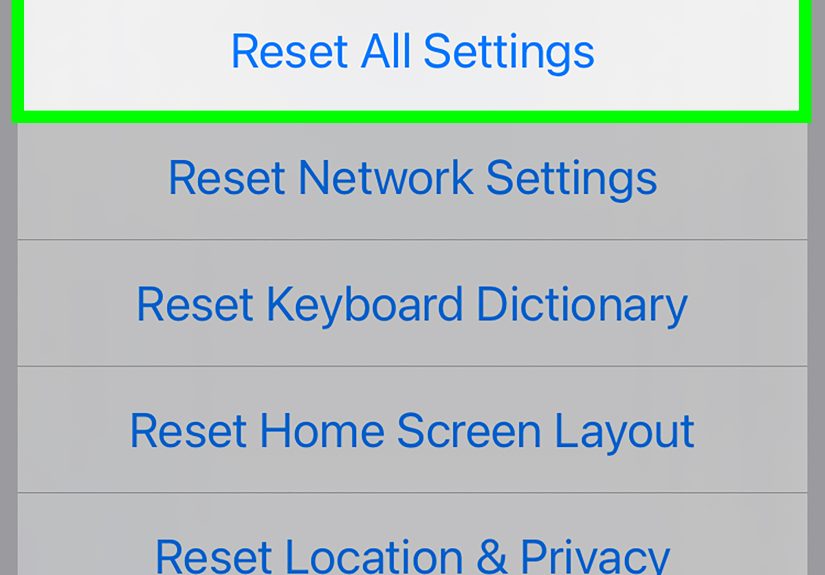
Try Reset All Settings as a final step
If updating does not help, you can try resetting system settings. This does not delete your photos, apps, videos, or messages, but it does reset system preferences such as Wi-Fi networks, privacy settings, location settings, keyboard dictionary, and Apple Pay cards.
- Go to Settings.
- Tap General.
- Tap Transfer or Reset iPhone.
- Tap Reset.
- Choose Reset All Settings.
Do not choose Erase All Content and Settings unless you intentionally want to wipe the device. That option is the digital equivalent of moving out of the house because the kitchen light flickered.
Bonus Fixes for Common Guided Access Problems
Guided Access will not turn off
Triple-click the Side button or Home button and enter your Guided Access passcode. If Face ID or Touch ID is enabled for Guided Access, you may be able to double-click the Side button to end the session with Face ID. If the screen is frozen, force restart the device.
Forgot Guided Access passcode
If you forgot the Guided Access passcode, try ending the session with Face ID or Touch ID if you enabled it earlier. If that does not work, force restart the device. After you regain access, go to Guided Access settings and create a new passcode you will remember.
Guided Access does not work in one specific app
Test Guided Access in another app, such as Notes or Safari. If it works there, the problem may be related to the original app. Update the app, close and reopen it, check Screen Time restrictions, or reinstall it if needed.
Guided Access starts but touch still works
When starting Guided Access, tap Options and make sure Touch is turned off if you want to disable the entire screen. If you only want to block part of the screen, draw a circle around that area before tapping Start.
When Should You Contact Apple Support?
Most Guided Access problems can be solved with settings checks, restarts, updates, or a reset of system settings. However, you may want to contact Apple Support if:
- The Side button or Home button is physically damaged.
- Accessibility Shortcut does not respond at all.
- Your iPhone freezes every time you use Guided Access.
- Face ID, Touch ID, or passcode prompts are not working correctly.
- The issue started after a repair, drop, or water exposure.
If the hardware button is failing, Guided Access may not be the real problem. It may simply be the feature that reveals the issue first.
Real-World Experiences: What Guided Access Problems Usually Look Like
In everyday use, Guided Access problems often show up in wonderfully inconvenient moments. One common example is the “toddler handoff.” A parent opens a video, starts Guided Access, hands over the iPhone, and expects five peaceful minutes. Instead, the child somehow exits the app, opens Photos, and begins swiping through vacation pictures with the confidence of a museum curator. In that situation, the issue is often that Guided Access was never started correctly, the shortcut was not enabled, or the parent tapped the Side button twice instead of three times.
Another frequent experience happens in classrooms, clinics, and waiting rooms where iPads are used for forms, learning apps, check-ins, or assessments. Staff may say, “Guided Access worked yesterday, but today the triple-click does nothing.” In many cases, someone adjusted Accessibility Shortcut settings, selected multiple accessibility tools, or updated the device and forgot to recheck the setup. A quick trip to Settings usually brings the feature back from its dramatic little vacation.
Some users run into trouble because they confuse Guided Access with Screen Time. Guided Access locks the device to one app during a session. Screen Time manages usage limits, downtime, content restrictions, and parental controls. They can work together, but they are not the same thing. If an app is blocked by Screen Time, Guided Access may not behave the way you expect. This is why checking App Limits and Downtime is such a useful troubleshooting step.
There is also the “I cannot get out” panic. Someone starts Guided Access, forgets the passcode, and suddenly the iPhone feels like a very expensive locked room. The best prevention is to set a memorable Guided Access passcode and enable Face ID or Touch ID before you need it. If you use Guided Access often for kids, students, patients, or customers, do not rely on memory alone. Choose a passcode that is secure but not so mysterious that even future-you cannot solve it.
For people who use Guided Access professionally, consistency matters. A teacher may use it to keep students inside a quiz app. A small business may use it to turn an iPad into a sign-in kiosk. A caregiver may use it to simplify the device for someone who becomes overwhelmed by too many apps. In these situations, one small settings change can disrupt the whole workflow. It helps to create a quick checklist: confirm Guided Access is on, confirm the shortcut is selected, test the passcode, check Screen Time, and restart the device before the iPad is needed.
The most useful lesson is simple: Guided Access is reliable when the setup is clean. Keep the shortcut simple, keep iOS updated, avoid conflicting Screen Time rules, and restart the device when it acts weird. Your iPhone is smart, but sometimes it still needs the classic troubleshooting treatment: turn it off, turn it on, and give it a moment to rethink its choices.
Conclusion
When Guided Access is not working, start with the easy fixes before assuming something is seriously wrong. Make sure Guided Access is enabled, confirm the triple-click shortcut, open the app before starting the session, restart or force restart your iPhone, check Screen Time restrictions, and update iOS. If nothing works, Reset All Settings can clear stubborn configuration problems without deleting your personal data.
Guided Access is a small feature with big practical value. Whether you use it for child safety, focus, privacy, classroom control, kiosks, or simply protecting your camera roll from curious friends, a few minutes of troubleshooting can make it dependable again.