Table of Contents >> Show >> Hide
- Cancel vs. Return: What “Canceling a Kindle Book Order” Really Means
- Quick Eligibility Check (Do This Before You Click)
- Easy Ways to Cancel a Kindle Book Order: 6 Steps
- Step 1: Confirm What You’re Canceling (Purchase, Pre-Order, Borrow, or Loan)
- Step 2: Open Your Amazon “Digital Orders” Page (Best on a Browser)
- Step 3: Find the Exact Book Order (Filter, Search, and Check the Date)
- Step 4: Click “Return for Refund” (Or the Closest Equivalent)
- Step 5: Choose a Reason, Confirm the Return, and Screenshot the Confirmation
- Step 6: Verify the Refund and Clean Up Your Library
- Troubleshooting: When the “Return for Refund” Button Ghosts You
- Special Cases (Because Kindle Life Is Never Just One Case)
- Preventing Accidental Kindle Purchases (Because You Deserve Nice Things)
- Real-World Experiences: What It’s Actually Like to Cancel a Kindle Book Order (500-ish Words of Honest Human Vibes)
- Conclusion
You meant to buy the paperback. You bought the Kindle version. Again. Or maybe your cat stepped on your phone and
“one-clicked” a 900-page romance novel about billionaire werewolves (no judgment, Whiskers has taste).
Either way: the good news is that canceling a Kindle book order is usually quickif you act fast and click the right
button in the right place.
This guide walks you through six easy steps to cancel a Kindle book order (which, in Amazon-speak,
is typically a return for a refund), plus troubleshooting, special cases (pre-orders, Kindle Unlimited, library
loans), and real-world tips so you don’t end up paying tuition for “Accidental Purchases 101.”
Cancel vs. Return: What “Canceling a Kindle Book Order” Really Means
Physical orders can sit in a warehouse queue long enough for you to change your mind. Kindle books don’t.
Most Kindle eBook purchases deliver instantly, so Amazon typically treats “cancel” as a return/refund request.
Translation: you’re not stopping a shipmentyou’re asking Amazon to rewind time and un-buy the book.
Amazon’s process is designed for accidental purchases, not free weekend reading binges. In plain terms:
you generally have a short window to request a refund, and returns can be denied if too much of the book has been read
or if your account racks up a suspicious number of returns.
Quick Eligibility Check (Do This Before You Click)
Before you go hunting for the “Return for Refund” button, take 30 seconds to sanity-check these basics:
- Timing: Was the book purchased recently (think days, not months)?
- Reading progress: Did you open it and start reading? If yes, keep expectations realistic.
- Account: Are you logged into the same Amazon account that bought the book?
- Format: Is it a Kindle eBook purchase, a Kindle Unlimited borrow, or a library loan?
If you’re within the typical “oops” window, you’re in great shape. If you’re outside it, don’t panicyou may still
have options (we’ll cover them), but it may take customer support instead of a magic button.
Easy Ways to Cancel a Kindle Book Order: 6 Steps
Step 1: Confirm What You’re Canceling (Purchase, Pre-Order, Borrow, or Loan)
Kindle “orders” come in a few flavors, and the steps differ slightly:
- Purchased Kindle eBook: Usually refundable if requested quickly.
- Pre-ordered Kindle eBook: Often cancelable before release (like a normal order).
- Kindle Unlimited / Prime Reading: You “return” the borrowed title (no refundbecause you didn’t buy it).
- Library Kindle book (Libby/OverDrive): You can return the loan early to free up your checkout.
If you’re unsure, don’t guessstart from your digital order history. That will tell you what kind of transaction it was.
Step 2: Open Your Amazon “Digital Orders” Page (Best on a Browser)
The fastest route is usually Amazon’s Digital Orders list (on desktop or mobile browser).
The Kindle device/app itself often won’t give you the cleanest refund controls.
Pro tip: if you’re using a phone, open a browser and log in there. The Amazon app can work too, but the browser view
tends to make the right buttons easier to spot (and harder to accidentally order another book while you’re at it).
Step 3: Find the Exact Book Order (Filter, Search, and Check the Date)
In your digital order list:
- Look for the book title and confirm it’s the right one (series titles can be sneaky).
- Check the purchase date/timethis matters for eligibility.
- If you buy a lot of eBooks, use filters (Digital Orders) and scroll like you’re looking for your keys.
Common mistake: you’re logged into the wrong Amazon account (work account vs. personal, spouse’s account, the “family
iPad” account, etc.). If the book isn’t there, that’s usually why.
Step 4: Click “Return for Refund” (Or the Closest Equivalent)
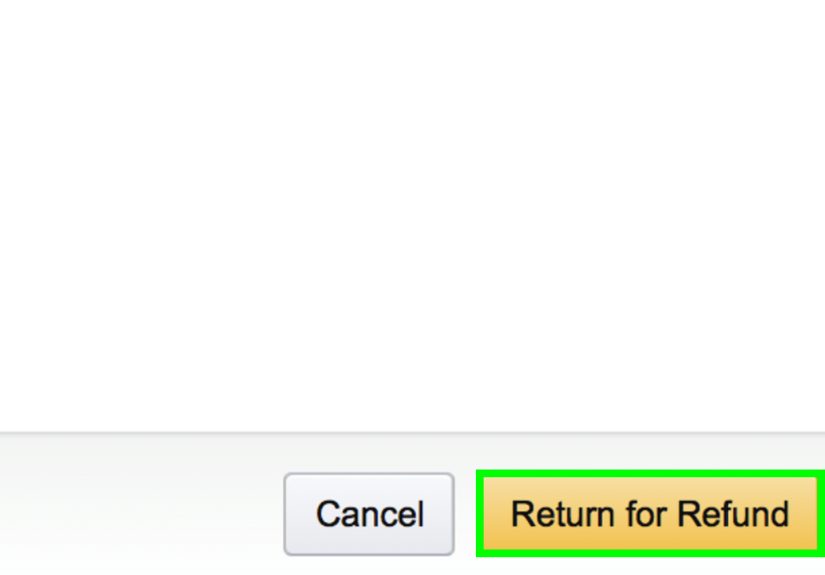
Next to eligible Kindle book purchases, you should see a button/link like “Return for Refund”.
Click it. This is the moment of truththe “undo” button that should never be located near “Buy now with 1-Click.”
If you see no return option, jump to the troubleshooting section below. Don’t waste time rage-clicking;
that won’t summon the button, even if you do it dramatically.
Step 5: Choose a Reason, Confirm the Return, and Screenshot the Confirmation
Amazon typically asks why you’re returning. Pick the closest reason (wrong format, accidental purchase,
not what expected, etc.), confirm, and you’re done.
Quick habit that saves headaches: take a screenshot (or save the confirmation email). If anything goes sideways,
you’ll have proof that you initiated the refund within the allowed window.
Step 6: Verify the Refund and Clean Up Your Library
After you submit the return:
- Check for confirmation: Look for an email or a status update in your digital orders.
- Watch your payment method: Refund timing varies by bank/card, but it typically isn’t instant for every payment type.
- Remove the book from devices: The title may still appear in your Kindle library briefly. If it does, remove it from the device/app.
If you had already downloaded the book, you may see it listed but unavailable to open after the return completes. That’s normal.
Troubleshooting: When the “Return for Refund” Button Ghosts You
You Don’t See “Return for Refund” at All
Here are the usual culprits:
- Too much time has passed: The order is outside the typical refund window.
- You’ve read a significant portion: Amazon may limit automatic returns if the book has been substantially read.
- Not the purchasing account: Switch accounts and re-check.
- It wasn’t a purchase: It might be a borrow (Kindle Unlimited/Prime Reading) or a library loan.
If you believe it’s truly an accidental purchase and you’re close to the window, contact Amazon customer support.
Be polite, be concise, and include the order details. “My toddler bought this while I blinked” is a surprisingly common plot twist.
You Bought It on iPhone/iPad and Can’t Find the Buy Button in the App
This one’s normal: Kindle purchases often happen via a browser instead of inside iOS apps. Even if you started from
the Kindle app, you may have been routed to Amazon on the web. Refunds still live in your Amazon account’s digital order history.
The Book Still Shows Up on Your Kindle After Refund
Kindle libraries can lag a little. Sync your Kindle device/app, then remove the title from the device.
Think of it like an ex who still likes your postsit might take a minute, but it’ll eventually go away.
Special Cases (Because Kindle Life Is Never Just One Case)
Canceling a Kindle eBook Pre-Order
Pre-orders are closer to “normal” Amazon orders. If the book hasn’t released yet, you can often cancel it from your
orders area. The key is acting before it turns into a delivered digital purchase.
Returning Kindle Unlimited or Prime Reading Titles (No Refund Needed)
If you borrowed the book through a subscription, you’re not asking for money backyou’re simply returning the borrowed
title so you can borrow something else (or reduce clutter).
This is especially useful if you’ve hit borrowing limits. Return the one you’re not reading, keep the one you pretend you’re reading,
and borrow the one you’ll actually read at 2 a.m. when your brain decides sleep is optional.
Returning a Library Kindle Book (Libby/OverDrive)
Library loans are a different universe: you can return early to be nice to the next person in line (or because you
finished faster than expected, which deserves a small trophy).
Typical flow: initiate “return early” from Libby/OverDrive, then confirm the return on Amazon, or return directly from
your Kindle/Kindle app when the option appears. After returning, sync your library app if it still shows the title.
Refunding Unredeemed Kindle Book Gift Orders
Gifted Kindle books have their own rules. In many cases, you can request a refund for an unredeemed Kindle
book gift order within a longer time window than standard eBook returns. The big catch: if the recipient redeemed it,
that ship has sailed.
Preventing Accidental Kindle Purchases (Because You Deserve Nice Things)
Canceling is easy. Not having to cancel is even easier. A few practical guardrails:
- Review 1-Click settings: If your household has multiple devices, consider whether 1-Click is helping or haunting you.
- Use parental controls: Great for kids, and also for your future self after three cups of coffee.
- Double-check formats: On book pages, confirm “Kindle” vs. “Paperback/Hardcover” before buying.
- Sample first: Kindle samples are the safest way to avoid buyer’s remorse.
Real-World Experiences: What It’s Actually Like to Cancel a Kindle Book Order (500-ish Words of Honest Human Vibes)
Let’s talk about what really happens in the wild, where people have thumbs, distractions, and an alarming confidence in 1-Click.
In most real-life cases, the smoothest cancellations happen when someone notices the mistake immediatelylike within minutes.
You buy the wrong book, your brain catches up, and you sprint to Digital Orders like it’s the last chopper out of a movie scene.
When you do that, the “Return for Refund” option is often right there, and the whole process takes less time than it takes your
group chat to reply “lol.”
The second most common experience is the “I read a few pages to see if it gets better” situation. Totally relatable.
Unfortunately, it’s also where outcomes start to vary. Some readers report that the return is still approved if they barely opened it.
Others find that once they’ve read a meaningful chunk, the automatic return option disappears or the refund doesn’t go through.
The practical takeaway: if you think you might return it, don’t treat it like a buffet. Grab a tiny bite (a preview or a few pages),
then decide quickly.
Another real-world classic: you don’t see the button because you’re logged into the wrong account. This happens constantly in households
where one person bought the Kindle, another person set it up, and everyone shares the same tablet “because it’s easier.”
The fix is boring but effective: log out, log back in, confirm the buying account, and check the order date again.
Most “Amazon stole my refund button” mysteries end right there.
People also run into confusion around borrowed titles. If you have Kindle Unlimited or Prime Reading, returning a book feels like “canceling,”
but it’s not a refund. You’re just returning access so you can borrow something else. The first time you do it, it’s oddly satisfyinglike
putting a shopping cart back where it belongs, but digitally and with less judgment from strangers.
Library loans add their own twist. In Libby/OverDrive land, you might “return early” in the library app, then get bounced to Amazon to confirm.
If you skip the Amazon step, the book can linger like a houseguest who didn’t get the hint. Syncing usually resolves it. And yes, even if the
cover still shows on your Kindle, you may not be able to open it after the return completes. That’s normal; it’s basically the digital equivalent
of a library book vanishing from your backpack the moment you walk through the return slot.
Finally, there’s customer support. If you’re outside the window or the button is missing, support can sometimes helpespecially if it’s clearly accidental,
a duplicate purchase, or a wrong-language/wrong-format situation. The best outcomes tend to come from short, polite messages that include the order number
and a simple explanation. Think “clear and calm,” not “I demand satisfaction, Jeff!” (Also, Jeff probably isn’t reading your ticket.)
Conclusion
Canceling a Kindle book order is usually straightforward once you know where Amazon hides the controls: head to Digital Orders, find the title,
hit “Return for Refund,” and confirm. The biggest success factors are speed (don’t wait) and clarity (know whether
it’s a purchase, a pre-order, a subscription borrow, or a library loan). And if the button disappears, customer support is your backup planjust
bring receipts (and maybe a little charm).