Table of Contents >> Show >> Hide
- Quick checklist before you start
- 3 fastest ways to open YouTube Studio
- Access YouTube Studio on a PC (Windows) step-by-step
- Access YouTube Studio on a Mac step-by-step
- Once you’re in: the YouTube Studio layout (so you don’t click in circles)
- Switching channels and permissions (personal vs. Brand Account vibes)
- Troubleshooting: when YouTube Studio won’t load (or acts possessed)
- Realistic examples: what you’ll do in Studio (and exactly where)
- Security and sanity tips (because your channel is an asset)
- Creator experiences : what it actually feels like using YouTube Studio on PC & Mac
- Conclusion
YouTube Studio is where creators go to do the “behind-the-scenes” work: upload and optimize videos, check analytics, reply to comments, manage monetization, and tweak channel settings. The good news? Accessing it on a PC or Mac is straightforward. The even better news? Once you know a few shortcuts and troubleshooting tricks, it’s basically as easy as opening your email (but with fewer unread messages judging you).
This guide walks you through multiple ways to open YouTube Studio on desktop, shows PC and Mac steps side-by-side, explains how to switch channels, and includes practical fixes for the most common “Why won’t it load?!” moments.
Quick checklist before you start
What you need (the “don’t overthink it” list)
- A Google account that has access to the YouTube channel you want to manage.
- A modern browser (Chrome, Edge, Firefox, or Safari on Mac).
- Cookies enabled (at least for YouTube/Google). Studio is a web app and relies on sign-in sessions.
- Stable internet (YouTube Studio isn’t a fan of spotty Wi-Fi drama).
Browser basics that prevent 80% of headaches
- Update your browser if Studio loads oddly or buttons don’t respond.
- Temporarily disable ad/script blockers if pages appear blank or features won’t load.
- Try a private window to rule out extensions and cached data issues.
3 fastest ways to open YouTube Studio
Option 1: Go directly to YouTube Studio (fastest)
In your browser’s address bar, type studio.youtube.com and sign in. If you’re already signed into YouTube, it should take you straight to your Studio dashboard.
Option 2: Open it from YouTube’s profile menu
- Go to YouTube.com and make sure you’re signed in.
- Click your profile picture (top-right).
- Select YouTube Studio.
Option 3: Jump in from your content page
If you’re already watching your own video or browsing your channel, you can still use the profile menu. Many creators keep a “Creator” bookmark folder with Studio, Analytics, and Upload links so everything is one click away.
Access YouTube Studio on a PC (Windows) step-by-step
Step 1: Open Studio in your browser
- Open Chrome, Edge, or Firefox.
- Go to studio.youtube.com.
- Sign in to the Google account connected to your channel (if prompted).
- You should land on the Dashboard.
Step 2: Make it one-click forever (bookmark or pin)
- Bookmark: Press Ctrl + D and save it to your bookmarks bar.
- Pin the tab: Right-click the Studio tab → Pin (keeps it tidy and always available).
Step 3 (optional): Install YouTube Studio like a desktop app
If you manage your channel daily, installing Studio as an “app” can make it feel snappier and reduce tab chaos.
- Chrome: Look for an Install icon in the address bar (or browser menu) and install the site as an app when available.
- Edge: Use the menu → Apps → install this site as an app (wording can vary slightly by version).
Useful Windows keyboard shortcuts while troubleshooting
- Focus address bar: Ctrl + L
- Open private window: Ctrl + Shift + N (Chrome/Edge) or Ctrl + Shift + P (Firefox)
- Hard refresh: Ctrl + F5 (or Ctrl + Shift + R in some browsers)
Access YouTube Studio on a Mac step-by-step
Step 1: Open Studio in Safari, Chrome, or Firefox
- Open Safari, Chrome, or Firefox.
- Type studio.youtube.com in the address bar.
- Sign in with the Google account that owns (or has permission to manage) the channel.
Step 2: Add it to your bookmarks (or favorites)
- Safari: Press Command + D to add a bookmark, or add to Favorites for quick access.
- Chrome: Press Command + D to bookmark.
Step 3 (optional): Make it feel like a Mac app
On macOS, many creators use one of these workflows:
- Chrome “app” install: Install Studio as an app (if available) and keep it in your Dock for quick launches.
- Dedicated browser profile: Create a “YouTube Admin” browser profile so your Studio cookies, extensions, and bookmarks stay clean and separate from personal browsing.
Mac-friendly shortcuts that save time
- Focus address bar: Command + L
- Private window: Command + Shift + N (Chrome/Safari) or Command + Shift + P (Firefox)
- Hard refresh: Command + Shift + R
Once you’re in: the YouTube Studio layout (so you don’t click in circles)
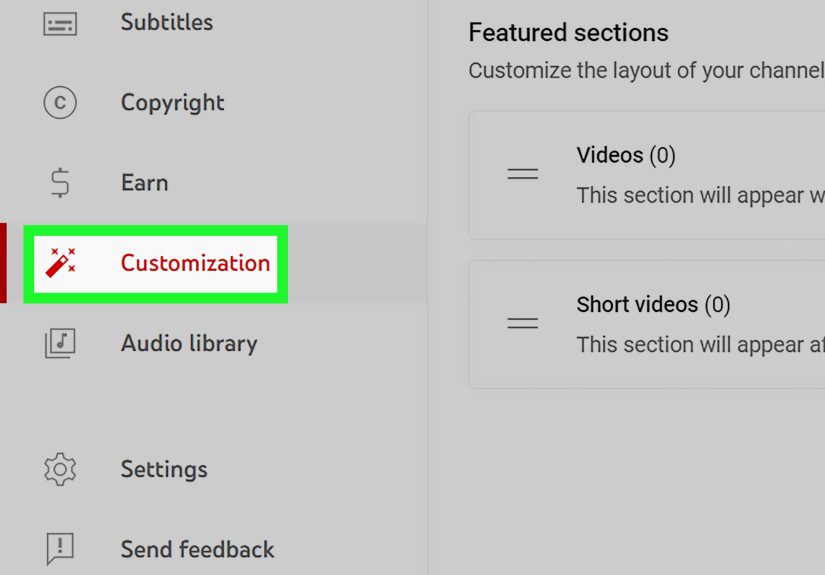
YouTube Studio is organized mainly via the left-hand menu. If you ever feel lost, glance leftlike checking the map in a video game, except you don’t have to fight a dragon to find Analytics.
Key sections you’ll use constantly
- Dashboard: Snapshot of channel performance, recent comments, news, and tips.
- Content: Your videos, Shorts, Live streams, and postsplus visibility settings and quick edits.
- Analytics: Performance metrics (views, watch time, audience retention, traffic sources, and more).
- Comments: Review and reply, filter by “Held for review,” and manage moderation.
- Subtitles: Upload or edit captions, handle translations, and improve accessibility.
- Copyright: View claims and disputes if you run into them.
- Monetization (if eligible): Revenue settings, ads, memberships, and related options.
- Settings: Channel defaults, permissions, uploads, community moderation, and advanced options.
The two clicks that make you look like you “totally have it together”
- Settings → Upload defaults: Set default descriptions, tags (if you use them), and visibility choices.
- Settings → Channel: Manage keywords, country of residence, and other channel-level settings.
Switching channels and permissions (personal vs. Brand Account vibes)
How to switch between channels
- In Studio, click your profile icon (top-right).
- Select Switch account (or similar wording).
- Choose the channel you want to manage.
This is especially important if you manage multiple channels (personal, brand, client work, or that “secret test channel” where you uploaded one unlisted video in 2019 and never spoke of it again).
Why permissions matter
If you can access Studio but can’t see certain settings (like Permissions) or can’t perform specific actions, your account may not have the right role for that channel. In team setups, channels often use role-based access so not everyone can change owners, delete the channel, or touch monetization settings.
- Owners / primary owners: Typically have the broadest control.
- Managers / editors: Often handle uploads, metadata, and moderation, but may not control account-level changes.
If you’re working with a brand or client channel, confirm what level of access you’ve been granted before assuming Studio is “broken.” Sometimes it’s not brokenyour permissions just have boundaries (like a polite fence).
Troubleshooting: when YouTube Studio won’t load (or acts possessed)
Problem: “Oops, something went wrong” or a blank screen
This is usually a browser data or extension conflict. Try these fixes in order:
- Hard refresh the page (Windows: Ctrl + F5; Mac: Command + Shift + R).
- Open a private/incognito window and sign in again.
- Disable extensions temporarily (especially ad blockers, script blockers, privacy blockers).
- Clear site data for YouTube/Google, then sign back in.
- Try another browser (if Safari is struggling, test Chrome or Firefox; if Chrome is acting weird, test Edge).
Problem: Sign-in loop or Studio keeps asking you to verify
- Check cookies: If cookies are blocked, you may get stuck in a login loop.
- Turn off strict content blockers for YouTube/Google domains (especially on Safari).
- Confirm the right Google account: If you have multiple accounts signed in, switch to the channel owner account.
- Complete account security prompts: If Google requests verification, finish it in the same browser session.
Problem: Buttons don’t respond, uploads fail, or pages load slowly
- Update your browser and restart it.
- Check your network (work/school networks sometimes restrict Google services).
- Pause VPN/proxy tools temporarily if they cause unusual redirects or blocked scripts.
- Test on a different connection (mobile hotspot is a quick reality check).
Quick how-to: clearing cache/cookies (when you need the reset button)
If you clear cookies, you’ll likely be signed out of sites, so do this when you’re ready to log back in.
- Chrome/Edge: Open settings → privacy → clear browsing data (choose cookies + cached files).
- Safari (Mac): Clear history/website data from Safari’s History menu (or manage website data in Privacy settings).
- Firefox: Clear cookies/site data from Settings → Privacy & Security.
Realistic examples: what you’ll do in Studio (and exactly where)
Example 1: Upload a video and optimize it
- In Studio, click Create (usually top-right) → Upload videos.
- Add a title and description that match what people actually search for.
- Upload a custom thumbnail (high contrast, readable text, clear subject).
- Choose an audience setting (made for kids or not).
- Set visibility (Private, Unlisted, or Public).
Tip: If you publish on a schedule, use a consistent checklist: title clarity, thumbnail quality, description usefulness, and one strong call-to-action (subscribe, watch next, or visit your site).
Example 2: Find and reply to comments efficiently
- Go to Comments in the left menu.
- Use filters like “I haven’t responded” or “Held for review”.
- Reply with helpful answers, timestamps, or a quick pinned comment for FAQs.
Creator reality: replying to comments can be growth fuel, but don’t let it become a full-time job unless you’re being paid in actual money (not “exposure”).
Example 3: Check analytics without spiraling into overthinking
Analytics can be incredibly useful… and also incredibly capable of making you question every life choice. Start with a simple routine:
- Views and watch time: Are people clicking and staying?
- Audience retention: Where do viewers drop off?
- Traffic sources: Are viewers coming from search, suggested videos, or external sites?
Then make one small improvement per upload: tighter intros, better thumbnails, clearer titles, or stronger hooks in the first 15 seconds.
Security and sanity tips (because your channel is an asset)
- Use 2-step verification on your Google account.
- Avoid logging into Studio on shared computers unless you’re using a private window.
- Separate profiles for work vs. personal if you manage multiple channels.
- Review permissions regularly if you collaborate with others.
Creator experiences : what it actually feels like using YouTube Studio on PC & Mac
Here’s something most tutorials don’t say out loud: the first time you open YouTube Studio, it can feel like walking into a cockpit. There are charts. Tabs. Notifications. A menu that seems to go on forever. And somewhere in there, you just wanted to change a thumbnail.
A common experience creators share is that Studio becomes dramatically easier once you stop trying to learn all of it at once. Most people don’t need every feature on day one. In fact, many creators settle into a simple rhythm: open Studio, check Dashboard for anything urgent, jump to Content for uploads, then dip into Analytics for a quick read. That’s it. No spiraling. No staring at graphs like they’re going to whisper the algorithm’s secrets.
Another real-world lesson is that your browser setup matters more than you think. Creators who work on both PC and Mac often end up with a “YouTube Admin” browser profile. Why? Because Studio is sensitive to the little things: extensions that block scripts, privacy settings that aggressively restrict cookies, or a pile of old cached files that cause weird glitches. A dedicated profile keeps your Studio environment stable. It’s like having a clean desk. You can still be chaotic, but at least your tabs aren’t.
On Windows, many creators love installing Studio as a desktop app through Chrome or Edge. It’s not “an app” in the traditional senseit’s still the same Studio websitebut it launches in its own window and feels more focused. People describe it as a productivity hack: you stop hunting for the right tab, and you start treating Studio like a daily tool. On Mac, creators often do the same thing, or they keep Studio pinned in their Dock via a shortcut workflow, especially if they’re editing in one app and bouncing into Studio to upload, add chapters, or adjust details.
Then there’s the troubleshooting experiencean almost universal rite of passage. At some point, Studio refuses to load properly. Maybe it’s a blank page. Maybe it’s an “Oops” message. Maybe the sign-in loop keeps spinning like it’s auditioning for a ceiling fan commercial. The creators who stay calm usually have a go-to sequence:
- Try a private window.
- Disable extensions (especially ad/script blockers).
- Clear site data for YouTube/Google.
- Switch browsers if needed.
It sounds simple, but the mental shift is the real win: instead of “My channel is doomed,” it becomes “This is probably cookies.” And honestly, “This is probably cookies” solves an impressive number of internet problems.
Finally, creators often say the best Studio habit is focusing on actions, not just numbers. Analytics are helpful, but the most productive sessions end with a decision: update an old title for clarity, improve a thumbnail, respond to comments, or adjust an upload default so the next video is easier to publish. Studio is not just a report cardit’s a workshop. If you treat it like a workshop, it starts paying you back in time saved and better content outcomes.
So if you’re new to Studio, give yourself permission to learn it in layers. Start with “How do I access it?” then “Where do I upload?” then “What’s one metric I care about this week?” Over time, that cockpit starts to feel like a dashboard you actually controlno pilot license required.