Table of Contents >> Show >> Hide
- Quick Snapshot: What “Gmail Address Book” Means Now
- 1) Use the Google Apps Grid Inside Gmail (The Classic “Nine Dots” Move)
- 2) Go Directly to Google Contacts (Bookmark It and Feel Powerful)
- 3) Use Gmail’s Side Panel or Contact Card (When You Don’t Want to Leave the Inbox)
- 4) Find Contacts Through the Compose Window (Autocomplete + “Other Contacts”)
- 5) Find Your Gmail Address Book on Your Phone (Android and iPhone Options)
- Troubleshooting: When Your “Address Book” Looks Empty (But Isn’t)
- Smart Moves: Organize, Back Up, and Keep Your Contacts Useful
- Real-World Experiences: of “Yep, That Happened” Moments With Gmail Contacts
- Conclusion
If you’ve ever stared at Gmail like it’s supposed to magically cough up your aunt’s email address (the one you know you saved),
you’re not alone. The “Gmail address book” is realbut it doesn’t live in Gmail the way it did in the early internet era of dial-up tones and
questionable screen savers.
Today, Gmail’s address book is essentially Google Contacts: the place where your saved people, email addresses, labels (groups),
and “I swear I didn’t add this person” entries all hang out. The good news: it’s easy to find once you know the routes. The even better news:
you’ve got multiple routesso if one feels hidden, another is right there.
Quick Snapshot: What “Gmail Address Book” Means Now
Gmail uses Google Contacts for:
- Saved contacts (people you intentionally add)
- Other contacts (addresses you’ve emailed that Gmail may remember for autocomplete)
- Contact suggestions and auto-complete behavior when composing messages
- Labels (like groups, but with less “corporate email chain” energy)
So when someone says “find your Gmail address book,” what they usually mean is:
“Help me get to Google Contacts fast, and help me find the name I need without spiraling.”
1) Use the Google Apps Grid Inside Gmail (The Classic “Nine Dots” Move)
This is the most common and beginner-friendly methodbecause you can start right from your inbox.
Steps
- Open Gmail in a desktop browser and sign in.
- In the top-right corner, click the Google apps grid (the icon that looks like nine dots).
- Select Contacts.
You’ll land in Google Contacts, where you can search names, emails, company domains (great for “anyone from that school”), and labels.
This is also where you can create new contacts, edit old ones, and clean up duplicates.
Example
Let’s say you remember an email ends with @schooldistrict.org, but the name is fuzzy.
In Google Contacts, type “schooldistrict” in the search bar. You’ll pull up every saved contact with that domainmuch faster than hunting through old emails.
2) Go Directly to Google Contacts (Bookmark It and Feel Powerful)
If you’d rather skip the Gmail interface entirely, go straight to Google Contacts. It’s the same address bookjust without the “Inbox (3,742)” pressure.
Steps
- Open a browser tab.
- Go to Google Contacts (the Contacts web app).
- Sign in with the Google account tied to your Gmail address book.
Pro move: bookmark it. Future-you will be gratefulespecially when you’re rushing to send a message and your brain decides to forget how websites work.
Why this method is great
- Fast access (one click from a bookmark)
- Works even if Gmail’s layout changes
- Best place to manage labels, duplicates, merges, and imports/exports
3) Use Gmail’s Side Panel or Contact Card (When You Don’t Want to Leave the Inbox)
Sometimes you don’t want “full Contacts mode.” You just want to see who someone isor save themwithout opening a separate page.
Gmail can help in a couple of ways, depending on your account and interface.
Option A: The Contacts icon in Gmail’s side panel
Many Gmail/Google Workspace setups include a right-side panel with app icons (Calendar, Keep, Tasksand sometimes Contacts).
If you see a Contacts icon there, clicking it can open a Contacts view while you stay in Gmail.
Option B: Open a contact card from an email
- Open an email message.
- Hover over (or click) the sender’s name/email address.
- A contact card appearslook for options like Add to Contacts or Edit contact.
This method is perfect when you’re replying to someone and realize, “Oh wow, I should probably save this person before they vanish into the void of ‘recent emails.’”
Mini-analysis: Why Gmail feels like it “hid” your address book
Gmail is email-first. Google Contacts is contact-first. Google moved the heavy-lifting tools (labels, merging, importing, exporting, restoring)
into Contacts so Gmail can stay focused on messages. It’s not personal. Gmail isn’t trying to gaslight you. It’s just… very committed to being an inbox.
4) Find Contacts Through the Compose Window (Autocomplete + “Other Contacts”)
When you click Compose in Gmail and start typing in the “To” field, Gmail tries to autocomplete from your contact data.
If autocomplete isn’t showing the person you expect, the issue is often one of these:
- The person isn’t saved as a real contact yet.
- The email is sitting in Other contacts instead of your main Contacts list.
- Your autocomplete settings aren’t set the way you think they are.
How to use this method effectively
- Click Compose.
- Start typing a name or email in the “To” field.
- If suggestions appear, click the correct one.
- If nothing appears, open Google Contacts and check Other contacts.
How to check “Other contacts” (the sneaky list)
- Open Google Contacts.
- In the left menu, click Other contacts.
- Find the email address you want and choose the option to Add to contacts (so it becomes a real saved contact).
Example
You emailed a contractor once, six months ago. You didn’t save their info. Now you need them again.
Gmail might remember them in Other contacts (for autocomplete), but they won’t show up in your main Contacts list until you add them.
That’s why “I can’t find my address book” often really means “I can’t find the Other contacts bucket.”
Bonus: Keep autocomplete under control
If Gmail is “helpfully” saving every email you’ve ever typed (including that one time you emailed support@somewhere at 2 a.m.),
you can adjust the setting that controls whether Gmail automatically creates contacts for autocomplete.
5) Find Your Gmail Address Book on Your Phone (Android and iPhone Options)
On mobile, you typically access your Gmail address book through:
Google Contacts (best), or your phone’s built-in Contacts app (if syncing is enabled).
Android: Use Google Contacts or Sync to the device Contacts app
- Open the Contacts app (Google Contacts or your phone’s Contacts).
- Make sure you’re viewing the correct Google account (especially if you have multiple accounts).
- If contacts look missing, check your device’s account sync settings and ensure Contacts sync is on.
Android is usually the smoothest experience because Google Contacts is deeply integrated.
The main “gotcha” is having multiple Google accounts and accidentally looking at the wrong one.
iPhone/iPad: Add your Google account and enable Contacts sync
- Open Settings on your iPhone/iPad.
- Go to Contacts (or Mail → Accounts, depending on iOS version).
- Add your Google account, then toggle Contacts ON.
- Open the iOS Contacts app to see synced Google contacts.
Once synced, your Gmail address book is essentially living inside iOS Contactshandy if you use iMessage, FaceTime, or Apple’s phone features
and still want your Google people list to show up.
Troubleshooting: When Your “Address Book” Looks Empty (But Isn’t)
Problem: You have multiple Google accounts
This is the #1 culprit. If you’re signed into two Gmail accounts (personal + work), Google Contacts will show whichever account is active.
Switch accounts in the top-right profile menu and check again.
Problem: Contacts are in “Other contacts,” not “Contacts”
If you relied on autocomplete for years, your most-used addresses might be stored as “Other contacts.”
Move important ones into real Contacts so they’re searchable, label-able, and easy to manage.
Problem: Your phone isn’t syncing contacts
On Android or iOS, if contact sync is disabled, your phone may only show locally stored entries (SIM/device).
Re-enable Google Contacts sync and give it a minute to populate.
Problem: Duplicates and messy imports
If you imported contacts from another service and now have “John Smith,” “John Smith (2),” and “JOHN SMITH!!!”,
Google Contacts has tools to merge duplicates and clean things up. It’s like decluttering a closet, except your closet is full of email addresses.
Smart Moves: Organize, Back Up, and Keep Your Contacts Useful
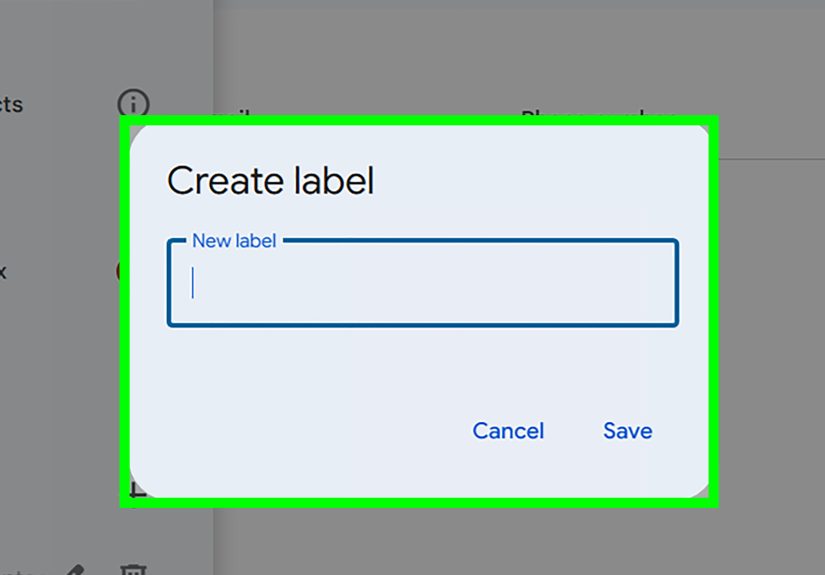
Create labels for real-life groups
Labels are your shortcut to sanity. Create labels like:
- Family
- Clients
- School
- Vendors
- “People I Should Reply To” (emotionally honest labeling)
Export your contacts as a backup (yes, like it’s 2006and it still matters)
If your contacts are valuable (and they are), export them occasionally. Google Contacts can export to CSV or vCard formats,
which helps if you ever switch services or just want a safety net.
Import contacts when you’re migrating accounts
Moving from one Google account to another? Or bringing contacts in from Outlook?
Importing a CSV/vCard into Google Contacts is usually the cleanest way to rebuild your Gmail address book in the right place.
Real-World Experiences: of “Yep, That Happened” Moments With Gmail Contacts
Most people don’t go looking for their Gmail address book on a calm, well-rested Tuesday. They look for it when something is on fireemotionally,
professionally, or both. Like the time you’re halfway through writing a heartfelt email and realize you don’t actually know the recipient’s last name.
Or when you’re trying to send a holiday message to “the neighbors” and suddenly discover you have four entries for the same household:
one with a landline number from 2009, one with a nickname, one with a mysterious extra “.” in the email address, and one that looks correct but
bounces because it isn’t.
A surprisingly common scenario: you did email someone before, Gmail does suggest their address sometimes, and yet when you open Google Contacts
your list looks like they never existed. That’s when you learn about Other contactsthe holding pen for people Gmail remembers but you never
formally adopted into your contact list. It’s like your inbox saying, “I know this person. Do you know this person?” You can usually fix it in seconds by
opening Other contacts and promoting the email into a real saved contact. After that, it’s searchable, editable, and label-readyno more hoping autocomplete
reads your mind.
Another classic: the “multiple accounts” trap. You’re signed into a work Gmail and a personal Gmail, and Google is quietly showing you the wrong universe.
You open Contacts, see a list that doesn’t look like yours, and briefly wonder if you’ve been living a double life as someone who only knows three people and
one of them is a dentist office. Switching the account in the top-right menu instantly makes your real contacts reappearlike flipping on the correct light switch
in a hallway of identical light switches.
Then there’s the mobile confusion. On Android, Google Contacts usually behaves, but the phone’s Contacts app might filter what you see depending on display settings:
device-only, SIM-only, one account only, or “everything including that one email you sent to a random support address at 1:12 a.m.” On iPhone, it’s often about
sync togglesyour Gmail account is added for Mail, but Contacts sync is off, so your address book feels missing. Turn Contacts on, open the Contacts app, and suddenly
your people list shows up like it was waiting politely backstage.
Finally, the messiest experience: importing contacts from old services. The import works, but the duplicates multiply. You end up with five “Mike” entries and one
of them is actually your mechanic. The fix is boring but effective: use Google Contacts to merge duplicates, standardize names, and create labels. Once you do, Gmail
becomes dramatically easier to usebecause composing an email stops being a memory test and starts being… you know, email.
Conclusion
Finding your Gmail address book doesn’t require a scavenger huntjust the right doorway. For most people, the fastest path is the nine-dot Google apps grid in Gmail.
For power users, bookmarking Google Contacts is the ultimate shortcut. And if you’re on mobile, syncing your Google account makes your contacts available where you
actually need them: your phone’s Contacts app.
Once you’ve found your address book, the real upgrade is making it work for you: move key people out of Other contacts, create labels, merge duplicates,
and export a backup once in a while. Your future self will thank youprobably in the form of not yelling “WHY CAN’T I FIND THIS EMAIL?” at a screen.