Table of Contents >> Show >> Hide
- Before You Start: What “Square Root” Means on a Keyboard
- Way #1: Use the Fast Keyboard Shortcut on Mac (Option + V)
- Way #2: Use Windows Alt Codes (Alt + 251 or Alt + 8730)
- Way #3: Use Built-In Symbol Pickers (Character Map on Windows, Character Viewer on Mac)
- Way #4: Use Your App’s Math Tools (Word, Google Docs, HTML, and More)
- Quick Cheat Sheet
- Extra Tips for a Smoother “√ Life”
- of Real-World “Square Root” Experiences (a.k.a. Why This Matters More Than You Think)
- Conclusion
You’d think the square root symbol (√) would have its own giant, shiny key on every keyboardright next to “Undo Regrettable Decisions.”
But no. Instead, it lives in the land of shortcuts, symbol menus, and “why is my laptop missing a number pad?” moments.
The good news: once you learn a few reliable methods, typing √ on Windows or macOS becomes a two-second habit.
This guide walks you through four practical ways (with clear steps, app tips, and troubleshooting), so you can stop copying it from random corners of the internet like it’s contraband.
Before You Start: What “Square Root” Means on a Keyboard
The square root symbol is a Unicode character (U+221A) that most modern fonts support. That’s why it works across platforms and appsWord, Google Docs,
email, spreadsheets, even code editorsas long as the app accepts Unicode text.
Also worth knowing: sometimes you don’t just want the symbol √. You want the “root format” where the bar stretches over the number (like √(x+1)).
Some methods below insert the character, and others create a proper math layout (which is especially useful in Word, Docs, and homework submissions).
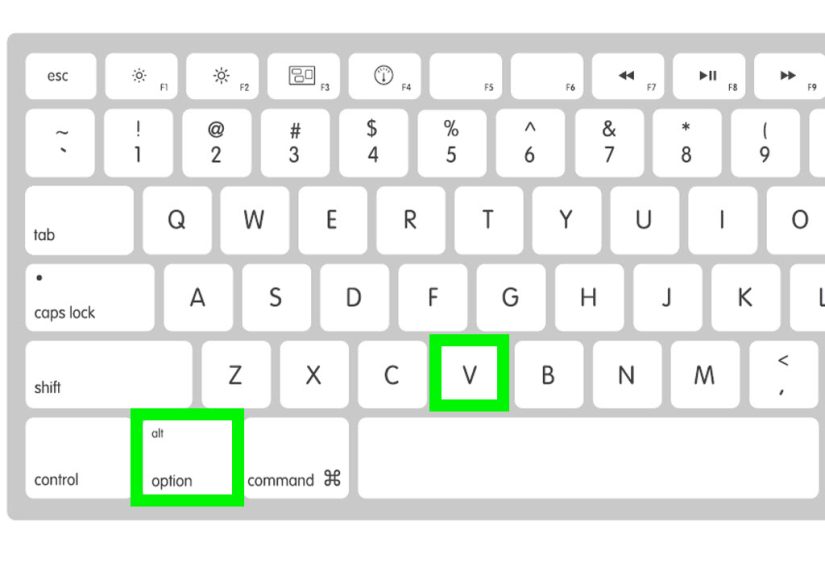
Way #1: Use the Fast Keyboard Shortcut on Mac (Option + V)
If you’re on a Mac, congratulations: Apple quietly gave you a shortcut that feels almost suspiciously convenient.
In many apps, you can type the square root symbol instantly with a simple key combo.
How to type √ on Mac
- Click where you want the symbol to appear.
- Hold Option (⌥).
- Press V.
- Release. Enjoy your brand-new √.
When Option + V doesn’t work (or does something weird)
- Different keyboard layout: Some layouts remap Option shortcuts. Try the Character Viewer method (Way #3) as a universal Mac fallback.
- External keyboard confusion: If you’re using a non-Apple keyboard, modifier keys can be mapped incorrectly. Check macOS keyboard settings for modifier keys.
- App-specific overrides: A few niche apps may override Option shortcuts. Again: Character Viewer saves the day.
Best for: Mac users who want the quickest possible way to type √ in everyday writing.
Way #2: Use Windows Alt Codes (Alt + 251 or Alt + 8730)
On Windows, the classic method is the Alt code: hold the Alt key and type a number on the numeric keypad.
It’s old-school, but it works in a lot of placesdocuments, email, notes, chat apps, and more.
How to type √ on Windows with Alt codes
- Click where you want the √ symbol to appear.
- Turn on Num Lock (if your keyboard has it).
-
Hold Alt and type one of these on the numeric keypad:
- Alt + 251 (common)
- Alt + 8730 (Unicode decimal value)
- Release Alt and the √ should appear.
Common Alt code problems (and how to fix them)
- No numeric keypad: Many laptops don’t have a dedicated numpad. Use Way #3 (Character Map) or Way #4 (app tools), or enable the On-Screen Keyboard.
- Top-row numbers don’t work: Alt codes typically require the numeric keypad, not the number row above letters.
- Different app behavior: Some apps handle Alt codes differently. If it fails, use the symbol picker methods.
Best for: Windows users with a full keyboard (or a numpad) who want a fast “no menus” shortcut.
Way #3: Use Built-In Symbol Pickers (Character Map on Windows, Character Viewer on Mac)
If shortcuts feel like secret handshakes you didn’t sign up for, use the built-in symbol pickers.
They’re slower than keyboard combos, but they’re extremely reliableand they don’t care whether your laptop has a numpad.
Windows: Character Map (visual + dependable)
- Open the Start menu and search for Character Map.
- Open it and select a common font like Arial or Segoe UI Symbol.
- Find the √ symbol (you can scroll, or use Advanced View if available and search “square root”).
- Click √, choose Select → Copy.
- Paste it into your document.
Windows bonus: the Symbols/Emoji panel
Windows 10/11 also offers a quick panel that includes math symbols. Try:
Win + . (Windows key + period), then go to Symbols and look under Math.
It’s like a snack drawer for special characterseverything is there, but you still have to rummage.
Mac: Character Viewer (works in almost everything)
- Click where you want the symbol.
- Press Control + Command + Space to open the Character Viewer.
- Search “square root” or browse math symbols.
- Double-click √ to insert it.
Best for: anyone who wants a universal method that works even when shortcuts fail.
Way #4: Use Your App’s Math Tools (Word, Google Docs, HTML, and More)
Sometimes you don’t just want the √ characteryou want a properly formatted radical with the bar stretching across the expression.
That’s where built-in equation editors and markup shortcuts shine.
Microsoft Word (and other Office apps): two easy options
Option A: Insert the symbol (quick character)
- Go to Insert → Symbol → More Symbols.
- Find √ (often under Mathematical Operators).
- Click Insert.
Option B: Use the Equation tool (proper math formatting)
- Press Alt + = to insert an equation (Word shortcut in many setups).
- Type
sqrtfollowed by a space. -
Example:
sqrt 9→ √9sqrt (x+1)→ √(x+1) (often formats with the bar correctly)
Google Docs: equation mode for “real” roots
- Go to Insert → Equation.
- Use the equation toolbar to pick a square root template, then type inside it.
- If you only need the character √ (not full formatting), you can still paste it from Character Map/Viewer or copy it from anywhere trustworthy.
Web/HTML: use entities when you need √ on a webpage
If you’re writing HTML (or a CMS that supports HTML entities), you have a few clean options:
√√(decimal)√(hex)
Pro tip: if you’re coding and want to be extra precise, remember the Unicode name: U+221A.
When to use app tools vs. typing the character
- Use the character √ for casual writing: “√2 is irrational” or “Use √ to denote a root.”
- Use equation tools when formatting matters: homework, reports, math-heavy docs, or anything where the radical bar should stretch over a full expression.
Best for: students, teachers, engineers, analysts, and anyone whose documents contain more math than small talk.
Quick Cheat Sheet
- Mac shortcut: Option (⌥) + V → √
- Windows Alt code (numpad): Alt + 251 → √
- Windows Alt code (Unicode decimal): Alt + 8730 → √
- Windows symbol panel: Win + . → Symbols → Math → √
- Windows Character Map: Search “Character Map” → copy √
- Mac Character Viewer: Control + Command + Space → search √
- Word equation: type
sqrtthen space - HTML:
√or√
Extra Tips for a Smoother “√ Life”
1) Keep a “frequently used symbols” note
If you type math symbols often (√, π, ±, ≤, ≥), keep a small note pinned somewhere with your most-used characters.
It’s not cheatingit’s efficiency with better branding.
2) Watch out for font weirdness
Most fonts display √ correctly, but some decorative fonts may not. If the symbol shows up as a blank box, switch to a standard font like Arial, Times New Roman,
Calibri, or another mainstream Unicode font.
3) Don’t confuse √ with “checkmark” vibes
The square root symbol can look like a checkmark’s academically ambitious cousin. If clarity matters, pair it with context: “√9” or “square root of 9.”
of Real-World “Square Root” Experiences (a.k.a. Why This Matters More Than You Think)
The first time most people go hunting for the square root symbol isn’t during an elegant math epiphany. It’s usually during a time-sensitive moment like:
a homework submission portal that closes in seven minutes, a spreadsheet that needs to look “professional,” or a group chat where someone says,
“Just take the square root,” as if that’s a casual life instruction like “drink more water.”
Picture the classic scene: you’re typing a quick explanationmaybe something like “the standard deviation is √(variance)”and you realize your options are:
(1) type the word “sqrt” and hope everyone politely pretends that’s fine, or (2) insert the actual √ symbol and feel like you’ve earned a tiny PhD in keyboarding.
Most of us pick option (2) after exactly one experience of being misunderstood.
Then there’s the laptop-without-a-numpad saga. Alt codes are fantasticuntil you discover your compact keyboard has the numeric keypad in spirit only.
Suddenly you’re squinting at keys, pressing Fn like it owes you money, and wondering whether the square root symbol is truly worth this emotional journey.
That’s when symbol pickers become your best friend. Character Map on Windows and Character Viewer on Mac aren’t glamorous, but they’re dependable.
They’re the “reliable coworker” of typing methods: not flashy, always on time, never dramatic.
Another surprisingly common moment: you’re writing something for the webmaybe a blog post, a lesson page, or a product description that includes a formulaand you need √
to render correctly everywhere. Copy/paste works… until it doesn’t. That’s when HTML entities like √ start to feel like a superpower.
You stop thinking “How do I type this?” and start thinking “How do I make this display correctly on every device?” which is the adult version of the same problem.
And finally, there’s the “math formatting versus math vibes” difference. In a quick email, √2 is perfect as plain text. In a formal report or a worksheet,
you want the radical bar stretching neatly across the expression like it means business. Equation tools in Word or Google Docs are ideal here.
They make your math look less like a hastily assembled puzzle and more like something that belongs in a textbook.
The point is: learning these four methods isn’t just about typing a symbol. It’s about removing friction from moments where you’re trying to communicate clearly.
Whether you’re a student, a teacher, an analyst, or someone who just wants to look unreasonably competent in a chat thread, knowing how to type √ is a tiny upgrade
that pays off over and over againlike buying a good phone charger, but for your brain.