Table of Contents >> Show >> Hide
- What Counts as an MMS on Android?
- 1. Block the Sender in Your Messaging App
- 2. Turn Off Auto-Download for MMS
- 3. Turn On Spam Protection and Report Junk MMS
- 4. Use Carrier-Level Blocking for Extra Protection
- Bonus Reality Check: If MMS Truly Stops Working, Mobile Data and APN Settings Matter
- Common Mistakes People Make When Trying to Block MMS on Android
- Final Thoughts
- Extra Experience: What I Learned the Hard Way About Blocking MMS on Android
There are few modern annoyances more impressive than an unwanted MMS on Android. It arrives with all the confidence of a party crasher, carrying a blurry image, a suspicious link, or a group-text invite you definitely did not RSVP to. One minute your phone is peaceful. The next minute it is trying to convince you that you have won a gift card, missed a package, or urgently need to click something that screams “terrible idea.”
The good news is that blocking multimedia messages on Android is usually easier than people think. The slightly less good news is that there is no single magic button called Make the nonsense stop forever. Android handles MMS through a mix of your messaging app, your carrier, and your phone’s network settings, so the smartest fix depends on what kind of MMS problem you are dealing with.
If you are getting picture-message spam from one number, blocking the sender works well. If random image texts keep showing up, spam filtering is the better move. If you do not want images and videos to load at all, turning off auto-download is your friend. And if the problem keeps slipping through, carrier-level blocking can add another layer of protection.
Below are four easy ways to block MMS on Android, plus the common mistakes people make when trying to clean up their inbox.
What Counts as an MMS on Android?
MMS stands for Multimedia Messaging Service. In normal-human language, it is the older texting system used for sending pictures, videos, audio clips, contact cards, and some group messages. Even in 2026, MMS still shows up because not every conversation runs over RCS, and not every sender is using the same app, phone, or carrier setup.
That matters because MMS behaves differently from plain SMS text messages. It often relies on mobile data, can trigger automatic downloads, and tends to be more annoying when spammers use it. A junk SMS is irritating. A junk MMS is irritating and dressed up with an image attachment like it is trying for extra credit.
1. Block the Sender in Your Messaging App
If the MMS messages are coming from a specific number, start here. Blocking the sender is the simplest and most direct fix. It does not require a new app, a carrier call, or a PhD in Android settings.
How it works
When you block a sender, your messaging app stops normal messages from that number from reaching your main inbox. On many Android phones, especially those using Google Messages or Samsung Messages, you can also report the number as spam at the same time.
How to do it
In Google Messages: open the conversation, tap the menu, open the details for the thread, and choose Block & report spam.
In Samsung Messages: open the thread, tap the menu, go to the conversation details, and block the number. On some Samsung phones, you can also report it as spam during the process.
Why this method works
This is the best choice when the same sender keeps bothering you. It is fast, clean, and targeted. Instead of trying to rework your whole phone, you remove the specific problem.
Best use case
Use this when you are getting repeated picture messages from one person, one scammer, or one number that keeps dragging you into group threads you never asked for.
The catch
Blocking one number does not stop a spammer from switching to a new number. That is why sender blocking is excellent for a specific nuisance, but not always enough for a full spam invasion.
2. Turn Off Auto-Download for MMS
This is the underrated move. If your problem is not just receiving MMS but having images, videos, or attachments load automatically, disabling auto-download is one of the smartest settings you can change.
With auto-download turned off, incoming MMS content does not immediately fetch itself in the background. Instead of your phone happily opening the door and carrying the package inside, it makes the message wait on the porch until you decide whether it is worth touching.
How to do it in Google Messages
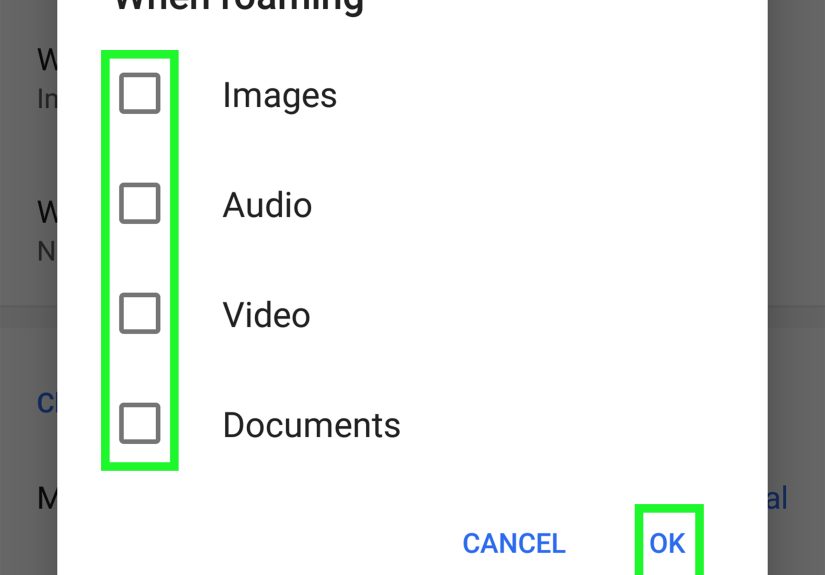
Open Google Messages, tap your profile icon, go to Settings, then Advanced, and turn off Auto-download MMS. You may also see a separate option for Auto-download MMS when roaming.
How to do it in Samsung Messages
Open Samsung Messages, tap the three-dot menu, go to Settings, then More settings, then Multimedia messages, and disable Download automatically.
Why this method works
If spam MMS messages contain junk images, shady previews, or surprise attachments, this setting puts you back in control. You will still know the message arrived, but you will not automatically pull down the content. That makes the inbox feel a lot less chaotic.
Best use case
Use this when you are getting random media-heavy messages, you want fewer automatic downloads, or you are tired of your phone acting far too trusting.
The catch
This does not fully block the message itself. It blocks the automatic retrieval of the media. So if your goal is “never let this sender near me again,” blocking the number is better. If your goal is “stop loading mystery pictures,” this setting is perfect.
3. Turn On Spam Protection and Report Junk MMS
Android has gotten better at recognizing garbage before it takes over your inbox. If your phone uses Google Messages, spam protection can help flag suspicious messages, and reporting a conversation as spam can block the sender and move the conversation into the Spam & blocked folder.
This is especially useful when the spam feels repetitive, obviously scammy, or weirdly dramatic. You know the type: “Final notice.” “Urgent action required.” “Free prize.” “Definitely not a scam, trust us.” Very subtle stuff.
How to turn on spam protection
Open Google Messages, tap your profile icon, go to Messages settings, then Protection & Safety or Spam protection, and make sure the feature is enabled.
How to report spam MMS
Open the conversation, tap the menu, go to the conversation details, and select Block & report spam. That both blocks the sender and helps improve spam detection. For many users in the United States, you can also forward suspicious messages to 7726 so your carrier can investigate.
Why this method works
Unlike simple blocking, spam reporting helps the system learn from what you are seeing. It is not just defensive; it is slightly revenge-adjacent, which is emotionally satisfying.
Best use case
Use this when the sender is obviously a spammer, the MMS contains suspicious links, or you keep getting promotional junk from unknown numbers.
The catch
Spam filters are helpful, not magical. Some junk messages will still sneak through, and sometimes a legitimate message can get flagged. So think of spam protection as a strong screen door, not a castle moat full of alligators.
4. Use Carrier-Level Blocking for Extra Protection
If app-level blocking is not enough, go one layer higher. Your carrier may offer built-in tools to block calls and messages, filter spam, or manage unwanted texting activity at the account level. This is especially useful if the same kind of spam keeps resurfacing from different numbers.
What this looks like in real life
Verizon offers account-level blocking tools and spam features through My Verizon and related services.
T-Mobile offers Scam Shield tools and related blocking features that can help reduce unwanted texts and calls.
AT&T points users to both device-based blocking and account-level options depending on the phone and plan.
Why this method works
Carrier-level tools can catch junk before it becomes your problem. Instead of relying only on your phone app, you add another filter upstream. That is useful when spammers rotate numbers, send mass messages, or keep finding creative new ways to be annoying.
When to use it
Use this if:
- You keep getting MMS spam from multiple numbers.
- You are managing a family line and want stronger controls.
- You want help from both your phone and your carrier.
- Your inbox feels like it has been personally targeted by chaos.
The catch
Carrier tools vary a lot. Some are free, some are temporary, some only block a limited number of senders, and some require specific apps or account access. So this method is powerful, but not always identical from one provider to another.
Bonus Reality Check: If MMS Truly Stops Working, Mobile Data and APN Settings Matter
This is not one of the four main methods, but it is important. MMS generally depends on mobile data and correct APN settings. That means if mobile data is off, or your APN settings are broken, MMS may fail to send or download at all.
That sounds annoying when you want a legitimate picture message. But it also explains why some people accidentally “block” MMS without realizing it. If you temporarily disable mobile data, MMS often cannot come through properly. It is a blunt instrument, not an elegant fix, but it helps explain why MMS behaves differently from ordinary texts.
So if your real goal is temporary MMS shutdown, this can work in a pinch. Just do not forget why your family photos stopped arriving later.
Common Mistakes People Make When Trying to Block MMS on Android
1. Deleting messages instead of blocking the sender
Deleting a conversation cleans up the screen, but it does not stop the next message. It is housekeeping, not protection.
2. Assuming SMS and MMS behave the same way
They do not. MMS often relies on mobile data, can carry media, and may have separate download settings. Treating it like plain SMS is where confusion begins.
3. Forgetting about group messages
Some group conversations still fall back to MMS, especially when RCS is not available. If a group thread keeps becoming a circus, blocking the specific participants or muting the thread may be part of the fix.
4. Ignoring the carrier layer
Your messaging app is not your only defense. If spam is persistent, your carrier may offer a stronger solution than endless manual blocking.
5. Tapping links before thinking
Never let curiosity do something your common sense already vetoed. If an MMS message looks suspicious, do not open links, do not reply impulsively, and do not treat urgency as proof of legitimacy.
Final Thoughts
If you want to block MMS on Android, the best strategy is usually a mix of tools rather than one dramatic fix. Start by blocking the sender if the problem comes from a specific number. Turn off auto-download if you want more control over attachments. Enable spam protection and report junk if the messages are clearly spam. And if the nonsense keeps slipping through, bring your carrier into the fight.
In other words, Android gives you several solid ways to tame multimedia message chaos. You do not need to accept every mystery image, random group invite, or sketchy promo blast as the natural order of digital life. Your phone is allowed to be a phone again, not an open-door policy for every scammer with a blurry JPEG.
Extra Experience: What I Learned the Hard Way About Blocking MMS on Android
The first time I seriously dealt with MMS spam on Android, I made the classic mistake: I kept deleting the messages and hoping the problem would somehow get bored and leave. It did not. The messages kept coming like they were on payroll. Some were fake shipping alerts, some were random images, and a few were those bizarre group texts where nobody knows anybody and yet everyone is somehow trapped together in the same digital elevator.
At first, I thought the solution had to be dramatic. Maybe I needed a new app. Maybe I needed to change my number. Maybe I needed to move into the woods and communicate only through handwritten notes. In reality, the fix was much less dramatic and much more practical.
Blocking individual senders helped immediately when the same number kept showing up. That gave me a quick win. But the real turning point came when I realized that blocking one spammer is not the same thing as controlling the whole MMS experience. Once I turned off auto-download, the tone of the problem changed. Suddenly my phone was not eagerly pulling in every random attachment the second it arrived. That one setting made my inbox feel calmer, because I was no longer being ambushed by content I never asked to see.
Spam reporting also mattered more than I expected. Before that, I treated spam buttons like decorative features that existed mostly to make software menus look busy. But using them actually made the app more organized. Suspicious threads moved out of the way, blocked senders stayed blocked, and the inbox stopped feeling like a junk drawer.
The other lesson was that carriers still matter, even when it feels like everything is controlled by apps now. Messaging on Android is still partly a carrier story, especially with MMS. Once I understood that, I stopped assuming the phone alone had to solve every problem. Looking at carrier tools made the whole setup feel less random and more manageable.
What surprised me most was how much stress came from not understanding the difference between SMS, MMS, and spam filtering. Once I knew what each setting actually did, the problem felt smaller. Not fun, exactly. But smaller. And that is often the hidden trick with Android settings: half the battle is not finding a secret button. It is understanding which annoying thing you are trying to stop in the first place.
So, from experience, here is the simplest takeaway: do not rely on just one fix. Block the obvious offenders. Turn off automatic MMS downloads if random attachments are the issue. Report spam when it deserves the label. And remember that your carrier may be part of the answer. Once you layer those tools together, Android becomes much better at acting like a smart phone and much worse at acting like a billboard for nonsense.