Table of Contents >> Show >> Hide
- First: What “Hide” Really Means on Messenger (No, It’s Not a Cloak of Invisibility)
- Quick Comparison: Which Option Should You Use?
- 1) Archive the Chat (The “Clean Desk” Move)
- 2) Restrict a Conversation (The “Put It in the Quiet Corner” Move)
- 3) Lock It Down: Hide Previews + Add App Lock (The “Stop the Snoops” Move)
- Bonus Tips (Quick, Practical, and Not Weird)
- Conclusion: Pick the Tool That Matches the Situation
- Real-World Experiences: of “Oh, That’s How It Works”
Your phone is basically a pocket-sized loudspeaker for your private lifeunless you teach it some manners.
Whether you’re planning a surprise party, talking to a doctor’s office, juggling work messages, or you just don’t
want your group chat’s chaos greeting you like a confetti cannon every time you open Messenger, “hiding” a
conversation can be a simple (and totally normal) privacy move.
The good news: you don’t have to delete anything or go full spy-movie. Facebook Messenger has a few built-in
tools that let you tidy, tuck away, and protect chats in ways that are quick, reversible, and low drama.
Below are three easy methodsplus when each one is the best fit.
First: What “Hide” Really Means on Messenger (No, It’s Not a Cloak of Invisibility)
Before we jump in, let’s set expectations. “Hiding” a chat usually means one of these:
- Out of sight in your chat list: The conversation isn’t sitting front-and-center in your inbox.
- Less exposure on your screen: Notifications and previews don’t spill the tea on your lock screen.
- Harder to snoop: You add an extra step (like Face ID) so someone can’t casually open Messenger.
What it does not mean: the other person can’t see the conversation, screenshots can’t happen, or the internet
police will forget everything. If someone else has the messages, they still have them. These tools are about
privacy and control on your deviceespecially helpful if you share your phone, leave it unattended,
or just want a cleaner inbox.
Quick Comparison: Which Option Should You Use?
| Method | Hides from main chat list | Stops notifications | Best for |
|---|---|---|---|
| Archive | Yes | No (usually) | Decluttering & temporary hiding |
| Restrict | Yes | Yes (typically) | Quiet boundaries, spammy contacts, low-conflict distancing |
| App Lock + Notification Preview Control | Not necessarily | You choose | Stopping snoops on shared devices & hiding message previews |
1) Archive the Chat (The “Clean Desk” Move)
Archiving is the simplest way to hide a Messenger conversation without deleting it. Think of it like sliding a
folder into a drawer. It’s still there. It’s just not staring at you every time you open the app.
What archiving does (and doesn’t) do
- It removes the chat from your main Chats list.
- It doesn’t delete messages. Nothing is erased.
- It’s reversible. You can unarchive anytime.
- Heads up: Depending on your app version/device, the exact button names and steps may vary.
How to archive a conversation
- Open Messenger and go to your Chats list.
- Find the conversation you want to hide.
-
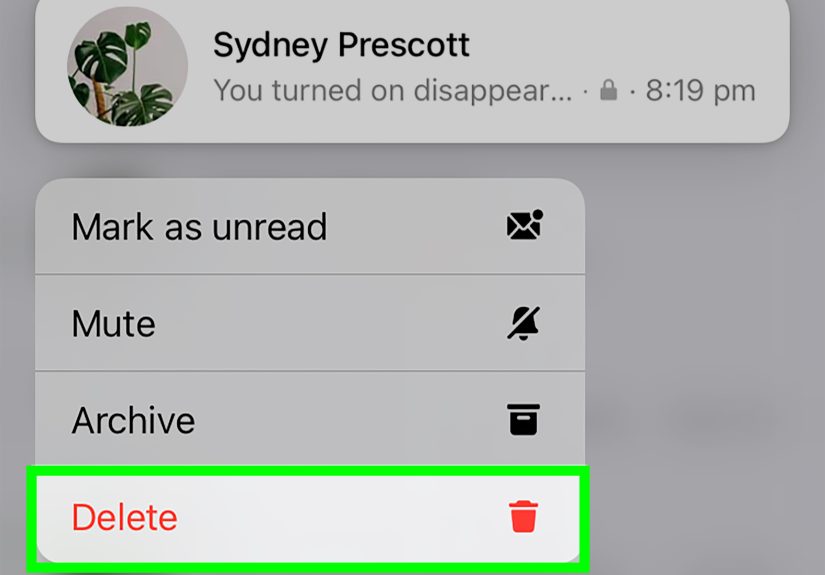
On most phones, press and hold the chat thread (or swipe, depending on your device),
then choose Archive. - The chat disappears from your main listlike magic, but with fewer rabbits.
How to find (and unarchive) an archived chat
You have two easy ways to bring it back:
- Search: Use the search bar, type the person’s name, and open the chat.
- Archive folder: In some Messenger layouts, you can open the menu and find an Archive section.
Once you open the archived chat, it may stay archived until there’s new activityor it may return to your main list
depending on how Messenger is behaving on your device. (Messenger: helpful, but occasionally dramatic.)
When archiving is the best choice
- You want a cleaner inbox without losing anything.
- You’re saving conversations you rarely need (old projects, past travel plans, that group chat that peaked in 2022).
- You want privacy from casual glances, not a full “hands off my phone” security setup.
2) Restrict a Conversation (The “Put It in the Quiet Corner” Move)
Restrict is a privacy and boundary feature. It’s useful when you don’t want to block someone (which can escalate
things), but you also don’t want their messages taking up spaceor grabbing your attention with notifications.
What Restrict is designed to do
While details can vary by version, the core idea is consistent: restricting someone limits how their messages show
up for you and reduces how much info they can glean about your activity. It’s the digital equivalent of putting a
chat on “Do Not Disturb,” but with extra distance.
How to restrict someone from your chat list
- Open Messenger and go to Chats.
- Press and hold the conversation with the person you want to restrict.
- Tap Restrict.
How to manage restricted conversations later
If you ever need to find or reverse it, look in Messenger’s privacy/safety settings for a section like
Restricted accounts (wording may vary). From there, you can view restricted chats and choose to
unrestrict.
When Restrict is the best choice
- You want the chat out of your main list and want fewer interruptions.
- You’re dealing with someone annoying, pushy, spammy, or just exhaustingwithout wanting the blowback of blocking.
- You want to keep things calm while you decide what boundaries you actually want.
Mini-example
Let’s say you’ve got a class group chat that’s useful twice a weekand chaos the other 98% of the time.
You don’t want to leave (because you need the homework reminder), but you also don’t want 47 notifications
about whether “the quiz is open-book” at 1:12 a.m. Restricting the loudest thread can give you breathing room.
3) Lock It Down: Hide Previews + Add App Lock (The “Stop the Snoops” Move)
If your goal is “I don’t want anyone who picks up my phone to see my messages,” archiving alone won’t cut it.
The most effective (and still easy) approach is to do two things:
turn off message previews and lock Messenger.
A) Turn off message previews in Messenger notifications
Messenger can let you control whether notifications show a preview of your message content. Turning previews off
means someone might see “New message” but not the actual text.
- Open Messenger and go to Settings (usually from your profile/menu icon).
- Tap Notifications & sounds.
- Toggle Notification previews (or similar) off.
B) Hide previews at the phone level (stronger privacy)
Your phone’s operating system can also hide notification contenteven if an app tries to show it.
This is especially useful if you use multiple messaging apps and want one consistent privacy rule.
On iPhone
- Go to Settings > Notifications.
- Tap Show Previews.
- Select When Unlocked or Never.
On Android
- Open Settings > Notifications.
- Look for a privacy option such as Sensitive notifications on the lock screen.
- Turn sensitive content off (wording varies by device).
C) Turn on Messenger’s App Lock (Face ID / fingerprint)
App Lock adds a simple barrier: even if someone has your phone, they can’t open Messenger without your face,
fingerprint, or device authentication. It’s one of the easiest upgrades you can make for real privacy.
- Open Messenger and go to Privacy or Privacy & safety (names vary).
- Find App Lock.
- Turn it on and choose how quickly Messenger should lock after you leave the app.
When this “lock it down” method is the best choice
- You share your device with family, roommates, or friends who “just need to borrow it for one second.”
- You don’t want message content appearing on your lock screen in public.
- You want privacy without reorganizing your entire Messenger inbox.
Bonus Tips (Quick, Practical, and Not Weird)
- Update Messenger regularly: Privacy features move around sometimes, and updates help keep options consistent.
- Use a strong phone passcode: App Lock is great, but it’s not a substitute for securing your whole device.
-
If you’re being harassed: Messenger also supports blocking and reporting. Privacy tools help,
but safety comes first.
Conclusion: Pick the Tool That Matches the Situation
If you want the simplest “get this out of my face” solution, Archive is your best friend.
If you want space from someone without starting a social earthquake, Restrict is the calm option.
And if you’re protecting your privacy on a shared device, the real MVP is
turning off previews and enabling App Lock.
You don’t need to treat your chats like classified documentsbut you also don’t have to let your lock screen be
the town crier for your personal life. A few taps can keep your Messenger conversations where they belong:
with you.
Real-World Experiences: of “Oh, That’s How It Works”
Most people don’t go looking for “how to hide conversations on Facebook Messenger” because they’re trying to be
mysterious. They look it up after the exact same moment happens: someone’s eyes wander to your screen at the wrong
time. Maybe it’s a friend leaning over during lunch, a sibling grabbing your phone “to check the time” (sure, buddy),
or a coworker catching a notification preview that definitely wasn’t meant for office consumption. The common lesson?
Privacy isn’t dramaticit’s practical.
Archiving is usually the first trick people fall in love with because it feels like cleaning your room by shoving
everything into the closet. The floor looks amazing. Your brain relaxes. Thenplot twista new message arrives and
the chat pops back up. That’s not a failure; that’s just Messenger doing what it does. In real life, archiving works
best when you’re trying to reduce clutter, not permanently bury a conversation. It’s perfect for old plans, finished
projects, or group chats that only matter when someone says, “What time are we meeting?”
Restrict tends to be the “I need peace but I’m not trying to start a war” move. People discover it after they’ve
tried muting notifications and still feel annoyed seeing a name they’re not ready to deal with. Restrict is helpful
in those situations where blocking would create bigger problemslike a pushy acquaintance, a chatty relative, or an
ex-friend you’d rather not re-litigate your entire history with at 11 p.m. It quietly reduces contact, keeps the chat
from dominating your list, and gives you time to decide what you actually want.
The biggest “why didn’t I do this sooner?” upgrade, though, is hiding notification previews and enabling App Lock.
This is where people go from “my inbox is messy” to “my device is mine.” Notification previews are the #1 way private
info leaks accidentallyverification codes, medical updates, sensitive plans, you name it. Turning previews off is
like putting your messages in an envelope instead of yelling them across a room. Add App Lock, and suddenly “borrowing
your phone” doesn’t automatically include “touring your Messenger like it’s a museum exhibit.”
The most relatable experience is realizing you can mix and match. Archive the harmless clutter. Restrict the
conversations that stress you out. Lock down the app so nobody gets a sneak peek. That combo is the sweet spot for
everyday privacyno paranoia, no deleting memories, just better control of what shows up where. Because the goal
isn’t to hide your life; it’s to stop your lock screen from acting like it has its own podcast.