Table of Contents >> Show >> Hide
- What Is Wi-Fi Direct, Anyway?
- When Wi-Fi Direct Comes in Handy
- How Wi-Fi Direct Works (Without the Jargon Overload)
- How to Use Wi-Fi Direct on Android
- Using Wi-Fi Direct on Windows 10 and Windows 11
- Wi-Fi Direct vs Bluetooth vs Mobile Hotspot
- Security Tips for Using Wi-Fi Direct
- Troubleshooting Common Wi-Fi Direct Problems
- Real-World Experiences with Wi-Fi Direct
- Conclusion
Imagine all the speed of Wi-Fi, but without the router, the long network name,
and the password you keep forgetting. That’s Wi-Fi Direct. It lets devices talk
to each other directly, so you can send huge files, mirror your screen, or print
wirelessly without ever touching your home network settings.
In this guide, you’ll learn what Wi-Fi Direct is, how it works behind the scenes,
how to use it on Android phones and Windows laptops, and how to keep things safe
while you enjoy fast, cable-free connections.
What Is Wi-Fi Direct, Anyway?
Wi-Fi Direct is a standard that lets two (or more) devices connect directly to
each other using Wi-Fi radio, without going through a traditional wireless router
or access point. Instead of joining “MyHomeNetwork-5G,” your phone and laptop
form their own mini network and talk one-on-one.
Under the hood, one device temporarily acts like a tiny software access point
(often called a soft AP or group owner),
and the other device connects as a client. This setup uses the same Wi-Fi
technology you already know but in a peer-to-peer way, similar in spirit
to Bluetoothjust faster and with better range.
The big benefits of Wi-Fi Direct include:
- No router needed: Great when you’re away from home or don’t want to expose your main Wi-Fi network.
- High speed: Uses standard Wi-Fi (like 802.11n/ac/ax), so it’s much faster than Bluetooth for big files.
- Good range: Works across a room or even through a wall or two, depending on your devices.
- Flexible uses: File sharing, screen mirroring, wireless printing, gaming, and more.
When Wi-Fi Direct Comes in Handy
1. Super-fast phone-to-phone file sharing
Need to send a 2 GB video to your friend who’s standing right next to you?
Wi-Fi Direct-based sharing apps can create a direct link between your phones so
the file flies across quickly, without using your data plan or cloud storage.
2. Screen mirroring and casting
Many “wireless display” or “cast screen” features rely on Wi-Fi Direct in the
background. When you mirror your laptop to a smart TV or your Android phone to
a streaming stick, Wi-Fi Direct often handles the heavy lifting: discovering the
device, connecting securely, and streaming your video and audio.
3. Wireless printing and scanning
Modern printers frequently support Wi-Fi Direct. Instead of putting the printer
on your home network (and worrying about who else can see it), your phone or
laptop can connect straight to the printer’s built-in Wi-Fi Direct signal and
send documents securely.
4. Gaming and smart gadgets
Some multiplayer mobile games and smart home gadgets use Wi-Fi Direct for
quick, low-latency connections. It’s handy when you want direct communication
between devices without messing up your main Wi-Fi.
How Wi-Fi Direct Works (Without the Jargon Overload)
Here’s the simple version of what happens when two Wi-Fi Direct devices connect:
- Discovery: Devices scan for peers that support Wi-Fi Direct (sometimes called Wi-Fi P2P).
- Negotiation: They decide who will act as the “group owner” (the soft AP) and who will be the client.
- Secure setup: A protected setup process (similar to Wi-Fi Protected Setup) is used to exchange keys and configure security.
- Encrypted connection: The connection typically uses WPA2 or WPA3-level security so your traffic is encrypted.
- Data transfer: Once connected, apps can send files, audio, video, or other data at regular Wi-Fi speeds.
The nice part? You rarely see any of this. Your device usually just shows a list
of nearby devices or a “Connect” button, and everything else happens in the
background.
How to Use Wi-Fi Direct on Android
Most modern Android phones support Wi-Fi Direct, although the menu location can
vary slightly depending on the manufacturer and Android version. Here’s a
general walkthrough.
Step 1: Check if your phone supports Wi-Fi Direct
Open Settings > Connections or Network & Internet,
then tap Wi-Fi. Look for an option called
Wi-Fi Direct, Wi-Fi P2P, or similar in the Wi-Fi menu
or the three-dot “More” menu. If you see it, your phone supports the feature.
Step 2: Turn on Wi-Fi (even without a router)
Wi-Fi Direct still uses your Wi-Fi radio, so Wi-Fi must be switched on. Don’t
worry if you’re not connected to a networkWi-Fi Direct doesn’t require internet
access.
Step 3: Find and connect to another device
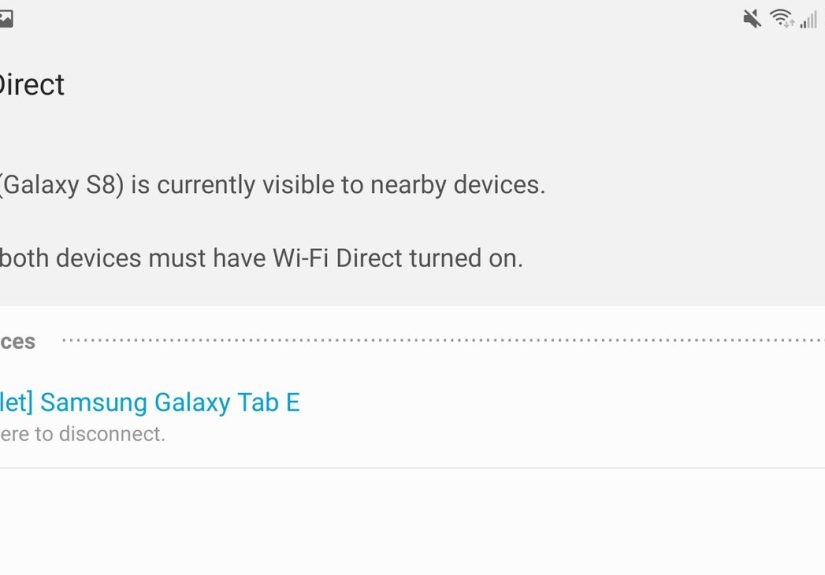
On both devices:
- Open the Wi-Fi Direct screen.
- Wait for the devices to detect each other.
- Tap the device name you want to connect to and confirm the connection on the other side.
Once connected, the devices form a direct peer-to-peer group. You might see a
quick confirmation like “Connected via Wi-Fi Direct.”
Step 4: Send files using a Wi-Fi Direct-aware app
The Wi-Fi Direct connection is the “highway,” but you still need an app to drive
the car. Many file-sharing apps, gallery apps, and device-to-device transfer
tools include a Wi-Fi Direct mode.
In most apps, the flow looks like this:
- Open the app on both devices.
- On the sending device, tap Share and choose the Wi-Fi Direct or “send to nearby device” option.
- Select the receiving device from the list.
- On the receiving device, tap Accept when prompted.
The transfer will use your Wi-Fi Direct link instead of mobile data or cloud
storage. You’ll usually see much higher speeds than Bluetooth, especially for
large photos and videos.
Step 5: Disconnect when you’re done
After the transfer, you can go back to the Wi-Fi Direct menu and
disconnect the device if it doesn’t disconnect automatically. This is good
practice for battery life and security.
Using Wi-Fi Direct on Windows 10 and Windows 11
On Windows laptops and desktops, Wi-Fi Direct is often used behind the scenes
for wireless displays, Miracast, and certain file-sharing tools. You don’t
usually see a big button labeled “Wi-Fi Direct,” but the feature is there if
your Wi-Fi adapter and drivers support it.
Project your screen wirelessly (Miracast)
Many TVs, streaming devices, and wireless display adapters can act as Wi-Fi
Direct receivers for Miracast. To use it:
- Make sure your TV or streaming device is on and in screen mirroring or wireless display mode.
- On your Windows 10/11 PC, press Windows + K or open Settings > System > Display and click Connect to a wireless display (or Project > Connect).
- Select your TV or adapter from the list.
- Confirm the connection request on the TV if prompted.
Behind the scenes, your PC and the display negotiate a Wi-Fi Direct connection
and start streaming video over that private link.
Use Wi-Fi Direct-capable printers and devices
If your printer supports Wi-Fi Direct:
- Turn on Wi-Fi Direct in the printer’s menu (it may display its own network name and password).
- On your Windows PC, open Settings > Network & Internet > Wi-Fi and connect directly to that printer network.
- Go to Settings > Bluetooth & devices > Printers & scanners and add the printer if needed.
Some printers hide all this complexity by letting the driver or app handle the
Wi-Fi Direct link automatically when you choose the printer, so your experience
may be even smoother.
Wi-Fi Direct vs Bluetooth vs Mobile Hotspot
Not sure when to pick which? Here’s a quick comparison:
- Bluetooth: Great for small files, earbuds, keyboards, and mice. Low power, but slower and shorter-range than Wi-Fi Direct.
- Wi-Fi Direct: Ideal for big files, screen mirroring, and high-bandwidth tasks between two devices. Faster and longer-range than Bluetooth.
- Mobile hotspot: Best when multiple devices need internet access. Your phone becomes a router, and traffic may use your data plan.
If you just need a quick, fast, local connection with no internet required,
Wi-Fi Direct is usually the sweet spot.
Security Tips for Using Wi-Fi Direct
Wi-Fi Direct can be very secure, but like any wireless tech, it depends on how
you use it. Keep these best practices in mind:
- Only connect with devices you trust. Treat a Wi-Fi Direct connection like plugging in a USB drivedon’t accept random requests.
- Use strong passwords when prompted. If a printer or gadget gives you the option to set a passphrase, choose something long and unique.
- Disable Wi-Fi Direct when you’re not using it. Leaving it on 24/7 can create an unnecessary attack surface, especially on shared printers or TVs.
- Keep your devices updated. Firmware and OS updates often include security fixes for wireless features.
- Avoid sensitive transfers on public devices. Don’t share private files via Wi-Fi Direct to devices you don’t own or fully control.
Used thoughtfully, Wi-Fi Direct gives you fast, encrypted connections without
exposing your entire home network.
Troubleshooting Common Wi-Fi Direct Problems
“I don’t see the other device”
- Make sure Wi-Fi is turned on for both devices.
- Confirm that both devices support Wi-Fi Direct (older hardware may not).
- Move the devices closer together and away from thick walls or heavy interference.
- Turn Wi-Fi off and back on, or restart both devices to reset the radio.
“The connection keeps dropping”
- Check for system updates on both devicesdriver or firmware updates often improve stability.
- Avoid crowded channels: if your router, TV, and laptop are all blasting on the same band, interference can cause disconnects.
- Stay within a reasonable range; Wi-Fi Direct is strong, but it’s not magic.
“Screen mirroring stutters or lags”
- Close other heavy network tasks on your PC or TV (like large downloads).
- Try lowering the resolution of the mirrored display if possible.
- Keep the devices in line-of-sight to minimize interference.
“I connected… now what?”
Remember: Wi-Fi Direct is just the connection. To actually do something
usefulsend a file, mirror your screen, or play mediayou need an app or OS
feature designed to use that connection. Check the sharing options in your file
manager, gallery, or dedicated transfer app.
Real-World Experiences with Wi-Fi Direct
On paper, Wi-Fi Direct sounds like futuristic magic. In real life, it’s more
like that friend who’s brilliant but sometimes a bit moodywhen it works, it’s
fantastic; when it doesn’t, you learn a few things.
One of the most common ways people meet Wi-Fi Direct is through
screen mirroring. Maybe you’ve been in this situation: it’s movie
night, you’ve found the perfect video on your laptop, and five people are
hovering around the 13-inch screen. Someone suggests, “Can’t you just cast it to
the TV?” This is exactly where Wi-Fi Direct shines. Your Windows laptop or
Android phone discovers the TV, you tap the name, and suddenly your show is up
on the big screen without a single cable. The first time this works smoothly,
it feels like cheating.
Another common scenario is last-minute file sharing. Picture
yourself at a work meeting or in a classroom. Everyone needs a large presentation
file or a folder of high-resolution photos. Email is too slow and cloud uploads
are crawling because the Wi-Fi is overloaded. Using a Wi-Fi Direct-based sharing
app, one person becomes the “host,” everyone else connects, and the files shoot
across at full Wi-Fi speed. It’s a great reminder that not every transfer has to
touch the internet to be fast and reliable.
Wi-Fi Direct is also surprisingly helpful for printer emergencies.
If you’ve ever tried to get a guest’s laptop onto your home network just so they
can print a single boarding pass, you know the pain. With a Wi-Fi Direct-enabled
printer, you can often skip the network entirely. Your guest connects directly
to the printer’s Wi-Fi Direct signal, prints what they need, and disconnects.
Your main Wi-Fi password stays private, and they still get their document.
That said, Wi-Fi Direct isn’t perfect. One frustration people run into is that
the feature can feel hidden. On many Android phones, it’s buried
a couple of taps deep in the Wi-Fi menu. On Windows, you almost never see the
words “Wi-Fi Direct” even though it’s there under the hood. Instead, it shows up
as “wireless display,” “cast,” or as a quiet helper used by apps. Once you
realize that these features are actually powered by Wi-Fi Direct, it’s easier to
know where to look when something doesn’t work.
There are also some security lessons that come from experience.
For example, leaving Wi-Fi Direct permanently enabled on a shared office printer
can create a door you forget aboutuntil someone you didn’t intend is able to
connect. Many IT teams now disable Wi-Fi Direct on printers that don’t need it,
or set strong passwords and restrict who can use it. At home, it’s smart to turn
off Wi-Fi Direct on your TV or gadgets when you’re not using it, especially if
you live in a dense apartment building where many devices can see each other.
From a battery perspective, heavy Wi-Fi Direct use can drain phones faster than
you’d expectespecially if your device is acting as the group owner. You may
notice your phone getting warm during big file transfers or extended screen
mirroring sessions. The fix is simple: plug in if you’re going to mirror for a
long time, and disconnect when you’re done. It’s the wireless equivalent of
remembering to hang up the phone instead of leaving the call open all day.
Over time, users who get comfortable with Wi-Fi Direct tend to treat it like a
Swiss Army knife for connectivity. Need to move huge videos?
Use Wi-Fi Direct instead of clogging your cloud storage. Want to share your
screen during a casual gathering or quick meeting? Cast it over a direct
connection. Need a printer or device to talk to your phone without handing out
your main Wi-Fi password? Let Wi-Fi Direct handle the handshake. Once you see
how flexible it is, you’ll start noticing opportunities to use it everywhere.
The main takeaway from real-world use is this: Wi-Fi Direct is most powerful
when you remember three thingsuse it locally, use it
intentionally, and use it with trusted devices.
If you do that, it becomes one of those quiet features that you reach for often
and brag about occasionally, like knowing the perfect keyboard shortcut at the
perfect time.
Conclusion
Wi-Fi Direct gives you the speed and range of Wi-Fi without the hassle of a
shared network. Whether you’re mirroring your screen, sending big files, or
printing in a pinch, it’s a powerful tool to have in your wireless toolbox. Use
it with trusted devices, keep your software updated, switch it off when you’re
done, and you’ll enjoy fast, flexible, and secure connections almost anywhere.