Table of Contents >> Show >> Hide
- Why WhatsApp Photos Do Not Always Appear in Gallery
- The Quick Answer
- Method 1: Save WhatsApp Photos to Android Gallery Automatically
- Method 2: Save a Single WhatsApp Photo Manually
- Method 3: Save Photos From One Chat but Not Every Chat
- Where Saved WhatsApp Photos Usually Live on Android
- How to Fix WhatsApp Photos Not Showing in Gallery
- How to Back Up WhatsApp Photos in Google Photos
- Smart Privacy and Storage Tips
- Common Questions About Saving WhatsApp Photos on Android
- Real-World Experiences With Saving WhatsApp Photos to Android Gallery
- Conclusion
Trying to save photos from WhatsApp to your Android Gallery should be easy. In theory, it is. In practice, it sometimes feels like your phone and WhatsApp had a private meeting and decided not to tell you where your pictures went. One minute the photo is right there in your chat, looking smug. The next minute you open Gallery and find absolutely nothing except old screenshots, three blurry receipts, and a meme from 2022 that somehow refuses to die.
The good news is that saving WhatsApp photos to your Android Gallery is usually simple once you know which settings matter. The trick is understanding that Android treats downloading a photo, showing it in Gallery, and backing it up as related but different things. If one of those switches is off, your photos may exist, but not where you expect them.
In this guide, you will learn how to save photos from WhatsApp to your Android Gallery automatically, how to save individual images manually, how to make one chat behave differently from another, and how to fix common problems when your pictures refuse to show up. We will also cover privacy, storage, backup, and real-world experiences so your Gallery does not become a digital junk drawer.
Why WhatsApp Photos Do Not Always Appear in Gallery
Before jumping into the steps, it helps to know what is happening behind the scenes. On Android, two WhatsApp settings usually control this experience:
- Auto-download settings, which decide whether photos are downloaded to your phone at all.
- Media visibility, which decides whether downloaded media appears in your Gallery app.
That means a photo can be received in WhatsApp but not downloaded. Or it can be downloaded but hidden from your Gallery. Or it can appear locally in Gallery but still not back up to Google Photos. It is a three-step dance, and sometimes one dancer just wanders off.
The Quick Answer
If you want WhatsApp photos to appear in your Android Gallery, do this:
- Open WhatsApp.
- Tap the three-dot menu in the upper-right corner.
- Go to Settings > Chats.
- Turn Media visibility on.
- Then go to Settings > Storage and data.
- Under the auto-download options, allow Photos to download on Wi-Fi, mobile data, or both, depending on your preference.
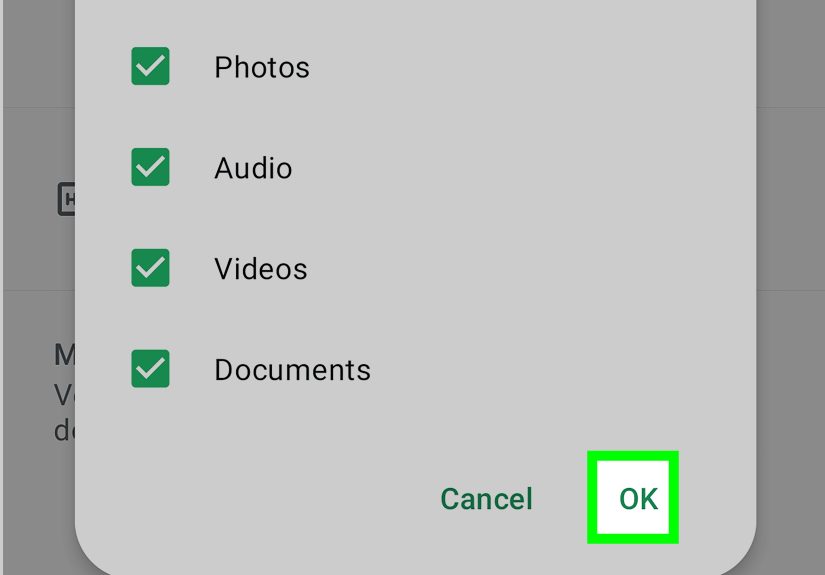
- Make sure your phone has available storage and that WhatsApp has permission to access media.
That combination usually solves the problem. If you only need one image, you can also save a single photo manually without letting every group chat flood your Gallery like a confetti cannon.
Method 1: Save WhatsApp Photos to Android Gallery Automatically
Turn on Media Visibility
This is the setting that tells WhatsApp whether newly downloaded media should appear in your phone’s Gallery app. If it is off, your photos may still exist on the device, but they may not show up where you expect.
- Open WhatsApp.
- Tap the three-dot menu.
- Select Settings.
- Tap Chats.
- Turn Media visibility on.
That is the master switch for Gallery visibility on Android. If this is off, your phone is basically saying, “Sure, I downloaded the photo, but I am going to keep it mysterious.”
Allow Auto-Download for Photos
Now make sure WhatsApp is actually downloading the photos you receive.
- In WhatsApp, go to Settings.
- Tap Storage and data.
- Open the sections for When using mobile data, When connected on Wi-Fi, and When roaming.
- Choose whether Photos should download automatically under each condition.
If you want the easiest setup, enable photo downloads on Wi-Fi and mobile data. If you want to be a little kinder to your data plan and your sanity, use Wi-Fi only. Your family group chat does not need to spend your monthly data allowance on twenty-four nearly identical birthday cake pictures.
Test It With a Fresh Image
After enabling both settings, ask a friend to send a photo or open a recent image that still has a download icon and download it. Then check your Gallery app. Depending on your phone brand, the album may be labeled WhatsApp Images, Photos on device, Albums, or something equally dramatic.
Method 2: Save a Single WhatsApp Photo Manually
Automatic saving is convenient, but it can also turn your Gallery into a flea market of memes, event posters, random coupons, and blurry screenshots from people who seem allergic to cropping. If you only want to keep a few important images, manual saving is the better option.
- Open the chat that contains the photo.
- Tap the image to open it.
- Tap and hold the photo, or use the menu options in the image view, depending on your phone.
- Select Save if that option appears.
This is a smart way to save travel tickets, recipes, school forms, work references, or family photos without inviting every low-resolution joke image into your main photo library.
Method 3: Save Photos From One Chat but Not Every Chat
This is one of the most useful WhatsApp features on Android. You can let photos from some chats appear in Gallery while keeping others hidden. That means your spouse’s vacation photos can show up normally, while your chaotic group chat stays locked in its natural habitat.
- Open the individual or group chat.
- Tap the contact or group name at the top.
- Tap Media visibility.
- Select Yes.
You can also set a chat to No if you want to keep that conversation’s media out of Gallery. This is especially helpful for large groups, work channels, community chats, and any chat where people think “good morning” should come with a glittery JPEG attached.
Where Saved WhatsApp Photos Usually Live on Android
If your images still are not showing in Gallery, check the folder directly with a file manager app such as Files by Google or My Files on Samsung devices. On many newer Android phones, WhatsApp images are stored in a path similar to:
Internal Storage > Android > media > com.whatsapp > WhatsApp > Media > WhatsApp Images
Some phones display the folders a little differently, but the basic idea is the same. If you can find the image there, the photo exists. It is not missing. It is just doing a little hiding act.
Also remember that your default Gallery app and Google Photos are not always identical twins. One may show local folders in a different way than the other. So if you do not see the image in one app, check the other before starting a full emotional spiral.
How to Fix WhatsApp Photos Not Showing in Gallery
1. Check Whether the Photo Was Actually Downloaded
If a photo still has a download icon or appears blurry and incomplete, it may never have downloaded properly. Open the image in WhatsApp and make sure the download finishes. Weak internet connections can interrupt the process, especially if your auto-download settings only allow Wi-Fi and you are using mobile data.
2. Turn Media Visibility On
This is the most common fix on Android. If media visibility is disabled globally or for a specific chat, your downloaded images may not appear in Gallery even though they are technically on the phone.
3. Check App Permissions
Go to your phone’s Android settings and open Apps > WhatsApp > Permissions. On different phone brands, the wording may vary, but the goal is the same: make sure WhatsApp can access the media it needs. Newer Android versions sometimes make permissions more granular, so it is worth checking even if the app was working before.
4. Look in the Right Album or Folder
Many people expect WhatsApp pictures to appear beside camera photos in the main photo stream. Sometimes they do, and sometimes they sit in a separate album such as WhatsApp Images or Photos on device. In other words, your photos may not be lost. They may just be socially distancing from your camera roll.
5. Free Up Storage Space
If your phone storage is nearly full, WhatsApp may fail to download or save images correctly. Delete duplicate videos, old downloads, giant group-chat clips, or apps you have not opened since your last major life decision. Storage problems create weird symptoms, and missing WhatsApp photos are one of them.
6. Check the SD Card if You Use One
If your phone stores media on an SD card, a damaged or read-only card can prevent WhatsApp from saving files correctly. This is less common than a settings issue, but it is still worth checking if you have already tried everything else.
7. Know the Limits of View Once Media
If someone sent the image as View Once, you cannot save it like a normal photo. That is by design. View Once media is intentionally restricted, so do not waste ten minutes angrily tapping menus that are never going to help you.
How to Back Up WhatsApp Photos in Google Photos
Saving a photo to your Android Gallery is good. Backing it up is better. A saved image can still vanish after a factory reset, broken phone, botched transfer, or accidental deletion. If you use Google Photos, enable the relevant device folder so your WhatsApp images are included in backup.
- Open Google Photos.
- Tap your profile picture in the top-right corner.
- Go to Photos settings > Backup.
- Tap Back up device folders.
- Turn on the folder for WhatsApp Images.
This step matters because local visibility and cloud backup are not the same thing. A photo can appear in your Gallery but still not be backed up unless that device folder is enabled. That difference confuses a lot of people, especially when they switch phones and suddenly discover that “saved” and “safely backed up” were not the same promise.
Smart Privacy and Storage Tips
Just because you can save everything does not mean you should. A better setup is usually a balanced one.
- Use global auto-save only if you really want everything. Otherwise, save manually or use per-chat controls.
- Keep work chats separate. It is rarely fun to have project screenshots mixed with family photos and dog pictures.
- Review storage regularly. WhatsApp media can quietly eat a shocking amount of space.
- Back up only the folders you care about. This keeps your cloud library cleaner and easier to search.
- Remember that not all media should be auto-saved. Private chats, large groups, and promotional communities can clutter your Gallery fast.
Common Questions About Saving WhatsApp Photos on Android
Do WhatsApp photos save to Gallery by default?
Often, yes, but not always in the way users expect. Media visibility is typically on by default, but your download settings, permissions, storage limits, and chat-specific choices can change the outcome.
Why do my photos appear in WhatsApp but not in Gallery?
Usually because media visibility is off, the image was not fully downloaded, the app lacks permission, or you are looking in the wrong album.
Can I save only photos and not videos?
Yes. In the auto-download settings, you can decide what types of media are downloaded automatically. If you want a tidier phone, save photos but leave large videos off unless you really need them.
Will saved WhatsApp photos move to a new Android phone automatically?
Only if they are backed up properly or transferred during your phone migration. Local files alone are not a guaranteed passport to your next device.
Real-World Experiences With Saving WhatsApp Photos to Android Gallery
In real life, most people do not struggle with WhatsApp because the process is complicated. They struggle because the process is just different enough from what they expect to feel broken. The first common experience is assuming that viewing a photo in a chat means it is already saved. It often is not. Someone opens a picture, admires it, closes the app, then heads to Gallery and finds nothing. That moment creates instant suspicion: “Did the photo disappear?” Usually, no. Usually, it was never fully downloaded, or it landed in a separate album instead of the main photo feed.
Another very common experience happens after switching to a new Android phone. On the old phone, WhatsApp photos seemed to save automatically, so the user naturally assumes the same thing is happening on the new device. But one tiny permission prompt gets skipped during setup, or a default setting changes, and suddenly the Gallery looks oddly clean. At first that sounds nice. Then you realize none of your important shared images are showing up. The phone is not cursed. It just needs the right permissions and folder settings.
Family group chats create another classic scenario. At first, automatic saving feels convenient. Grandma sends pictures. Cousins send party photos. Everyone is happy. Then the group gets a little too enthusiastic and the Gallery turns into a museum of duplicate greetings, festival graphics, blurry food photos, and fifteen versions of the same baby picture. That is when many people discover that per-chat media visibility is their best friend. It is the difference between preserving memories and accidentally archiving chaos.
Work chats bring their own flavor of trouble. A lot of users want invoices, product photos, mockups, or location images saved quickly, but they do not want every single work attachment mixed into their personal memories. It is surprisingly annoying to scroll through your Gallery looking for vacation photos and run into screenshots of price lists and whiteboard notes. In those cases, manual saving works better than auto-save. It keeps your Gallery useful instead of turning it into a filing cabinet with no labels.
Travel is another big one. People often receive tickets, hotel screenshots, maps, boarding details, or meeting-point photos through WhatsApp. Those are the exact images you absolutely want available offline and easy to find. But because they are “just messages,” many users forget to save them properly. Later, when there is bad signal or battery panic in an airport, they realize the image is still buried inside a chat thread somewhere behind six newer messages and three voice notes. Saving important travel images to Gallery ahead of time is one of those tiny habits that feels boring until it saves your day.
And then there is cleanup. Nearly everyone eventually reaches the same conclusion: automatic saving is convenient right up until it is not. The best long-term experience usually comes from a hybrid approach. Save photos automatically for a few trusted chats, keep noisy chats hidden, back up the folders that matter, and do a regular storage review. That way, your Gallery stays useful, your backups stay organized, and your phone does not end up holding twenty-seven nearly identical “good morning” roses for all eternity.
Conclusion
If you want to save photos from WhatsApp to your Android Gallery, the core fix is simple: turn on Media visibility, make sure photo auto-download is enabled for the connections you use, and confirm that WhatsApp has the right permissions. For more control, save individual photos manually or set media visibility per chat. If images still do not appear, check the correct folder, free up storage, and enable the WhatsApp Images folder in Google Photos if you want cloud backup too.
The best setup is not always “save everything.” The best setup is the one that keeps important photos easy to find without letting your Gallery become a landfill of memes, duplicates, and screenshots of things you were definitely going to deal with later. Spoiler: later has terrible follow-through.