Table of Contents >> Show >> Hide
- What PS4 Safe Mode is (and why you’re stuck in it)
- Before you touch anything: 5 quick checks that prevent “oops” moments
- Step-by-step fixes: How to escape Safe Mode without deleting your data
- Step 1: Hard power reset (the boring fix that works surprisingly often)
- Step 2: Choose “Restart System” (Safe Mode Option 1)
- Step 3: Fix display issues with “Change Resolution” (Option 2)
- Step 4: Update system software (Option 3) easiest win for update-related loops
- Step 5: Restore Default Settings (Option 4) resets settings, not your games
- Step 6: Rebuild Database (Option 5) the “clean up the library index” repair
- If you’re still stuck: time to suspect the hard drive
- Last resorts: the options that fix boot loops, but erase data
- USB reinstall not working? Fix the “file not found” and “cannot use this file” errors
- When to stop troubleshooting and get help
- How to prevent a PS4 Safe Mode boot loop in the future
- Real-world experiences: what people run into (and what actually worked)
- The “It started after a power outage” loop
- The “My controller won’t connect in Safe Mode” panic
- The “Update failed, now it demands an update forever” loop
- The “Rebuild Database finished… and I’m still in Safe Mode” heartbreak
- The “It was the HDMI/TV the whole time” plot twist
- The “Old hard drive finally gave up” reality check
- Conclusion
- SEO tags (JSON)
Your PS4 is in Safe Mode. Again. It’s like your console woke up and chose “black screen + numbered menu” instead of “video games.”
The good news: Safe Mode (also called recovery mode) exists to save your PS4, not punish it. The better news: most Safe Mode boot loops
can be fixed with a simple ladder of stepsstarting with “don’t delete everything” and only ending with “factory reset” if you truly have to.
This guide walks you through the safest fixes first, explains what each Safe Mode option actually does, and helps you decide when the problem is
software corruption vs. a tired hard drive that’s ready to retire.
What PS4 Safe Mode is (and why you’re stuck in it)
Safe Mode is a minimal startup environment built into the PlayStation 4. It loads only the essentials so you can troubleshoot:
update system software, rebuild the database, restore settings, or (as a last resort) reinitialize the console.
Why a Safe Mode boot loop happens
A “Safe Mode boot loop” means your PS4 keeps returning to the Safe Mode menu instead of booting normally. That usually points to one of these:
- Corrupted system files (often after a crash, power outage, or interrupted update).
- Database issues (the PS4’s content index gets messy or partially corrupted).
- Update problems (an update didn’t finish or the console can’t verify it).
- Hard drive trouble (loose connection, failing drive, or bad sectors).
- HDMI/handshake confusion (rare, but can make it look like the system isn’t booting).
Before you touch anything: 5 quick checks that prevent “oops” moments
1) Use a real USB data cable for the controller
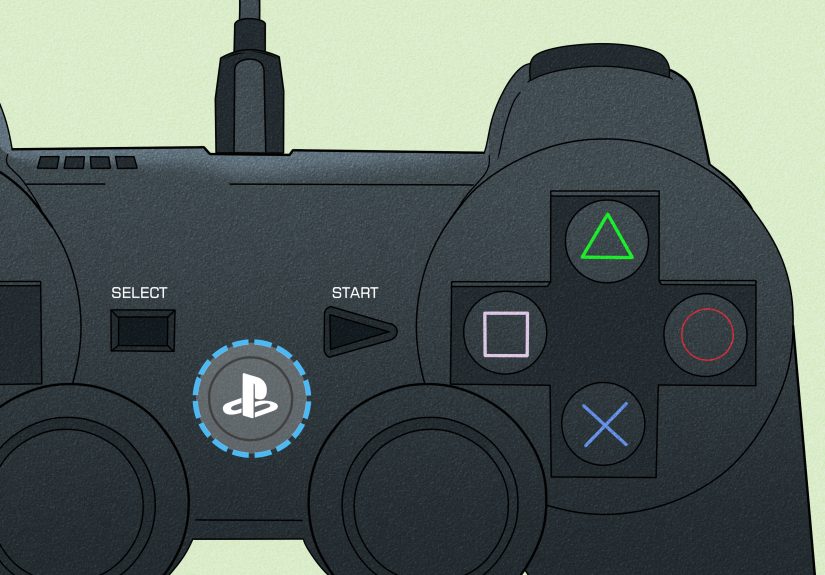
In Safe Mode, Bluetooth won’t help you. Your DualShock 4 must be connected with a USB cable that supports data (some cheap cables only charge).
If your controller won’t respond in Safe Mode, suspect the cable firstbecause the PS4 definitely will.
2) Remove discs and unplug extra accessories
Eject any disc if you can. Unplug external storage drives, VR hardware, and anything non-essential. Keep only power, HDMI, and controller.
We want the PS4 focused, not multitasking like it’s trying to run a podcast studio.
3) Confirm the PS4 is fully off (not “resting”)
Hold the power button until the console turns off. If the power light is flashing, wait until it stops.
Then you can confidently restart into Safe Mode again if needed.
4) If you can boot normally later, back up saves ASAP
If you eventually get back into the PS4 home screen, take five minutes to protect your progress:
sync cloud saves (if you use online save features) or back up saves to USB, depending on your setup.
Don’t wait until you’re staring at “Initialize PS4” like it’s a dramatic season finale.
5) Know the golden rule of Safe Mode
Options 1–5 are generally “try to fix without wiping everything.”
Options 6–7 are “wipe the console.” We will climb the ladder in order.
Step-by-step fixes: How to escape Safe Mode without deleting your data
Step 1: Hard power reset (the boring fix that works surprisingly often)
- Turn off the PS4 completely.
- Unplug the power cable from the console (not just the wall).
- Wait 15–20 minutes (yes, reallythis clears residual power and can help stubborn boot behavior).
- Plug power back in and start the console.
If it still returns to Safe Mode, continue.
Step 2: Choose “Restart System” (Safe Mode Option 1)
This is the least invasive option. It simply tries to boot normally. If you haven’t tried it since the power reset above, try it now.
If the PS4 jumps right back into Safe Mode, that’s a clue: the console can’t complete normal startup, so we move to repair tools.
Step 3: Fix display issues with “Change Resolution” (Option 2)
Sometimes the PS4 is booting, but your TV is basically saying, “I don’t speak that resolution.”
Option 2 restarts the console in a basic resolution (often 480p) to restore video output.
- If you see the PS4 home screen after changing resolution, go to display settings later and set the correct resolution.
- If you still land back in Safe Mode, the issue is likely not just the display.
Step 4: Update system software (Option 3) easiest win for update-related loops
A surprising number of Safe Mode loops are triggered by an update that didn’t finish cleanly. Option 3 lets you update in two ways:
via internet or via USB.
Try updating via internet first (if available)
- Select Option 3: Update System Software.
- Choose Update Using Internet (if the option appears).
- Let it download and install without interruptions.
If internet update fails, do a USB update (most reliable)
This method is like delivering the update file by handold-school, dependable, and slightly insulting to your Wi-Fi.
- Format a USB drive to FAT32 or exFAT.
- Create folders on the USB drive: PS4 → UPDATE.
- Download the PS4 system software update file on a computer.
- Save it as PS4UPDATE.PUP inside the UPDATE folder.
- Plug the USB into the PS4, then in Safe Mode select Option 3 → update using USB storage device.
Common USB update mistakes: wrong filename, wrong folder capitalization, USB not formatted correctly,
or using a cable/drive that the PS4 can’t read reliably. If the PS4 says it can’t find the file, double-check the folder path:
USB:PS4UPDATEPS4UPDATE.PUP.
Step 5: Restore Default Settings (Option 4) resets settings, not your games
If your console settings got scrambled (it happens), Option 4 restores default system settings.
It typically does not delete installed games or saved data, but it will reset things like:
display settings, audio output, network settings, and user preferences.
If you get out of Safe Mode after Option 4, you may need to re-enter Wi-Fi passwords and adjust video settingsannoying, but far better than losing data.
Step 6: Rebuild Database (Option 5) the “clean up the library index” repair
Rebuild Database is one of the most effective non-destructive fixes for a PS4 stuck in Safe Mode.
Think of it like reorganizing a messy filing cabinet. The PS4 scans the drive and rebuilds its content database.
- What it helps: boot issues, missing/corrupt icons, sluggish menus, crashes, and some Safe Mode loops.
- What it doesn’t do: it doesn’t magically revive a failing hard drive.
- How long it takes: from minutes to hours depending on drive size and how cluttered things are.
If the PS4 completes the rebuild and boots normally, congratulationsyour console just went from “dramatic” to “functional.”
If you’re still stuck: time to suspect the hard drive
When Safe Mode options 1–5 keep failing, the most common culprit is a hard drive problem.
The PS4’s internal drive can loosen slightly from bumps or aging, or it can start failing outright.
Signs your PS4 hard drive is the issue
- The console repeatedly fails updates or rebuild attempts.
- Safe Mode options complete but you return right back to Safe Mode again.
- You see frequent “Cannot start the PS4” messages or storage-related errors.
- The system freezes, makes unusual noises, or takes forever to do anything storage-related.
Low-risk drive checks (no deep surgery required)
If your model allows easy access to the hard drive bay, you can power off, unplug, and carefully reseat the drive
(remove it and reinsert it firmly). If your PS4 is under warranty or you’re not comfortable, skip this and go straight to official support/repair.
If reseating doesn’t help and you continue to loop, a failing hard drive may need replacementbecause no amount of menu options can argue with physics.
Last resorts: the options that fix boot loops, but erase data
If none of the non-destructive steps work, you’ve likely got corrupted system software or a drive problem.
The final fixes are effective, but they come with a “wipe warning label.”
Option 6: Initialize PS4 (factory reset)
This resets the console to a fresh state and deletes user data. It’s useful when the system boots but is too corrupted to behave normally.
If you can’t back up saves first, understand that this can permanently remove local save data.
Option 7: Initialize PS4 (Reinstall System Software) the “full reinstall” fix
This is the strongest Safe Mode tool. It wipes the drive and installs system software from scratch using a USB.
It’s often the best choice when the boot loop is caused by corrupted firmware or repeated update failures.
How to reinstall PS4 system software via USB (Option 7)
- On a computer, format a USB drive to FAT32 or exFAT.
- Create folder structure: PS4 → UPDATE.
- Download the PS4 system software reinstallation file (not just the small update file).
- Save it as PS4UPDATE.PUP inside PS4UPDATE.
- Boot the PS4 into Safe Mode (power off, then hold the power button until the second beep).
- Select Option 7: Initialize PS4 (Reinstall System Software).
- Follow the prompts to install from the USB.
Important: Option 7 deletes everything on the console’s internal storage. If your hard drive is failing,
the reinstall may also failbecause the installer needs a stable drive to write to.
USB reinstall not working? Fix the “file not found” and “cannot use this file” errors
If the PS4 refuses your USB file, it’s usually one of these simple problems:
- Wrong file type: you used the update file when the console expects the full reinstallation file (or vice versa).
- Wrong path: the PS4 needs PS4UPDATEPS4UPDATE.PUP exactly.
- Wrong filename: it must be PS4UPDATE.PUP (spelling matters).
- USB format issue: format to FAT32 or exFAT, and avoid weird partition tools.
- Hidden extra folders: make sure the UPDATE folder is directly inside PS4, not nested in other folders.
- Bad USB drive: try a different brand/drive if it keeps failing.
When to stop troubleshooting and get help
If your PS4 still can’t boot after a successful Option 7 attemptor if it can’t complete Option 7 at allhardware is likely involved.
At that point, the most time-efficient move is either replacing the internal drive (if you’re comfortable) or using professional repair/support.
Also consider help if you notice overheating shutdowns, repeated flashing lights, or the console turning off unexpectedly.
Those symptoms can stack with Safe Mode problems and make everything look like “software” when it’s actually hardware.
How to prevent a PS4 Safe Mode boot loop in the future
- Avoid sudden power loss: use a surge protector; consider a UPS if power is unstable.
- Don’t interrupt updates: let downloads/installations finish before powering down.
- Keep storage healthy: leave some free space and delete games you’re not playing.
- Ventilation matters: keep the PS4 in an open area so it doesn’t overheat and crash.
- Rebuild the database occasionally: if the system is sluggish, a rebuild can keep things tidy.
Real-world experiences: what people run into (and what actually worked)
Safe Mode boot loops have a funny way of happening at the worst possible momentlike five minutes before friends arrive
or right when you finally have a free weekend. Here are the most common “real life” scenarios people run into, and the fixes
that tend to work in the wild.
The “It started after a power outage” loop
This is the classic. The PS4 loses power mid-write, and the next boot lands in Safe Mode like a disappointed teacher handing you a retake exam.
In these cases, Option 5 (Rebuild Database) often does the heavy lifting because the console’s database got scrambled.
If rebuild completes successfully, many people report the PS4 boots normally afterwardsometimes with a few missing thumbnails that reappear after a restart.
The practical takeaway: try the power reset, then rebuild database before you even think about wiping anything.
The “My controller won’t connect in Safe Mode” panic
This one is sneaky because it feels like the console is broken when the real villain is a cheap cable. Safe Mode requires a wired controller connection,
and some USB cables charge only. People swap controllers, reboot five times, and consider exorcismthen switch to a different USB cable and everything works.
If the PS4 ignores your DualShock 4 in Safe Mode, assume the cable is guilty until proven innocent.
The “Update failed, now it demands an update forever” loop
Sometimes the PS4 tries to install a system update, fails, and then keeps returning to Safe Mode insisting it needs an update to start.
This is where Option 3 (Update System Software) via USB shines. A manual USB update can succeed when internet updates fail.
The trick is using the correct folder structure and filename exactly as required. If the console is asking for a deeper repairespecially when it won’t accept the normal update
that’s when people move to Option 7 (Initialize PS4: Reinstall System Software) with the full reinstallation file.
The “Rebuild Database finished… and I’m still in Safe Mode” heartbreak
When rebuild database completes and the PS4 still loops, it’s a strong hint that the issue isn’t just the database.
In real cases, this often points to either corrupted firmware or a failing hard drive.
If Restore Default Settings (Option 4) and Update System Software (Option 3) don’t stick, the next move is usually the full reinstall (Option 7).
And if Option 7 can’t complete, many users find that replacing the internal drive is what finally breaks the loop.
The “It was the HDMI/TV the whole time” plot twist
Less common, but memorable: the PS4 is actually booting, but the screen stays black or flickers, making it look like a boot loop.
In these cases, Option 2 (Change Resolution) can restore a stable picture. People also fix it by swapping HDMI cables or trying a different TV/HDMI port.
The lesson: if you hear normal boot sounds or your controller seems to log in, don’t ignore the possibility that your display chain is the drama.
The “Old hard drive finally gave up” reality check
After years of installs, deletes, updates, and the occasional rage-quit power-off, some PS4 drives just wear out.
The Safe Mode loop becomes frequent, updates fail repeatedly, and every fix works… briefly… until it doesn’t.
In those stories, replacing the internal drive and reinstalling system software is the long-term solution.
It’s not the most fun fix, but it’s often the cleanest: a fresh drive plus a clean install can make an aging PS4 feel noticeably more stable.
Conclusion
To fix a PS4 stuck in a Safe Mode boot loop, climb the ladder in order:
power reset → restart system → change resolution → update system software → restore default settings → rebuild database.
If the PS4 still won’t boot, the reliable “last resorts” are Initialize PS4 (Option 6) or a full reinstall (Option 7) using the correct USB file.
When even a reinstall won’t complete, the problem is often the internal hard drive or another hardware faultat which point repair/support (or a drive replacement)
stops being “extra” and starts being “the fastest route back to gaming.”