Table of Contents >> Show >> Hide
- Why VirtualBox Fails to Launch VMs on Linux
- Start With the Quick Checks
- Fix 1: Rebuild VirtualBox Kernel Modules
- Fix 2: Install Kernel Headers and Build Tools
- Fix 3: Check the VirtualBox Installation Log
- Fix 4: Deal With Secure Boot
- Fix 5: Reinstall VirtualBox Cleanly
- Fix 6: Add Your User to the vboxusers Group
- Fix 7: Enable Hardware Virtualization in BIOS or UEFI
- Fix 8: Resolve Kernel and Package Version Mismatches
- Fix 9: Check for Conflicting Virtualization Tools
- Fix 10: Reset the VM’s Saved State
- A Practical Troubleshooting Order
- Example: Fixing “Kernel Driver Not Installed (rc=-1908)” on Ubuntu
- Example: Fixing VirtualBox After a Kernel Update on Arch
- How to Prevent VirtualBox Launch Errors in the Future
- Extra Field Notes: Real-World Experiences Fixing VirtualBox VM Launch Errors on Linux
- Conclusion
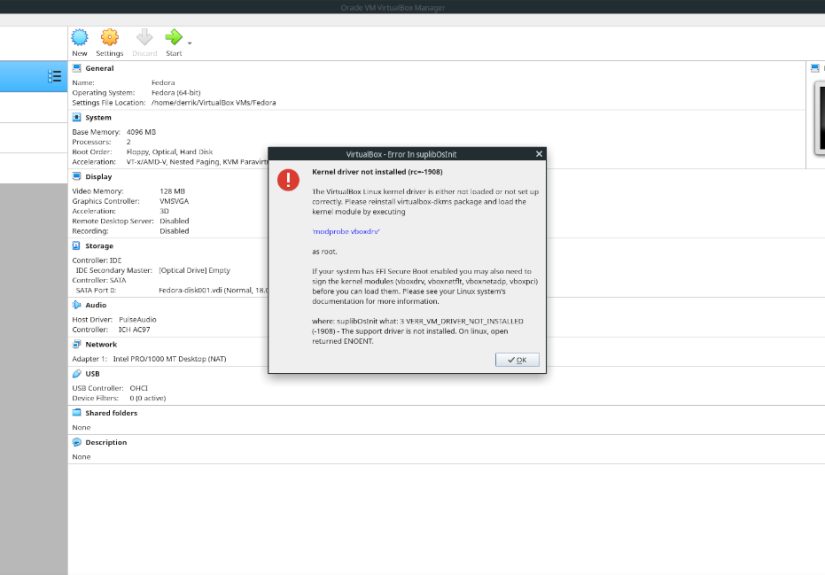
VirtualBox is one of those tools that feels wonderfully simple right up until your virtual machine refuses to launch and throws a dramatic error message that sounds like it was written by a kernel goblin. One minute you are about to boot Ubuntu, Debian, Fedora, Arch, Kali, Linux Mint, Windows, or a test server inside a neat little VM window. The next minute VirtualBox says something like “Kernel driver not installed (rc=-1908)”, “vboxdrv is not loaded”, “VERR_VM_DRIVER_NOT_INSTALLED”, or “VirtualBox Linux kernel driver is either not loaded or not set up correctly.”
The good news: this problem is usually fixable. The less glamorous news: the fix often involves kernel headers, DKMS, Secure Boot, package versions, and a few terminal commands that look scarier than they are. Think of it as convincing Linux and VirtualBox to shake hands again after a kernel update made things awkward.
This guide explains how to fix VirtualBox VM launch errors on Linux step by step. It covers Ubuntu, Debian, Linux Mint, Fedora, Arch, Manjaro, openSUSE, and other Linux distributions. You will learn why the error happens, how to diagnose it, which commands to run, and how to avoid the same headache after the next system update.
Why VirtualBox Fails to Launch VMs on Linux
VirtualBox is a hosted hypervisor, which means it runs on top of your existing Linux system. To start virtual machines, it relies on special kernel modules, especially vboxdrv. Depending on your setup, it may also use modules such as vboxnetflt, vboxnetadp, and vboxpci.
When those modules are missing, outdated, unsigned, blocked, or built for the wrong kernel version, VirtualBox can still open its main interface. You may see your list of virtual machines, change settings, and feel a brief moment of hope. But when you click Start, the VM fails because the low-level driver it needs is not available.
Common VirtualBox Linux Launch Error Messages
You may see one of these errors:
Kernel driver not installed (rc=-1908)VERR_VM_DRIVER_NOT_INSTALLEDThe VirtualBox Linux kernel driver is either not loaded or not set up correctlymodprobe vboxdrv failedvboxdrv kernel module is not loadedVirtualBox can't operate in VMX root modeNS_ERROR_FAILUREFailed to open a session for the virtual machine
These messages are not identical, but they often point toward the same neighborhood: VirtualBox cannot access the host system features it needs to launch the VM.
Start With the Quick Checks
Before rebuilding kernel modules like a midnight Linux wizard, check the simple things first. They do not fix every case, but they can save time.
1. Reboot After Installing or Updating VirtualBox
If you installed VirtualBox, updated your kernel, or upgraded VirtualBox itself, reboot your computer. Linux can run the old kernel while new packages are already installed. That mismatch can confuse VirtualBox because the module may have been built for a kernel you are not actually running yet.
After rebooting, try launching the VM again. If it works, congratulations: you fixed it with the most ancient troubleshooting spell in computing.
2. Check Your Running Kernel Version
Run:
This shows the currently running Linux kernel. VirtualBox modules must match this kernel version. If you recently updated your system but have not rebooted, the installed headers may belong to a newer kernel while your machine is still running the older one.
3. Check Whether the VirtualBox Module Is Loaded
Use this command:
If VirtualBox modules are loaded, you may see entries such as vboxdrv, vboxnetflt, and vboxnetadp. If the command returns nothing, VirtualBox’s kernel modules are not loaded.
You can try loading the main module manually:
If that command works, launch your VM again. If it fails, read the error carefully. It may mention missing modules, invalid signatures, missing headers, or Secure Boot.
Fix 1: Rebuild VirtualBox Kernel Modules
The most common fix for VirtualBox VM launch errors on Linux is rebuilding the kernel modules. VirtualBox needs modules compiled for your current kernel. A kernel update can break that relationship until the modules are rebuilt.
For Oracle VirtualBox Packages
If you installed VirtualBox from Oracle’s official Linux packages, try:
This command rebuilds and reloads the VirtualBox kernel modules. If the command is missing, your distribution package may use a different setup method.
For Some Older or Distribution-Specific Setups
Depending on the distribution and VirtualBox package, one of these may apply:
or:
If none of these commands exist, do not panic. Your system may manage VirtualBox through DKMS, akmods, systemd, or distribution-specific packages.
Fix 2: Install Kernel Headers and Build Tools
If rebuilding fails, missing kernel headers are the usual suspect. Kernel headers are files needed to build external kernel modules. Without them, VirtualBox is basically trying to build a bridge without the blueprint.
Ubuntu, Debian, and Linux Mint
Run:
Then reinstall or reconfigure the VirtualBox DKMS package:
If you installed Oracle’s package instead of the repository version, use:
Fedora
On Fedora, install the development tools and kernel development package:
If you installed VirtualBox from RPM Fusion, your system may use akmods. Rebuild modules with:
Then reboot:
Arch Linux and Manjaro
On Arch-based systems, the fix depends on whether you use the stock kernel or a custom kernel.
For the standard Arch kernel:
If you use a custom kernel, LTS kernel, Zen kernel, or another variant, install DKMS and the matching headers:
For the LTS kernel, use:
Then reboot.
openSUSE
On openSUSE, install VirtualBox packages and matching kernel development files:
Then reboot or restart the VirtualBox driver service if available:
Fix 3: Check the VirtualBox Installation Log
When VirtualBox fails to build its kernel modules, the reason is often written in a log file. On many systems, the file is:
Open it with:
Look for messages such as:
Kernel headers not foundUnable to find the sources of your current Linux kernelgcc version mismatchmodule verification failedRequired key not available
These clues are extremely useful. Linux error logs are not always poetry, but they usually tell you where the dragon lives.
Fix 4: Deal With Secure Boot
Secure Boot is a firmware security feature designed to prevent untrusted code from loading during the boot process. That is useful for security, but it can block third-party kernel modules, including VirtualBox modules, if they are not signed with a trusted key.
If Secure Boot is enabled, VirtualBox may install correctly but fail when loading vboxdrv. You might see errors such as:
or:
Option A: Disable Secure Boot
The simplest fix is to disable Secure Boot in your computer’s UEFI or BIOS settings. This is quick, but it reduces one layer of boot-time protection. For a personal lab machine, that may be acceptable. For a work laptop, managed device, or security-sensitive system, check your organization’s policy first.
Option B: Sign the VirtualBox Kernel Modules
The more secure fix is to sign the VirtualBox modules and enroll a Machine Owner Key, often called a MOK. The exact steps vary by distribution, but the general process is:
- Create or use a signing key.
- Enroll the public key with
mokutil. - Reboot and confirm enrollment in the MOK manager screen.
- Sign VirtualBox modules such as
vboxdrv,vboxnetflt,vboxnetadp, andvboxpci. - Load the modules again.
On some distributions, DKMS or akmods can help automate module rebuilding and signing. If Secure Boot is the problem, rebuilding modules without signing them will not be enough. Linux will still refuse to load them, like a bouncer checking IDs at a very nerdy nightclub.
Fix 5: Reinstall VirtualBox Cleanly
If your installation is messy because you mixed Oracle packages, distribution packages, old versions, and random downloaded installers, a clean reinstall may be faster than untangling everything.
Ubuntu, Debian, and Linux Mint
If you prefer Oracle’s official package, remove the distribution package first, then install the Oracle version that matches your distribution release. Avoid mixing both package sources unless you enjoy troubleshooting as a lifestyle.
Fedora
Then reinstall VirtualBox from your chosen source, such as RPM Fusion or Oracle’s RPM repository. After installing, rebuild modules and reboot.
Arch and Manjaro
Then reinstall the correct host module package for your kernel.
Fix 6: Add Your User to the vboxusers Group
Some VirtualBox features require your user account to belong to the vboxusers group, especially USB device passthrough. This usually does not cause the classic rc=-1908 kernel driver error, but it can cause VM device access problems that appear during launch or configuration.
Add your user to the group:
Then log out and log back in, or reboot. Group changes do not fully apply to your current session until you start a new login session.
Fix 7: Enable Hardware Virtualization in BIOS or UEFI
VirtualBox needs CPU virtualization features for good performance and for many modern guests. On Intel systems, this is usually called Intel VT-x. On AMD systems, it is called AMD-V or SVM.
Check whether your CPU reports virtualization support:
If nothing appears, virtualization may be disabled in BIOS or UEFI. Restart your computer, enter firmware settings, and look for options such as:
- Intel Virtualization Technology
- VT-x
- AMD-V
- SVM Mode
- Virtualization Extensions
Enable the setting, save changes, boot back into Linux, and try VirtualBox again.
Fix 8: Resolve Kernel and Package Version Mismatches
Version mismatch is a sneaky cause of VirtualBox VM launch errors. It happens when your running kernel, installed kernel headers, VirtualBox package, and VirtualBox kernel module are not aligned.
Check your kernel:
Check installed VirtualBox version:
Check DKMS status:
If DKMS shows VirtualBox modules built for an older kernel, rebuild them. On many systems:
Then load the driver:
If that fails, install the matching headers for your current kernel, rebuild again, and reboot.
Fix 9: Check for Conflicting Virtualization Tools
On Linux, conflicts are less common than on Windows, but they can still happen. If you are using KVM, QEMU, libvirt, VMware, Docker Desktop, or other virtualization-related tools, VirtualBox may compete for hardware virtualization features or network drivers.
Check whether KVM modules are loaded:
In most modern setups, KVM and VirtualBox can coexist, but not always peacefully. If VirtualBox complains that virtualization features are unavailable, try shutting down other hypervisors or services and testing again.
Fix 10: Reset the VM’s Saved State
Sometimes the Linux host is fine, but the VM itself is stuck in a bad saved state after an update, crash, or forced shutdown. In VirtualBox Manager, select the VM and choose:
Machine > Discard Saved State
This does not delete the virtual hard disk, but it removes the suspended memory state. It is similar to forcing a powered-off computer to boot fresh instead of resuming from sleep. If the VM was suspended before a VirtualBox upgrade, discarding the saved state can fix launch failures.
A Practical Troubleshooting Order
If you want the shortest path through the chaos, follow this order:
- Reboot the Linux host.
- Run
uname -rand confirm the current kernel. - Install kernel headers and build tools.
- Rebuild VirtualBox kernel modules.
- Run
sudo modprobe vboxdrv. - Check
/var/log/vbox-install.logif rebuilding fails. - If Secure Boot is enabled, sign the modules or disable Secure Boot.
- Make sure your user is in the
vboxusersgroup. - Discard the VM saved state if only one VM fails.
- Cleanly reinstall VirtualBox if packages are mixed or broken.
This order works because it starts with the most common, least destructive fixes before moving into deeper repairs.
Example: Fixing “Kernel Driver Not Installed (rc=-1908)” on Ubuntu
Here is a typical Ubuntu repair sequence:
If you installed Oracle’s VirtualBox package, run:
If you see a Secure Boot key error, either sign the modules or temporarily disable Secure Boot from UEFI settings. After that, reboot and try launching the VM again.
Example: Fixing VirtualBox After a Kernel Update on Arch
On Arch Linux, if VirtualBox worked yesterday and broke after a system upgrade, your host module package may not match your current kernel.
For the default kernel:
For a custom or LTS kernel:
Then reboot if the module still refuses to load.
How to Prevent VirtualBox Launch Errors in the Future
You cannot prevent every VirtualBox problem, but you can reduce the drama.
Keep DKMS Installed
DKMS helps rebuild external kernel modules when your Linux kernel changes. For VirtualBox users, it is one of the best ways to avoid post-update breakage.
Install Matching Kernel Headers
Whenever you install a new kernel, make sure the matching headers are installed too. Without headers, VirtualBox cannot rebuild its modules properly.
Avoid Mixing Package Sources
Do not install VirtualBox partly from your distribution repository and partly from Oracle’s downloaded installer unless you know exactly what you are doing. Mixed packages can leave behind mismatched modules, services, and configuration files.
Be Careful With Secure Boot
If you keep Secure Boot enabled, set up a reliable module signing workflow. Otherwise, every VirtualBox module rebuild may bring back the same launch error.
Reboot After Kernel and VirtualBox Updates
Yes, Linux users love uptime. But after kernel and VirtualBox updates, a reboot is often the cleanest way to get the running kernel, installed modules, and services back in sync.
Extra Field Notes: Real-World Experiences Fixing VirtualBox VM Launch Errors on Linux
In real-world Linux use, VirtualBox launch errors usually show up at the least convenient time. Maybe you are about to test a WordPress site in a local development VM. Maybe you need to open a Windows guest to run one stubborn app that refuses to join the modern world. Or maybe you are following a cybersecurity lab tutorial, coffee in hand, feeling responsible and productive. Then VirtualBox refuses to start, and suddenly the computer has become a puzzle box with a keyboard.
One common pattern is the “it worked yesterday” problem. This often happens after a normal system update. On Ubuntu, Linux Mint, Debian, Fedora, Arch, or Manjaro, the kernel gets updated, but the VirtualBox kernel module does not rebuild correctly. The user clicks the VM, gets the rc=-1908 error, and assumes VirtualBox itself is broken. In reality, VirtualBox is often fine. The bridge between VirtualBox and the current Linux kernel simply needs to be rebuilt. Installing headers, reinstalling virtualbox-dkms, running vboxconfig, or rebooting usually gets everything moving again.
Another common experience involves Secure Boot. This one feels especially confusing because the VirtualBox installation may look successful. There may be no big red warning during installation. But when Linux tries to load vboxdrv, Secure Boot blocks it because the module is unsigned or signed with a key the system does not trust. To the user, it looks like VirtualBox randomly failed. To the kernel, it is doing exactly what Secure Boot asked it to do. The practical lesson is simple: if modprobe vboxdrv says something about a required key, rejected key, or module verification, stop reinstalling VirtualBox over and over. The issue is module signing, not the VM file.
There is also the “mixed package soup” scenario. This happens when someone installs VirtualBox from the distribution repository, later downloads Oracle’s package, then adds an extension pack from another version, and maybe follows a forum post from 2017 for extra seasoning. The result can be a system where the VirtualBox app, drivers, extension pack, and kernel modules do not agree with each other. In those cases, a clean uninstall and reinstall from one source is often the fastest fix. It feels drastic, but it can save hours of chasing ghosts.
For developers and testers, the best habit is to treat VirtualBox like any other kernel-adjacent tool. After kernel updates, expect modules to rebuild. Keep headers installed. Keep DKMS or the distribution’s equivalent module system working. Do not ignore build errors in terminal output. If a VM is important, shut it down cleanly before major updates instead of leaving it suspended for weeks like a digital sandwich in the back of the fridge.
Finally, remember that the VM disk is usually not the problem. When VirtualBox fails to launch because of vboxdrv, your guest operating system and virtual hard drive are typically still safe. The problem is on the Linux host side. That distinction matters because it keeps you from deleting and recreating a VM unnecessarily. Fix the host driver, load the module, handle Secure Boot if needed, and your VM will often return as if nothing happenedslightly dramatic, but unharmed.
Conclusion
VirtualBox VM launch errors on Linux can look intimidating, but most of them come down to a few fixable causes: missing kernel modules, missing headers, DKMS failures, Secure Boot restrictions, mismatched package versions, or user permission issues. The fastest route is to check whether vboxdrv is loaded, install the correct kernel headers, rebuild the VirtualBox modules, and address Secure Boot if Linux refuses to load unsigned drivers.
If your VM suddenly stops launching after a kernel update, do not assume the guest system is destroyed. In most cases, the VM is fine. The Linux host simply needs its VirtualBox driver stack repaired. With the right commands and a little patience, you can get back to testing, developing, learning, or running that one legacy app that apparently has tenure.
Note: This article is based on real VirtualBox behavior on Linux hosts, common distribution package practices, kernel module troubleshooting, Secure Boot handling, and widely used Linux administration workflows. It intentionally avoids embedded source links so the HTML remains clean and ready for web publishing.