Table of Contents >> Show >> Hide
- What does "DNS not responding" actually mean?
- Start here before changing any settings
- How to fix DNS not responding on Windows
- How to fix DNS not responding on Mac
- Best public DNS servers to try
- When the problem is not actually DNS
- Common mistakes to avoid
- Real-world experiences with DNS problems on Windows and Mac
- Final thoughts
If the internet suddenly acts like it forgot how websites work, you may see the dreaded "DNS not responding" error. It sounds dramatic, a little judgmental, and just technical enough to make normal people consider moving into the woods. The good news is that this problem is usually fixable without a computer science degree, a sacrifice to the Wi-Fi gods, or a long phone call with your internet provider.
This guide explains how to fix DNS not responding errors on Windows and Mac in plain English. You will learn what the error means, which quick checks to try first, how to reset DNS on Windows, how to refresh network settings on a Mac, and when switching to a public DNS service can save the day. If your browser keeps spinning, pages will not load, or only some websites work, this is the troubleshooting roadmap you want open in the tab that still works.
What does "DNS not responding" actually mean?
DNS stands for Domain Name System. Think of it as the internet’s contact list. You type a friendly domain name like example.com, and DNS translates it into the numeric IP address your device needs to find the site. When DNS fails, your computer may still be connected to Wi-Fi or Ethernet, but it cannot properly translate website names into destinations. It is like having a working car and no idea where the road signs went.
That is why this error can feel weirdly inconsistent. Sometimes your Wi-Fi icon looks fine, but websites refuse to load. Sometimes one browser works while another sulks in the corner. Sometimes every device in the house fails at once, which is your router’s way of saying, “I need a minute.”
Start here before changing any settings
Before you dive into command lines and advanced network settings, do the quick checks first. These solve a surprising number of DNS problems.
1. Check whether the issue is really DNS
Try opening the same website in a different browser. Then try a different website. If only one site fails, the site itself may be down. If one browser fails but another works, the problem may be browser-specific rather than a full DNS failure.
On a Mac, also try a different browser on the same network. If Safari struggles but another browser works, Safari settings, Private Relay, extensions, or security tools may be part of the problem. On Windows, if another device on the same network works fine, the issue is more likely tied to your computer than your internet provider.
2. Restart your router and modem
This is the most cliché fix in tech support because it is annoyingly effective. Unplug the modem and router, wait about 30 seconds, plug the modem back in, let it finish starting up, then plug the router back in. Give it a few minutes. This can force a fresh connection to your ISP and clear temporary resolver hiccups.
3. Restart your computer
A full restart can renew network settings, clear temporary glitches, and reset services that may be misbehaving. It is not glamorous, but neither is troubleshooting while exhausted.
4. Temporarily disable VPN, proxy, or security tools
VPNs, proxy settings, browser secure DNS features, and antivirus or firewall software can interfere with name resolution. If you recently installed or updated one of these tools, turn it off temporarily and test again. If the internet suddenly springs back to life, congratulations: you found the troublemaker.
How to fix DNS not responding on Windows
If you are using Windows 10 or Windows 11, work through these steps in order. Start with the easy fixes, then move to the more aggressive resets.
Run Windows network diagnostics
Windows includes a built-in troubleshooter that can catch obvious networking issues.
- Open Get Help or the network troubleshooter.
- Search for connect to network and internet.
- Run the diagnostic steps and follow the prompts.
If the problem is simple, Windows may repair it automatically. If not, it at least gives you a better clue than, “Something happened.”
Forget and reconnect to your Wi-Fi network
Sometimes Windows keeps clinging to stale settings like a former group project partner.
- Go to Settings > Network & Internet > Wi-Fi.
- Select Manage known networks.
- Choose your Wi-Fi network and click Forget.
- Reconnect by entering the password again.
Flush DNS and renew your IP address
This is one of the most effective Windows fixes for DNS resolution problems. Open Command Prompt as Administrator, then run these commands:
Here is what those commands do:
netsh winsock resetresets the Windows networking catalog.netsh int ip resetresets the TCP/IP stack.ipconfig /releasedrops your current IP lease.ipconfig /renewrequests a fresh IP address from DHCP.ipconfig /flushdnsclears the local DNS cache.
Restart the PC after running the commands, then test again.
Turn off manual proxy settings
Incorrect proxy settings can block or reroute traffic in ways that look like a DNS failure.
- Go to Settings > Network & Internet > Proxy.
- Turn off any manual proxy settings you are not actively using.
Switch to a public DNS server
If your ISP’s DNS servers are flaky, changing to a public DNS provider can help immediately. Before changing anything, write down your current DNS settings so you can restore them if needed.
- Open Settings > Network & Internet.
- Select your active connection, either Wi-Fi or Ethernet.
- Find DNS server assignment and click Edit.
- Choose Manual.
- Enable IPv4 and enter a preferred and alternate DNS server.
- Save the changes and reconnect if needed.
Popular public DNS options are listed later in this article.
Update or reinstall the network adapter driver
If the issue started after a Windows update, driver update, or random Tuesday, your network adapter driver may be the culprit.
- Open Device Manager.
- Expand Network adapters.
- Right-click your network adapter and choose Update driver.
- If that does not help, uninstall the adapter, restart the computer, and let Windows reinstall it.
If possible, download the latest driver directly from your PC manufacturer first. That gives you a backup plan if Windows decides to be “creative.”
Check whether the issue is really your router or ISP
If Windows can reach your router but not the wider internet, the real issue may be upstream. You can test by pinging your default gateway and comparing results. If your router responds but websites still do not resolve, your ISP or your configured DNS provider may be the actual problem.
How to fix DNS not responding on Mac
Mac users get the same problem, just with sleeker menus and slightly more expensive feelings. Here is how to tackle it.
Test the basics first
Open the site in another browser. If Safari is the one acting strange, check for extensions, custom privacy settings, iCloud Private Relay, VPN software, and any security app that interacts with network traffic. A website may fail in Safari while loading fine elsewhere, which means the issue is not always system-wide DNS.
Renew the DHCP lease
This asks your network for a fresh IP address and can resolve conflicts or stale settings.
- Open System Settings.
- Click Network.
- Select your active connection.
- Click Details.
- Open TCP/IP.
- Click Renew DHCP Lease.
- Click OK.
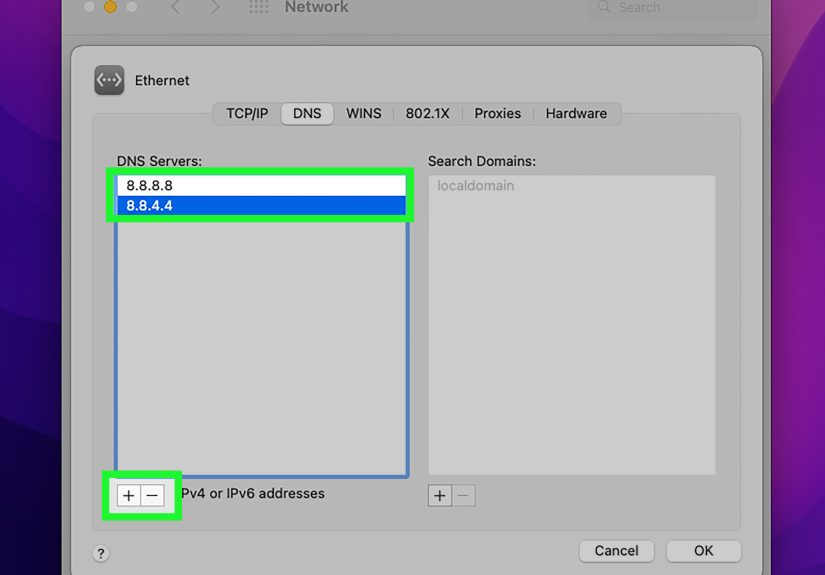
Change DNS settings on your Mac
If your current DNS servers are unreliable, replace them with a public provider.
- Open System Settings > Network.
- Select your connection and click Details.
- Go to the DNS section.
- Click the plus sign to add a DNS server.
- Enter the new DNS server addresses.
- Remove old custom entries if necessary and click OK.
If you use a managed work or school computer, do not change DNS settings without permission. Your IT department will not enjoy your independent spirit as much as you do.
Flush the DNS cache in Terminal
On modern macOS versions, flushing the DNS cache is a common next step when websites refuse to resolve correctly.
After entering the command, type your Mac password and press Return. You usually will not see a flashy confirmation message, because macOS likes to stay mysterious. If the command completes and returns you to a prompt, it likely worked.
For most current Macs, this command is the one people use. Older versions of macOS may require different commands, so if you are running a very old system, check your exact version first.
Try another browser or a new network location
If only one browser fails, clear that browser’s site data or test again with extensions disabled. If the issue seems tied to strange network settings on the Mac, creating a new network location can reset things cleanly without turning your laptop into a modern sculpture.
Best public DNS servers to try
If you need a reliable replacement for your ISP’s DNS servers, these are the most common options:
| Provider | Primary DNS | Secondary DNS |
|---|---|---|
| Google Public DNS | 8.8.8.8 |
8.8.4.4 |
| Cloudflare 1.1.1.1 | 1.1.1.1 |
1.0.0.1 |
| Cisco Umbrella / OpenDNS | 208.67.222.222 |
208.67.220.220 |
Google Public DNS is widely used and easy to remember. Cloudflare is popular for speed and privacy. Cisco Umbrella, previously known to many people as OpenDNS, is another long-standing option. In many homes, simply switching from an overloaded ISP DNS resolver to one of these services fixes the problem immediately.
When the problem is not actually DNS
Here is the sneaky part: a DNS error message does not always mean DNS is the original problem.
- Router trouble: if all devices fail at once, your router or modem may be the issue.
- ISP outage: if the network is up but nothing resolves, your provider may be having a bad day.
- Browser privacy features: secure DNS or DNS over HTTPS can conflict with parental controls, enterprise filters, or local policies.
- Firewall or antivirus: some security suites block or reroute traffic so aggressively that normal browsing breaks.
- Proxy or VPN software: one bad configuration can make the whole internet look broken.
- Driver issues: especially on Windows, a flaky network adapter driver can impersonate a DNS problem very convincingly.
Common mistakes to avoid
Changing settings without saving the old ones
Always write down your current DNS values before switching providers. Future You will appreciate the favor.
Assuming the browser is the operating system
If one browser fails and another works, the issue may be extensions, cache, secure DNS, or browser privacy settings, not your whole network.
Changing DNS on one device when the router is the real problem
If every phone, laptop, tablet, smart TV, and mildly judgmental refrigerator is offline, fix the router first.
Ignoring security tools
People love to say, “It cannot be the antivirus.” Then it is the antivirus. Not always, but often enough to earn suspicion.
Real-world experiences with DNS problems on Windows and Mac
In real life, DNS issues rarely show up as a clean, obvious textbook error. They usually arrive disguised as chaos. A Windows laptop says there is no internet, even though streaming still works on the TV. A MacBook opens Google but refuses to load your online class portal. Your phone works on cellular but not on home Wi-Fi. Suddenly everyone in the house becomes a networking philosopher.
One of the most common experiences is the “Wi-Fi says connected, but nothing loads” situation. This makes people suspect the router, the laptop, the weather, and possibly their own luck. In many cases, the device really is connected to the network, but the DNS server it is using is failing to translate website names. That is why apps may behave differently. Some services recover faster than others, while normal browsing grinds to a halt.
Another common scenario happens after a software update. A Windows PC works perfectly one day, then after an update it starts throwing DNS errors or randomly dropping connectivity. This is often where resetting the network stack or reinstalling the adapter driver makes a huge difference. It feels dramatic, but the fix is often less “deep system repair” and more “Windows forgot how to behave for a minute.”
Mac users often run into a subtler version of the same headache. Safari may stop loading certain pages while Chrome or Firefox works fine. That leads many people to believe the website is broken, when the actual cause may be a Safari setting, Private Relay behavior, an extension conflict, or custom DNS values added by another app. In those cases, testing a second browser is not just a nice idea; it is the difference between solving the issue in five minutes and spending an hour yelling at a glossy aluminum rectangle.
Home users also report DNS trouble after installing VPN or security software. Everything looks normal until the browser freezes, pages time out, or the DNS error appears only when the VPN is active. This is especially frustrating because the software was installed to make things safer, not to transform the internet into decorative wallpaper. Temporarily disabling the VPN or firewall often reveals the cause immediately.
Then there is the classic router story: every device fails at once, and the family begins a migration toward mobile data. In that case, the issue is often not your laptop at all. Restarting the modem and router, waiting patiently instead of unplugging things every seven seconds, and then reconnecting can restore normal DNS resolution. It is not magical. It just feels magical when the internet comes back.
The biggest lesson from real-world DNS problems is simple: do not panic, and do not guess wildly. Test one thing at a time. Try another browser. Try another device. Restart the router. Flush DNS. Renew the IP. Change the DNS server only after the quick checks. Most DNS failures are fixable, and many are solved by methodical troubleshooting rather than dramatic button smashing.
Final thoughts
If you are trying to fix a DNS not responding error on Windows or Mac, start simple and work in layers. First test whether the issue is local, browser-specific, or network-wide. Then restart your hardware, flush the DNS cache, renew the IP address, and reset the network stack if needed. If your ISP’s DNS service is unstable, switch to a trusted public DNS provider like Google Public DNS, Cloudflare, or Cisco Umbrella. Most importantly, do not let one scary error message convince you your computer is doomed. In many cases, the fix is just a few clicks or commands away.