Table of Contents >> Show >> Hide
- What Does “Change Your Google Background” Actually Mean?
- How to Change Your Google Background: 9 Steps
- Step 1: Open Google Chrome
- Step 2: Open a New Tab
- Step 3: Click “Customize Chrome” in the Bottom Corner
- Step 4: Choose “Change Theme”
- Step 5: Pick a Google Background or Upload Your Own
- Step 6: Adjust the Browser Color to Match
- Step 7: Turn On “Refresh Daily” if You Want Variety
- Step 8: Check Your Startup and Home Settings
- Step 9: Save, Enjoy, and Reset Anytime
- Theme vs. Background vs. Homepage: Know the Difference
- Best Tips for Choosing the Right Google Background
- Should You Use a Chrome Theme from the Web Store?
- Troubleshooting: Why You Might Not Be Able to Change the Google Background
- Final Thoughts
- Experiences and Real-World Impressions
- SEO Tags
Staring at the same plain browser screen every day can feel a little like eating unbuttered toast: technically fine, emotionally underwhelming. The good news is that changing your Google background is quick, easy, and surprisingly satisfying. Whether you want a calming landscape, a favorite family photo, a dark theme that feels less like a flashlight to the face, or simply a browser that looks a little more you, Chrome gives you built-in tools to make it happen.
There is one small but important catch: when most people say “Google background,” they usually mean the background on the Chrome New Tab page, not the plain Google Search homepage itself. In other words, you are generally customizing the browser experience around Google, not giving google.com a dramatic makeover worthy of a home renovation show. Once you know that distinction, the process becomes much easier.
This guide walks through how to change your Google background in 9 steps, explains the difference between a theme, a background image, and startup settings, and shares a few practical tips so your browser looks polished instead of chaotic. Because yes, there is a fine line between “personalized” and “my tabs now look like a birthday party exploded.”
What Does “Change Your Google Background” Actually Mean?
In Chrome, you can customize the look of the New Tab page by choosing a preset background, uploading your own image, changing the browser color, switching to dark mode, or installing a full theme. That means when you open a fresh tab, you can see something far more interesting than a plain white screen and a search box floating in existential silence.
You can also adjust related settings, such as your homepage, your startup page, and whether Chrome opens to a New Tab page when you launch it. These settings are separate, and that is where many users get confused. If your background looks great in one place but disappears when Chrome starts, you are probably dealing with startup settings rather than a broken theme.
How to Change Your Google Background: 9 Steps
Note: These steps are for the desktop version of Google Chrome on Windows, Mac, or ChromeOS.
Step 1: Open Google Chrome
Start by launching Chrome on your computer. This sounds obvious, but we are building momentum here. Make sure you are in the actual Chrome browser, not another browser that merely looks like Chrome after a strong cup of coffee and an identity crisis.
If you use multiple Chrome profiles, open the profile where you want the change to appear. Themes and background settings are connected to the profile you are using, so the browser on your work profile may not match the one on your personal profile.
Step 2: Open a New Tab
Click the plus sign to open a New Tab. This is the page where Chrome’s built-in customization tools live. If you are on a regular website, you will not see the background controls you need.
This step matters because the New Tab page is the canvas for your background image, shortcuts, cards, and color changes. Think of it as Chrome’s “decorate this room” area.
Step 3: Click “Customize Chrome” in the Bottom Corner
Look toward the lower-right corner of the New Tab page and click Customize Chrome. Depending on your Chrome version, this may appear as a button or a small pencil-style icon. Either way, it opens Chrome’s built-in appearance controls.
If you do not see it right away, make sure you are on a true New Tab page and not a custom extension page. Some extensions replace the default New Tab layout, which can hide Chrome’s normal customization panel.
Step 4: Choose “Change Theme”
Inside the customization panel, go to Appearance and select Change theme. This is where the fun starts. Chrome gives you access to curated background categories, artist collections, color options, and upload tools.
If your goal is to change only the image you see behind the search bar, this is the correct path. If your goal is to change the entire browser look, including tab colors and menus, you can also explore full themes from here or through the Chrome Web Store.
Step 5: Pick a Google Background or Upload Your Own
Now choose how you want your background to look. You typically have two main options:
Use a built-in background: Chrome includes collections such as landscapes, art-inspired sets, or abstract images. These are great if you want a polished look with minimal effort.
Upload your own image: Select the upload option and choose a photo from your device. This is perfect for personalizing Chrome with a travel shot, pet photo, family picture, favorite city skyline, or a wallpaper that matches your desktop aesthetic.
If you upload your own image, pick something high-quality and not overly busy. A photo with too much visual clutter can make your shortcuts and search box harder to see. A beautiful mountain range says “organized person with taste.” A blurry screenshot of last Tuesday’s grocery list says something else entirely.
Step 6: Adjust the Browser Color to Match
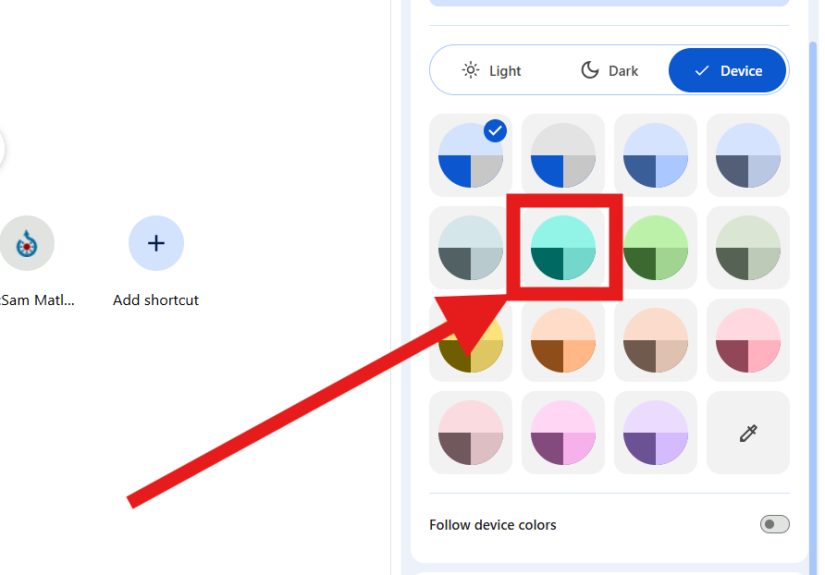
Once you choose a background, Chrome often suggests a matching browser color. You can keep that automatic look or manually choose a different color palette. This affects the tabs, toolbar, and other parts of the browser interface.
This is a small step that makes a big difference. A background image and browser color that work together make Chrome feel intentional and clean. A background photo plus an unrelated neon accent color can turn your browser into a design dare.
If you prefer a simpler style, skip the photo altogether and just choose a color theme. This gives you a cleaner, less distracting setup while still making Chrome feel more personal.
Step 7: Turn On “Refresh Daily” if You Want Variety
If you choose a built-in Chrome collection, you may see an option to Refresh daily. Turn this on if you want Chrome to automatically cycle through new images from that collection each day.
This is a nice option for people who get bored easily or enjoy a fresh visual each morning. It gives your browser a little novelty without forcing you to micromanage your tabs like a tiny digital interior designer.
If consistency matters more than surprise, leave this setting off and stick with one favorite image.
Step 8: Check Your Startup and Home Settings
Here is where many users think their new background “didn’t save.” In reality, Chrome background settings and Chrome startup settings are different things.
Your New Tab background shows when you open a blank new tab. Your startup page controls what appears when you first launch Chrome. Your Home button controls where Chrome takes you when you click the little house icon, if you have that enabled.
If you want to see your customized background more often, go into Chrome’s settings and make sure startup behavior matches your preference. For example, opening the New Tab page at launch makes your custom background much more visible than opening directly to a specific website.
Step 9: Save, Enjoy, and Reset Anytime
Most Chrome appearance changes apply immediately, so there is usually no big Save button drama. Once you pick the image or theme you want, open another new tab to admire your work.
If you change your mind later, reopen Customize Chrome and select Reset to Default Chrome or switch to a different image, color, or theme. In other words, this is not a tattoo. You are allowed to regret the galaxy wallpaper.
Theme vs. Background vs. Homepage: Know the Difference
These three terms are often used interchangeably, but they are not the same:
Background: the image shown on the New Tab page.
Theme: the broader visual style of Chrome, including colors and sometimes background elements.
Homepage: the page linked to the Home button, which can be the New Tab page or another website.
Understanding these differences helps you avoid the classic “I changed it, but nothing happened” moment. Usually, something did happen; it just happened in a different place than you expected.
Best Tips for Choosing the Right Google Background
Pick an image with breathing room
Photos with open sky, soft textures, or clear negative space work especially well because Chrome overlays text and shortcuts on top of them.
Use dark backgrounds for less glare
If you browse at night, a darker image or dark theme can feel easier on the eyes than a bright white page.
Match your desktop aesthetic
If your desktop wallpaper, browser theme, and app colors all live in the same visual neighborhood, your setup feels calmer and more cohesive.
Do not overdo it
A custom background should make browsing more enjoyable, not less readable. If your shortcuts disappear into a chaotic image, your masterpiece may need editing.
Should You Use a Chrome Theme from the Web Store?
Yes, especially if you want a more dramatic browser makeover. Chrome’s built-in tool is great for fast customization, but the Chrome Web Store offers additional themes that can change the overall look of the browser more deeply.
This is useful if you want something ultra-minimal, fully dark, color-rich, or branded to a specific mood. The main advantage is variety. The main downside is that a theme can change more than you expected, so it is smart to preview carefully and remove it if it makes Chrome harder to use.
Built-in Chrome customization is usually enough for most people. Themes are the “take it a little further” option.
Troubleshooting: Why You Might Not Be Able to Change the Google Background
You are not on the New Tab page
The customization button appears on Chrome’s New Tab page, not on every site.
An extension replaced the New Tab screen
Some extensions override Chrome’s default New Tab layout. If that happens, the normal customization options may disappear.
Your work or school account controls Chrome
Managed devices sometimes restrict appearance and startup settings.
You changed the homepage, not the background
This is a common mix-up. Homepage settings control where Chrome goes. Background settings control how the New Tab page looks.
Final Thoughts
Learning how to change your Google background is one of those tiny tech upgrades that pays off every single day. It takes just a few minutes, does not require advanced computer skills, and adds a little personality to a tool many people use for hours at a time.
The best part is flexibility. You can go classy with a muted landscape, cozy with a dark theme, playful with a pet photo, or productivity-minded with a clean color palette and minimal distractions. Chrome makes it easy to experiment until your browser feels right.
So yes, your browser can stay plain. It can also look better, feel more personal, and make opening a new tab slightly less boring. In the world of small wins, that counts.
Experiences and Real-World Impressions
People often underestimate how much a small visual change can affect the feel of everyday browsing. In practice, changing your Google background tends to be less about vanity and more about comfort, mood, and habit. A student who opens Chrome fifty times a day may choose a calm nature image simply because it makes the screen feel less harsh during long study sessions. A remote worker might prefer a minimal beige or dark gray theme because it keeps the browser looking professional during screen sharing. A parent may upload a family photo and turn the New Tab page into a tiny emotional pick-me-up between emails, bills, and ten thousand tabs about school forms.
Night owls often report that switching to a darker Chrome appearance makes late-night browsing feel less aggressive. Bright white browser screens can feel like someone turned on stadium lights in your face at 11:47 p.m. A darker background, paired with a softer browser color, creates a calmer setup that feels more relaxed and intentional. On the flip side, some users discover that very dark themes make certain colorful tab favicons harder to spot, so they end up choosing a balanced middle ground rather than going full bat-cave.
There is also a psychological side to browser customization. When people personalize Chrome, they often describe the browser as feeling more “theirs.” That matters because Chrome is not just a tool for search anymore. It is where people work, shop, read, stream, plan vacations, compare products, pay bills, and occasionally spiral into a thirty-minute research session about whether squirrels can remember human faces. A custom background can make that space feel less generic and more inviting.
Another common experience is trial and error. Someone uploads a favorite photo, only to realize the search box disappears into a bright cloud or the shortcut icons clash with the image. Then comes the second round: a cleaner wallpaper, a darker photo, or one with more empty space. This is completely normal. The “best” background is rarely the most dramatic one. It is usually the image that still looks good after a week of actual use.
Many users also enjoy the daily refresh option more than expected. It adds a subtle sense of novelty without changing how Chrome works. One morning you open a tab and get a quiet mountain scene; the next day it is ocean blues; the next, a warm abstract image. That small rotation can make a routine browser session feel just a little fresher, which is honestly not bad for something you set up in under five minutes.
In the end, the experience of changing your Google background is simple but oddly satisfying. It is a low-effort personalization tweak that can make Chrome feel cleaner, calmer, more fun, or more focused depending on what you choose. Not every tech change needs to be dramatic. Sometimes the best upgrade is the one that quietly improves your day every time you open a new tab.