Table of Contents >> Show >> Hide
- What “Attach a Link” Means in Outlook
- How to Attach a Link to an Email in Outlook in 15 Steps
- Open Outlook and start a new message
- Add your recipient and subject line first
- Write the sentence where the link should appear
- Copy the webpage or file link you want to use
- Select the text you want readers to click
- Open the link tool
- Paste the URL into the address field
- Clean up the display text
- Choose the right type of link
- Click OK to insert the hyperlink
- Test the link before sending
- Use a cloud share link for files when appropriate
- Choose “share link” instead of “attach as copy” when needed
- Check permissions before you send
- Proofread the email and send it
- When to Use a Hyperlink vs. a File Attachment Link
- Best Practices for Adding Links in Outlook
- Common Problems and Quick Fixes
- Specific Example: Adding a Link the Clean Way
- Extra Practical Experience: What People Usually Learn the Hard Way
- Conclusion
- SEO Tags
If you have ever pasted a giant, spaghetti-like URL into an email and thought, “Well, that looks elegant,” Outlook is here to rescue you from that lie. A clean clickable link makes your message easier to read, more professional, and far less likely to scare the recipient into thinking they just opened a phishing test from IT.
In Outlook, “attach a link” can mean two slightly different things. The first is adding a normal clickable hyperlink inside the body of your email, like View the project brief. The second is sharing a file as a cloud link from OneDrive or SharePoint instead of sending a bulky attachment. Both are useful. Both are simple. And both can save your recipients from hunting through long URLs or downloading the wrong version of a file.
This guide walks through the exact process in a friendly, no-drama way. You will also learn when to use a regular hyperlink, when to share a cloud file link instead, and how to avoid the most common Outlook mistakes that make emails look clunky or confusing.
What “Attach a Link” Means in Outlook
Before we jump into the steps, let’s clear up the wording. In everyday speech, people say “attach a link” when they mean any of the following:
- Insert a clickable website link into the email body
- Turn regular text into a hyperlink
- Add a mailto link that opens a new email draft
- Share a OneDrive or SharePoint file as a link instead of a file attachment
For most users, the goal is simple: make something clickable without dumping a raw URL into the middle of the message like it just crashed the party.
How to Attach a Link to an Email in Outlook in 15 Steps
-
Open Outlook and start a new message
Launch Outlook and click New Email or New Message. You can also open a reply or forward if you are adding the link to an ongoing conversation. The basic linking process is similar in classic Outlook, new Outlook, Outlook on the web, and Outlook for Mac, though the button names may vary slightly.
-
Add your recipient and subject line first
This sounds boring, but it keeps your brain organized. Fill in the To field, write a clear subject line, and sketch out the purpose of the email. It is much easier to place a link naturally when you already know what the message is trying to do.
-
Write the sentence where the link should appear
Instead of pasting the full URL immediately, type the sentence around it first. For example: Please review the updated onboarding checklist before Friday. That gives you a clean phrase to turn into clickable text.
-
Copy the webpage or file link you want to use
Go to the website, cloud document, or internal resource you want to share and copy the full URL. Double-check that it is the correct page. This is not the moment to accidentally send your team a link to your half-finished spreadsheet called final_final_reallyfinal_v8.
-
Select the text you want readers to click
Back in Outlook, highlight the word, phrase, or sentence that should become the hyperlink. Good examples include Download the agenda, See our pricing page, or Open the shared proposal. Bad examples include click here, because that tells the reader almost nothing.
-
Open the link tool
Right-click the selected text and choose Link, or use the link button in the ribbon or toolbar. On Windows, the keyboard shortcut is often Ctrl + K. On Mac, it is typically Command + K. If you love shortcuts, this is one of the good ones.
-
Paste the URL into the address field
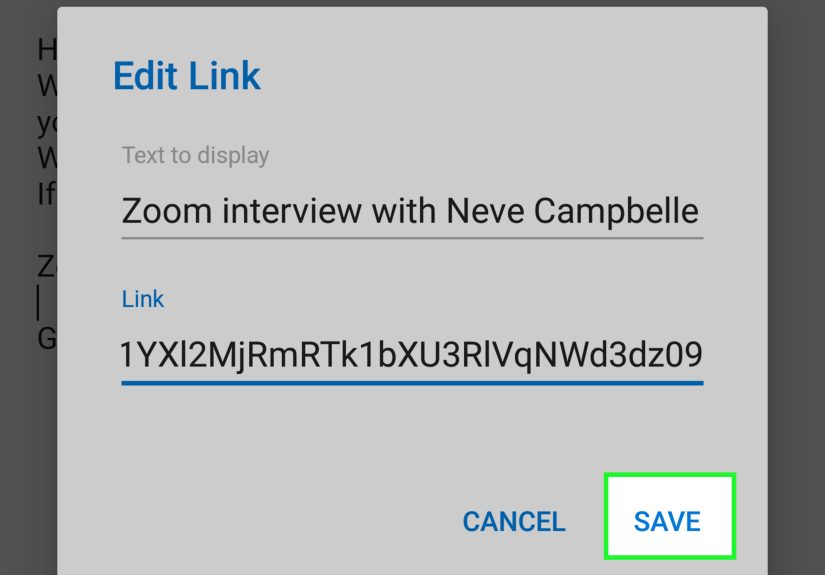
When the Insert Hyperlink or Link box opens, paste your copied URL into the Address field. This connects the text you selected to the destination you want readers to open.
-
Clean up the display text
If Outlook shows a field such as Text to display, make sure the visible text is short, clear, and descriptive. For example, use Read the customer guide instead of a giant URL full of slashes, numbers, and existential dread.
-
Choose the right type of link
Most of the time, you will use a standard web address. But Outlook can also support email-style links. If you want a link that opens a new email draft to a specific address, use an email address or mailto-style link instead. That is handy for phrases like Email our support team.
-
Click OK to insert the hyperlink
Once the destination looks right, click OK. Your selected text should now appear as a hyperlink. Depending on your Outlook version and theme, it may show as blue and underlined, though the exact appearance can vary.
-
Test the link before sending
Do not skip this step. Hover over the link and check that the destination looks correct. If your version of Outlook allows it, test it in draft mode. It takes about three seconds and can save you from the deeply humbling follow-up email that says, “Sorry, wrong link.”
-
Use a cloud share link for files when appropriate
If you are sending a document stored in OneDrive or SharePoint, consider sharing it as a link instead of attaching a copy. This is especially smart for files that may change, files with multiple collaborators, or anything large enough to make email groan dramatically.
-
Choose “share link” instead of “attach as copy” when needed
When you attach a cloud file in Outlook, you may see options such as Share link, Share as a OneDrive link, or Attach as copy. If you want recipients to access the latest version, choose the shared link option. If you want everyone to receive a static copy, choose the attachment copy option instead.
-
Check permissions before you send
This is the step people forget, and then chaos arrives. If you are linking to a cloud file, make sure the recipients actually have permission to open it. A beautiful link that ends in Access denied is not a productivity hack. It is just a fancy disappointment.
-
Proofread the email and send it
Read the message one final time. Make sure the link fits naturally, the tone is clear, and the recipient knows what will happen when they click. Then hit Send with the confidence of someone who has finally defeated the ugly URL monster.
When to Use a Hyperlink vs. a File Attachment Link
A regular hyperlink is best when you are sending people to a webpage, landing page, form, FAQ, video, or public document. It keeps the email tidy and moves the reader straight to the destination.
A cloud file link is better when the file lives in OneDrive or SharePoint and you want recipients to collaborate on the same version. This is especially useful for team drafts, meeting agendas, shared reports, and documents that change frequently. Sending a link prevents the classic office problem where six people are editing six slightly different files and everyone insists theirs is “the latest one.”
If the file must be preserved exactly as sent, attach a copy instead. If the file will keep evolving, share the link.
Best Practices for Adding Links in Outlook
Use descriptive anchor text
Write clickable text that tells the reader where the link goes. View the March sales dashboard is far better than click here. Descriptive link text improves clarity, accessibility, and trust.
Do not overload one email with links
If every other sentence is clickable, your message starts to look like a suspicious treasure map. Include only the links the recipient actually needs.
Tell readers what the link leads to
If the destination is a PDF, form, download, or shared document, say so. For example: Download the PDF checklist or Open the shared Excel tracker. This helps set expectations before the click.
Be careful with shortened URLs
Shortened links can look neat, but they may also feel less trustworthy to some recipients. In professional emails, clear branded or direct links often feel safer and more transparent.
Watch for phishing red flags
If you are forwarding or inserting a link you did not create, verify it first. A polished email with a suspicious destination is still a suspicious email. Always confirm the source, especially if the link asks for passwords, payment details, or sensitive information.
Common Problems and Quick Fixes
The link does not look clickable
Make sure you selected the text before opening the link tool. If needed, delete the link and insert it again. Also confirm that you pasted a full valid URL, including the correct web address format.
Outlook pasted the full URL instead of creating neat linked text
That usually means the address was pasted directly into the message body. Highlight the words you want, open the hyperlink tool, and paste the URL into the address box instead.
The file link opens, but recipients cannot access it
This is almost always a permissions issue. Reopen the file’s sharing settings in OneDrive or SharePoint and confirm that the recipients can view or edit it.
The link preview is huge and distracting
In Outlook on the web, pasted URLs may generate a rich preview with a title, image, and description. That can be useful, but it can also make a short email feel like a billboard. If needed, turn off link previews in your Outlook web settings.
Links open in the wrong browser
Some Outlook desktop settings control whether links open in Microsoft Edge or your default browser. If that behavior annoys you, check Outlook’s advanced file and browser preferences.
Specific Example: Adding a Link the Clean Way
Let’s say you are emailing a client about a revised proposal. Here is the messy version:
Please review this: https://companyname.sharepoint.com/sites/sales/proposals/Q2/clientproposal/version7/finalreview
Here is the much better version:
Please review the updated proposal and let me know if you approve the pricing section.
The second version is easier to scan, easier to trust, and much more pleasant to read. It also makes you look organized, which is always a nice side effect.
Extra Practical Experience: What People Usually Learn the Hard Way
Here is the part nobody tells you when you first start using Outlook links: the technical step is easy, but the human part is where all the comedy happens. Most people can create a hyperlink in under a minute. The trouble starts when they send the email without checking what the link actually does. That is why experienced Outlook users develop a few habits that save them over and over again.
The first lesson is that clean link text matters more than people think. When someone receives an email packed with raw URLs, their eyes glaze over almost instantly. A good hyperlink works like a road sign. It says exactly where the click will lead. That tiny bit of clarity can make your email feel polished, especially in workplace communication where people are scanning fast and replying even faster.
The second lesson is that cloud links are wonderful right up until permissions get weird. Nearly everyone who uses Outlook long enough has sent a OneDrive or SharePoint link that worked perfectly for them and absolutely nobody else. It feels unfair, but Outlook is not being dramatic. It is simply reflecting the sharing settings behind the file. After one or two embarrassing “Can’t open this” replies, most users become religious about checking permissions before sending.
Another common experience is realizing that a linked phrase should explain the destination. For example, review the policy update is helpful. here is not. That may sound like a small style preference, but it changes how quickly readers understand the email. It also helps people using screen readers or scanning messages on mobile devices. In other words, the best hyperlinks are not just clickable. They are informative.
Then there is the classic Outlook moment where the sender pastes a URL, Outlook creates a preview card, and suddenly a quick three-line email looks like a mini website. Sometimes that preview is useful. Sometimes it is the visual equivalent of a marching band entering a library. Learning when to keep the preview and when to turn it off is one of those small email skills that makes a big difference in presentation.
People also discover that not every situation calls for the same kind of link. A normal website link is great for articles, forms, and public resources. A shared file link is better for collaboration. A file attachment copy is better when you need a frozen version. Once you understand those differences, Outlook feels less confusing and much more intentional.
And finally, experienced users learn to trust the tiny pre-send test. Hover over the link. Read the destination. Ask yourself whether the link text matches the page it opens. That five-second check prevents a shocking number of mistakes. It is not glamorous. It will not earn applause. But it will save you from sending your boss, client, or entire team to the wrong document, wrong folder, or wrong website, which is a special kind of email pain.
So yes, adding a link in Outlook is easy. Adding the right link, in the right format, with the right permissions, and with text that makes sense to a busy human being? That is the real skill. Thankfully, once you practice it a few times, it becomes second nature.
Conclusion
If you want to attach a link to an email in Outlook, the fastest route is simple: write your message, highlight the text you want people to click, open the hyperlink tool, paste the URL, and test it before sending. That covers the everyday version.
If you are sharing a document, Outlook also gives you a smarter option: send a cloud link from OneDrive or SharePoint instead of attaching a separate file. That keeps everyone on the same version and can make collaboration far smoother.
The big takeaway is this: a good Outlook link should be clear, clickable, trustworthy, and useful. If your recipient instantly knows where the link goes and can open it without friction, you did it right. And if you managed that without pasting a terrifying 200-character URL into the middle of your message, even better.