Table of Contents >> Show >> Hide
- What Does Archiving an Email in Gmail Actually Do?
- How to Archive Emails in Gmail on Desktop
- How to Archive Emails in Gmail on Mobile
- How to Find Archived Emails in Gmail
- Why Archiving Helps You Stay Organized
- Best Gmail Archive Tips for Better Email Organization
- Common Mistakes People Make with Gmail Archive
- A Simple Gmail Organization System That Actually Works
- Real-World Experiences with Archiving Emails in Gmail
- Final Thoughts
Gmail can feel like a helpful assistant right up until it turns into a digital junk drawer stuffed with receipts, newsletters, random replies, and that one email you swear you’ll answer “later.” Then later becomes next Tuesday, and next Tuesday becomes a lifestyle. That is exactly where Gmail’s archive feature earns its paycheck.
If you have ever hesitated between clicking Archive and Delete, you are not alone. One button says “I’m being responsible,” and the other says “I’m having an emotional reaction.” This guide breaks down how to archive emails in Gmail, when to use it, how to find archived messages later, and how to build an inbox organization system that does not require a color-coded spreadsheet and a support group.
What Does Archiving an Email in Gmail Actually Do?
Archiving in Gmail removes a message from your inbox without deleting it. Think of it as clearing your desk by putting a document into a filing cabinet instead of sending it through a shredder. The email is still in your account, still searchable, and still available under All Mail. It simply stops taking up visible space in your inbox.
This is one of the most useful Gmail organization features because it lets you separate active messages from stored messages. Your inbox becomes a working space, not a museum of every email you have received since your first online order of something questionable at 2 a.m.
Archive vs. Delete: The Important Difference
Here is the plain-English version:
| Action | What Happens | Best For |
|---|---|---|
| Archive | Removes the email from the inbox but keeps it in Gmail | Messages you want to keep but do not need to see right now |
| Delete | Moves the email to Trash | Messages you no longer need at all |
| Label | Tags the email for easier sorting and searching | Projects, clients, bills, travel, school, receipts |
| Snooze | Temporarily hides the email until a chosen time | Messages that need attention later |
In other words, archive is for keeping without clutter, while delete is for saying goodbye with confidence and possibly a little flair.
How to Archive Emails in Gmail on Desktop
If you use Gmail on a computer, archiving is easy enough that it almost feels suspicious.
Archive a Single Email
- Open Gmail.
- In your inbox, select the message you want to archive.
- Click the Archive button at the top.
You can also open the email first and then click Archive from the toolbar. Same result, fewer mysteries.
Archive Multiple Emails at Once
- Check the boxes next to the emails you want to archive.
- Click Archive in the top toolbar.
This is especially useful for cleaning up newsletters, old notifications, shipping updates, and those “just circling back” messages that somehow multiply on their own.
Use the Keyboard Shortcut
Want to look impressively efficient? Select a message and press E. Gmail archives it instantly. It is the kind of shortcut that makes you feel like you should also own two monitors and a standing desk.
How to Archive Emails in Gmail on Mobile
On the Gmail app, archiving is just as simple, which is good because most inbox battles now happen while waiting in line, pretending to listen, or avoiding eye contact on public transportation.
Archive with a Swipe
In the Gmail app, you can swipe a message left or right to archive it, depending on your settings. This makes inbox cleanup fast, but also slightly dangerous if your thumb has a dramatic streak.
Customize Swipe Actions
If you prefer to archive, delete, snooze, or mark as read when swiping, Gmail lets you adjust swipe behavior in settings. That is helpful because some people want a quick archive option, while others want the digital equivalent of a trap door.
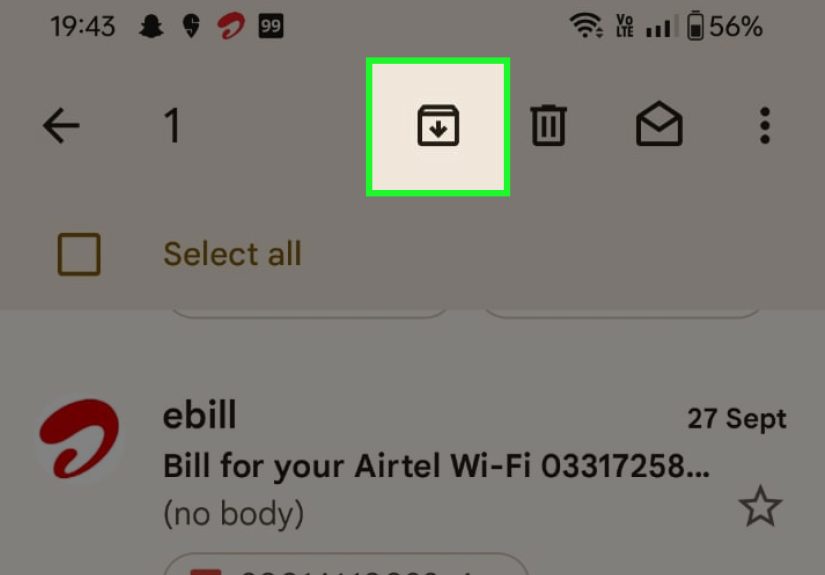
Archive from Inside a Message
Open the email and tap the archive icon. Done. No ceremony, no confetti, just progress.
How to Find Archived Emails in Gmail
This is the part that confuses many users. Archived emails do not go to a magical “Archived” folder in Gmail. Instead, they remain available in All Mail and through Gmail search.
Use All Mail
Open the left menu in Gmail and click All Mail. There you will see your archived emails mixed in with other messages. If a message is in All Mail but not marked with Inbox, it is probably archived.
Use Search Operators
Search is where Gmail becomes less like a messy closet and more like a smart filing system. You can find archived messages with searches such as:
- from:[email protected] for a specific sender
- has:attachment for emails with files
- older_than:1y for older email
- after:2025/01/01 before:2025/06/01 for date ranges
- in:anywhere to search the whole account more broadly
If Gmail search had a superhero cape, this would be the montage scene.
Move an Archived Email Back to the Inbox
Found the email and want it back in your inbox? Select it and click Move to Inbox. That is all. No apology letter required.
Why Archiving Helps You Stay Organized
The real power of Gmail archive is not the button itself. It is the mindset behind it. When you archive regularly, your inbox becomes a to-do list instead of a storage attic.
1. It Reduces Visual Clutter
A crowded inbox makes important emails harder to spot. Archiving clears the noise so urgent messages do not get buried under coupon codes and package updates.
2. It Keeps Useful Emails Without Deleting Them
Some messages matter, but only occasionally. Think invoices, job materials, school updates, travel confirmations, project approvals, and client conversations. Archive lets you keep them without staring at them every day like old trophies from an email championship nobody wanted to join.
3. It Supports a Better Workflow
Many productivity systems treat the inbox as a temporary holding area. Read it, respond to it, act on it, then archive it. That simple routine helps you make decisions faster and prevents endless rereading of the same messages.
4. It Works Beautifully with Labels and Filters
Archiving becomes much more powerful when combined with Gmail labels and filters. You can label emails by project, client, order type, or priority, then archive them once handled. Later, you can search by label or keyword and find what you need without scrolling through a thousand unrelated messages.
Best Gmail Archive Tips for Better Email Organization
Create Labels Before You Need Them
Set up labels for categories you use often, such as Bills, Receipts, Clients, School, Travel, or Projects. Then label and archive. This gives you structure without forcing every message to stay in the inbox forever like an uninvited houseguest.
Use Filters to Archive Automatically
If certain emails always go straight to storage, create a filter. Gmail lets you build rules based on sender, subject, keywords, or other details. You can automatically apply a label and choose Skip the Inbox, which effectively archives those messages on arrival.
Great candidates include:
- Promotional newsletters you still want to browse occasionally
- Shipping confirmations
- Social notifications
- Automated reports
- Payment receipts
Archive After Action
A simple rule works wonders: if you have read it, replied to it, or saved what matters, archive it. This prevents your inbox from turning into a pile of half-finished intentions.
Do Not Archive Everything Blindly
Archive is helpful, but not magical. Spam should be spam. Junk should be deleted or unsubscribed from. Truly unimportant messages do not deserve lifetime residency in your account just because Gmail is being polite.
Use Search Like a Pro
Archiving only works well when retrieval is easy. Learn a few Gmail search operators and your future self will thank you loudly. Or quietly. Organized people are often very calm.
Common Mistakes People Make with Gmail Archive
Thinking Archive Deletes Email
It does not. Archive only removes the message from the inbox view. If storage is your goal, deleting large and unnecessary messages matters more.
Forgetting That Replies Can Bring a Thread Back
If you archive a conversation and someone replies later, Gmail can move that thread back into your inbox. This is useful, but it surprises people who thought the email had retired to a quiet life in the countryside.
Using Archive Instead of Unsubscribe
If the same unwanted newsletter returns every morning like it pays rent, archiving is not enough. Unsubscribe or filter it. Otherwise, you are just tidying the surface while chaos breeds in the basement.
Not Building a Retrieval System
If you archive messages with no labels, no naming pattern, and no search habits, finding them later becomes annoying. Gmail search is powerful, but even smart tools work better when you give them something to work with.
A Simple Gmail Organization System That Actually Works
Here is a practical email workflow for busy people who do not want inbox management to become a second career:
- Open inbox and scan for urgent items.
- Reply, delegate, or schedule follow-up.
- Label messages that need long-term reference.
- Archive finished messages.
- Delete junk and unsubscribe from recurring clutter.
- Use filters to automate the obvious stuff.
This system keeps your Gmail inbox focused on what is current, while archived email becomes your searchable reference library. Clean, practical, and far less dramatic than digging through 24,000 unread messages on a Sunday night.
Real-World Experiences with Archiving Emails in Gmail
One of the most common experiences people report after they start archiving email regularly is relief. Not fireworks, not angels singing, just plain relief. A smaller inbox feels easier to manage, which often leads to faster replies and fewer missed messages. Someone who once kept every email sitting in the inbox might suddenly realize they can spot client requests, school notices, or order confirmations without wading through a swamp of old promotions.
Another common experience is confusion at the beginning. People archive messages, then panic because the emails seem to disappear. Ten minutes later, they discover All Mail or use the search bar and realize nothing is gone. That first “Oh, it’s still here” moment is practically a Gmail rite of passage.
Professionals often find archiving especially useful when they work across multiple projects. Imagine a freelancer handling three clients, an online store owner tracking orders, or a student juggling assignments, internship updates, and financial aid emails. Once they start labeling and archiving completed threads, the inbox becomes much less noisy. Instead of storing every conversation in the main view, they keep only what still needs attention. Everything else moves into a searchable reference system. Suddenly, email feels less like a burden and more like a filing cabinet with decent manners.
There is also the experience of learning what not to archive. Many people begin by archiving almost everything, then realize recurring promotional mail keeps coming back to haunt the inbox. That usually leads to a second stage of maturity: filters, unsubscribe habits, and smarter cleanup rules. In other words, archiving teaches better email judgment over time. You stop treating every message the same way and start sorting based on value.
Mobile users often mention how swipe-to-archive changes their habits. It turns cleanup into something that happens in tiny spare moments, like waiting for coffee, sitting in the car before a meeting, or pretending not to notice that group chat exploding again. A few swipes here and there can prevent the inbox from becoming a weekend disaster recovery project.
Long-term Gmail users also discover that archiving improves confidence. Once they trust search, labels, and All Mail, they no longer feel the need to keep everything visible “just in case.” That mental shift matters. A clean inbox stops being scary because archived messages are still available when needed. In the end, the biggest experience tied to Gmail archiving is not just organization. It is peace of mind. And for something as chaotic as email, that is basically luxury living.
Final Thoughts
If your inbox currently looks like it lost a bet, Gmail archive can help. It is one of the simplest ways to organize email without losing important information. Used well, archiving keeps your inbox focused, your reference emails محفوظwell, storedand your stress level a little lower.
The best part is that you do not need a perfect system to start. Archive the obvious stuff. Add a few labels. Create one or two filters. Learn a couple of search operators. Small changes can make Gmail feel dramatically more manageable. And that is the dream: fewer email headaches, more actual life.