Table of Contents >> Show >> Hide
- Why HBO Max Stops Working on Roku in the First Place
- 1. Check Whether the Problem Is Max, Roku, or Your Internet
- 2. Update Both the Max App and Roku OS
- 3. Restart the Max App and Restart the Roku Device
- 4. Power Cycle Your Roku and Your Router
- 5. Test Your Internet Speed and Reduce Network Congestion
- 6. Remove and Reinstall the Max App
- 7. Check Your Sign-In, Subscription, and Billing Provider
- 8. Look for Roku-Specific Device Problems
- 9. Use Last-Resort Fixes: Factory Reset or Contact Support
- Bonus Tip: Try Playing Content from Roku Search
- When You Should Suspect It Is Time for a New Roku
- Real-World Experiences: What This Problem Usually Looks Like
- Final Thoughts
If HBO Max is not working on Roku, you are not alone, and you are definitely not being singled out by the streaming gods. One minute you are ready for a prestige-drama marathon, and the next minute the Max app is buffering, freezing, kicking you back to the home screen, or acting like your password suddenly belongs to someone else. It is a deeply modern form of heartbreak.
The good news is that most Roku streaming issues are fixable without buying a new device, calling tech support, or threatening your TV with “fine, I’ll read a book instead.” In many cases, the problem comes down to an outdated app, a stale cache, a weak Wi-Fi connection, a subscription mismatch, or a cranky Roku device that simply needs a restart.
This guide walks through nine practical fixes for when HBO Max keeps crashing on Roku, refuses to load, buffers endlessly, or will not let you sign in. For clarity, the service is now branded as Max, but many people still search for HBO Max on Roku, so we will use both terms naturally throughout this article.
Why HBO Max Stops Working on Roku in the First Place
Before jumping into fixes, it helps to know what usually causes the problem. The most common culprits are pretty ordinary: software updates that did not install cleanly, internet speed that dips below streaming-friendly levels, app corruption, memory issues on older Roku devices, sign-in or billing confusion, and occasional service outages. In other words, your Roku is not always broken. Sometimes it is just having a dramatic episode of its own.
If Max works on your phone but not on Roku, the issue is usually device-specific. If it fails everywhere, the problem may be with your account, your network, or the streaming service itself.
1. Check Whether the Problem Is Max, Roku, or Your Internet
Start with the simplest question: Is the problem happening only on Roku?
Open Max on another device, such as your phone, tablet, or laptop. If the app works there, your account is probably fine and the issue is likely with your Roku setup. If Max also fails on other devices, you may be dealing with a service outage, a billing issue, or a broader network problem.
This step matters because it saves time. There is no point reinstalling the app on Roku if the service itself is having a bad day. Streaming platforms do occasionally wobble, and unfortunately they never seem to choose a random Tuesday at 10:14 a.m. They prefer movie night.
2. Update Both the Max App and Roku OS
Outdated software is one of the biggest reasons HBO Max is not working on Roku. The fix is simple, but many people only update one side of the equation. You need to check both the Max app and the Roku system software.
How to update Max on Roku
From the Roku home screen, highlight the Max channel, press the * button on your remote, and choose the option to check for updates.
How to update Roku itself
Go to Settings > System > Software update > Check now. This forces Roku to look for the latest OS update and channel updates.
If you have been putting off updates for months, this is your cue. Software mismatches can cause freezing, loading loops, playback errors, and random crashes. Think of updates as tiny peace treaties between your streaming device and your streaming app.
3. Restart the Max App and Restart the Roku Device
Yes, restarting things really does fix a surprising number of tech problems. The stereotype exists because it works.
If the Max app is stuck, slow, or acting weird, sign out of the app first if you can. Then restart your Roku device:
- Roku player: Go to Settings > System > System restart
- Roku TV: Go to Settings > System > Power > System restart
Once the Roku reboots, reopen Max and sign back in. This clears temporary glitches, refreshes background processes, and often fixes an app that refuses to behave. If the app opens but gets stuck on the logo screen, this is usually the first fix worth trying.
4. Power Cycle Your Roku and Your Router
If a normal restart does not help, do a full power cycle. This is slightly more dramatic than a restart, which makes it feel more satisfying even before it works.
How to power cycle Roku
Unplug your Roku device or Roku TV from power, wait about 20 seconds, then plug it back in.
How to power cycle your network
Unplug your modem and router, wait a minute or two, then reconnect them. Let the modem come back online first, then the router.
This step can fix network hiccups, handshake issues, and temporary memory problems. If your Max app keeps buffering on Roku or refuses to stream video after opening, this is one of the most effective fixes.
5. Test Your Internet Speed and Reduce Network Congestion
Streaming apps are picky eaters. They do not just want internet; they want stable internet.
On Roku, go to Settings > Network > Check connection. That will tell you whether the device is connected properly. For a more realistic test, run a speed test on another device connected to the same Wi-Fi network.
For HD streaming, a download speed of at least 5 Mbps is generally recommended. For 4K streaming, 50+ Mbps is the safer target. But raw speed is not the whole story. Congestion matters too. If three people are gaming, one person is on a video call, and somebody in the next room is downloading half the internet, Max may struggle even if your plan looks fast on paper.
Quick network fixes
- Move the router closer to the Roku device if possible
- Pause heavy downloads or gaming sessions
- Switch from crowded Wi-Fi bands if your setup allows it
- Restart the router if your connection feels unstable
If buffering only happens on Roku and nowhere else, your Roku’s wireless connection may be weaker than the rest of your devices.
6. Remove and Reinstall the Max App
If HBO Max keeps crashing on Roku, reinstalling the channel is often the cleanest fix. This removes corrupted app data and gives you a fresh copy.
How to reinstall Max on Roku
- Highlight the Max app on the Roku home screen
- Press the * button on the remote
- Choose Remove app
- Restart the Roku device
- Go to the Streaming Store and add Max again
That restart in the middle is important. Skip it, and you may not get the full benefit of the reinstall.
There is one wrinkle: if your subscription is billed directly through Roku and still active, Roku may not always let you remove the app the usual way. In that case, move on to the next troubleshooting steps and double-check your billing setup.
7. Check Your Sign-In, Subscription, and Billing Provider
Sometimes the Max app opens just fine, but playback fails, you get a “Welcome back” message, or the sign-in process becomes a loop worthy of a sci-fi plot twist. That often points to an account issue.
Open Max and check who bills your subscription. If you subscribed through Roku, that matters. If you subscribed through Max directly, Apple, Google Play, or another provider, your access and troubleshooting options may look different.
What to look for
- An expired or canceled subscription
- A mismatch between the account you signed in with and the account that pays for Max
- A provider login that no longer has access
- A stuck TV sign-in code or activation loop
If the app loads but says you need to subscribe even though you already do, the billing provider is often the missing piece. Many “app problems” are really account-authentication problems wearing a tech support costume.
8. Look for Roku-Specific Device Problems
If Max is the only app acting up, the issue may still be the Roku device itself, especially on older models or memory-constrained systems.
Common Roku-specific trouble spots
- Low memory: Some Roku devices throw “Can’t run app” or “Insufficient memory” errors when too many apps or temporary processes pile up
- Remote problems: If the app seems frozen, it could actually be a remote issue; check batteries or re-pair the remote if needed
- Overheating or unstable power: A hot Roku stick or flaky power source can create random crashes
- Older hardware: Newer streaming apps are not always kind to aging devices
If your Roku is sluggish across multiple apps, not just Max, restart it, update it, and make sure it has reliable power. For Streaming Stick models, even HDMI placement and interference can affect performance. Sometimes the villain is not the app. Sometimes the villain is a tired little streaming stick wedged behind a hot TV.
9. Use Last-Resort Fixes: Factory Reset or Contact Support
If none of the above works, you are down to the more serious options.
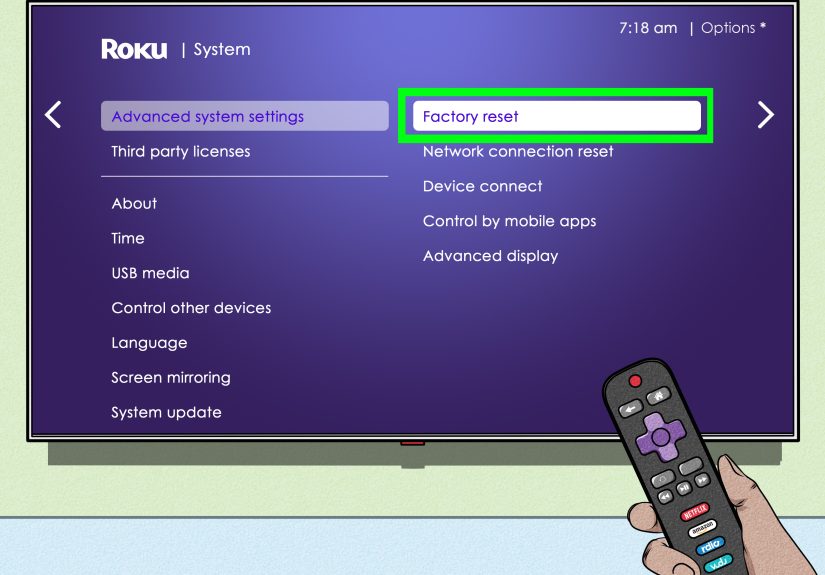
Try a factory reset only if:
- Multiple apps are failing
- Your Roku keeps freezing or restarting
- You suspect a larger system issue rather than a Max-only problem
A factory reset wipes your apps and settings, so it is not a casual click. It is the “we need to have a talk” stage of troubleshooting.
Before resetting, write down any error code or on-screen message you see in Max. That information is useful if you end up contacting Max support or Roku support. A message like “Something went wrong” is vague, but even vague messages can help narrow the issue when paired with details like whether playback fails immediately, after sign-in, or only on certain titles.
Bonus Tip: Try Playing Content from Roku Search
If the Max home screen is glitchy, try launching a title from Roku Search instead of navigating through the app normally. Search for a Max show or movie from the Roku home screen and select it from the results. In some cases, that gets you past a stubborn app landing page and into playback.
It is a bit like sneaking into the party through the side door, but if it works, it works.
When You Should Suspect It Is Time for a New Roku
If your Roku regularly struggles with multiple apps, crashes after updates, shows memory-related errors, runs hot, or feels slower than a snail in a weighted blanket, hardware may be the real issue. New streaming apps demand more than older devices can always deliver.
You do not need to replace your Roku just because Max had one bad night. But if HBO Max, Netflix, Hulu, and YouTube are all taking turns melting down, upgrading your device may save a lot of future frustration.
Real-World Experiences: What This Problem Usually Looks Like
In real life, “HBO Max not working on Roku” rarely looks the same from house to house. One person opens the app and gets stuck on the logo forever. Another can browse just fine but cannot actually play anything. Someone else gets buffering every 30 seconds, even though every other streaming service appears perfectly normal. That variety is exactly why this issue feels so annoying. It does not announce itself with a giant sign that says, “Hello, I am a Wi-Fi problem” or “Greetings, I am a billing mismatch.” It just breaks your evening in a vague, unhelpful way.
A very common experience happens after a Roku or app update. You sit down to watch something, open Max, and suddenly the interface feels slower, the thumbnails take forever to load, or the app kicks you back to the Roku home screen. In many cases, a system restart or reinstall fixes it. That sounds almost too simple, which is probably why people skip it at first. We like our solutions with a little more drama.
Another classic scenario is the “works on my phone, fails on my TV” mystery. This usually pushes people to blame the Max app entirely, but it often points to a Roku-specific problem instead. Maybe the Roku has a weaker wireless signal than the phone. Maybe the device has not been restarted in ages. Maybe the app data got corrupted. Whatever the reason, the fact that Max works elsewhere is actually helpful, because it narrows the problem fast.
Then there is the subscription confusion saga. Plenty of users are absolutely sure they are paying for Max, and they probably are, but they may be paying through Roku, through Max directly, or through another provider tied to a different login. That is how people end up in an absurd loop where they are both subscribed and somehow not subscribed at the same time. Few things in modern life feel more insulting than being asked to pay again for a service you already pay for.
Buffering issues create their own special category of frustration because they are often inconsistent. The app may run smoothly at noon and become unwatchable at night. That usually points to network congestion, weaker signal quality, or a router that needs a reboot. It can also happen in homes where the Roku sits in the farthest corner of the house, heroically trying to catch Wi-Fi through walls, furniture, and maybe a refrigerator.
Older Roku devices add another layer to the experience. People often do not realize how much strain newer apps can put on aging hardware until one app becomes the canary in the coal mine. Max may be the first to struggle, but it is not always the only one for long. If the device is slow everywhere, that is less of a Max problem and more of a “this little box has been fighting for its life since 2018” problem.
The encouraging part is that most users do solve the issue without needing advanced tech support. The winning formula is usually boring but effective: update, restart, test the network, reinstall the app, check billing, and only then consider bigger steps. Not glamorous, but neither is staring at a frozen loading circle while your popcorn goes cold.
Final Thoughts
If HBO Max is not working on Roku, start with the basics before assuming the worst. Update the app, update Roku, restart everything, test your internet, and reinstall Max if needed. Then move on to subscription checks, device-specific issues, and last-resort fixes like a factory reset.
Most Roku Max problems come down to a few repeat offenders: outdated software, flaky connectivity, corrupted app data, or account confusion. Once you identify which one is causing the mess, the fix becomes much more straightforward. And ideally, your next evening ends with a show, not a troubleshooting session.