Table of Contents >> Show >> Hide
- macOS 12.1 vs. “Plain” Monterey: What’s the Difference?
- Host Movie Nights From Your Mac With SharePlay
- Talk to Your Playlist: Apple Music Voice Plan
- Relive Your Photos With Smarter Memories
- Keep Kids Safer in Messages With Communication Safety
- Plan for the Future With Digital Legacy
- Take Privacy Further With Hide My Email
- Smarter Everyday Apps: TV, Stocks, Notes, and Reminders
- Bug Fixes That Actually Matter
- Core Monterey Features You Should Still Use
- Everyday Experiences: Living With macOS 12.1 Monterey
- Should You Upgrade to macOS 12.1 Monterey?
macOS 12 Monterey was already a big step forward for the Mac, but version
macOS 12.1 Monterey is where things started to feel truly complete.
It’s the first major point update of Monterey, released in December 2021, and it adds
features Apple promised at WWDC plus a bunch of polish, security updates, and bug
fixes.
If you’ve just updated your Mac and you’re wondering, “Okay… but what can I
actually do with macOS 12.1 Monterey?” this guide is for you. We’ll walk through
the standout features like SharePlay, Apple Music Voice Plan, Digital Legacy, Hide My
Email, redesigned Photos Memories, and more. We’ll also revisit some of the best
Monterey tricks Tab Groups, Focus, Live Text, Shortcuts, and Universal Control
so you can put 12.1 to work in your daily life, not just admire the version number.
macOS 12.1 vs. “Plain” Monterey: What’s the Difference?
macOS Monterey (12.0) introduced a bunch of new ideas for the Mac: a refreshed Safari,
the Focus system, Quick Note, Live Text, Shortcuts on the Mac, AirPlay to Mac, and more.
Version 12.1 Monterey layers several important features on top:
- SharePlay in FaceTime for shared movies, music, and screens.
- Apple Music Voice Plan for Siri-based music control at a lower price.
- Redesigned Memories in Photos with richer, more dynamic presentations.
- Communication Safety tools in Messages for kids and parents.
- Digital Legacy to designate trusted contacts for your iCloud data.
- Hide My Email support inside the Mail app for iCloud+ users.
- Quality-of-life updates for TV, Stocks, Notes, and Reminders.
- Bug fixes for trackpads, HDR video on YouTube, external displays, MagSafe charging, and more.
In other words, 12.1 is less “just a security patch” and more “the version where
Monterey matures.”
Host Movie Nights From Your Mac With SharePlay
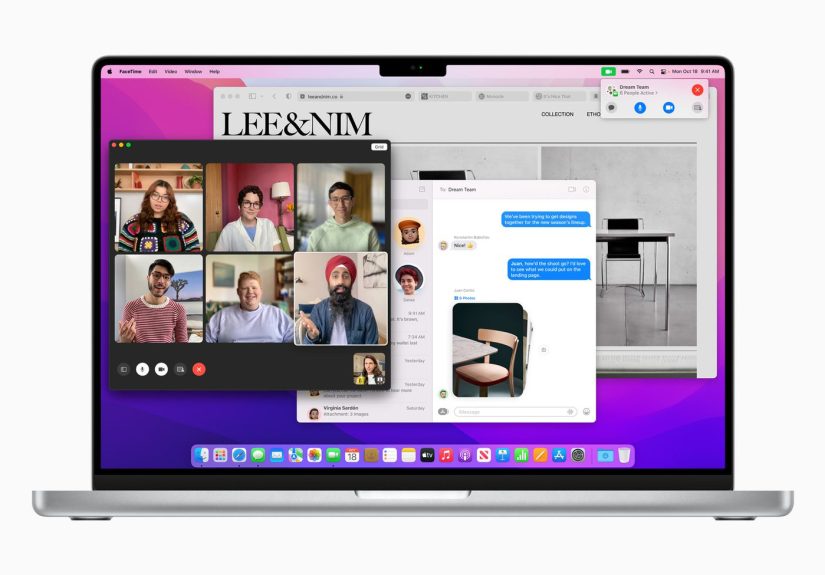
The star of macOS 12.1 is SharePlay, a FaceTime feature that basically
turns your Mac into a shared viewing party machine. With SharePlay, you can:
- Watch movies or TV shows in sync with friends via the Apple TV app.
- Listen to Apple Music together, with shared playback controls.
- Share your screen to browse the web, work through a presentation, or troubleshoot a tech problem.
Everyone on the call sees or hears the same thing at the same time, and anyone can
play, pause, or scrub. When you speak, macOS automatically dips the media volume so
people don’t have to shout over a soundtrack.
Real-world ways to use SharePlay
- Long-distance date nights: Hit play once, not “3…2…1… now!” over chat.
- Study sessions: Watch a lecture video together and pause to discuss.
- Tech support: Share your screen with your “IT friend” and let them walk you through fixes.
If you spend a lot of time in FaceTime already, SharePlay makes macOS 12.1 feel like
the OS version where “hanging out online” finally gets first-class support.
Talk to Your Playlist: Apple Music Voice Plan
macOS 12.1 also introduces the Apple Music Voice Plan, a lower-priced
subscription tier centered on Siri. Instead of browsing through the app, you mainly
control Apple Music with your voice.
With the Voice Plan, you can:
- Ask Siri for any song, artist, playlist, or station in the Apple Music catalog.
- Use “Just Ask Siri” suggestions based on what you tend to like or skip.
- Use Play It Again to quickly revisit your recently played songs.
On a Mac, this is handy if you work all day and don’t want to constantly flip back to
the Music app. Just say something like:
- “Hey Siri, play a ‘deep work’ playlist.”
- “Hey Siri, play that album I listened to yesterday.”
- “Hey Siri, play upbeat pop throwbacks.”
It’s not for everyone if you’re a heavy playlist micromanager, the full plan is still
better but if you mostly want music you can talk to, Voice Plan plus macOS 12.1 is a
surprisingly good combo.
Relive Your Photos With Smarter Memories
The Photos app gets a glow-up in macOS 12.1. The Memories feature is
redesigned with a more interactive interface, new transition styles, and richer
collages.
You’ll also see:
- New Memory types focused on kids, international holidays, and trends over time.
- Improved pet memories that better recognize your furry co-stars.
- Tighter integration with Apple Music so you can pair Memories with fitting soundtracks.
It’s still fully automatic Photos picks out people, locations, and series of shots
but the 12.1 update makes the results feel more like a curated slideshow than a
random assortment of images.
Keep Kids Safer in Messages With Communication Safety
For families using Apple’s ecosystem, macOS 12.1 adds
Communication Safety settings in the Messages app. When enabled on a
child’s account, the system can detect when a child is about to view or send a photo
containing nudity and display a warning.
These warnings:
- Blur the image and explain why it might be sensitive.
- Offer age-appropriate guidance and resources.
- Give kids a chance to back out or reach out to an adult.
Importantly, this all happens on-device and is opt-in as part of Apple’s broader
child-safety tools. If your Mac is part of a family setup, 12.1 quietly makes it a
safer messaging environment.
Plan for the Future With Digital Legacy
One of the more serious additions in macOS 12.1 is Digital Legacy.
This feature lets you designate one or more Legacy Contacts who can
request access to your iCloud data after you pass away.
Inside your Apple ID settings, you can:
- Add trusted family members or close friends as Legacy Contacts.
- Share an access key that they’ll need in addition to a death certificate.
- Help ensure photos, documents, and important information aren’t locked forever.
It’s not the most cheerful feature, but from an estate-planning perspective, Digital
Legacy is a practical step toward treating your digital life as seriously as your
physical possessions.
Take Privacy Further With Hide My Email
If you subscribe to iCloud+, macOS 12.1 makes Hide My Email even more
useful by bringing it right into the built-in Mail app.
Hide My Email lets you:
- Create random, unique email addresses that forward to your real inbox.
- Use different aliases for different websites or newsletters.
- Disable or delete an alias if it starts attracting spam.
With 12.1, you don’t have to go digging in system settings or on the web to create
these aliases; you can generate them from Mail’s interface while you’re composing or
filling out forms. It’s a small change that makes privacy tools easier to use in
everyday life.
Smarter Everyday Apps: TV, Stocks, Notes, and Reminders
macOS 12.1 also sprinkles improvements into apps you probably use all the time:
-
The TV app gets a dedicated Store tab, so you can
browse, buy, or rent movies and shows in one place instead of bouncing between
sections. -
Stocks now displays the currency for a ticker symbol and shows
year-to-date performance on charts, making it easier to compare long-term trends at
a glance. -
Notes and Reminders let you rename or delete tags,
so if you went a little wild creating a tag for every emotion, you can clean them
up.
None of these are flashy, but they’re the kind of refinements that quietly knock a few
seconds off tasks you do every day.
Bug Fixes That Actually Matter
macOS 12.1 also addresses several bugs that were annoying early adopters of Monterey,
especially on newer MacBook Pro models. According to Apple’s release notes and
third-party coverage, 12.1 fixes issues where:
- Desktop and Screen Saver could appear blank after choosing photos from the Photos library.
- Trackpads would sometimes stop responding to taps or clicks.
- External displays might not charge certain MacBook Air and MacBook Pro models over USB-C or Thunderbolt.
- HDR video playback on YouTube could cause kernel panics on 2021 MacBook Pro models.
- Menu bar extras could get hidden under the camera notch on new MacBook Pros.
- MagSafe charging might stop when the lid was closed and the system shut down.
So even if you never touch SharePlay or Music Voice Plan, upgrading to 12.1 can mean a
more stable, predictable Mac.
Core Monterey Features You Should Still Use
While 12.1 focuses on SharePlay and polish, it sits on top of the broader
Monterey feature set. If you’ve updated recently or you’re setting up
a new Mac, don’t skip these:
Safari Tab Groups: Tame Your Browser Chaos
Tab Groups in Safari let you group related tabs together for
example, “Vacation Planning,” “Work Research,” or “Shopping.” You can save groups,
switch between them instantly, and even share them via email.
This is perfect if you’re the kind of person who always seems to have 47 tabs open and
can’t remember which one is the article you actually need.
Focus: Fewer Distractions, More Deep Work
The Focus system, introduced with Monterey, lets you filter
notifications based on what you’re doing work, personal time, gaming, sleep, and so
on. You can choose which people and apps are allowed to interrupt you in each mode and
sync those settings across your Apple devices.
Combined with 12.1’s stability improvements, Focus transforms your Mac from a general
notification firehose into something that behaves more like a coworker who quietly
respects your calendar.
Live Text: Copy Text From Any Image
Live Text is one of Monterey’s most underrated features. When you
hover over text in a photo or screenshot, macOS recognizes it so you can copy, paste,
translate, or look it up. It works in Photos, Safari, Quick Look, and even in the
screenshot interface.
Need a phone number from a photo of a business card? Just drag to select the digits
and paste them into Contacts. Snapped a picture of a Wi-Fi password on a router?
Highlight, copy, done.
Quick Note and Shortcuts: Capture Ideas and Automate Tasks
With Monterey, Quick Note lets you slide a note in from the corner of
your screen using a hot corner or keyboard shortcut. It’s perfect for jotting down an
idea mid-Zoom, saving links from Safari, or tracking a to-do list without switching
apps.
The new Shortcuts app brings automation from iOS to macOS. You can
build custom workflows like:
- Resize and watermark screenshots and move them to a specific folder.
- Open your daily work apps and set a Focus mode with one click.
- Turn a group of Safari tabs into a neatly formatted reading list.
When you combine Quick Note, Shortcuts, and the stability improvements of 12.1, your
Mac becomes much more than a collection of separate apps it becomes a flexible
workspace.
Universal Control and AirPlay to Mac
While Universal Control fully rolled out later on in the Monterey cycle, Monterey as a
whole is known for blurring the line between your Mac and other Apple devices. You can
move your pointer between Macs and iPads as if they were one desktop and drag files
across screens. AirPlay to Mac lets you use your Mac as an AirPlay target, turning it
into a convenient extra display or speaker.
If you live in an Apple ecosystem iPhone in your pocket, iPad on your desk, Mac on
the stand macOS 12.1 Monterey is one of the releases that really leans into that
“everything works together” feeling.
Everyday Experiences: Living With macOS 12.1 Monterey
So far, we’ve looked feature by feature. But what does macOS 12.1 Monterey feel like
when you actually live in it all day? Let’s walk through some realistic scenarios and
how this version of macOS quietly improves them.
Scenario 1: A Workday Filled With Meetings
Imagine a typical busy day: you start with a FaceTime meeting with your remote team,
then a couple of one-on-ones, then a brainstorm. With macOS 12.1:
-
You kick off a SharePlay session to watch a product demo video at
the same time as your team. Nobody has to fight to sync playback everyone sees the
same frame, and you can pause together to discuss. -
You turn on a Work Focus mode so only Slack, email, and calendar
notifications come through during key hours. Social apps and random news alerts stay
quiet. -
When someone sends a key link in the chat, you use Quick Note to
capture it instantly, tagged with the app and context for later.
By the end of the day, you’ve attended all your calls, captured the useful bits, and
haven’t had your concentration shredded by irrelevant notifications a very Monterey
kind of win.
Scenario 2: Planning a Trip With Safari and Photos
You finally decide it’s time to take a trip. On macOS 12.1, you might:
-
Create a Safari Tab Group called “Spring Trip” and fill it with
flight options, Airbnb listings, blog posts, and restaurant reviews. -
Use Live Text to copy phone numbers or booking codes from photos
and paste them into your itinerary. -
Turn on Hide My Email for yet another travel newsletter that looks
useful but may spam you for eternity. -
Later, watch your trip’s Memories in the Photos app, complete with
more cinematic transitions and soundtracks.
None of these are life-changing on their own, but together they make the planning and
remembering process noticeably smoother.
Scenario 3: A Family Mac in a Shared Space
Many Macs pull double or triple duty homework machine, movie screen, bill-paying
station. On a shared family Mac with macOS 12.1, you can:
-
Enable Communication Safety in Messages for a child’s user
account, so the system gently warns them about sensitive content. -
Use Digital Legacy to designate a spouse or close relative as a
Legacy Contact, so there’s a clear plan for digital access if something happens. -
Use Apple Music Voice Plan as a low-cost way for everyone to shout
“Hey Siri, play something fun” and get a family soundtrack without fiddling with
playlists.
In this context, macOS 12.1 isn’t just about tech features; it’s about making a shared
device safer, more organized, and less stressful.
Scenario 4: Power-User Productivity
If you’re more of a power user, the real fun of macOS 12.1 Monterey is in the details:
-
Build Shortcuts that rename files, convert formats, and file them
based on content or tags. -
Use Quick Note as your lightweight inbox for ideas anything you
might one day turn into a project, article, or script. -
Combine Tab Groups with Focus so each “mode” of your day (research,
writing, admin) has its own workspace and notification settings. -
Rely on 12.1’s bug fixes to keep your external monitors, trackpad,
and MagSafe charger behaving like grown-ups.
Monterey 12.1 doesn’t remodel your Mac; it quietly tightens all the screws so you can
push it harder with fewer surprises.
Should You Upgrade to macOS 12.1 Monterey?
If your Mac supports Monterey and you’re on an earlier 12.x release (or still on Big
Sur), moving to macOS 12.1 is an easy recommendation:
- You get SharePlay, which is genuinely useful if you do remote hangouts.
-
You get better Photos Memories and better privacy tools like Hide My Email and
Communication Safety. - You get Digital Legacy, which may matter a lot more than you think.
- You get meaningful bug fixes that can improve performance and stability.
Add to that the deeper Monterey features Live Text, Focus, Safari Tab Groups,
Shortcuts, AirPlay to Mac, and the broader ecosystem benefits and 12.1 feels like
the point where macOS Monterey truly clicks.
So yes, you can absolutely keep doing normal computer things like browsing, emailing,
and streaming. But with macOS 12.1 Monterey, you can do all of that smarter,
safer, and with just a bit more fun baked in.