Table of Contents >> Show >> Hide
- First: Can You Actually Wipe a Mac Remotely?
- Before You Erase: Do These 3 Things (They’re Fast, Promise)
- Method 1 (Best for Most People): Wipe Your Mac Using Find My
- What Happens After a Remote Wipe?
- Method 2 (Work or School Macs): Remote Wipe with Device Management (MDM)
- If Find My Wasn’t Enabled: What You Can Still Do
- Troubleshooting: Common “Why Isn’t This Working?” Moments
- Prevent the Panic Next Time: A 10-Minute “Mac Safety Setup” Checklist
- FAQ: Quick Answers to Big Questions
- Real-World Experiences (and Lessons) About Remotely Wiping a Mac
- Conclusion
Losing a Mac is a special kind of stress: half “Where did it go?” and half “What’s on it?!”
The good news is Apple gives you legitimate, built-in ways to remotely erase your Macso your photos,
files, browser sessions you swear you’ll “sort later,” and saved logins don’t become someone else’s treasure.
Important (and non-negotiable): Remote wiping should only be used on a Mac you own or are authorized to manage
(like a work/school Mac you administer). If it’s not your device or you don’t have permission, don’t do it.
This guide assumes you’re protecting your data, not causing someone else a very bad day.
First: Can You Actually Wipe a Mac Remotely?
Remote wipe isn’t magic. It’s more like a pre-installed emergency chute: it works great if it was set up before the fall.
Here’s the quick reality check.
You can remote-wipe if:
- Find My was enabled on the Mac before it went missing.
- The Mac is signed in to your Apple Account (Apple ID).
- The Mac can connect to the internet (now or later).
You probably can’t remote-wipe if:
- Find My was never turned on for that Mac.
- The Mac was wiped already and removed from your Apple Account (rare, but possible in certain scenarios).
- You’re trying to wipe a Mac you don’t own or manage (also: don’t).
If Find My is on but the Mac is offline, you’ll often see something like “Erase Pending.”
That’s normal: the erase command usually waits until the Mac reconnects to Wi-Fi or another network.
Before You Erase: Do These 3 Things (They’re Fast, Promise)
1) Decide whether you need “Lock first” or “Erase now”
If you think your Mac is nearby (left at a friend’s house, in your car, at school, under a couch cushion
where pens go to retire), try locating it first. If you suspect theft or you’re sure it’s gone,
erasing is the “protect my data” move.
2) Know what erase really means
- Erasing deletes your data from the Mac.
- You may not be able to track it afterward in Find My once it’s erased.
- Activation Lock can still protect it so someone else can’t simply reactivate and use it without your Apple Account credentials.
3) If you can, grab or confirm your backups
If your Mac is still in your possession, back it up before wiping (Time Machine is the classic).
If it’s already missing, this is more about confirming what you have synced:
iCloud Drive, Photos, Messages, and any cloud storage you use (Google Drive, Dropbox, OneDrive).
Method 1 (Best for Most People): Wipe Your Mac Using Find My
Find My is the simplest and most “Apple-ish” way to handle remote erase. You can do it from:
an iPhone/iPad, another Mac, or the iCloud website.
Option A: Use Find My on iPhone or iPad
- Open the Find My app.
- Tap Devices.
- Select your missing Mac from the list.
- Scroll down and tap Erase This Device (or similar wording).
- Follow the prompts. You may be asked to enter a phone number or message that can appear on the device.
- Confirm with your Apple Account password when prompted.
Small but important detail: Depending on your setup and macOS version, Find My may also prompt you to set a passcode
to lock a Mac (and that passcode can be required to unlock it). If you see that prompt, follow it carefullywrite it down somewhere safe.
Option B: Use Find My on Another Mac
- Open the Find My app.
- Click Devices.
- Select the missing Mac.
- Click the Info button (often an “i” icon).
- Choose Erase and confirm.
- Enter your Apple Account password if prompted.
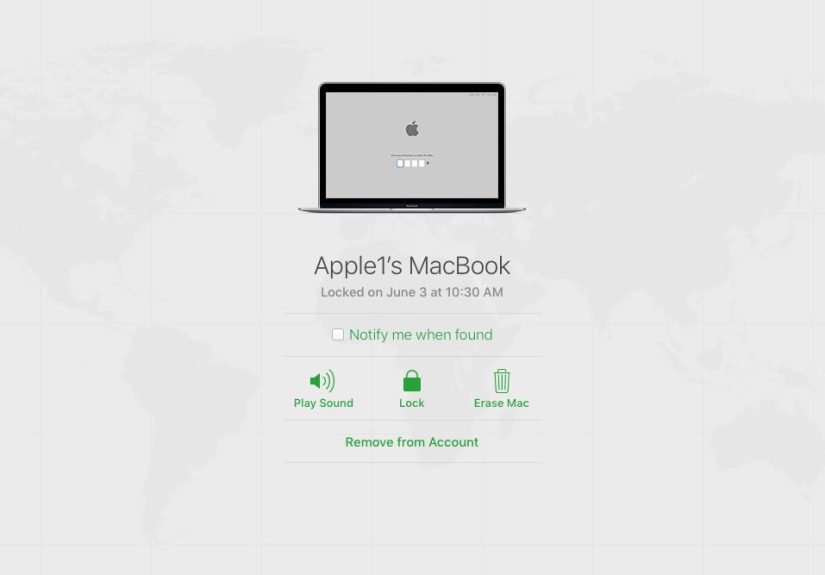
Option C: Use iCloud.com (Find Devices) From Any Browser
No Apple device available? No problem. If you can sign in, a browser can do the job.
- Go to iCloud.com/find (Find Devices).
- Sign in with your Apple Account.
- Select your missing Mac from the device list.
- Choose Erase This Device (or “Erase Mac”).
- Confirm the erase and follow any prompts (message/phone number, password, etc.).
What if the Mac is offline?
If the Mac can’t reach the internet, the erase request usually stays queued. The moment it comes online,
the erase can begin. If you find the Mac before it reconnects, you may be able to cancel the erase request
(Find My often provides a “Cancel Erase” option for pending requests).
What Happens After a Remote Wipe?
Think of this as the “what will Future Me see?” section. Here’s what typically happens once your Mac receives the erase command:
- Your data is removed from the Mac (apps, accounts, documents, settings).
- The Mac resets to a setup state (like it’s ready for a new owner or for re-enrollment in management).
- Activation Lock may remain enabled if Find My was onthis helps prevent someone else from reactivating it without your credentials.
- You may not be able to locate it afterward via Find My once it’s erased (so only erase when you’re comfortable trading “tracking” for “data safety”).
Should you remove the Mac from your Apple Account afterward?
Only do this if you’re certain you’re done with the device (sold it, gave it away, or it’s irretrievably gone and you’ve decided to release it).
Removing a device from your account can remove Activation Lockmeaning whoever has the Mac might be able to activate it.
If your Mac was stolen, keeping Activation Lock in place is often the smarter choice.
Method 2 (Work or School Macs): Remote Wipe with Device Management (MDM)
If your Mac is owned by an organization (or you’re an IT admin), it may be managed by MDMMobile Device Management.
Common tools include Jamf and Microsoft Intune. In managed environments, remote wipe is usually an admin action
designed for lost devices, employee offboarding, or secure device turnover.
If you’re a regular user with a managed Mac
Contact your IT department. They can confirm whether your Mac is enrolled and can send the appropriate wipe command.
(They also know whether wiping will trigger automatic re-enrollment, Activation Lock handling, and any compliance steps.)
If you’re the admin (high-level overview)
Most MDM platforms provide a remote action like Wipe or Erase Device. The goal is to factory reset the Mac
and remove organizational data. Some platforms let you choose variations (for example, whether to keep enrollment records).
Exact steps depend on the MDM product, but the concept is the same: send an erase command, the Mac processes it when reachable,
and the system returns to setup state.
Admin note: On newer macOS versions, an erase may use “Erase All Content and Settings,” which is designed to reset quickly
and securely by removing the keys that protect encrypted datafast and effective for modern Macs.
If Find My Wasn’t Enabled: What You Can Still Do
If Find My wasn’t turned on, you typically can’t send a consumer remote wipe command later. But you’re not powerless.
Focus on protecting accounts and reducing risk:
- Change your Apple Account password and review account security settings.
- Review trusted devices and remove the missing Mac as a trusted device if recommended for your situation.
- Change passwords for email, banking, and any accounts that were logged in on that Mac.
- Check your password manager (and change its master password if you suspect access).
- Report theft if applicable (school/work security, local authorities, or your insurer).
Also, don’t underestimate the power of disk encryption. Modern Macs with Apple silicon (and many Intel models with the T2 chip)
have encrypted storage by default, and enabling FileVault adds another layermeaning even if someone has the hardware,
accessing the data without credentials is extremely difficult.
Troubleshooting: Common “Why Isn’t This Working?” Moments
“Erase Pending” for a long time
- The Mac is likely offline. The erase can’t complete until it connects to the internet.
- If you recover the Mac before it comes online, check Find My for a Cancel Erase option.
I don’t see my Mac in Find My
- It may have been signed out of your Apple Account (or Find My was never enabled).
- Make sure you’re signed in to the correct Apple Account.
I can sign in to iCloud, but Find Devices wants extra verification
- Two-factor authentication is doing its job. Use a trusted device or trusted phone number if prompted.
- If you’re locked out of your Apple Account, start recovery steps immediatelytime matters when a device is missing.
Prevent the Panic Next Time: A 10-Minute “Mac Safety Setup” Checklist
If your Mac is currently safe in your hands, take a few minutes to future-proof yourself. Your future self will thank you
(possibly with tears of gratitude and/or an interpretive dance).
Turn on Find My (the must-have)
- Enable Find My Mac in System Settings under your Apple Account/iCloud options.
- Make sure Location Services is enabled so the Mac can report its location.
- Consider enabling the Find My network option for improved locating in some situations.
Enable strong on-device security
- Use a strong login password (not “MacBook123” or “password,” unless you enjoy living dangerously).
- Turn on FileVault for an extra encryption layer, especially on older Intel Macs without a T2 chip.
- Keep macOS updated for the latest security fixes.
Back up like you mean it
- Set up Time Machine with an external drive for full-system backups.
- Use cloud sync for critical files (iCloud Drive, OneDrive, etc.) so loss doesn’t equal “starting from zero.”
FAQ: Quick Answers to Big Questions
Does remote erase wipe just one user account or the entire Mac?
It’s designed to wipe the entire devicenot just one account. It’s a full “reset and remove data” action.
How long does a remote wipe take?
The command can be sent instantly, but completion depends on connectivity. If the Mac is online, it may begin quickly.
If it’s offline, it can remain pending until it reconnects.
Will remote wipe stop someone from using my Mac?
It protects your data, and Activation Lock can help prevent reactivation by someone else without your Apple Account credentials.
That said, no security tool replaces common sense steps like changing passwords and reporting theft.
Should I erase immediately if my Mac is stolen?
If you’re confident it won’t be recovered soon, erasing is often the safest option for your data.
If you think recovery is likely, you may try locating/locking first. The “right” answer depends on your situation,
but protecting sensitive data is usually the priority.
Real-World Experiences (and Lessons) About Remotely Wiping a Mac
Remote wipe is one of those features people only care about when they suddenly care about it a lot.
Here are some realistic, experience-based scenarios (the kind that show up in real life, not in “Everything is fine” fantasyland)
and what they teach you about wiping a Mac remotely.
1) The “Airport Chair Swap” Moment
Someone sets their Mac down at the gate while juggling a bag, a coffee, and the hope that boarding Group 7 won’t be personal today.
They look away for one minutejust long enough for the universe to humble themand the Mac is gone.
The first instinct is to panic-refresh Find My like it’s a stock ticker. The smart move is to check: is it still nearby?
If Find My shows it moving (or showing up somewhere that is definitely not your gate), that’s when “Erase This Device” starts looking
less dramatic and more like basic data hygiene.
Lesson: If you store sensitive stuff (tax docs, saved passwords, client files), remote wipe is your “break glass” option.
But remember: once erased, you may lose trackingso take a moment to decide whether you need one last location ping first.
2) The “It’s Offline… Forever?” Waiting Game
A surprisingly common story: you send the erase command and it just sits there… “Erase Pending.”
That’s not Find My being lazy; it’s Find My being realistic. The Mac has to connect to the internet to receive the command.
This is where people cycle through every stage of grief, including bargaining (“If it comes online, I promise I’ll stop leaving it on café tables.”).
Lesson: “Pending” is still progress. It means the command is queued. Also, it’s a reminder to enable strong encryption
and FileVaultbecause if the device stays offline, encryption becomes your silent bodyguard.
3) The “Family Mac With Everyone’s Stuff” Problem
Some households have a shared Mac that’s basically a digital junk drawer: school logins, family photos, that one spreadsheet nobody understands,
and browser tabs that have been open since the Paleolithic era. When that Mac goes missing, wiping it feels like deleting the family’s collective memory.
But if the alternative is letting a stranger browse years of saved data, the decision becomes clearer.
Lesson: Backups and cloud sync aren’t boringthey’re freedom. With Time Machine and cloud storage,
remote wipe becomes a “protect privacy” move instead of a “lose everything” move.
4) The “Work Mac” That’s Managed (and the IT Hero Moment)
In managed environments, an employee reports a lost Mac and IT can issue a remote wipe through MDM.
The best version of this story includes quick reporting, clear policies, and a wipe that resets the Mac back to setup
so it can’t casually leak company data.
The worst version includes someone trying to “handle it themselves” with random internet advice and accidentally making things harder.
Lesson: If it’s a work or school Mac, loop in IT. MDM wipes can be more consistent and policy-driven,
and the organization may have requirements (documentation, incident reporting, enrollment cleanup).
5) The “Selling Your Mac” Glow-Up
The happiest remote-wipe-adjacent story is when someone prepares their Mac for sale responsibly:
they confirm backups, sign out properly, and erase it so the next owner gets a clean start.
It’s not as dramatic as theft recovery, but it’s the same core principle: your data should not outlive your ownership.
Lesson: Wiping isn’t only for emergenciesit’s also good digital manners. Your Mac deserves a respectful retirement,
not a messy breakup where your accounts keep haunting it.
Conclusion
Remotely wiping your Mac is one of the most practical privacy tools you haveespecially if your device is lost or stolen.
The key is preparation: enabling Find My ahead of time, keeping your Apple Account secure, and maintaining reliable backups.
If you’ve done those things, remote wipe is less of a panic button and more of a confident “Not today, chaos.”