Table of Contents >> Show >> Hide
- What “Adding a Location” Means on Facebook
- The 11 Steps to Add Location to a Facebook Post (with Pictures)
- Step 1: Decide where you’re posting from (Facebook app vs. desktop)
- Step 2: Confirm you’re signed in to the correct Facebook account
- Step 3: Start a new post
- Step 4: Look for the “Check In” option (aka the location pin)
- Step 5: If prompted, allow Facebook to access location services
- Step 6: Search for the location by name
- Step 7: Use “current location” (when available) to find nearby places faster
- Step 8: Select the correct place and confirm it appears on your draft
- Step 9: Choose your audience before you post
- Step 10: Post it
- Step 11: Edit or remove the location later (if needed)
- Troubleshooting: Why You Can’t Add a Location (and How to Fix It)
- Privacy Tips: Think Before You Tag
- FAQ: Quick Answers About Facebook Location Tags
- Real-World Experiences: What Adding a Location on Facebook Is Actually Like (and Why It Sometimes Gets Weird)
- Conclusion
Want to tag the café, park, stadium, or “my couch, sadly” in your Facebook post? Adding a location (Facebook calls it
a check-in) can make your update more useful, more searchable, and sometimes more funespecially when
your friends start arguing in the comments about the best tacos within a 2-mile radius.
This guide walks you through exactly how to add a location to a Facebook post on mobile and desktop,
what to do when the location option “mysteriously” disappears, and how to remove a location later if you realize you
just told the internet where you buy your emergency ice cream.
What “Adding a Location” Means on Facebook
On Facebook, adding a location typically means using the Check In feature, which attaches a specific
place (or general area) to your post. In social media terms, this is a form of geotaggingtagging a
geographic location to a post so others can see where it happened and explore related content from that place.
When you add a location, Facebook may display it near your post text, photos, or video, and it can also help friends
discover places, events, or local businesses. (Yes, your brunch post can become free marketing. You’re basically a
walking billboardcongratulations!)
Before You Start: Two Things to Know
-
You can add a location on mobile or desktop, but the menus look different depending on device and
app version. -
Location permissions matter. If Facebook can’t access location services (or you turned them off),
you can often still search for a place manuallyyour phone just won’t auto-suggest nearby spots as well.
The 11 Steps to Add Location to a Facebook Post (with Pictures)
Below is the step-by-step method that works for most Facebook users. The wording of buttons may vary slightly
depending on whether you’re on iPhone, Android, or desktop, but the workflow is the same: start a post → choose
Check In/location → pick a place → post.
Step 1: Decide where you’re posting from (Facebook app vs. desktop)
If you’re on your phone, use the Facebook app for the smoothest experience. Desktop works great tooespecially if
you’re posting from a laptop like it’s 2012 and you’re about to upload 42 vacation photos.

Step 2: Confirm you’re signed in to the correct Facebook account
This sounds obvious until you realize you’re logged into your cousin’s account from that one time you “borrowed” their
phone to look up a recipe. Double-check your profile icon before you post a location-tagged update.

Step 3: Start a new post
Tap or click What’s on your mind? (mobile) or Create post (desktop).
Add your text, photo, video, or whatever you’re sharing. (Pro tip: spelling “Wednesday” correctly is optional but
emotionally rewarding.)

Step 4: Look for the “Check In” option (aka the location pin)
In the post composer, find Check In or a location pin icon. On mobile, it may appear
as an option in the list under the text field. On desktop, it usually appears as a button or icon among the post tools.

Step 5: If prompted, allow Facebook to access location services
If Facebook asks for location permission, choose an option that matches your comfort level. Many people select
“While Using the App” so Facebook can suggest nearby places only when the app is open.
Don’t want to grant location access? You can often still type and select a location manuallybut auto-detection and
“nearby places” suggestions may be limited.

Step 6: Search for the location by name
Use the search bar to type the place name: a restaurant, landmark, city, or venue. Facebook will show suggestions.
If you see multiple similar results, pick the one that matches your area (look for neighborhood names or recognizable
addresses).

Step 7: Use “current location” (when available) to find nearby places faster
On mobile, Facebook may offer a shortcut icon that helps you search based on where you are right now. If your location
permissions are enabled, this can make it easier to find the exact café you’re sitting in, instead of the one with the
same name three states away.

Step 8: Select the correct place and confirm it appears on your draft
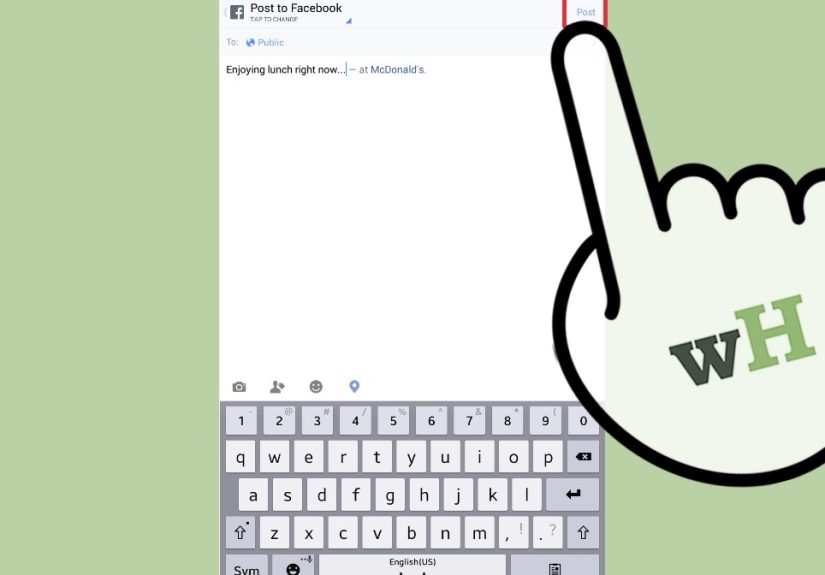
Tap the place you want. You should return to your post draft and see the location attached. On some versions of the
app, you’ll see the place name near the top of the composer or under your text.

Step 9: Choose your audience before you post
A gentle reminder: adding a location can make a post more revealing. Before you hit Post, set your audience
(Public/Friends/Only me/Custom). If you’re sharing a location from homeor somewhere you’d rather not announcetighten
the audience like you’re cinching a backpack strap before a long hike.

Step 10: Post it
When everything looks right, tap Post. Your update should publish with the location included.
Congratulationsyou’ve officially made your post more informative and more likely to trigger FOMO.

Step 11: Edit or remove the location later (if needed)
If you posted the wrong placeor you changed your mindFacebook typically lets you edit the post and adjust the location
or remove it. Look for the three-dot menu on the post, choose Edit post, then find the
location field and remove or change it.

Troubleshooting: Why You Can’t Add a Location (and How to Fix It)
Problem: The “Check In” option is missing
- Update the Facebook app. Missing options are often a version issue.
- Try switching post types. Some post formats show fewer tools; start a plain text post, then add media.
- Try desktop. If mobile is acting up, desktop may still display the check-in tool.
Problem: Facebook can’t find nearby places
Nearby suggestions usually depend on your device’s location settings and permissions. If location services are offor
Facebook isn’t allowed to use themyou can still search for the place name, but “near me” results might be less precise.
Fix: Check location permissions on iPhone or iPad
On iPhone/iPad, you’ll typically go to Settings → Privacy & Security → Location Services, then find
Facebook and choose an appropriate permission like “While Using the App.” If you want to reduce precision, iOS also
allows you to toggle “Precise Location” for supported apps.
Fix: Check location permissions on Android
Android lets you set app location permissions like “Allowed only while in use,” “Ask every time,” or “Not allowed.”
For better nearby suggestions, allow location while using the app. If your device supports it, “precise location” can
improve accuracy.
Problem: The location is wrong (or hilariously wrong)
- Search the exact business/venue name instead of a nickname (e.g., “Central Park” instead of “the big park”).
- Try adding the city (e.g., “Joe’s Pizza Chicago”).
- Turn on Wi-Fi if you’re indoorsmany devices use multiple signals to estimate location.
Privacy Tips: Think Before You Tag
Adding a location is useful, but it’s also a form of sharing personal data. A location tag can reveal patternswhere you
work out, where your kids’ events happen, or when you’re clearly not at home. If you’re posting in real time, consider
using a more general location (like a city) or posting later.
Simple safety habits that don’t kill the vibe
- Use a smaller audience for location-tagged posts (Friends or Custom).
- Delay posts if you’re traveling and don’t want to broadcast your current whereabouts.
- Review app permissions and keep location access limited to “while using.”
- Skip tagging routine stops (home, school drop-off, daily gym) unless your privacy settings are tight.
FAQ: Quick Answers About Facebook Location Tags
Can I add a location to an existing Facebook post?
Often, yes. If the post has an Edit post option, you can typically change or remove the location from
the editor. If you don’t see the option, it may be restricted by the post type, device, or Facebook UI version.
Can I add location on Facebook from a computer?
Yes. Desktop posting typically includes a Check In tool in the post composer. You can type the location
and select it from the dropdown list.
Does Facebook need GPS for me to tag a location?
Not always. GPS/location services help Facebook suggest nearby places and detect “current location,” but you can often
search for a place by name and select it manually.
Real-World Experiences: What Adding a Location on Facebook Is Actually Like (and Why It Sometimes Gets Weird)
Let’s be honest: the instructions are simple, but real life loves to add plot twists. Here are common experiences
people run into when they try to add a location to a Facebook postplus what usually fixes the problem.
1) “It worked yesterday. Today the Check In button is gone.”
This is the classic social media whiplash. Most of the time, the fix is boring (which is good): the app needs an update,
the composer is showing a “minimal” tool layout, or Facebook is rolling out a slightly different interface to your account.
People often find that starting a plain text post first (then adding photos later) makes the options appear again.
Another real-world pattern: users who manage multiple Pages sometimes think they’re posting to their personal profile,
but they’re actually posting as a Page. The tools can look different depending on where you’re posting from. If your
“Check In” option looks like it moved to a different menu, you’re not imagining itFacebook rearranges the furniture a lot.
2) “Facebook thinks I’m at the wrong place… by a lot.”
This usually happens indoors, in dense city areas, or in places with spotty signal. People report that Facebook suggests
nearby locations that aren’t actually nearbyor the “current location” feature points to something across town.
The practical workaround is to stop relying on auto-detection and search the place name directly, adding the city if needed.
If the mismatch is constant, users often discover that their phone’s location settings are limited (for example, “precise”
is off) or that location permissions are set to “never.” Switching to “while using” and turning on Wi-Fi can help your
device estimate location more accurately without granting blanket access forever.
3) “I can tag a city, but not a specific business.”
This is a surprisingly common experience. City-level locations tend to be easy to find, but specific venues can be
inconsistent. Sometimes the business name has multiple entries (old listing, new listing, slightly different spelling),
and it’s not obvious which one is “official.” People often fix this by searching the full name (including “Coffee,” “Bar,”
or “Hotel”), or by trying a different spelling.
If you’re posting about a small or new business, it may not appear immediately in Facebook’s place suggestions. In those
cases, users typically tag the broader area (city or neighborhood) and mention the business name in the textstill helpful,
just less clickable.
4) “I tagged a location, then immediately regretted it.”
You are not alone. People often add a location out of habit, then realize the post is set to Public, or that the location
reveals a routine. The good news: many users can edit the post and remove the location without deleting the whole thing.
The best habit is to check the audience selector before postingespecially for posts that include a home-adjacent
spot, a child’s activity, or a daily routine stop.
5) “I’m trying to be private, but I still want the ‘travel story’ vibe.”
This is where strategy beats settings. Many people who care about privacy still like documenting travel, concerts, or
great restaurantsthey just do it in a safer way. A popular approach is to post a location tag after leaving, use a more
general location (city instead of a specific venue), or create a “recap” post later. You still get the storytelling
benefits without broadcasting where you are in real time.
Bottom line: adding a location to a Facebook post is easyuntil it isn’t. When it gets weird, it’s usually permissions,
app versions, or a search-term issue. Once you know that, you can troubleshoot quickly and get back to the important work:
convincing your friends that your brunch was, in fact, life-changing.